


Stay Ahead With Linux Security Features
 security advisory attack
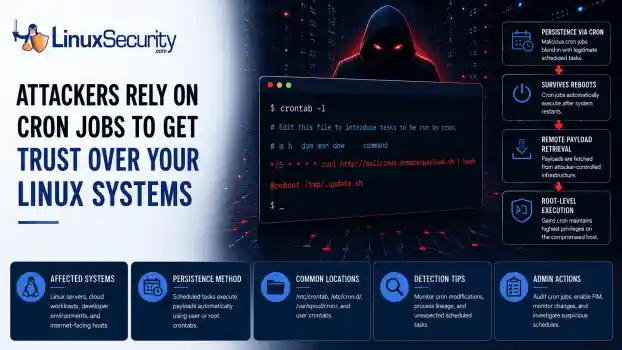
 A Linux server gets cleaned up after an intrusion. The suspicious process is terminated, credentials are rotated, and the system is rebooted during maintenance. Everything seems secure. A few hours later, the same outbound connection appears again. . Situations like that point to persistence . The attacker no longer needs the original exploit because something on the host continues restoring access behind the scenes. Finding that mechanism is often more important than understanding how the...
 Jun 08, 2026
 threat detection scalability
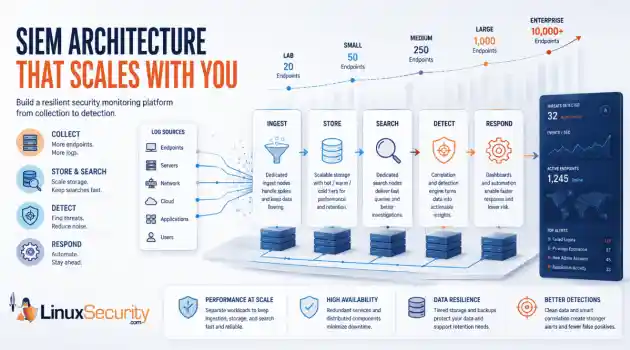
 Building a SIEM is easier than scaling one. Most open-source deployments start as a simple "all-in-one" server. It is easy to set up, but that design rarely survives the transition from a lab to a production workload. . A SIEM watching 20 endpoints is not doing the same job as one watching 500. More endpoints mean more logs; more logs require more storage; more storage makes search heavier. Eventually, the very architecture that made your lab easy to deploy becomes the reason your production...
Jun 04, 2026
 security advisory apache
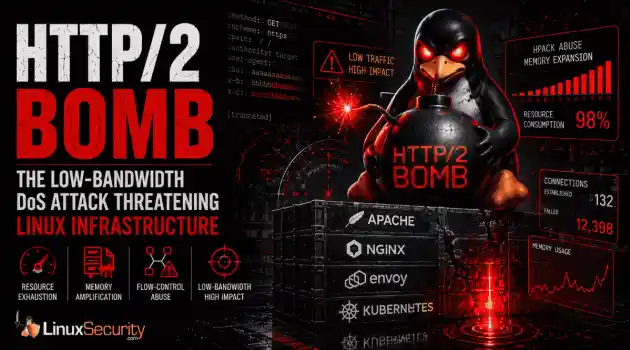
 A newly disclosed attack technique called HTTP/2 Bomb is drawing attention because it targets the software that sits at the front of much of the Linux internet. Apache HTTP Server, NGINX, Envoy, and the ingress layers that many Kubernetes environments depend on can be forced into consuming disproportionate amounts of memory using relatively small amounts of attacker traffic. . For Linux administrators, the concern is not the HTTP/2 protocol itself. It is the possibility that a single...
Jun 04, 2026
 security advisory important
 The compromise of Nx Console shows how much infrastructure now sits behind a single developer account. GitHub repositories, CI/CD pipelines, container build systems, Terraform projects, Kubernetes deployments. None of those systems was the initial target. The workstation was. . Attackers did not need a Linux privilege escalation bug or a remote code execution chain. They needed developers to trust a tool they were already using. For many organizations, that was enough. What Happened? Federal...
Jun 03, 2026
 security advisory open-source
 You remove the malware. You rotate the compromised credentials. You patch the original vulnerability and close the ticket. Two weeks later, the attacker is back. . What happened? You didn't lose the battle at the exploit; you lost it at the cleanup. In many modern Linux intrusions, the malware you found wasn't the main problem—it was the fallback mechanisms left behind. These hooks quietly restore attacker access the moment you look away. If you clean a host but miss these persistence layers,...
Jun 02, 2026
 Refine features
X Clear Filters
Get the latest News and Insights
Get the latest Linux and open source security news straight to your inbox.
Community Poll
What got you started with Linux?
Loading...
Explore Latest Linux Security features
We found -2 articles for you...
102
 data protectioncybersecuritysecurity techniques
Exploring Nmap Techniques for Better Network Protection
Cybercriminals implement scanning into their attacks to find network machines with open ports that they can utilize to bypass security and harm businesses and employees. Before launching an attack, threat actors run cloud security scanners like Linux Nmap that can sweep servers and find cybersecurity vulnerabilities to exploit. Once they identify a target, an intruder can use TCP stack fingerprinting to determine the type of machine they are breaching. . Organizations must work with the same tools that threat actors implement so employees can see what network security issues permit cybercriminals into a system. This article will discuss Nmap, how to utilize it in various privacy sandboxes, and how to prevent cloud security breaches from entering your server so you can improve your security posture. What is Nmap? Nmap is a free-to-download service under the GNU General Public License (GPL) that can analyze collected data regarding hosts and services within a network. We will focus on how to work with Nmap on the command line as we move forward. Let’s start with a few basic explanations and steps that can help with your understanding of this cloud security framework: Within the "nmap" command line, scans have an -s flag specifying their type. Select one of the scanner options and what host or network you want to target. You can scan one host or an entire network with the correct configurations. Providing a network address with "/mask" appended to it can help you learn more about your targets. Once you understand how Nmap functions, you can run root commands and custom packets that prove effective in your analysis. Specify networks with wildcards such as 192.168.7.*, 192.168.7.0/24, or 192.168.7.1,4,8-12 to scan selected hosts on a subnet. What Techniques Can I Use on Nmap to Find Cybersecurity Vulnerabilities on My Server? You must learn the various methods you can implement for testing your server so you can integrate security patching as best as possible tokeep your organization and employees secure. Here are some configurations you can utilize to strengthen data and network security: Ping Sweeping Intruders can sweep entire networks looking for targets with Nmap. This is usually done with a ping scan using the "-sP" flag. By default, Nmap will send an ICMP echo and a TCP ACK to each host it scans. Nmap will consider hosts that respond to either to be up. In this example, scan all hosts on the 192.168.7.0 network: # nmap -sP 192.168.7.0/24 Starting nmap V. 2.12 by Fyodor (
 Nov 27, 2023
•
Nov 27, 2023
•
102
 network securityfirewall testingnetwork scanning
Nmap Firewall Evasion Techniques Guide for Effective Security Testing
The primary goal of firewall penetration testing is to prevent unauthorized internet access to your organization's internal network, or check to make sure your security policy is doing what you think it's doing. In order to successfully test your organization's firewall, you must think like the adversary. Collecting intelligence on the network, such as operating system and firewall type, are important to know in order to proceed with the penetration test. . A firewall penetration test's success is determined by a number of factors. Making sure firewall policies and rules are properly configured can greatly limit the success of attacks and prevent the majority of unauthorized connection attempts. The first step in firewall penetration testing is to find the firewall. Nmap, a popular open-source tool for network discovery and auditing, can be used to accomplish this. This tutorial will demonstrate how nmap can be used for firewall penetration testing to evaluate and improve the security of your network. Detecting a Firewall Determine Firewall Rules Understanding firewall policies is the first step towards passing them. Firewall rules must be tested in a vigorous way to make sure they're protecting the internal systems the way we expect they are. Individual firewall subversion techniques each have a low probability of success, so admins should try as many different methods as possible. The attacker only needs to find one misconfiguration to succeed, while network defenders must close every hole. Nmap distinguishes between ports that are reachable but closed and those that are actively filtered as much as possible. To obtain a deeper grasp of the network, start with a standard SYN port scan and work your way up to more advanced techniques like ACK scans and IP ID sequencing. OS Detection Nmap can run scans to detect the operating system, version, and services on a single or numerous devices. When conducting network penetration testing, detection scans are important to the enumerationprocess. It's critical to know where susceptible devices are on the network so that they can be repaired or replaced before being attacked.Other tests that make use of the information obtained are enabled by OS detection. Run the following command to detect OS and Services nmap -A [Target IP] Note: This command returns much more information than shown, however, I decided that this was the most relevant. SYN Port Scanning In Nmap, a stealth scan, also known as a half-open scan, is one of the scanning methods that an intruder can use to get beyond the firewall and authentication systems. Furthermore, by employing this strategy, the scan is disguised as typical network traffic, obscuring the scan. The connection is not fully established since the attacker does not send the ACK packet to the victim system. This type of scan can be used to prevent transmission from being captured in the target network. nmap -sS -P0 [Target IP] ACK Probing The goal of this type of scan is to learn more about filter settings rather than the condition of the port. This form of scanning is rarely useful on its own, but when paired with SYN scanning, it provides a more full picture of the firewall rules. Whenever a TCP ACK segment is sent to a closed port or sent out-of-sync to a listening port, the device is expected to respond with a RST, according to RFC 793. Receiving RSTs in response to an ACK scan provides useful information to the attacker, which can be used to determine the firewall present. Out-of-sync ACK packets will be discarded by stateful firewalls, resulting in no response. The port is marked as filtered when this happens. For this scan, we will probe port 22: nmap -sA -p22 [Target IP] Firewall Evasion Decoy Scan Nmap can fake packets from other hosts in this type of scan. It will be far more difficult to tell which machine launched the scan because the firewall logs will include not just our IP address but also the IP addresses of the decoys. It'simportant to remember that the hosts you'll be using as decoys must be online for this method to work. Using a large number of decoys might also generate network congestion. When performing this type of scan, you have two options. nmap -D decoy1, decoy2, decoy3 etc. This option allows you to manually specify the IP addresses of the decoys nmap -D RND:3 [Target IP] This option generates a random number of decoys. In this example we use 3 decoys. Below is a screenshot from wireshark demonstrating the random IP addresses of the decoys: Fragment packets IP packet fragments cause problems for some packet filters. Firewalls could reassemble the packets on their own, but it would necessitate additional resources. It's also possible that fragments will take separate paths, making reassembly impossible. Because of this complication, some filters discard all pieces, while others pass all but the first. If the first fragment isn't long enough to carry the entire TCP header, or if the second packet partially overwrites it, unexpected events can occur. This technique was very effective a long time ago but is now obsolete against today’s firewalls. However, you can still use it against a firewall that is improperly configured. For this example we will target port 22: nmap -f -p22 [Target IP] Below is a screenshot from wireshark demonstrating the fragmented packets sent: Specifying MTU Nmap allows the user to specify a specified MTU (Maximum Transmission Unit) for a packet. This is comparable to the packet fragmentation process. During the scan, Nmap will create packets with a size based on the number that we give. The number must be a multiple of 8. In this example we use 16: nmap --mtu 16 [Target IP] MAC Address Spoofing Spoofing your host's MAC address is another way to get around firewall restrictions when running a port scan. This can be highly effective, especially if a MAC filtering rule is in place to allow only communication fromspecific MAC addresses, so you will need to find out which MAC address you need for this to work. Your scan will be more stealthy because your actual MAC address will not be visible in the firewall log files. The –spoof-mac option allows you to select a MAC address from a specified vendor, a random MAC address, or a specific MAC address of your own. Nmap -sT -Pn –spoof-mac [Vendor or Specified MAC] [Target IP] Source Port Manipulation A common error system admins make is trusting traffic only based on the source port number. DNS may be damaged in particular because UDP DNS responses from external servers can no longer reach the network. Another common example is FTP. The remote server tries to establish a connection with the client to send the requested file during active FTP transfers. Secure solutions are available to address these issues, however, administrators continue to make the mistake of allowing incoming traffic from DNS and FTP ports, without securing them. To exploit these flaws, Nmap provides the -g and —source-port options. Provide a port number, and Nmap will send packets from that port if it is available. For specific OS detection tests to operate effectively, Nmap must use distinct port numbers. Most TCP scans, including SYN scan, and UDP scans, fully support the option. nmap -g [Target IP] Conclusion Because firewalls are the first line of protection against outside incursions, firewall testing is one of the most critical types of network tests that can be performed. Many of these techniques may not work on a network with properly configured IDS and firewalls. Because each scenario is unique, you must determine which option will work best for you. After testing, you should go through the policies and rules ensuring that they are properly configured. This can greatly limit the success of attacks and prevent the majority of unauthorized connection attempts. More tests should be done after this to confirm the expected configurations. Once policieshave been properly configured, you should make a report. It's just as crucial to document everything as it is to perform the test. Instead of waiting until the end of the test, add all important facts and tools as you go through the procedure. This will save time and confusion when it is time to make a report. . A firewall penetration test's success is determined by a number of factors. Making sure firewall pol. primary, firewall, penetration, testing, prevent, unauthorized, internet. . James Bogert
Mar 07, 2022
•

102
 security assessmentvulnerability scannerNessus
Nessus Installation and Configuration Guide for Linux Users
Nessus is a vulnerability scanner which performs scanning a target network to seek for vulnerabilities in the network, such as, software bugs, backdoors, and etc. The program is developed by Renaud Deraison. . Introduction In this article, we will describe the basics of installing and using Nessus. Nessus operates as a client and server system. The server can run on the Unix operating system platform, including Linux and Open BSD, whereas the client can run on various operating systems, e.g., Windows. In this article, we will show the installation and usage for both the client and server on Linux. Nessus installation Download the Nessus source distribution from web site https://www.tenable.com/ under the topic Download and follow the instructions below. There are three ways for installation. Select either way and follow. Install Nessus via Internet using the program Lynx. (Lynx is a web browser program which can be downloaded from Use the following command to install: #lynx -source | sh Install Nessus using the script called nessus-installer.sh which is located under the directory nessus-installer/. Use the following command: #sh nessus-installer.sh Download the compilation software package consisting of: nessus-libraries-x.x.tar.gz libnasl-x.x.tar.gz nessus-core.x.x.tar.gz nessus-plugins.x.x.tar.gz (x represents the version of the software at the time.) Untar and unzip all the files above using the command. #tar xvfz nessus-libraries-x.x.tar.gz #tar xvfz libnasl-x.x.tar.gz #tar xvfz nessus-core.x.x.tar.gz #tar xvfz nessus-plugins.x.x.tar.gz Compile each file starting from nessus-libraries as follows: #cd nessus-libraries #./configure #make #make install (For the last command, make install, you must be root to do so.) Compile libnasl: #cd libnasl #./configure #make #make install (For the last command, make install, you must be root to do so.) Compile nessus-core: #cdnessus-core #./configure #make #make install (For the last command, make install, you must be root to do so.) Compile nessus-plugins: #cd nessus-plugins #./configure #make #make install After all compilation has been done, there are two important files created, i.e., nessusd which is Nessus' server and nessus which is its client. In case of using Linux, add path /usr/local/lib to the file /etc/ld.so.conf to incorporate Nessus' library (as compiled above) so that Nessus when started will be able to find its library. Use the following command to update the new path. #echo "/usr/local/lib" > > /etc/ld.so.conf #ldconfig Nessus usage To use Nessus, there are two things one has to do. The first is to create a new user account, together with specifying his/her access privilege. The second is configuring Nessus' client. 1. New user account creation and access privilege Use the script nessus-adduser located in /usr/local/sbin to generate a new account for a user. The user will login to use Nessus via this account. Fig. 1. New user account creation. In Figure 1, specify a new user name, in which case joey is the user name as shown in Figure 2. Fig. 2. Selecting the method to keep a password. In Figure 2, select the method to keep the password (joey's password) on the server. Select plaintext if the password is to be kept as it is. Select cipher if the password is to be kept encrypted. Let us call account joey 'login-name' in Nessus and call account root on Linux 'user-name'. This is just to make calling the two names different. Fig. 3. Connection privilege. In Figure 3, the system administrator can assign a privilege to allow which part of network joey can connect or can login to. For example, the administrator can assign only the IP address which is joey's machine or a subnet like 192.168.1.0/24. In the figure, the default value is anywhere which means joey can connect from anywhere. Fig. 4 Specifyingone-time password. Figure 4 shows assigning the password for account joey. This password is requested by the server but is asked only once. That is, the first time joey logins to use Nessus and the next time onwards the server will no longer ask for this password. Therefore, this is the reason why we call this password one-time password. In logging in to use Nessus, it is necessary to supply a passphrase which is another, not the one-time password. After the passphrase supplied, if this is the first time login, Nessus will ask the user to provide his/her one-time password. If not, Nessus will just let the user pass as long as the passphrase is correct. Fig. 5. Network scan privilege allowed to joey. Figure 5 is specifying the network scan privilege allowed to joey. That is, which part of network can joey scan? For example, we may allow joey to scan only an IP address or a subnet. When done, press Ctrl-D to finish the process. If the privilege is not specified, joey is then allowed to scan everywhere in the network. See more details about the privilege specification in the manual pages nessus-adduser. Fig. 6. Confirmation for data item correctness. In Figure 6, Nessus will ask for confirmation for correctness of all the data items given above. Fig. 7. Add-user process completed. If y (yes), the new user joey is added to the system and the screen will show 'user-added' message which means the process has been completed as shown in Figure 7. nessusd has the configuration file /usr/local/etc/nessusd.conf for the system administrator to fine-tune the server via this file. We can use the command nessusd –s in Figure 8 to show up all configuration values on screen. Fig. 8. Configuration values for server nessusd. After checking all the values already, we are now ready to start nessusd. To do so, we must login on Linux as root. The command to start the server is shown in Figure 9. Fig. 9. Starting server nessusd To check ifthe server is running, use the command like in Figure 10. Fig.10. Checking the opearation of nessusd server. 2. Nessus client configuration The client program client nessus is located in /usr/local/bin/nessus. Use the follwing command to start the client. Fig.11. Starting the client program nessus. The symbol & in the figure is starting the program in background mode. Note that the user who starts the client program uses 'user-name' snort on Linux. Fig. 12. Specifying a passphrase. In Figure 12, when a user starts the nessus client program the first time, Nessus creates a private key for the user according to 'user-name' on Linux, snort in this case. That is, one 'user-name' on Linux matches one unique private key, which is one-to-one relationship. Having created the private key already, Nessus will ask the user to enter a passphrase for the key just created. The user must keep it secret. The second line in the figure is confirmation for the passphrase. Fig. 13. Nessus login window. This is the login window. Before logging in to use Nessus with an account (joey in the figure), the user needs to supply the IP address where nessusd is running, nessusd's port, and encryption method used in communicating between a client and the server. In the figure, nessusd server is running at address 192.168.176.210 at port 1241 (which is Nessus' default port) and twofish/ripemd160:3 as the encryption method. Note that 'login-name' in Nessus is Fig 13 is joey whereas 'user-name' on Linux is snort. If this is the first time joey logs in to use Nessus, the server will ask joey to supply his/her one-time password (as given in Figure 4). With the correct password, the server will bind 'login-name' joey with the private key of 'user-name' snort on Linux. This means 'login-name' joey won't be able to login to use Nessus under other 'user-name's, except 'user-name' snort. For subsequent logins of joey (not the first time login) to use Nessus, the server will askfor his/her passphrase (for the private key) only but will no longer ask for his/her one-time password. However, one 'user-name' on Linux can have many 'login-name's in Nessus, e.g., apart from joey for 'user-name' snort, there can be other 'login-name's for snort whose network scan privileges can be different. Fig. 14. One-time password window. In Figure 14, after entering joey as 'login-name', the server will ask joey for his/her one-time password (which was selected at the time 'login-name' joey was created by nessus-adduser). Fig. 15. Plugin selection window. After login, Nessus will start at the plugin selection window. The user can select the plugins that s/he wants by enabling or disabling the little squares on the right hand side. The lower window shows various choices of a plugin that the user can enable or disable. In the figure, the user is on the FTP plugin where s/he can further select various FTP vulnerabilities to scan for. Fig. 16. Further details for the vulnerability: Anonymous FTP Enabled. In Figure 15, when the user clicks on the vulnerability Anonymous FTP Enabled in the lower window, the system shows additional details for this vulnerability, which describes that if the organisation doesn't need to share information with others, then turn off the anonymous FTP. Fig. 17. Plugin preference window. In this window, the user can configure additional options for the plugins selected. For example, in pinging machines in a network, the user can ping using the TCP or ICMP protocol. Fig. 18. Scan options window. In this window, the user can specify the scan details, e.g., ports to scan (in the figure from port 1-15,000), the number of simultaneous scans (8 scans in the figure), the location for CGI scripts. Typically port scanning in Nessus is done through another program called nmap. Fig. 19. Target selection window. In this window, the user can select a target machine or a subnet to scan forvulnerabilities. In the figure a subnet 192.168.176.0/24 is to be scanned. Use a comma ',' to separate between targets to scan. The user can also check if a machine with DNS can be zone-transferred by selecting a button 'Perform a DNS zone transfer'. (For security reasons, zone information is allowed to transfer only by the machine with access privilege.) Fig. 20. User window. The user can change his/her passphrase to get in Nessus or even remove the private key and also specify additional network scan privileges using the Add-rule button. Fig. 21. Credits window. This window shows all the Nessus developers, the current version, and its web site to find more information about Nessus. Fig. 22.1. Simultaneous scan status. Fig. 22.2. A single-machine scan status. After checking all the windows' setting, the user can now start scanning the target network as specified in the target selection window by clicking the button 'Start the scan' at the bottom of the window. Figure 22.1 shows the status of scanning a subnet whereas Figure 22.2 shows scanning a single machine. At any time, the user can stop scanning an individual machine if desired by clicking 'Stop' to the right hand side or even stop all the scans completely by clicking 'Stop the whole test'. Fig. 23. The scan result on machine 192.168.176.130. This figure shows the result of scanning the machine 192.168.176.130. The left window shows security alerts about the vulnerabilities found. For the right window, when clicking on each little circle, the user will get more details about the vulnerability. Fig. 24. Security risk piechart. Figure 24 displays the result of scanning the machine 192.168.176.130 on Web. After scanning a machine, Nessus produces a file index.html which can be displayed on Web, just like the one for the machine 192.168.176.130. The piechart shows in percent the four categories of security risks, Low, Medium, High, and Serious. This showsthe level of security problems found in the network which potentially leads to seeking ways to cure these problems. Plugins Plugins are the heart of Nessus because they contain a set of scripts to check vulnerabilities in a network, e.g., backdoors, DoS, wide-open ports, etc. These scripts are written in the language called NASL (Nessus Attack Scripting Language) and can be found in /usr/local/lib/nessus/plugin. The user can also develop their own scripts by studying this language from Documentation | Tenable™ . Furthermore, more new scripts to test our network can be found in /plugins . Discover the steps to set up and utilize OpenVAS, an advanced application for network analysis and risk assessment.. Nessus Installation, Network Audit Tool, Security Scanning, Nessus Setup. . Brittany Day
Jun 07, 2002
•

Get the latest News and Insights
Get the latest Linux and open source security news straight to your inbox.
Community Poll
What got you started with Linux?
Search Topics
Powered By

Linux Security - Your source for Top Linux News, Advisories, HOWTOs and Feature Releases
QUICK LINKS
subscribe to newsletters!
Like staying secure? So do we.
Sign up for updates, tips, and alerts!
Discover faster search, smarter navigation, and deeper Linux security insights. Read More