Explore top 10 tips to secure your open-source projects now. Read More
×



Server Security data privacy automation
data privacy automation Every system admin has lived through the same Monday morning ritual. A queue of forty tickets, half of them password resets, permission errors, or disk space warnings that any experienced technician could resolve in under two minutes. The other half require actual judgment. For years, automation promised that software would eventually sort the two apart on its own. That promise is now being tested in production Linux environments. . Early results are reshaping how IT teams think about tier-1...
 Jul 17, 2026

Privacydata collection automation
data collection automation You're running a web scraping project to collect pricing data from e-commerce sites. You set up a pool of datacenter proxies, launch your scripts, and within minutes — banned . CAPTCHAs everywhere. Your data pipeline stops before it really begins. . It's a frustrating scenario that plays out daily in ad verification, market research, and multi-account management. The website doesn't know you're doing legitimate research or monitoring. It just sees traffic coming from IP ranges it recognizes as...
Jul 17, 2026

Security Trends security advisory social engineering
security advisory social engineering Business Email Compromise used to be a numbers game — mass-blasted emails, broken English, an obvious "URGENT WIRE TRANSFER" subject line. That era is over. Generative AI has turned BEC into a tailored, low-noise operation that mimics writing style, voice, and even video presence. This piece looks at what's actually changed under the hood, what defenders are testing in response, and why so many organizations are still structurally unprepared for it. . The Infrastructure Problem Nobody Wants to...
Jul 17, 2026

Security Trends cybersecurity Linux documentation
cybersecurity Linux documentation Linux operating systems have gained prominence due to their stability, adaptability, and excellent security options. In the case of developing documentation, designing cybersecurity dashboards, or educational material, visuals are of vital importance when it comes to making things clear. The use of icons allows one to understand the message regarding alerts, authorization, encryption, authentication, or the state of the system just by looking at the visual cue without having to read long...
Jul 17, 2026
Security Vulnerabilities security advisory linux distribution
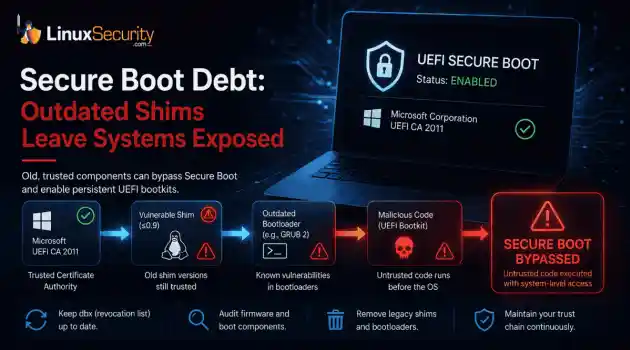
security advisory linux distribution ESET researchers identified 11 old and forgotten Linux UEFI shim bootloaders at versions 0.9 and below that can be used to bypass UEFI Secure Boot on any UEFI-based machine that trusts Microsoft’s Microsoft Corporation UEFI CA 2011 third-party certificate authority, regardless of the installed operating system (OS). Reported shims can be exploited to execute untrusted code during system boot, enabling attackers to deploy malicious UEFI bootkits even on systems with UEFI Secure Boot enabled.....
Jul 16, 2026
 Refine news
X Clear Filters
Get the latest News and Insights
Get the latest Linux and open source security news straight to your inbox.
Community Poll
Is continuous patching actually viable?
Trending News
Loading...
Explore Latest Linux Security news
We found 62 articles for you...
215
 network securitysystem hardeningbrowser security
Defending the Open Source Desktop: Advanced Cybersecurity Strategies for Linux
There was a time when Linux meant server rooms and hobbyist forums. These days it's on regular laptops, and a big part of that is people getting fed up with commercial operating systems scraping their data, shipping telemetry nobody asked for, and boxing them into hardware ecosystems they can't opt out of. . None of that makes Linux immune to trouble though. Yes, it dodges most of the mainstream malware that everyone else deals with. But the software running on top, and honestly the person sitting at the keyboard, are still very exploitable. Actual security isn't a box you check once during setup. It's ongoing and includes hardening the system, keeping an eye on the network, patching the apps you rely on every day, all of it. The Browser Is Where Most Trouble Starts Most of a person's screen time occurs in a browser. It's the door between your machine and everything else, and it's also carrying your bank sessions, your login tokens, and your personal DMs. That combination makes it the obvious target. People use extensions for one-off tasks and then just leave them there. Forgotten, still running, still able to touch things in the background. It’s worth building the habit of going through what's installed every so often and figuring out how to remove browser extensions that aren't earning their keep anymore. Fewer extensions means less surface area, and it means a single compromised update can't plant something on your machine. A lean browser is faster too, sure, but the real payoff is that there's less room for something to sit there unnoticed, shipping your data out the back door. What's Actually Driving People to Switch? The move to open source isn't a trend. It's people wanting their machine back. There are plenty of pieces out there on quitting Windows and trying Linux , and they all circle the same complaint, which includes forced updates and data terms nobody agreed to. Once you're on Linux, you're the one deciding what runs and what phones home, so to speak. Thatcontrol is the whole foundation of everything else you do to lock the system down. It's not free though. No one's patching behind your back or babysitting your firewall. That's on you now and includes permissions, updates, all the calls that used to be automatic. Keeping Tabs on Your Own Network Securing one machine only gets you halfway. You need some visibility into what's moving across the network too, because that's usually where things actually go wrong. Attackers don't usually go after the hardened box first. They'll find whatever's weakest, some IoT gadget or an old phone nobody's updated in ages, and use that as a stepping stone toward something worth taking. That's the argument for internal visibility tools. Running something like Suricata east-west traffic monitoring means you can actually watch what's passing between devices you'd otherwise just assume are fine. Catch the traffic that looks wrong early, and you can quarantine the problem before it spreads to anything that matters. Locking Down Remote Access Opening SSH to the outside world raises the stakes quite a bit. That port gets hammered by bots around the clock, all of them just guessing passwords and hoping for better outcomes. A good password isn't nothing, but it's not enough on its own either. Get in the habit of pulling your logs, and once you know how to understand failed authentication patterns in Linux logs , you can tell a typo from a script chewing through a password list. From there you can set up rules that ban the bad actors automatically, before they get anywhere close to getting in. The Job Never Really Finishes Honestly, there's no final state here. Threats change, the tricks that work now won't work forever, and Linux being what it is only gets you so far without the habits behind it. Staying on top of your extensions, watching the network, actually reading the logs- that's what turns a fine setup into a hard one to crack. It takes effort, but what you get back is real ownership ofthe machine and a lot less to lose sleep over. That's really the whole point of open source anyway. Not just a different way of doing things, but one where you're actually the one in charge. . Explore advanced strategies for enhancing security on Linux desktops, including browser management, network visibility, and SSH hardening.. Linux security strategies, open source desktop, browser extension management, network visibility tools, SSH access security. . Anthony Pell
 Jul 13, 2026
•
Jul 13, 2026
• Desktop Security
215
 security advisorydata protectionopen-source
Linux Desktop Adoption Surges to 5% with Security Gaps Identified
Linux just cleared 5% of the U.S. desktop market, based on recent Linux adoption statistics. That’s small in absolute terms but meaningful if you’ve watched the curve over the years. Linux used to sit in racks and lab machines — out of sight, mostly stable, rarely targeted. Now it’s on more workstations, inside environments that weren’t built with it in mind. . That change raises a real question. As adoption grows, are we tracking the risk that comes with it? We’re entering a new era for Linux security as desktop use expands, and the monitoring gap is obvious. The attack surface keeps spreading while most frameworks still assume the desktop is someone else’s problem. It’s not just another market-share bump. It’s a shift in how exposure looks on a normal network — one that blurs what used to be a clean line between server and endpoint. Next, we step back and look at what’s happening across the broader landscape that’s feeding this shift. Ransomware in Trends 2025 and How Linux Systems Became a Target Ransomware is still driving most large incidents in 2025. It moves easily between Windows, Linux, and cloud workloads because the tooling has matured to that point. Crews don’t rebuild for each platform anymore. They reuse the same encryption methods, the same persistence scripts, just compiled for different targets. That overlap is why Linux security now sits inside the same threat picture as everything else, not apart from it. We’re seeing that play out in the data. Ransomware’s New Frontier: Linux Systems Face Intensifying Attacks Ransomware’s New Frontier: Linux Systems Face Intensifying Attacks (2025) documents how groups like LockBit, Royal, and BlackCat maintain dedicated Linux ransomware payloads. These aren’t test runs; they’re built into active ransomware operations. Operators deploy them against hypervisors, file servers, and storage nodes to hit the core of virtualized infrastructure. It’s efficient: compromise one management layer,encrypt hundreds of systems below it. That kind of reach explains why attackers keep investing in Linux tooling. The same payloads that lock storage arrays also run on bare-metal servers, and with small changes, they can reach developer workstations too. StatCounter’s June 2025 data shows Linux crossing 5% of the U.S. desktop market, enough to make those endpoints visible to groups that already know the environment. They don’t have to pivot far to start targeting them. The same groups running ransomware on servers now include developer and user systems in scope. Linux shows up in daily work, not just in back-end infrastructure, and that shift changes how exposure looks inside real environments. To see what that means in practice, we can look at the limited evidence available on Linux desktop attacks. What We Know About Linux Desktop Attacks Ransomware on Linux servers is well-documented. What’s still unclear is how often those attacks reach desktops. The evidence is there, but scattered. Most of what we know about Linux malware on endpoints comes from isolated investigations, not consistent telemetry, which leaves a gap in how Linux security is tracked and understood. Research presented at DFRWS 2025 took one of the few direct looks at this problem. The team analyzed confirmed intrusions where attackers used purpose-built Linux malware to collect data from desktop environments. These weren’t proof-of-concept samples — they were operational tools found during live investigations. Findings from that work and other field data show a few consistent points: Linux desktop infections tend to focus on espionage or data theft, not encryption. Samples are limited, and no dataset tracks how widespread they are. Researchers describe the field as “largely unexamined.” There’s proof of capability, but no reliable measure of scale. That lack of scope is the real issue. We can confirm incidents, but we can’t see the trend line behind them. For Linux desktop security,that means detection and defense still depend on anecdotal evidence rather than sustained visibility — a gap that shapes how every response team approaches the platform. More Linux Users but Less Visibility in Desktop Security Linux keeps spreading into daily work, but the visibility hasn’t followed. There’s still no dataset that tracks what happens on Linux desktops. Most of what gets collected comes from servers or managed enterprise systems — the parts already wired for reporting. Everything else sits off the grid. That’s what happens when a platform grows faster than the tools watching it. The security stack built around Linux started in data centers, not on personal machines. The same focus is carried forward. Endpoint agents, SIEM connectors, and even the open-source telemetry feeds all center on infrastructure. So when Linux showed up on developer laptops and office machines, it slipped past the coverage meant to protect it. You can see the effect in how incidents get logged. Server breaches flow into shared datasets. Desktop compromises rarely do. They get handled quietly, or not at all. The end result is a version of Linux security that looks stable because it’s missing half the picture. The DFRWS 2025 research cracked that open a little. Investigators found working Linux malware running on desktops — not concept code, but live tools built for espionage and data collection. The numbers were small, and that’s the problem. Proof exists, but it doesn’t scale. The researchers called the field “largely unexamined,” which still fits. That’s the pattern repeating underneath the growth curve. More users, same blind spots. Linux adoption rises every quarter, but the visibility line stays flat. We can count installs, not compromises. And that’s the part that keeps slipping behind. Why Enterprise Linux Endpoint Protection Falls Short for Desktops The irony is that Linux already has strong defenses — just not where they’re needed most. Enterprise systemsrun on hardened builds with strict policies baked in. Kernel integrity checks, audit logging, mandatory access control, and least-privilege enforcement — the layers are there, and they work when maintained. It’s the same base operating system, but a completely different level of attention. At the enterprise level, those defenses form a complete Linux hardening guide. The model typically includes: Kernel integrity validation: verify modules, restrict unsigned code, monitor for tampering. Access control enforcement: Use SELinux or AppArmor in enforcing mode. Audit and logging: collect detailed activity records and feed them into centralized systems. Privilege management: limit administrative rights and require escalation for high-risk actions. Every one of these controls assumes managed devices, centralized oversight, and staff to keep them current. Desktops sit outside that framework. A personal or developer machine might share the same kernel, but it runs without policy enforcement or continuous monitoring. Logs stay local, updates depend on habit, and privilege boundaries loosen over time. The protections aren’t missing — they’re dormant. That’s the divide taking shape as adoption spreads. Enterprise Linux endpoint protection has matured into a dependable model for systems under management, but its reach ends there. Desktops carry the same attack surface without the structure that keeps those defenses alive. Why Linux Adoption Is Rising and How It Impacts Open Source Security Linux is growing because it finally feels finished. The installation is simple, drivers load automatically, and updates happen quietly in the background. It behaves like any other desktop now, which is why the Linux adoption statistics keep moving up. What changed wasn’t marketing — it was standardization. Flatpak, Snap, and other packaging systems made applications portable across distributions. Interfaces stopped fighting for defaults, and hardware vendors couldsupport one consistent target instead of ten. The work described in Linux for Everyone showed how these shared standards lowered the entry bar for everyone, not just experienced users. That ease brought new faces with different habits. Admins and developers aren’t the only users anymore. It’s students, contractors, small offices — people who treat Linux like a normal workstation. They install what they need, skip updates, reuse passwords, and download software from wherever it’s convenient. Simplification drew them in; it also added new human-factor risks that Linux security hasn’t adapted to yet. That’s where planning has to change. The controls built for enterprise systems don’t reach this broader base. We need lighter, automatic protections and better guidance for people who won’t configure their own defenses. Open-source security depends on collective upkeep, but the crowd has changed. The code stayed resilient; the users didn’t get the same training. Linux adoption will keep rising. The question now is whether Linux security — and the education that supports it — can scale fast enough to match the growth. How the Linux Community Can Close the Desktop Security Gap We can see where this is heading. Linux use keeps climbing. Ransomware crews are already built for it, and desktop compromises surface even if most never reach shared data. The defenses exist in the enterprise but rarely reach the systems people actually use. Standardization made Linux easier to run and also made the weak spots easier to miss. What’s missing is connection. We can track adoption, but not what follows it. There’s no shared dataset linking growth to attacks, no baseline that shows where pressure really sits. The quiet isn’t safety; it’s what happens when visibility stops halfway through the stack. Closing that gap takes the same kind of work that built Linux in the first place: Share what’s found. Desktop incidents stay buried in local logs. The community needs to seethem to learn from them. Study what’s changing. Researchers, vendors, and analysts should map Linux security beyond infrastructure—the desktops, the edge cases, the missed updates. Watch what’s normal. Extend telemetry from servers to endpoints. Even light monitoring helps show how Linux security holds up in daily use. Teach what’s missing. New users aren’t experts. They need clear defaults and reminders that openness cuts both ways. The pieces are already here. Tools. People. The habits that keep open-source security alive. They just haven’t been lined up to cover the desktop yet. Extending that focus from kernel to user space isn’t new work—it’s the next part of the same job. . As Linux adoption rises to 5%, the security gap widens. Explore the risks and strategies to enhance desktop security.. Linux desktop, ransomware risks, open source security, security gap, endpoint protection. . MaK Ulac
Nov 10, 2025
•
Desktop Security

215
 security advisorysystem hardeningGNOME
GNOME 50: Wayland-Only Brings Enhanced Security and Isolation
GNOME 50 finally drops X11 for good. Jordan Petridis called it on the GNOME blog, and the change landed with Mutter’s merge request !4505. That’s the code that removes the last X11 session logic. Years of slow migration work wrapped in a single commit that basically says, we’re done here. . If you’ve been around Linux long enough, you know why this matters. X11 was clever but way too trusting. Any app could read input, log keystrokes, or peek at another window’s display. That kind of openness made sense decades ago when everything was local. Not now. Wayland security shuts that down completely — no cross-process snooping, no shared input, no guessing what another app’s drawing. With GNOME 50, Wayland isn’t optional anymore. It’s the only path forward, and that’s a good thing. The old X11 backend was holding back real progress on Linux security. Cutting it loose doesn’t just reduce code; it removes an attack surface we’ve all tolerated for too long. This release finally closes that loop. Why GNOME Dropped X11 for Stronger Wayland Security X11 was built for a different time. Back in the ’80s, it made sense to let every client see everything — input events, windows, even the framebuffer if you wanted. It was simple, flexible, and wide open. That openness stuck around long after it stopped being safe. Under X11, every app shares the same event space, which means any process can log keystrokes or grab screen data from another. It’s why we’ve seen so many longstanding security flaws in the X11 display server over the years. GNOME’s been backing away from that model for a while. The X11 session was disabled by default in GNOME 49, mostly to test how far Wayland had come. Now, with GNOME 50, it’s gone completely — confirmed in GNOME’s official announcement on removing the X11 session . The project’s been clear about why: better isolation, cleaner code, and a chance to harden the desktop the right way. Wayland security flips the architecture.Each client runs in its own sandbox, and only the compositor knows what’s happening across sessions. No shared event queue, no silent input grabs, no apps pretending to be each other. That’s real system hardening, not another layer of permissions on top of a broken base. This shift in GNOME 50 isn’t just a desktop update; it’s part of a broader cleanup across Linux security. Cutting out X11 means cutting out decades of inherited risk and replacing it with a model that actually respects process boundaries. Took long enough, but it’s progress that sticks. Wayland Security Implications and System Hardening Benefits Wayland security changes how trust works on the desktop. Each app runs in its own box and can’t poke at anything else. No shared input, no shared buffers, no global event feed. It’s a cleaner setup that fixes problems we’ve lived with since X11. You can already see this approach in recent Wayland security updates in enterprise Linux distributions . The idea’s simple: real system hardening starts where the display stack stops getting in the way. Input Isolation and Keylogging Prevention in Wayland Wayland keeps input local. Apps only get the keys and clicks meant for their own windows. That’s it. Under X11, everything shared one input space, which made passive keylogging trivial. Any process could sit in the background and read what you typed. Now those signals stay behind the compositor. Nothing leaks unless the compositor allows it. It’s a small change that closes a huge hole. Credentials, tokens, and other sensitive data don’t wander between processes anymore. That’s a solid win for Linux security without adding more moving parts. Screen Capture and Remote Access Under Wayland Security Screen capture under Wayland runs through the xdg-desktop-portal service instead of direct framebuffer access. The flow looks like this: The application sends a D-Bus request to org.freedesktop.portal.ScreenCast is asking to capture a display or window. Thecompositor, through the portal backend, shows a prompt so the user can pick which screen or window to share and whether to allow it. Once approved, a PipeWire stream starts between the compositor and the application. The app only receives the specific region or surface that was granted. When the session ends or permissions are revoked, the compositor closes the stream. The app can’t restart recording without sending a new request and showing another prompt. This replaces the old X11 model, where any client could quietly grab the framebuffer or spy on other windows. Control now sits with the compositor and portal layer, not the application. That shift cuts off one of the easiest paths for screen capture abuse and puts real permission enforcement inside the display stack itself. Process Isolation and Security Hardening in the Linux Desktop The compositor is the gatekeeper. Apps talk to it, not to each other. That design fits cleanly with SELinux and AppArmor rules, extending system hardening straight through the desktop session. It also stops lateral movement. A compromised process can’t start poking around the rest of the session. Flatpak’s sandboxing plays right into this, keeping apps boxed in while the compositor keeps boundaries tight. This is how Linux security should work — not bolted on after the fact, but built into how the system runs. Quiet, predictable, and much harder to break. Transition Risks and Testing Priorities for Linux Security Teams The shift to Wayland brings stronger isolation but also breaks some habits. Tools built for X11 expect open access that no longer exists. Accessibility software, remote desktop tools, and automation utilities are the first to feel it. XWayland stays in place for now, keeping older apps running but still tied to old flaws. It’s a bridge, not a fix. The ongoing XWayland vulnerability advisories make that clear. Even with GNOME 50 cutting X11, that layer keeps part of the legacy risk alive. Treat it as a short-term patch,not a secure component. Linux security teams should focus on validation and regression testing under Wayland security before full deployment: Test critical tools and policies: Verify that GUI security hardening utilities still enforce access rules under Wayland. Check the behavior of accessibility tools, automation scripts, and remote desktop clients using legacy X11 APIs. Validate user-facing controls: Confirm permission prompts for screen capture and sharing work as expected. Test clipboard control between sandboxed and non-sandboxed apps. Review how sandbox policies interact with compositor-managed sessions. Run regression testing for hardened environments: Ensure workstation builds and enterprise images meet existing security hardening baselines. Validate audit logging, lock screens, and session isolation. Track differences in SELinux/AppArmor enforcement around display-level permissions. Keep documentation current: Update internal security playbooks to reflect the Wayland model. Flag any tools that still depend on XWayland for future migration. These checks aren’t optional. They close the gap between theory and deployment. Done right, they keep system hardening consistent across desktop environments and reinforce Linux security where it matters most — at the layer users actually touch. Why GNOME 50 Matters for Linux Security and System Hardening GNOME 50 isn’t about polish. It’s about tightening control of how the desktop handles access and process boundaries. The new Wayland stack strips out old code that never respected isolation in the first place. It’s a cleaner foundation that finally lines up with how the rest of Linux already secures itself. Improvement Area Security Impact Input event isolation Prevents keylogging and input injection Screen capture mediation Adds user consent and visibility controls Compositorprocess separation Supports SELinux/AppArmor system hardening Reduced shared memory access Minimizes privilege escalation paths Legacy XWayland sandbox Transitional layer, not full isolation Each of these changes fixes something that X11 couldn’t. Input isolation stops background keylogging. Screen capture mediation forces user approval before anything records or shares the screen. The compositor now runs separately from applications, which fits neatly with SELinux and AppArmor for stronger system hardening. Cutting shared memory access reduces the chance of privilege jumps. XWayland is still around for older apps, but it’s just a bridge until everything runs natively on Wayland. Risk Reduction and Long-Term Hardening Removing X11 closes a lot of old attack paths. There’s no more global input snooping or blind screen access. Each process only sees what it owns, and anything else has to go through the compositor. That simple shift wipes out years of inherited risk. For Linux security teams, this makes the desktop easier to trust. Input, display, and process isolation now follow the same rules that already exist in hardened systems. The boundaries are consistent and predictable. That’s what system hardening looks like when it’s done right. The NIST checklist for RHEL 8 secure configuration follows the same logic. Least privilege, separation of duties, and reduced attack surface. GNOME 50 now meets those principles by design instead of workarounds. XWayland still carries some of the old exposure, but it’s temporary. Once legacy apps move over, that layer can go too. The direction’s clear enough. This is the desktop catching up with the rest of Linux security — contained, deliberate, and built to hold up over time. . GNOME 50 transitions to Wayland-only, enhancing Linux security by eliminating X11 vulnerabilities and improving isolation.. Wayland security, GNOME 50, Linux isolation, system hardening. . MaK Ulac
Nov 07, 2025
•
Desktop Security
215
 data protectionnetwork hardeninglinux configuration
Linux Kiosk Security Guide: Best Practices for Management and Safety
Linux kiosks are everywhere, even if you don’t notice them. A ticketing station at the airport. A self-checkout line at the grocery store. A touchscreen on the factory floor. They make daily tasks easier, but the same accessibility that helps users also creates risk. . A kiosk is often exposed, unattended, and running in public. If it’s misconfigured, it doesn’t take much for an attacker to turn convenience into an entry point. That’s why Linux kiosk mode has to be more than functional — it has to be secure. Linux is a common choice for kiosks because it’s stable and adaptable, and because the open-source ecosystem gives teams more control than most platforms. That same freedom is the challenge. Every build is different, and security depends on the people setting it up. A Linux kiosk has to be thought through, not just installed and left alone. Why kiosk security matters? It’s easy to underestimate kiosks. After all, they’re just terminals running a few applications, right? Not quite. Kiosks often handle sensitive information. Such as customer details, login credentials, payment information, or industrial data. If a kiosk is compromised, the consequences can be serious: Unauthorized access to sensitive data Malware infections are spreading across networks Exploitation of unpatched vulnerabilities Physical tampering leading to data leakage Unlike office workstations, kiosks are usually unattended and publicly accessible, which makes them prime targets for attackers. That’s why security must be baked in from the start, not added as an afterthought. OS hardening for Linux kiosks Locking down the operating system is the first step in securing any Linux kiosk. The less surface area you expose, the fewer options an attacker has to work with. Start with the install itself. A kiosk doesn’t need the full set of Linux packages you’d find on a desktop. The leaner the build, the safer it is, so strip away anything that isn’t essential— extra services, background daemons, unused tools. User accounts are another weak spot. Applications should never run as root. Instead, use restricted accounts or a chroot environment, and add Linux security modules like SELinux or AppArmor to keep processes contained. System partitions deserve attention, too. Making critical directories read-only stops attackers from tampering with the base OS. OverlayFS is a useful option here, since it lets temporary changes happen in memory while the core system stays intact. Finally, secure the boot process. Secure Boot can stop unapproved kernels before they load, and kernel lockdown features add another layer by blocking unsigned modules. Without those checks, a Linux kiosk mode system is much easier to tamper with. Application-level isolation in Linux device environments Even if the OS is hardened, poorly configured applications can still be a weak point. Sandboxing applications: Whether it’s a browser, a custom interface, or a point-of-sale application, run each component in a sandbox or container. This prevents a single compromised application from affecting the whole system. Session isolation: Automatically empty the session data on each use: cookies, cache, and temporary files. The temporary directories should be created using tmpfs, and hence they will vanish after reboot. Least privilege principle: Applications must have the minimum necessary permissions. This minimizes the effects in case an attacker is allowed access to the process. These prevent the malicious software from having an easy time taking over or moving horizontally through the kiosk. Network security for Linux kiosk A variety of kiosks are linked to either the internet or internal networks to update or provide reporting/backend services. Such connectivity brings danger, but it can be mitigated: Firewalls and traffic filtering: Using iptables or nftables, configure the software to allow or deny incoming and outgoing traffic. Accept only theconnections to reliable servers. Encrypted communication: TLS should be used to encrypt network traffic. Authentication of the certificates must be done appropriately to avoid a man-in-the-middle attack. Network segmentation: Have kiosks on a different VLAN or a different network segment to allow them to be laterally moved in the event of compromise. Even a physically secure kiosk can be exposed if network access is ignored. Layered defenses are essential. Data protection and storage Kiosks may process sensitive user data, making secure storage critical: Ephemeral storage: Design kiosks to erase user data after every session. This ensures that no residual information is left behind. Encryption at rest: Full-disk encryption or partition-level encryption protects data if the device is physically stolen. Key management: Encryption is only effective if keys are stored securely. Ideally, keys should reside outside the kiosk, being centrally managed and rotated regularly. A secure kiosk is one where even physical theft doesn’t compromise sensitive information. Centralized management for scale Managing multiple kiosks individually is a logistical havoc you don’t want to face. Enterprise-grade MDM solutions similar to Scalefusion allow administrators to: Push operating system updates and security patches Monitor health and security events in real time Enforce policies consistently across all kiosks Remotely reset, wipe, or recover devices in case of issues Centralized management ensures consistent security across the devices and drastically reduces human error. Physical security matters too Even the most hardened Linux kiosk is vulnerable if attackers can access the hardware: Use tamper-proof casings and lockable enclosures. Hide or disable unused ports, like USB or HDMI. Employ environmental sensors or alerts for physical tampering. Monitoring, auditing, and continuous hardening Security is not a set-it-and-forget-it process.Ongoing monitoring is very important: Collect logs for audit and anomaly detection. Regularly test recovery procedures and update patches. Audit user sessions and software configurations to detect deviations. Wrapping it up A Linux kiosk isn’t just another endpoint. It’s out in the open, often unattended, and that makes it an easy mark if it isn’t secured properly. Locking down the OS is only the start. You also have to think about how apps run, how the network is exposed, what happens to stored data, and how each device is managed once it’s deployed. Tools like Scalefusion make that work easier — patches, policies, monitoring — but they don’t solve everything. People still have to check logs, review configurations, and deal with the hardware itself. A kiosk is only as strong as the team that keeps it in shape. . Explore the best practices for safeguarding and overseeing Linux-based kiosks in large deployments. Uncover essential tactics for maintaining data integrity and fortifying network security.. Linux kiosk management, kiosk security measures, application isolation techniques, network hardening Linux, data protection strategies. . MaK Ulac
Sep 25, 2025
•
Desktop Security
215
 remote accessdevice managementsoftware solutions
Discover Top Linux Device Management Solutions for the Year 2026
Enterprise environments power everything from development machines and servers to kiosks and IoT devices. However, managing these endpoints, especially across distributed teams, isn’t as straightforward as managing them on mainstream platforms like Windows or Android. That’s where Linux device management comes in. . Regardless of whether you are an IT administrator responsible for managing Ubuntu or Arch Linux laptops in a development team or overseeing field devices on Raspberry Pi, selecting the appropriate Linux device management software is essential for maintaining a balance between security, compliance, and productivity. Let’s explore the top contenders in Linux mobile device management for 2026. This isn’t just another checklist. We’re diving into each tool’s standout strengths and evaluating how they serve today’s hybrid Linux ecosystems. Swif.ai MDM AI-Governance Platform Swif.ai is a unified mobile device management platform covering macOS, Windows, iOS, Android, and Linux. It provides policy enforcement controls intended to support compliance with frameworks such as SOC 2, ISO 27001, and CMMC, and includes predefined compliance templates. The platform can integrate reporting data with audit management tools such as Vanta and Drata. For Linux environments, it supports multiple distributions, including Ubuntu and NixOS, and provides centralized visibility into device configuration and compliance posture. What differentiates it: Swif.ai integrates AI-assisted monitoring into traditional MDM controls, allowing IT teams to surface deviations, misconfigurations, and compliance risks without relying solely on reactive troubleshooting. Key Capabilities : Policy-based compliance enforcement Configuration drift monitoring Automated governance workflows Centralized Linux device oversight Real-time posture visibility Security state analytics Trial/Pricing : Available upon request Best suited for : Enterprises seeking automatedgovernance and compliance oversight for Linux environments Scalefusion MDM Scalefusion has rapidly emerged as one of the most user-centric solutions in the Linux device management space. It offers intuitive, script-based enrollment and supports Ubuntu and other Debian distributions, making it ideal for startups, education environments, and enterprise setups with remote Linux fleets. Its centralized dashboard gives real-time access to vital system data such as battery health, encryption status, and OS compliance, all at a glance. Scalefusion also streamlines everyday tasks with policy-based automation and secure kiosk mode, ensuring devices stay locked to purpose. Why it stands out: Because it comes with Linux shell programming, remote terminal access, and application control, IT has full command-line control over Linux machines that are far away without making them harder to use. Notable Features: Linux Kiosk Mode Remote terminal for troubleshooting Location tracking and geofencing Password & browser policy control Granular content and app management Wi-Fi and peripheral settings Trial/Pricing: 14-day free trial; starting at $2/device/month (billed annually) Ideal for: Enterprises with Linux-first or mixed-device infrastructure SOTI MobiControl SOTI MobiControl brings enterprise mobility management (EMM) into the Linux realm with its comprehensive control for remote access, content distribution, and device lockdown. IT teams can enforce location-based rules through geofencing and reduce downtime via remote view and control capabilities. What makes it unique: Its automated lock methods and task scheduler help cut down on manual work and make endpoints more resilient. Features at a Glance: Linux device lock & monitoring File sync and content push Remote diagnostics Geofencing policies Device health alerts Trial/Pricing: 30-day trial for 25 devices; pricing upon request Best suited for: Logistics and fieldoperations relying on Linux tablets or rugged devices ManageEngine Endpoint Central (UEM) Endpoint Central from ManageEngine is a full-fledged UEM that supports Linux endpoints separately. Patch management, fixing security holes, and automatic security enforcement are some of its best features. All of these are necessary for keeping Linux systems safe in real-world work settings. Unique proposition: This solution excels at automating repetitive tasks, such as OS patching and application deployments, across a mix of Linux flavors. Key Capabilities: Malware detection & privilege control Patch management for Linux distros Asset discovery and audit reports Browser hardening & app whitelisting Remote access tools Trial/Pricing: 30-day free trial; pricing on request Good for: IT teams with compliance-heavy environments JumpCloud JumpCloud brings identity-centric Linux device management into the spotlight. It offers robust user access policies, remote patching, and directory-level controls for Linux systems backed by cloud-native agility. Differentiator: It bridges the gap between Linux system control and identity and access management, all under one platform. Top Features: Password management & authentication Remote enrollment commands Patch workflows Admin script automation User directory sync with SSO Trial/Pricing: 30-day trial; starts at $9/user/year Ideal for: Cloud-native businesses and DevOps-focused orgs SureMDM by 42Gears SureMDM is another strong Linux MDM platform offering a simplified yet powerful interface for managing Linux endpoints. Its emphasis on remote command execution and content filtering makes it an excellent tool for enforcing usage boundaries. Why it’s valuable: The tool's remote Linux desktop control and web access blocking capabilities offer granular control over internet exposure on devices. Core Features: Linux kiosk mode App and OS updates Script execution viaterminal Remote file transfer Website blocking rules Trial/Pricing: 30-day free trial for 100 devices; starts at $3.99/month. Target use cases: Digital signage, POS systems, and education tech setups Esper for Linux IoT Devices Esper is gaining popularity in the Linux-powered IoT space. It enables teams to manage embedded Linux devices such as kiosks, wearables, and POS systems by supporting custom firmware, secure OS updates, and telemetry dashboards. Standout strength: Deep control over Linux containers and full A/B OTA updates for mission-critical deployments. Key Features: Secure device provisioning Containerized app deployment OS version control Fleet-wide telemetry insights API integrations Best for: IoT and embedded Linux device management Trial/Pricing: Custom quote on request Fleetsmith (Now Open Source Forks) Although acquired by Apple, open-source forks of Fleetsmith’s original Linux client still see community updates. While limited in UI capabilities, they offer basic inventory management, scripted device configurations, and SSH-based remote controls. Use case: For organizations with a strong DevOps team and a preference for self-hosted Linux device management solutions. Pros: Lightweight agent Free and open-source Easily extensible with shell scripts Limitations: No GUI or official support Good for: Advanced users managing internal Linux fleets Choose the Best Linux Device Management Tool Selecting the right Linux remote device management tool depends on the nature of your infrastructure, your IT maturity, and whether you prioritize GUI simplicity, CLI power, or integration flexibility. Scalefusion leads with a great blend of ease of use, depth, and affordability, which is ideal for growing businesses and cross-platform teams. ManageEngine and JumpCloud shine in compliance-focused or identity-heavy setups. For IoT projects, Esper brings unmatched control over embedded Linuxenvironments. Linux device management in 2026 is no longer an afterthought—it’s the backbone of secure, productive, and compliant enterprise operations. . Regardless of whether you are an IT administrator responsible for managing Ubuntu or Arch Linux lapt. enterprise, environments, power, everything, development, machines, servers, kiosks. . MaK Ulac
Jun 16, 2025
•
Desktop Security
215
security advisoryimportantauthenticationGNOME 48.1 Advisory: Important 2FA & Keycloak SSO Integration
The GNOME Project recently rolled out GNOME 48.1 , the first maintenance update for the GNOME 48 “Bengaluru” desktop environment series. This update will soon be available in the stable software repositories of various popular GNU/Linux distributions. . The update focuses on strengthening security while improving reliability and functionality. For us Linux security administrators, GNOME 48.1 introduces changes that require a careful reevaluation of current workflows and practices, particularly with the adoption of mandatory two-factor authentication (2FA) and the migration of GitLab services to AWS-hosted infrastructure. In addition to fixing bugs and refining existing features, the updates in GNOME 48.1 carry significant implications for how teams manage authentication and access security. The integration of Keycloak-based single sign-on (SSO) coupled with enforced two-factor authentication (2FA) adds extra layers of protection, but also demands robust user education and configuration. In this article, we’ll explore these key updates and their impact on security management. Strengthening Security & Reducing Risks with Mandatory Two-Factor Authentication One of the key changes introduced with GNOME 48.1 is mandatory two-factor authentication (2FA) . This move mirrors industry trends that prioritize multi-factor authentication as a deterrent against credential theft and unauthorized access, making GNOME environments safer overall. However, for administrators responsible for overseeing GNOME in their environments, this move may pose additional security concerns. Mandatory Two-Factor Authentication (2FA) means that all users accessing GNOME accounts must now authenticate themselves using an additional verification factor, in addition to a password. While 2FA provides effective protection from phishing and brute-force attacks, users will also need an authenticator app capable of creating time-based one-time passwords (TOTP). Admins should anticipate an onboarding curve, as some usersmay be unfamiliar with authenticator apps like Google Authenticator or Authy. Organizations already implementing two-factor authentication (2FA) across other internal platforms will find this change fits seamlessly with their existing security protocols. However, for teams new to implementing multi-factor authentication, GNOME 48.1 acts as a catalyst to introduce best practices for multi-factor authentication . Admins should seize this opportunity to enforce 2FA across critical services to further enhance their security posture. The success of the transition depends heavily on user education, so providing training or reference materials about managing 2FA can reduce confusion and ensure compliance. GNOME Single Sign-On (SSO): Streamlining Access with Keycloak We Linux admins will especially benefit from GNOME's move toward Keycloak-based single sign-on (SSO) . GitLab services are migrating away from AWS-hosted infrastructure and account authentication is now handled via Keycloak for accessing GNOME accounts. Keycloak simplifies sign-in by centralizing authentication and eliminating the need for multiple credentials across GNOME-related services, creating a smoother user experience while strengthening identity verification measures. If your environment uses GitLab for code management or collaboration, users will now authenticate through GNOME SSO using an active GNOME account, with two-factor authentication (2FA) setup required. While Single Sign-on (SSO) provides significant efficiencies and security benefits, its introduction may initially slow workflows as users adapt. Administrators should take proactive measures to address potential points of confusion, such as users needing assistance with the Keycloak interface or errors encountered during initial login attempts. Open communication channels — be it internal IT helpdesks or GNOME Infrastructure Support Communities — will prove invaluable as we guide our teams through this transition period. Keycloak's Single Sign-On may seemcumbersome at first, but it is well worth adopting as an upgrade. Unified authentication systems decrease risk while offering greater control over account access. Once teams adapt to this system, they should find that day-to-day operations become simpler, while upholding the integrity of GNOME services through increased security. Implications of the GitLab Migration to AWS Infrastructure In addition to authentication updates, GNOME's GitLab platform has been migrated to AWS-hosted infrastructure as part of the 48.1 release. This transition aligns with GNOME’s strategic goals to enhance reliability and scalability while improving security. AWS hosting offers several advantages, including robust encryption standards, better protection against distributed denial-of-service (DDoS) attacks, and streamlined system backups. Transitioning to AWS-hosted GitLab and its integration with Keycloak-based SSO demands careful management, particularly when troubleshooting access credentials or setups. Teams familiar with the older system will need to adapt to the platform changes. It’s a good idea for admins to track common issues users face during the migration and provide clear documentation to address these challenges. If your organization relies heavily on GitLab for development operations, consider appointing a migration team to oversee the process and coordinate any necessary fixes. Security-wise, moving to AWS infrastructure enhances the protection of GNOME-related data. However, admins should remain attentive to AWS-specific security settings, ensuring encryption and access control remain properly configured. This migration provides a valuable opportunity to audit your existing security practices across other platforms, from data storage policies to firewall rules. Ultimately, the migration underscores GNOME’s commitment to delivering a secure and reliable experience to its user base—something admins can leverage to optimize their workflows. Our Final Thoughts: Evaluating the GNOME 48.1 Release GNOME 48.1 is more than just a maintenance update—it’s a clear push toward modernizing authentication practices and securing critical services. For us Linux security admins, this update represents both a challenge and an opportunity. By addressing mandatory 2FA, adopting Keycloak-based SSO, and managing the GitLab transition, we can ensure our organizations remain productive and secure during this transition. As with any major system update, adaptability is key. Teams equipped with knowledge , resources, and streamlined communication will navigate this process far more efficiently. The proactive measures admins take now—whether training users, troubleshooting issues, or auditing policies—will pay off in long-term stability across GNOME services. In the end, GNOME 48.1 reinforces the importance of foundational security practices, giving Linux admins an edge in battling the evolving nature of cyber threats. . Enhancing GNOME 48.1 security with mandatory 2FA and migrating to AWS for improved service reliability.. GNOME Security, Multi-Factor Authentication, AWS Migration. . Brittany Day
Apr 21, 2025
•
Desktop Security
215
linuxonline safetysecurity tipsHow to Remove Malicious Browser Extensions on Linux and Mac Safely
Browser extensions are designed to improve the functionality and personalize your web experience. However, some of them can be harmful. . They masquerade as useful tools but actually perform unwanted actions. Such malicious extensions can significantly degrade your browsing experience. You will be redirected to unwanted sites to collect personal data. They can also change your homepage and track your online activity without your consent. Moreover, these unwanted add-ons can affect browser performance. They can also cause pop-ups and pose a threat to your system security. Where Do Malicious Browser Extensions Come From? Fake program updates : You may receive a notification that a certain program needs to be updated. Instead, a malicious extension is installed. Downloading programs from untrusted sources : Some free programs may contain malicious extensions. Visiting unsafe websites : There are websites that can automatically install extensions without your consent. Signs Your Browser Has Been Compromised Browser settings have been changed: You did not intervene, but there were sudden changes to your homepage or search engine. Unwanted redirect: Your browser's constant redirection to unknown sites and search engines may be a sign of a malicious extension. Decreased browser performance: The browser frequently freezes and becomes slower. Pop-ups and ads: Unwanted ads and pop-ups have increased in number. QSearch Hijacker on Mac? Here’s How to Get Rid of It If your browser keeps redirecting you to unknown sites, it might be due to QSearch redirect . There are different ways to fix this problem. Usually, QSearch hijacker can change browser settings, including homepage and search engine. Accordingly, forcing you to use the QSearch search engine. In order to remove it, you need to follow the instructions described earlier. Thus, to make a QSearch virus removal. If the standard uninstallation of extensions did not help, then try resettingyour browser. This step will help eliminate all changes made by malicious extensions and redirect them to fix. Sometimes malicious extensions cannot be removed manually. You should use special antivirus software for your operating system in such cases. Cleaning Up Your Mac: Removing Suspicious Extensions Below, we will look at how to remove malicious extensions in Safari and Google Chrome and what to do if uninstallations do not help. Removing extensions in Safari Open Safari. Click on the Safari menu in the upper left corner. Select Settings. Click the Extensions tab. Look for any that look suspicious or that you did not install. Select the suspicious extension. Click Remove . Removing extensions in Google Chrome Open Chrome. Click on the three dots in the upper right corner. Select Advanced Tools > Extensions . View the list of installed extensions. Uninstall any you don't recognize by clicking Uninstall . Browser settings reset If the uninstallations described above didn't help, you can reset your browser to factory settings. Safari: Go to Settings > Privacy . Click Manage website data . Then, click Delete all . Chrome: Go to Settings > Advanced . Next, Reset settings . Click Restore initial settings . Malicious Extensions on Linux. How to Remove The process of removing malicious extensions may vary depending on the browser you use. Removing extensions in Firefox Open Firefox. Click on the three horizontal lines in the upper right corner. Select Advanced Tools . Then, select Add-ons and Themes . Click the Extensions tab. Check the list of installed add-ons. If you find any suspicious or unnecessary ones, click on the three dots next to them. Select “ Remove ”. Remove extensions in Google Chrome Open Chrome. Click on the three dots in the upper right corner. Select Advanced tools . Then select Extensions . Select the extensions you don't need.Click Uninstall . If you can't find the extension in the list, it may have been installed through a different path. Then check the settings with a command to clear the cache or with special Linux utilities . Stay Safe Online: Tips to Keep Your Browser Secure After you have removed malicious extensions, take steps to prevent them from reappearing. Beware of phishing sites and spam: Do not open suspicious attachments and links in emails. They often contain malicious programs and extensions. Download programs only from trusted sources: This way, you can avoid accidentally installing malicious extensions and other programs. Use anti-virus software: Scan your computer for malware regularly. This way, you can detect threats in a timely manner. Update programs and browsers regularly: Program updates contain fixes for security vulnerabilities. Attackers often exploit the latter. Final Thoughts: Keeping Your Browser Safe from Threats Malicious browser extensions can have significant consequences for any user. They may reroute users to undesirable websites and thus collect personal information. They also pose a security risk. Therefore, it is critical to know how to detect and delete these extensions. You should also take precautions to safeguard your system against such threats in the future. By completing the necessary measures, you can keep your computer and system secure and prevent the hazards connected with harmful add-ons. . They masquerade as useful tools but actually perform unwanted actions. Such malicious extensions can. browser, extensions, designed, improve, functionality, personalize, experience. . MaK Ulac
Mar 12, 2025
•
Desktop Security
215
 security advisorysystem managementkernel updates
MX Linux 23.5 Overview: Enhanced Security and User-Friendly Updates
MX Linux 23.5 has officially landed, bringing many updates that admins and users will appreciate. Based on the robust Debian 12.9 "Bookworm," this release incorporates the latest Xfce 4.20 desktop environment and updated KDE and Fluxbox versions. . It also introduces crucial security fixes and visual enhancements. Notably, including kernel 6.1.123 for standard setups and the performance-optimized 6.12.8 Liquorix kernel for Advanced Hardware Support (AHS) models ensures that systems are secure and compatible with the latest hardware. With updated core packages like Firefox, Thunderbird, and VLC, along with improved driver support for Realtek WiFi and Broadcom hardware, this release is geared toward enhancing security and user experience. Overall, MX Linux 23.5 offers significant improvements that simplify secure system management and optimization. The new tools and default settings, such as hibernation and comprehensive localization support, streamline administrative tasks while maintaining a strong security posture. With these enhancements, MX Linux 23.5 provides a secure, stable, and user-friendly operating system and equips admins with the tools to manage modern Linux environments effectively. Let's examine the notable features and capabilities introduced in this release and how they could improve the security and manageability of your Linux systems. A Stable Foundation with Debian 12.9 "Bookworm" Debian 12.9 "Bookworm" is the solid foundation at the core of MX Linux 23.5. Debian is well-known for its reliability and extensive package repository. This foundation ensures that MX Linux benefits from the stability, security patches, and performance improvements inherent in the Debian base. This translates into peace of mind for security administrators, knowing our systems are built on a consistently maintained and highly secure platform. Debian’s meticulous approach to package management and updates means that MX Linux 23.5 inherits an ecosystem that prioritizes minimal disruptionduring updates. This reliability is crucial for maintaining system uptime and ensuring that security patches are applied seamlessly without unintended consequences. Debian’s reputation for robust performance makes it an excellent choice for the backbone of MX Linux. Desktop Environment Overhaul One of the outstanding features of MX Linux 23.5 is the update to the Xfce 4.20 desktop environment. Long renowned for its lightweight footprint and user-friendliness, Xfce has been a favorite among newcomers to Linux and seasoned administrators who appreciate a straightforward yet efficient user interface. With version 4.20 comes numerous improvements designed to boost system performance and user experience - from visual tweaks providing a modern aesthetic to under-the-hood improvements that enhance responsiveness and stability - these changes make for an impressive update in version 4! MX Linux 23.5 provides several desktop environments to meet different user preferences, including updated versions of KDE and Fluxbox. KDE features extensive customization options, while Fluxbox appeals more to minimalists looking for minimalist yet functional desktop experiences. Administrators can choose their ideal configuration according to workflow or user needs. Kernel Updates for Enhanced Security and Performance The updated kernels in MX Linux 23.5 are particularly noteworthy. The standard Xfce, KDE, and Fluxbox ISOs come with the kernel 6.1.123 , which provides a stable and secure foundation for these setups. This kernel version includes numerous security patches and improvements that boost your system's overall security posture. For those utilizing the Advanced Hardware Support (AHS) version, MX Linux 23.5 includes the 6.12.8 Liquorix kernel. This performance-optimized kernel is designed for newer hardware configurations, ensuring better compatibility and enhanced performance. Administrators who need to manage systems with the latest hardware will find this kernel particularly useful. The AHS kernel alsoincludes various optimizations that can improve system responsiveness and performance, making it an ideal choice for resource-intensive applications. Improved Hardware Compatibility One of the ongoing challenges we admins face is ensuring compatibility with a wide range of hardware configurations. MX Linux 23.5 addresses this concern with improved support for Realtek WiFi hardware and automatic detection and activation of Broadcom drivers. These improvements translate to fewer headaches when setting up systems, as the operating system can now handle these drivers out of the box. Enhanced hardware compatibility means that MX Linux can be deployed on a broader range of devices without worrying about driver issues. This capability is particularly valuable in environments where diverse hardware configurations are common. By reducing the need for manual driver installations and configurations, MX Linux 23.5 simplifies the setup process and enhances overall system stability. Updated Core Packages for Enhanced Security Security administrators understand the critical importance of keeping software packages up-to-date. MX Linux 23.5 offers updated versions of key software packages like Firefox 134.0, Thunderbird 112.8.0, VLC 3.0.21, Strawberry 1.1.3, and LibreOffice 7.4.7, which not only bring users new features but also contain critical security patches to address known vulnerabilities. Administrators can protect their systems against emerging security threats by installing up-to-date versions of core packages such as Firefox and Thunderbird, which reduce the risk of exploiting known vulnerabilities. In addition, updates to media players and office suites enhance functionality and user experience, making the system more attractive to end users. Enhanced MX Tools for Efficient System Management MX Linux has long been recognized for its extensive tools that simplify system administration. MX Linux 23.5 continues this legacy with updates to key MX Tools that give administrators efficient ways ofoverseeing various aspects of their system, from software installation and backups to network configuration and user management. MX Tools have been updated in this release with features and enhancements that simplify administrative tasks, such as MX Package Installer's easy interface for installing software packages. At the same time, the MX Snapshot tool helps create custom ISO images for deployment. Both tools aim to save administrators time and effort when managing Linux systems - making MX Linux an attractive option for admins who value efficiency. MX Linux 23.5 offers numerous quality-of-life improvements designed to enhance user experience, such as the default enablement of hibernation for better power management and user convenience. Hibernation allows them to save their current state before resuming working later without losing data, making this an indispensable feature both administrators and end users can use. MX Linux 23.5 also includes extensive localization support for multiple languages. This feature is significant in environments with diverse populations where users may prefer communicating with the system in their native tongue. By supporting various languages, MX Linux simplifies system deployment across international settings while guaranteeing users can work comfortably in their preferred tongue. Our Final Thoughts on MX Linux 23.5 MX Linux 23.5 is an outstanding release with significant security advantages for Linux security admins. Based on Debian 12.9 "Bookworm," its foundation ensures a stable and secure operating system. At the same time, the updated desktop environments and kernels increase performance and compatibility, while enhanced hardware support, core package updates, and improved MX Tools make system management more straightforward and faster. Security administrators can rest easy knowing their systems are protected against emerging threats thanks to regular updates and kernel upgrades, while quality-of-life improvements and default settings streamlineadministrative tasks and simplify system deployment and management. MX Linux 23.5 offers the ideal combination of security, performance, and ease of use. It equips Linux security admins with the tools they need to effectively manage modern Linux environments while providing end users with a stable and secure operating system experience. From small office networks to enterprise networks, MX Linux 23.5 will meet your needs while surpassing expectations. You can download MX Linux 23.5 here. . MX Linux 23.5 brings essential updates for security and user experience, enhancing system management and performance.. MX Linux security, software updates, Linux system management, kernel improvements, performance optimization. . Brittany Day
Jan 15, 2025
•
Desktop Security

Get the latest News and Insights
Get the latest Linux and open source security news straight to your inbox.
Community Poll
Is continuous patching actually viable?
Trending News
Search Topics
Powered By

Linux Security - Your source for Top Linux News, Advisories, HOWTOs and Feature Releases
QUICK LINKS
subscribe to newsletters!
Like staying secure? So do we.
Sign up for updates, tips, and alerts!