Explore top 10 tips to secure your open-source projects now. Read More
×



Server Security data privacy automation
data privacy automation Every system admin has lived through the same Monday morning ritual. A queue of forty tickets, half of them password resets, permission errors, or disk space warnings that any experienced technician could resolve in under two minutes. The other half require actual judgment. For years, automation promised that software would eventually sort the two apart on its own. That promise is now being tested in production Linux environments. . Early results are reshaping how IT teams think about tier-1...
 Jul 17, 2026

Privacydata collection automation
data collection automation You're running a web scraping project to collect pricing data from e-commerce sites. You set up a pool of datacenter proxies, launch your scripts, and within minutes — banned . CAPTCHAs everywhere. Your data pipeline stops before it really begins. . It's a frustrating scenario that plays out daily in ad verification, market research, and multi-account management. The website doesn't know you're doing legitimate research or monitoring. It just sees traffic coming from IP ranges it recognizes as...
Jul 17, 2026

Security Trends security advisory social engineering
security advisory social engineering Business Email Compromise used to be a numbers game — mass-blasted emails, broken English, an obvious "URGENT WIRE TRANSFER" subject line. That era is over. Generative AI has turned BEC into a tailored, low-noise operation that mimics writing style, voice, and even video presence. This piece looks at what's actually changed under the hood, what defenders are testing in response, and why so many organizations are still structurally unprepared for it. . The Infrastructure Problem Nobody Wants to...
Jul 17, 2026

Security Trends cybersecurity Linux documentation
cybersecurity Linux documentation Linux operating systems have gained prominence due to their stability, adaptability, and excellent security options. In the case of developing documentation, designing cybersecurity dashboards, or educational material, visuals are of vital importance when it comes to making things clear. The use of icons allows one to understand the message regarding alerts, authorization, encryption, authentication, or the state of the system just by looking at the visual cue without having to read long...
Jul 17, 2026
Security Vulnerabilities security advisory linux distribution
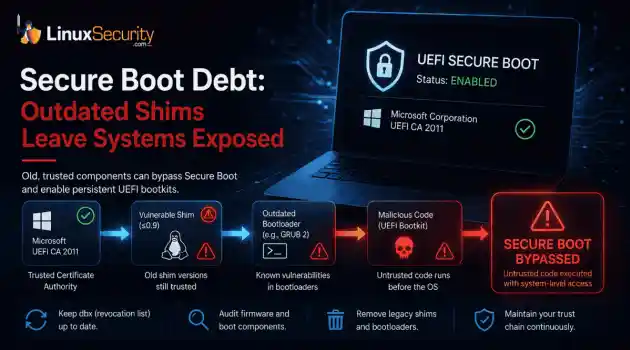
security advisory linux distribution ESET researchers identified 11 old and forgotten Linux UEFI shim bootloaders at versions 0.9 and below that can be used to bypass UEFI Secure Boot on any UEFI-based machine that trusts Microsoft’s Microsoft Corporation UEFI CA 2011 third-party certificate authority, regardless of the installed operating system (OS). Reported shims can be exploited to execute untrusted code during system boot, enabling attackers to deploy malicious UEFI bootkits even on systems with UEFI Secure Boot enabled.....
Jul 16, 2026
 Refine news
X Clear Filters
Get the latest News and Insights
Get the latest Linux and open source security news straight to your inbox.
Community Poll
Is continuous patching actually viable?
Trending News
Loading...
Explore Latest Linux Security news
We found 17 articles for you...
72
 security advisoryUbuntuimportant
Ubuntu: UFW Important Firewall Rules for Secure SSH and Database Access
UFW is a front-end for iptables that applies firewall policy directly on an Ubuntu server, close to the services that accept traffic. . On real systems, exposure is shaped by more than open ports. A service binds to an address, that address maps to an interface, and that interface may sit behind cloud security groups, VPNs, or container networks. UFW enforces policy inside that path, which is why rules that look correct can still fail once traffic hits the server. The aim is to align those layers. You start by identifying what is listening and where, then apply UFW rules that match the server’s role and expected access. SSH, web services, and databases each behave differently, and the firewall only holds when those differences are made explicit. Before You Change UFW Rules: Check What Ports Are Listening on Your Ubuntu Server Before touching UFW , you need to know what the server is actually listening on. What matters is the current state, as the kernel sees it, because firewall rules only act on traffic headed toward existing listeners. Start with ss -tulpn . On older systems, netstat -tulpn shows the same view. This output tells you which services are bound, on which ports, and, more importantly, on which addresses. UFW evaluates traffic after this binding decision, not before it. When reviewing the output, the binding address is the key signal. It determines whether a service is reachable only from the host, from a private network, or from any interface that can route traffic to the server. Many exposure issues come from assuming a port is “internal” when it is bound far more broadly. Before making changes, take a snapshot. Capture the active listeners, the current ufw status , and the cloud security group rules attached to the instance. These three views together describe how traffic can reach the server, and they give you a stable reference if access changes. The table below is a quick way to interpret common bindings and the risk they imply. Binding Meaning Risk 127.0.0.1 Localhost only Low 10.x.x.x / 192.168.x.x Private network or VPC Medium 0.0.0.0 All IPv4 interfaces High :: All IPv6 interfaces High A service bound to localhost does not need a firewall rule. A private binding depends on who can reach that network. A bind to 0.0.0.0 or :: means the service is exposed on every reachable interface, whether that was intentional or not. This distinction feeds directly into SSH hardening. Before you enable UFW or tighten rules, you need to know exactly how SSH is bound and which paths can reach it, otherwise the firewall becomes the source of the outage instead of the control. How to Prevent SSH Lockouts When Enabling UFW on an Ubuntu Server You prevent SSH lockouts by allowing SSH before UFW is enabled, then turning the firewall on only after you have a confirmed path back in. UFW enforces rules immediately . If incoming traffic is denied by default and SSH is not already allowed, the server does exactly what it is told and drops management access without hesitation. This is not a corner case. It is the most common failure mode. The order is what keeps this from happening: Set defaults to deny incoming and allow outgoing traffic Add an SSH allow rule Enable UFW At the SSH rule step, you have a choice to make. Using the OpenSSH application profile keeps the rule tied to the service itself. A direct port rule works as well, but it is easier to lose the intent later, especially on servers that change ports or get hardened over time. Once you can reconnect reliably, start narrowing exposure. Restrict SSH to a known IP range, a subnet, or a bastion host, and add rate limiting to reduce credential spraying without changing normal admin behavior. Keep a second SSH session open while making changes so you can verify a newconnection before closing the one keeping you in. This sequence underpins most UFW hardening work. If SSH access is fragile, every other firewall change becomes a gamble instead of a control. How to Allow SSH Only Over a VPN or Tunnel Interface (WireGuard, Tailscale, ZeroTier) You do this by allowing SSH on the tunnel interface and explicitly denying it on the public interface. First, identify the interfaces in use: ip addr Look for the tunnel interface. Common names are wg0 for WireGuard, or a virtual interface created by Tailscale or ZeroTier. Also note the public interface, often eth0 or ens* . Then add the UFW rules: sudo ufw allow in on wg0 to any port 22 sudo ufw deny in on eth0 to any port 22 This allows SSH only where traffic enters through the tunnel and blocks it everywhere else. Before enabling or reloading UFW : Keep an active SSH session open Confirm the tunnel is up and routing traffic correctly After applying the rules, test a new SSH connection over the VPN before closing your existing session. Two common mistakes to check if this fails: The rule references the wrong interface name, so traffic never matches IPv6 is still enabled, and SSH is reachable over :: on the public interface If SSH is reachable but nothing appears in UFW logs, the traffic is likely bypassing UFW entirely, usually due to Docker or cloud security group behavior. IPv6 UFW Safety Check: Make Sure IPv6 Firewalling Is Enabled on Ubuntu Before assuming a rule is effective, confirm that UFW is enforcing IPv6 at all. On many Ubuntu servers, IPv6 is enabled at the kernel and interface level, even when no one remembers turning it on. Check /etc/default/ufw and look for IPV6=yes . If it is set to no , UFW will happily enforce IPv4 rules while IPv6 traffic bypasses them entirely. From the outside, the server looks locked down. In reality, the same services may still be reachable over IPv6. This matters because binding behaviordoes not change just because you ignore IPv6. A service bound to :: or dual stack will accept traffic over IPv6 unless it is explicitly filtered. That includes SSH, admin interfaces, and database ports you thought were private. This is where people usually screw up IPv6 behavior in Linux firewalls . IPv4 looks correct. UFW status looks correct. The exposure is still there, just on a parallel path that was never inspected. How to Configure UFW for a Web Server (Allow Only HTTP and HTTPS on Ubuntu) On a web server, UFW should allow traffic only to the layer that actually serves the web. Everything else stays closed by default. Start by deciding what is public on this host. If Nginx or Apache is the public entry point, the firewall rules only need to reflect that fact. A minimal, explicit setup looks like this: sudo ufw default deny incoming sudo ufw default allow outgoing sudo ufw allow 80 sudo ufw allow 443 This is enough for a single-interface server where the web service is meant to be public everywhere. If the server has more than one interface, opening ports globally is usually wrong. In that case, allow web traffic only on the public interface: sudo ufw allow in on eth0 to any port 80 sudo ufw allow in on eth0 to any port 443 The interface name matters. Use the one traffic actually arrives on. Where people get into trouble is with reverse proxy setups. The proxy is public. The backend is not. UFW should only allow access to the proxy layer. Backend services should bind to 127.0.0.1 or a private interface and should not have firewall rules at all. If you expect a site to be reachable and it is not, check three things in order: The service is listening on the expected address The cloud security group allows 80 and 443 to reach the instance UFW rules are scoped to the correct interface If a service is reachable when it should not be, the usual cause is a broad bind to 0.0.0.0 or :: , not a missing firewall rule. The point ofthese rules is not just to open ports. It is to make sure the firewall matches the web server’s role in the architecture. When those lines up, the configuration stays stable instead of growing exceptions over time. How to Restrict PostgreSQL and MySQL Ports With UFW (App Servers Only) PostgreSQL and MySQL ports should not be public. If a database is reachable from the internet, something upstream already failed. On app servers, the question is not which port to open. It is who is allowed to talk to the database at all. That answer is usually short. Valid sources for database access tend to fall into three buckets: An application subnet, where multiple app instances need consistent access A single host, when the dependency is narrow and tightly scoped A VPN CIDR or bastion, used only for administration or break-glass access Anything outside those paths is noise. Scanners, misrouted traffic, or a service binding wider than intended. The firewall rule follows naturally from that model. You allow the database port, but only from the specific source that maps to the dependency. There is no “temporary” public access phase. If connectivity testing requires opening the port broadly, the architecture is already off. The common failure here is not forgetting to add a rule. It is forgetting that databases often bind to all addresses by default. A service listening on :: can be reachable over IPv6 even when IPv4 rules look correct, which is how “internal only” databases end up exposed without anyone noticing. Once these rules are in place, they tend to stay stable. App servers do not accumulate random database consumers, and any new source asking for access is usually a design change worth reviewing, not a firewall tweak. How to Lock Down Admin Ports and Internal Services With UFW on Ubuntu Servers You lock down admin ports by making them unreachable from the public internet, full stop. Unlike web or SSH, these services are not entry points. They are controlsurfaces. If they answer on a public interface, they get probed quickly and often automatically, because attackers already know which ports and APIs to look for. Think about these services as a class, not individually: Service type Typical exposure mistake Real risk Cockpit, Grafana Left open after install Auth bypass, data leakage Redis, Elasticsearch Bound to all interfaces Remote command or data abuse CI/CD agents Open for convenience Lateral movement into builds The rule pattern is intentionally boring. Allow access only from a VPN, a bastion host, or an internal interface that never routes to the internet. If a service does not need to be reachable outside that path, there is no exception phase and no temporary rule. These ports get targeted because they offer leverage. They expose state, credentials, or execution paths that let an attacker move laterally instead of breaking in from scratch. Scanners do not care what your environment looks like. They just wait for something to answer. This is where UFW logging earns its keep. Once admin services are restricted correctly, any blocked traffic to those ports is usually meaningful. It tells you something is misrouted, misconfigured, or actively probing, and that signal is rare enough to pay attention to. After this step, these rules tend to stay quiet. If they do not, the problem is usually elsewhere in the network, not in the firewall itself. Why Your Container Ports May Be Open Even When UFW Blocks Them If a container port is reachable even though UFW says it is blocked, Docker is usually the reason. Not because it is broken, but because it gets there first. Docker inserts its own rules into netfilter when containers start. Those rules can sit ahead of UFW ’s chains. Traffic hits Docker’s logic, gets forwarded to the container, and never trips the deny you thought wouldstop it. From UFW ’s point of view, nothing unusual happened. The easiest way to reason about it is packet order, not tooling: Internet ↓ netfilter (Docker chains) ↓ netfilter ( UFW chains) ↓ service or container Once you internalize that order, the behavior stops feeling mysterious. ufw status can look clean. The deny rules are real. The container is still reachable because the decision already happened upstream. In practice, this leads to a few consistent surprises: UFW rules appear correct, but container ports answer anyway Publishing a port with Docker widens exposure more than expected The firewall becomes observational instead of authoritative The fix is not adding more UFW rules. It is controlling Docker’s exposure explicitly: Use the DOCKER-USER chain to apply allow and deny logic before traffic reaches containers Use ufw-docker only if you understand how it rewires rule order and are willing to own that complexity Bind published ports to 127.0.0.1 when containers are meant to sit behind a reverse proxy or local service Once you treat Docker as its own ingress layer, things line up again. UFW still matters, but it is no longer the first line of defense, and pretending otherwise is where people get burned. UFW Rule Order and Precedence: How to Use status numbered , insert , and Delete by Rule ID UFW matches the first rule that applies. Anything below that never runs. Start by looking at the actual evaluation order : sudo ufw status numbered This shows rules in the order they are processed. If an allow sits below a broader deny, it will never be hit, even if the rule itself is correct. When changing rules, operate by number, not by rewriting text: sudo ufw delete 3 Deleting by rule ID avoids typos and accidental mismatches, which matter more as rulesets grow. If a rule must take priority, insert it at the top: sudo ufw insert 1 allow from to any port This is how you handle exceptions without reshuffling the entire policy. Sometimes the ruleset is past saving. This is common on inherited servers with dozens of overlapping rules and no clear intent. sudo ufw reset This removes all rules and disables UFW . Only do this if you can immediately reallow SSH and re-enable UFW . Keep an active SSH session open, and out-of-band access if possible. Reset is a recovery move, not a cleanup shortcut. Why Your Ubuntu Firewall Rules Aren’t Working When traffic does not behave as expected, it is often blocked outside the host. Cloud security groups control what reaches the instance. UFW controls what the host accepts. Either can block traffic, and neither reflects the other. Debug in layers. Check the security group first. Then UFW . Then service bindings. This order aligns with how packets actually move and matches most firewall troubleshooting steps in practice. How to Restrict Outbound Traffic With UFW on Ubuntu Servers (SMTP, Updates, and Data Exfil) Outbound restrictions matter when a server should not initiate arbitrary connections. Database hosts, internal services, and anything handling sensitive data fall into this category. Start by flipping the outbound model. By default, UFW allows all outgoing traffic. To restrict it, you have to say that explicitly. Set the default outbound policy to deny: sudo ufw default deny outgoing From there, you selectively add back what the server actually needs. Block outbound SMTP to prevent abuse This is the most common first control. It stops compromised hosts from sending spam. sudo ufw deny out 25 sudo ufw deny out 465 sudo ufw deny out 587 If the server should never send mail, this can stand alone. If it uses a relay, allow only that destination IP instead of reopening the ports globally. Allow required outbound dependencies Most servers need a small, predictable set of outbound access: DNS: sudo ufw allow out 53 Packagerepositories: sudo ufw allow out 80 sudo ufw allow out 443 Backups or monitoring: Allow only the specific destination IP or subnet, not the whole internet. Restrict outbound traffic from database servers On database hosts, outbound access is often unnecessary beyond updates and backups. Denying everything else limits data exfiltration if the service is compromised. This is where testing matters. DNS resolution, package updates, and backup jobs are usually the first things to fail when outbound rules are too tight. Watch those explicitly instead of waiting for alerts. Outbound UFW rules work best when the server role is stable. If outbound needs change frequently, the firewall becomes friction instead of control, which is usually a signal that the role itself is too broad. How to Audit UFW Rules on a Production Ubuntu Server (Find Stale or Dangerous Rules) Start with a list you can reason about: sudo ufw status numbered Then compare it directly to what is actually listening: ss -tulpn Any rule that does not map to a running service is a candidate for removal. Any rule broader than the service binding deserves scrutiny. Group the remaining rules by service class and add a short comment for ownership or purpose. This is the difference between auditing and guessing, and it’s the core of audit UFW Rules done well. Managing UFW Across Multiple Ubuntu Servers: Prevent Drift With Ansible or IaC If two servers in the same role have different UFW output, drift already exists. Once that happens, manual CLI changes stop scaling. This is where configuration management earns its keep. Ansible’s community.general.ufw module maps cleanly to UFW semantics. Terraform or baked images work as long as the rules are defined once and applied everywhere. Standardize a small set of patterns. SSH access. Web exposure. Database access. Logging defaults. Audit cadence. When those are fixed, individual rule changes stop being surprises. UFW Troubleshooting on Ubuntu Servers: When Rules Look Right, but Traffic Still Flows When rules look correct, but traffic still flows, trace the packet rather than rewrite the rules. Check bindings first. IPv4 denies do nothing if the service is reachable over IPv6. Confirm which interface the traffic actually arrives on. If Docker is involved, assume UFW may never see the packet. Then step outward. Cloud security groups can override host behavior in either direction. Logs help, but only if you know which layer should have logged the packet. Most UFW troubleshooting comes down to identifying which component made the decision. Once you know that, the fix is mechanical. How to Read a UFW Log Entry on Ubuntu ( SRC , DST , DPT Explained) A UFW log entry is just one dropped or allowed packet written out in text. You do not need to understand all of it to get value out of it. A typical line looks roughly like this: SRC=203.0.113.5 DST=10.0.0.12 DPT=22 PROTO=TCP Read it left to right. SRC is the source address. This is who sent the traffic. DST is the destination address. This is the IP address of your server that was hit. DPT is the destination port. This tells you which service was targeted. PROTO shows whether the traffic was TCP or UDP . If you see a log entry showing a dropped SSH connection from a public IP, that means UFW saw the packet and blocked it. If SSH is supposed to be private, this is expected behavior, and the log is confirming that the rule works. If SSH is supposed to be reachable and you see dropped log entries for it, then UFW is blocking traffic you intended to allow. In that case, the rule set is wrong or ordered incorrectly. If traffic reaches a service but you never see any related entries in the UFW log, it usually means the packet never passed through UFW at all. The most common reasons are Docker handling the traffic first, IPv6 traffic bypassing IPv4 rules, or a cloud security group allowing or blocking traffic before itreaches the host. Each outcome tells you something different. The key is to match what you see in the log with what you expected the firewall to do. UFW Best Practices for Ubuntu Servers Firewall rules last longer when they explain why access is allowed, not just which port is open. Write rules by service intent SSH from a bastion. Web traffic from anywhere. Databases only from app servers. These models survive port changes, IP churn, and tooling swaps. Reuse the same patterns everywhere When every server has custom rules, drift is guaranteed. Shared roles with shared firewall models make exceptions obvious. Review rules after role changes Web nodes become workers. Databases get split. Old access rarely removes itself, and stale rules are how exposure accumulates. Use logging for investigation, not surveillance Enable logging so you can answer questions when something looks wrong. Constant noise just trains people to ignore it. Always use rule comments Keep them short, specific, and tied to ownership or purpose. sudo ufw allow from 10.0.0.0/24 to any port 5432 comment "App servers to Postgres" Comments prevent firewall archaeology. If you have to guess why a rule exists, the system has already failed. UFW on Ubuntu Servers: Key Takeaways for Secure SSH, Web, and Database Access On an Ubuntu server, UFW works when it reflects how the server is actually used, not when it just lists open ports. The failures are consistent. SSH gets locked out because the rule came after enablement. Containers stay reachable because Docker handles the packet first. IPv6 stays open while IPv4 looks clean. Cloud security groups and UFW disagree, and nobody checks both. Over time, rules pile up and no longer match the services running. The way through this is practical. Check what is listening before you write rules. Decide where SSH, web traffic, and databases should be reachable from. Apply UFW rules that match that access path, then remove anything thatdoes not map to a running service or a clear owner. When you treat UFW as a service access control instead of a port list, it holds up as servers change. That is the pattern behind UFW on Linux systems, and it is what keeps firewall rules from quietly becoming irrelevant. Still Have Questions? These are the questions that come up most often when UFW rules look correct, but access still isn’t behaving the way you expect. How do I allow SSH in UFW without getting locked out? Covers rule order, defaults, and why enabling UFW before allowing SSH is still the fastest way to lose access. How do I allow SSH only from one IP address with UFW ? Useful when moving from wide access to a bastion or office IP, and where people often forget IPv6. How do I open ports 80 and 443 with UFW for Nginx or Apache? Walks through profiles vs ports, interface scoping, and why “allowed” does not always mean reachable. Should I open PostgreSQL ( 5432 ) or MySQL ( 3306 ) to the internet? Short answer is no. The longer answer explains when people think they need to, and what to do instead. Why are Docker container ports open even when UFW blocks them? Explains Docker’s place in the packet path and why UFW can look correct while containers stay exposed. . On real systems, exposure is shaped by more than open ports. A service binds to an address, that add. front-end, iptables, applies, firewall, policy, directly, ubuntu, server, close. . MaK Ulac
 Jan 09, 2026
•
Jan 09, 2026
• Firewalls
209
 user managementsecurity strategysystem updates
Essential Strategies for Enhancing Linux Security Practices
Implementing robust security measures in Linux-based systems is essential and doesn't need to be complex. In this article, we'll provide an overview of key concepts and basic strategies you can use to fortify your Linux environment against evolving threats. . Key Concepts & Basic Strategies for Robust Linux Security It is crucial to understand that Linux security is multifaceted and encompasses user management, network design, and consistent system updates. User management forms the foundation of Linux security. Controlling user access and privileges to minimize the risk of unauthorized access and potential breaches is of critical importance. Regular system updates are also essential in maintaining overall security and integrity. Updates provide patches for vulnerabilities that attackers could exploit. The implementation of network segmentation is also a key defense mechanism against breaches. Admins should divide networks into smaller segments to limit the spread of breaches and use firewalls like iptables or ufw to control traffic flow and block unauthorized access. It is important to consider the impact of network design on security and how segmentation and firewalls can be optimized to safeguard Linux systems. Our Final Thoughts: What Are the Implications of These Insights? The implications of these suggestions for security practitioners are significant. The continuous nature of securing Linux environments and the need for constant vigilance and adaptation must be emphasized. The dynamic landscape of cyber threats has heightened the importance of keeping abreast of vulnerabilities and security advisories . In summary, the practical advice provided in this article will help admins and organizations strengthen their Linux security posture. User management, network design, and regular system updates are crucial in fortifying Linux environments against evolving threats. We hope that this overview has contributed to your understanding of the impact of Linux security on your roleas a security practitioner and open-source community member! . Understand essential principles and techniques to boost Linux defenses and safeguard against emerging risks efficiently.. Linux Security Strategies, User Management in Linux, System Updates Importance. . Brittany Day
Feb 08, 2024
•
Security Trends

77
 user managementremote managementfirewall configuration
Manage Linux Servers Remotely With Cockpit's User-Friendly GUI
Linux admins can use Cockpit to view Linux logs, monitor server performance and manage users. Use the tool to help admins manage servers, regardless of experience level. . The Linux command line is a fast and flexible tool for automation and scripting. However, sometimes, there is a benefit to using a GUI like the web-based administrative tool Cockpit instead. The GUI can be faster or more comfortable for admins who need to quickly look at several pieces of information. In those situations, consider the use of Cockpit. Cockpit provides a simple, intuitive graphical connection to remote Linux servers. The interface enables admins to manage users and groups, configure firewall settings and display hardware information. In terms of efficiency, Cockpit is easy to implement across an organization, especially those with less familiarity with the CLI . Cockpit also doesn't interfere with other administration and configuration tools. For example, it's independent of Ansible, which means admins still manage settings across the board with standard configuration utilities. With its standard security features, getting Cockpit approved for use in your organization shouldn't be difficult. It also supports the expected encryption levels. . Discover Cockpit, a powerful tool designed for efficient management and monitoring of Linux servers, enhancing administrative processes through a user-friendly interface.. Cockpit Administration, Linux Server Management, User Management Tool, Linux GUI Tool. . LinuxSecurity.com Team
Mar 02, 2023
•
Server Security
72
 security advisoryinternal securityfirewall configuration
Configuring A Linux DMZ: Essential Setup For Secure Networking
(The)Demilitarized zone, used to secure an internal network from external access. You can use Linux firewall to create DMZ easily. There are many different ways to design a network with a DMZ. The basic method is to use a single Linux firewall with 3 Ethernet cards. The following simple example discusses DMZ setup and forwarding public traffic to internal servers. There's a little advanced know-how required here and he recommends a couple good firewalls to set up such functionality just in case this very useful guide doesn't fit the bill. If you are looking to set up a Linux Demilitarized zone a couple of options include EnGarde, IpCop and others. . The link for this article located at is no longer available. . Learn to create a secure Linux DMZ effectively, safeguarding your internal network while managing public-facing services and threats. Linux DMZ, Network Optimization, Firewall Setup, Secure Network, IP Forwarding. . Brittany Day
Dec 17, 2007
•
Firewalls
78
server managementbackup methodsfirewall configurationEnGarde Secure Linux Review: Installation Overview And Management Features
Linuxhelp.blogspot.com decides to take EnGarde Secure Linux: Community Edition for a spin in this thorough distro review. He describes the installation, displays screen shots from various aspects of the platform, and goes into some detail regarding managing services, backing up files, checking logs, setting up firewalls, and more. He had this to say about WebTool: In short the web tool is a one stop shop for troubleshooting and managing your server from a remote location. A very powerful interface indeed. . On another note, he even mentions how EnGarde could provide an opportunity to bypass hardware limitations for those looking to set up their own server! Overall, a great review on the capabilities and features of EnGarde and not to be missed. The link for this article located at AllAboutLinux.com is no longer available. . Discover EnGarde Secure Linux: an in-depth analysis focused on setup, administration, and server functionalities.. EnGarde Secure Linux, Server Management, Firewall Configuration, Linux Distribution. . LinuxSecurity.com Team
Oct 15, 2007
•
Vendors/Products
72
network securitysecurity practicesLinux distributionEffective Firewall Configuration With Iptables on Linux Distributions
Most major Linux distributions, SuSE ones included, feature some user interface for firewall configuration. There's nothing wrong with them but I couldn't get quite the configuration I wanted and chose to create configurations manually. The iptables man pages are really a documentation of syntactical detail of the iptables command line and don't provide guidance on composition of a firewall from a series of rules. There's a lot of scattered information about iptables that can be found using your favourite search engine but none of it quite taught me what I needed to know. In the end I figured out what I needed using a Vmware virtual machine running SuSE Linux Pro 10.0. The following is offered as documentation of simple firewall configuration using iptables. Verifying that the resultant firewall adequately secures the relevant hosts is left as an exercise for the reader. . The link for this article located at Novell is no longer available. . Master the basics of configuring firewalls with iptables to enhance the security of your Linux environment efficiently.. iptables Configuration, Network Firewall Setup, Linux Security Practices. . Benjamin D. Thomas
Dec 05, 2006
•
Firewalls
72
network securityopen source softwareinstallation guideGuide To Building A Linux Router And Firewall Using Free Tools
This site is an introduction to simple hardware routers for small networks built from old, obsolete hardware and free software. The intended audience for this site are Newbies to both Linux and to hardware routers and firewalls. Included are instructions for hardware assembly and software configuration. . . .. This site is an introduction to simple hardware routers for small networks built from old, obsolete hardware and free software. The intended audience for this site are Newbies to both Linux and to hardware routers and firewalls. Included are instructions for hardware assembly and software configuration. One page is a primer for Network security and discusses Firewalls, Anti-Virus and other security tools. The intent of this site is to encourage others to build and install their own secure router. Cool Dad! the Internet's on all the time A few years ago, I had cable broad-band Internet access installed in our home. The cable modem was connected to my Windows 2000 Professional desktop system through a 10baseT (RJ-45) Ethernet card. This computer was also connected to our second computer running Win98SE, located in my Daughters room. This connection was a 10base2 (RG-58 coax) network with 10base2 Ethernet cards in each computer. The Win2k system was setup for Internet sharing (ICS) and routed the 2nd computers IP traffic from the network over to the cable modem. Life was good. High-speed broad-band access at home. No more complaints about busy phone lines. Lightning fast downloads. Dad! the Internet's not working Everything worked fine until I got the urge to frag a few Bots in Unreal Tornie or race a Porsche 911 in Need-for-Speed. Exit NT and boot-up SE. I've had little luck running my dual CPU SMP Win2k workstation as a gaming platform. Who wants to tie down a Win98 gaming system with IP routing duties. Internet sharing also required my workstation to be turned on for a good part of the day. The link for this article located at Neville Stead is no longer available. . Setting up a basic router withoutdated hardware and open-source software can be budget-friendly for small networks. Follow these steps to create your own router.. Hardware Routers, Linux Firewall, Network Security, Open Source Router, Router Installation. . Anthony Pell
Jun 25, 2004
•
Firewalls
72
network securityiptablesfirewall configurationSecuring Linux Systems: Host-Based Firewalls and Iptables Configuration
This article provides information and recommendations for securing Linux operating systems with host-based firewalls. This article aims to provide readers with a template for constructing a host-based firewall that provides a useful layer of protection against the risks of exposing a system to internal and/or external users. Additionally, readers can gain an understanding of construction methods for host-based firewalls in general and Linux-based firewalls in particular. This article targets an intermediate audience. . . .. This article provides information and recommendations for securing Linux operating systems with host-based firewalls. This article aims to provide readers with a template for constructing a host-based firewall that provides a useful layer of protection against the risks of exposing a system to internal and/or external users. Additionally, readers can gain an understanding of construction methods for host-based firewalls in general and Linux-based firewalls in particular. This article targets an intermediate audience. . Safeguard your Linux environments proficiently by employing host-centric firewalls alongside strategies for enhanced security.. Host-Based Firewall, Iptables Configuration, Linux Network Security. . Anthony Pell
Jan 30, 2004
•
Firewalls

Get the latest News and Insights
Get the latest Linux and open source security news straight to your inbox.
Community Poll
Is continuous patching actually viable?
Trending News
Search Topics
Powered By

Linux Security - Your source for Top Linux News, Advisories, HOWTOs and Feature Releases
QUICK LINKS
subscribe to newsletters!
Like staying secure? So do we.
Sign up for updates, tips, and alerts!