Explore top 10 tips to secure your open-source projects now. Read More
×


How to Detect Unauthorized SSH Key Usage on Linux Systems
 Jun 26, 2026
•
Jun 26, 2026
•
 Dave Wreski
5 - 10 min read
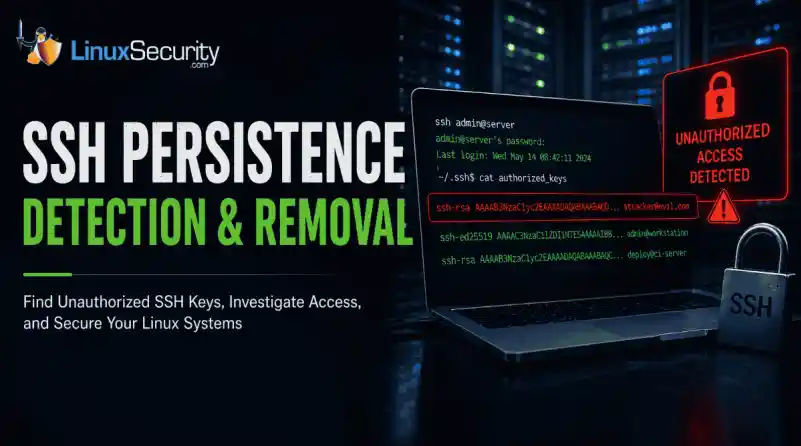

SSH persistence usually does not look malicious at first. The login succeeds normally, the session opens cleanly, and the account already exists on the server, which is exactly why attackers continue using SSH keys after gaining a foothold on Linux systems.
Once a public key is added to authorized_keys, the server treats future access as trusted authentication. Attackers no longer need password resets or repeated exploit chains every time they reconnect because the server now accepts the malicious key as trusted access. The result is direct shell access tied to an account that already has permission to be there.
Most environments already have constant SSH traffic moving between administrators, automation systems, backup infrastructure, deployment pipelines, and cloud workloads. A malicious session does not stand out immediately when the same protocol is already handling legitimate operational access all day.
This guide walks through how to identify unauthorized SSH keys, review login activity, investigate suspicious access, and figure out whether persistence already spread beyond the original account.
Step 1: Review the authorized_keys File
Most SSH persistence starts with a modified authorized_keys file. Attackers land on a system, gain shell access, then add their own public key so they can reconnect later without needing the original credentials again.
Start by checking the current user’s SSH keys:
cat ~/.ssh/authorized_keysThen check the root account directly:
sudo cat /root/.ssh/authorized_keysDo not skim through the output. Read every line carefully.
Older Linux systems tend to accumulate abandoned access over time. Older Linux systems tend to accumulate abandoned access over time, especially contractor accounts, old deployment users, and CI/CD credentials that nobody rotated after a migration. Shared administrative accounts, where ownership stopped being clear years ago.
You are looking for keys nobody can confidently explain.
Pay attention to:
- unfamiliar usernames or email addresses
- duplicate keys across multiple accounts
- recently added entries
- unusually long comments
- accounts that should no longer have shell access
- keys tied to former employees
Administrative accounts matter most here. A malicious key attached to an account with sudo rules or root access gives attackers long-term persistence that can survive patches, password resets, and partial remediation.
Step 2: Check When SSH Files Were Modified
Attackers rarely stop after adding a single key. Once persistence works, they often modify additional SSH files to make sure access survives cleanup later.
Start by reviewing the .ssh directory itself:
ls -la ~/.sshThen check detailed timestamps for the key file:
stat ~/.ssh/authorized_keysReview the SSH daemon configuration too:
sudo stat /etc/ssh/sshd_configUnexpected modification times usually narrow the investigation quickly, especially on production systems where SSH configurations do not change often.
This is where compromised environments start telling on themselves. Multiple SSH files modified within the same time window. Configuration changes nobody documented. Root account activity outside maintenance hours. Individually, those changes may not look serious, but the picture changes quickly once the same activity starts appearing across multiple SSH files and administrative accounts.
Step 3: Search the Entire System for Additional SSH Keys
One compromised account is rarely the whole problem.
Once attackers get shell access, they usually spread persistence across secondary users, forgotten service accounts, deployment profiles, or backup infrastructure that nobody actively reviews anymore. Losing one account should not remove their access completely. That is the goal.
Start by locating every authorized_keys file on the system:
sudo find / -name authorized_keys 2>/dev/nullThen search for recently modified SSH key files:
sudo find /home -name authorized_keys -mtime -7That command identifies files modified within the last seven days, although the timeframe should change depending on the investigation and the suspected compromise window.
Look for patterns across the results. Multiple accounts modified together usually indicate that the attacker was trying to establish layered persistence instead of relying on a single foothold. Service accounts with interactive SSH keys also warrant attention, as they are rarely monitored as closely as standard administrative users. Old admin profiles nobody has accessed legitimately for months matter too.
Service accounts get abused constantly in these investigations because they often retain broad access while receiving very little day-to-day monitoring.
Step 4: Review SSH Login Activity
A successful SSH login does not mean the activity is legitimate. Most attackers using SSH persistence authenticate normally because they are relying on trusted access mechanisms already accepted by the server.
Start by reviewing authentication logs because this is usually where suspicious SSH access starts becoming visible.
On Ubuntu and Debian systems:
sudo grep "sshd" /var/log/auth.logOn RHEL, CentOS, Rocky Linux, and similar distributions:
sudo grep "sshd" /var/log/secureThen review the successful login history:
last -aStart by reviewing authentication logs because suspicious SSH activity usually becomes visible there first, especially when attackers begin reusing trusted accounts across multiple systems.
Administrative accounts authenticating from cloud providers that your team does not use. SSH sessions appear late at night against accounts that normally log in during business hours. One account touching multiple servers rapidly. Dormant users suddenly become active again after months of silence.
Attackers depend on the fact that valid SSH logins rarely generate panic. The authentication succeeds, so the traffic initially looks routine.
It usually is not.
Step 5: Check Shell History After Login
Shell history often explains what happened after the attacker got access.
Persistence rarely exists by itself. Once attackers establish a foothold, they usually start expanding privileges, modifying permissions, collecting credentials, or preparing fallback access in case the original account gets disabled later.
Start with the current user:
cat ~/.bash_historyThen check privileged accounts:
sudo cat /root/.bash_historyWatch for commands involving:
sudouseraddpasswdcurlwgetchmodchattrssh-copy-id- modifications to
.ssh - tunneling or port forwarding
Empty history files matter, especially on accounts that should normally contain daily administrative activity. Attackers regularly clear shell history after modifying SSH access or escalating privileges. Sometimes they disable logging entirely before moving deeper into the environment.
Step 6: Review Active SSH Sessions
Before digging further through logs, check whether someone is still connected. SSH persistence is not always historical activity. Sometimes the attacker never left the system.
Start with active users:
who
Then review current sessions:
w
To identify active SSH connections:
sudo ss -tp | grep ssh
Or:
sudo netstat -plant | grep ssh
Pay attention to long-running sessions, unfamiliar IP addresses, or multiple simultaneous logins tied to the same account. Outbound SSH connections matter too. Compromised Linux servers often become pivot points once attackers start moving laterally across the environment.
Attackers rarely stop after compromising a single Linux host, particularly when the environment already contains trusted SSH relationships between systems.
Step 7: Review SSH Configuration Settings
Attackers do not always stop at planting keys. Weakening SSH restrictions makes future access easier, especially if they expect defenders to remove the compromised account later.
Open the SSH daemon configuration:
sudo cat /etc/ssh/sshd_config
Focus on settings tied to:
PermitRootLoginPasswordAuthenticationPubkeyAuthenticationAllowUsersAllowGroups
Example hardened settings:
PermitRootLogin no
PasswordAuthentication no
PubkeyAuthentication yes
Restart the SSH service after making changes:
sudo systemctl restart sshd
Or on Ubuntu systems:
sudo systemctl restart ssh
Configuration changes tell you a lot about attacker intent. Modified root access settings, relaxed authentication rules, and broad user permissions added during the compromise window usually reveal that the attacker was planning for long-term persistence rather than short-term access .
Attackers think ahead here.
Step 8: Remove Unauthorized SSH Keys
Once you identify a malicious or unapproved key, remove it immediately from the affected authorized_keys file.
Open the file:
nano ~/.ssh/authorized_keys
Delete the suspicious entry and save the changes.
That does not mean the compromise is contained.
Attackers who establish SSH persistence often modify multiple accounts before defenders notice the intrusion. Attackers that establish SSH persistence often spread access across service users, backup infrastructure, automation credentials, and occasionally root accounts before defenders notice the intrusion.
After removing the key:
- Rotate passwords tied to the affected account
- Review
sudorules - Audit nearby systems for the same key
- Investigate how the original foothold happened
- Check for additional persistence methods
Skipping those steps usually leads to reinfection later.
Step 9: Enable Ongoing SSH Monitoring
Most organizations only investigate SSH access after an incident already exists. By then, persistence may have survived quietly for weeks or months.
At minimum, enable:
- centralized SSH logging
- alerts for changes to
authorized_keys - monitoring for
.sshdirectory modifications - login alerts tied to privileged accounts
- MFA-backed administrative access where possible
Reviewing SSH activity across systems also helps expose suspicious behavior that local logs may miss. Servers suddenly connecting to unfamiliar infrastructure or administrative accounts authenticating against systems they normally never access should immediately trigger review. Repeated SSH activity tied to cloud IP ranges nobody internally recognizes.
That is usually where persistence starts becoming visible at scale.
Common Mistakes During SSH Investigations
One of the biggest mistakes teams make is treating the compromised account as the entire incident. Attackers rarely stop there once shell access exists.
Old deployment users get reused constantly, while shared administrative accounts gradually lose attribution as teams change and environments expand.
Backup infrastructure often has broad SSH trust relationships that nobody reviews closely because the systems are considered operationally sensitive. CI/CD credentials spread across environments and stay active long after projects end.
Linux environments accumulate trust quietly over time. That is what makes SSH persistence effective in the first place.
Teams also miss direct monitoring for changes to authorized_keys, which leaves attackers free to modify trusted authentication paths without generating the kinds of alerts normally associated with malware or exploit activity.
Persistence tied to trusted authentication paths often survives the longest because the activity continues looking operational instead of obviously malicious.
Final Thoughts
Unauthorized SSH key usage remains difficult to detect because the access often looks legitimate long after the original compromise. The login succeeds normally, the account already exists, and many environments still trust SSH traffic by default as long as authentication passes cleanly.
That is why attackers continue using SSH persistence after gaining a foothold on Linux systems. A single compromised account can quietly turn into broader access across backup infrastructure, deployment pipelines, cloud workloads, and administrative systems if nobody is actively reviewing SSH keys, login activity, or configuration changes.
Regular audits help. So does monitoring for changes to authorized_keys, reviewing authentication logs, and validating who actually owns long-standing SSH access across the environment. Most persistence survives because teams assume trusted access is still legitimate months after it stopped being safe.
Stay ahead of new Linux threats, persistence techniques, and security research by subscribing to the LinuxSecurity newsletters. You will receive Linux advisories, threat analysis, practical hardening guidance, and new detection coverage directly in your inbox.
Related Reading
- Understanding Linux Persistence Mechanisms and Detection Tools
- Linux Attackers Use SSH Legitimate Tools to Evade Detection
- Mastering SSH for Secure Linux Remote Server Management
- Understanding Outlaw Linux Malware: Defend Against Botnet Threats
- Strengthening Linux SSH Configurations to Prevent Proxy Attacks
 PREVIOUS

 NEXT
NEXT

Powered By

Linux Security - Your source for Top Linux News, Advisories, HOWTOs and Feature Releases
QUICK LINKS
subscribe to newsletters!
Like staying secure? So do we.
Sign up for updates, tips, and alerts!