Explore top 10 tips to secure your open-source projects now. Read More
×


Linux Log Analysis: How to Investigate Suspected Log Manipulation During Incident Response
 Jul 10, 2026
•
Jul 10, 2026
•
 Dave Wreski
3 - 6 min read

Topics Covered
When an attacker breaks into a Linux system, their work is rarely done. Usually, the real work starts after the initial exploit: hiding their tracks. If you’re a Linux admin or security analyst, there is nothing worse than logging in, running a few commands, and realizing the logs aren't telling the whole story.
When logs are missing or look "off," your primary source of truth is compromised. This guide covers how to handle that situation. We’ll walk through the workflow you need to determine if you’re looking at an attacker’s handiwork or just a system glitch.
Understanding Log Manipulation
Think of this as anti-forensics. Attackers don't just delete logs; they try to make the system look normal. They might truncate a file, change timestamps (timestomping) to hide recent activity, or just kill the auditd service to stop the system from recording their next move. Sometimes, they rotate logs prematurely just to bury their activity in a compressed archive they plan to delete later. They often target the Linux Audit System directly to create a blind spot in your monitoring.
Before you touch anything, pause.
Don't restart services or reboot the server yet. If you do, you risk blowing away volatile evidence stored in memory. Always grab a forensic snapshot first.
Why You Can’t Trust the Local System
If you’re in the middle of an incident, the logs are your map. They show the entry point, the lateral movement, and the data exfiltration. If you can’t trust them, you’re flying blind. You shouldn't assume the local logs are accurate until you have specifically verified their integrity. This is where professional-grade log analysis becomes the difference between catching the actor and missing them entirely.
Step 1: Check the Foundation
Before diving into the "meat" of the investigation, make sure the logging services are actually up. You can't analyze what isn't being recorded.
- Auditd: Run systemctl status auditd. It should be active (running). If it's stopped, that’s a red flag. Familiarizing yourself with auditd is essential for any responder.
- Rsyslog: Run systemctl status rsyslog. If it’s down, the system might not be shipping logs to remote storage.
- Journald Persistence: Check if your journal is actually saving logs to disk. Run grep Storage /etc/systemd/journald.conf. If it doesn't say persistent, you might lose everything on a reboot. You can also run ls -ld /var/log/journal to see if that folder exists.
Step 2: Spotting the Gaps
Logs don't just "take a break." If you see a jump in time, someone likely messed with the files.
Run journalctl to look at your timeline. If you see a gap from 10:00 AM to 2:00 PM, ask yourself why. Use journalctl --verify to check for corrupted journal objects. If it complains about corruption, it could be a sign of tampering.
Note: Don't jump to conclusions. Sometimes logs just break due to bad disk sectors or weird rotation configs. Always verify with other sources. Finally, last reboot is your best friend—if the server restarted at a time you didn't authorize, you’ve found your "when."
Step 3: Is Auditd Still Running?
 Attackers love to disable the audit system. Run auditctl -s. A healthy system will report that auditing is enabled. If it says enabled 0, that’s not an accident—that’s an intent. Use auditctl -l to see what rules are active. If you get back an empty list, the attacker stripped your rules. This is a common tactic to keep their commands from showing up in the audit logs, often involving interference with the audit subsystem.
Step 4: Cross-Referencing Sources
This is the core of log analysis. Never rely on just one file. Attackers are often lazy; they’ll clean up /var/log/auth.log but forget about bash_history, cron, or even systemd journals.
Compare what you see in the logs against each other. If auth.log shows an SSH session, but you see zero activity for that user in the audit logs, something is wrong. Use ausearch to track specific user activity. If the tool returns nothing for a period where you know activity happened, you’ve confirmed the logs were purged.
Step 5: Detecting the Tampering
When you think a file was messed with, get forensic with it:
- stat [filename]: Look at the access and modification times. Are they weird?
- find /var/log -type f -mtime -1: This shows you what changed in the last 24 hours.
- find /var/log -size 0: If this hits, you found a log file that was wiped to zero bytes.
- rpm -V [package-name]: This checks if your core system binaries were swapped out. It won't tell you about the logs, but it tells you if the system itself is compromised.
When detecting Linux audit log tampering, look for files that have been truncated or archives that have been deleted.
Step 6: Go Outside the Box
If the local logs look fake, stop looking at them. Log into your SIEM, your remote syslog server, or your firewall logs. If the firewall shows 10GB of outbound traffic from that server, but the server's local logs show zero activity, you don't need to guess anymore. The server is compromised, and the local logs are lying.
Quick Fixes
- Auditd won't start? It’s probably SELinux or AppArmor blocking it, or the config file is corrupted. Check /etc/audit/audit.rules.
- Journal is empty? Check the permissions on /var/log/journal/.
- Audit rules missing? Check /etc/audit/rules.d/. The attacker might have just deleted your rule files.
- Remote vs. Local mismatch? This is your smoking gun. Trust the remote logs every single time.
When You Confirm It's Tampered
If you find proof of tampering, stop your investigation on that live host immediately.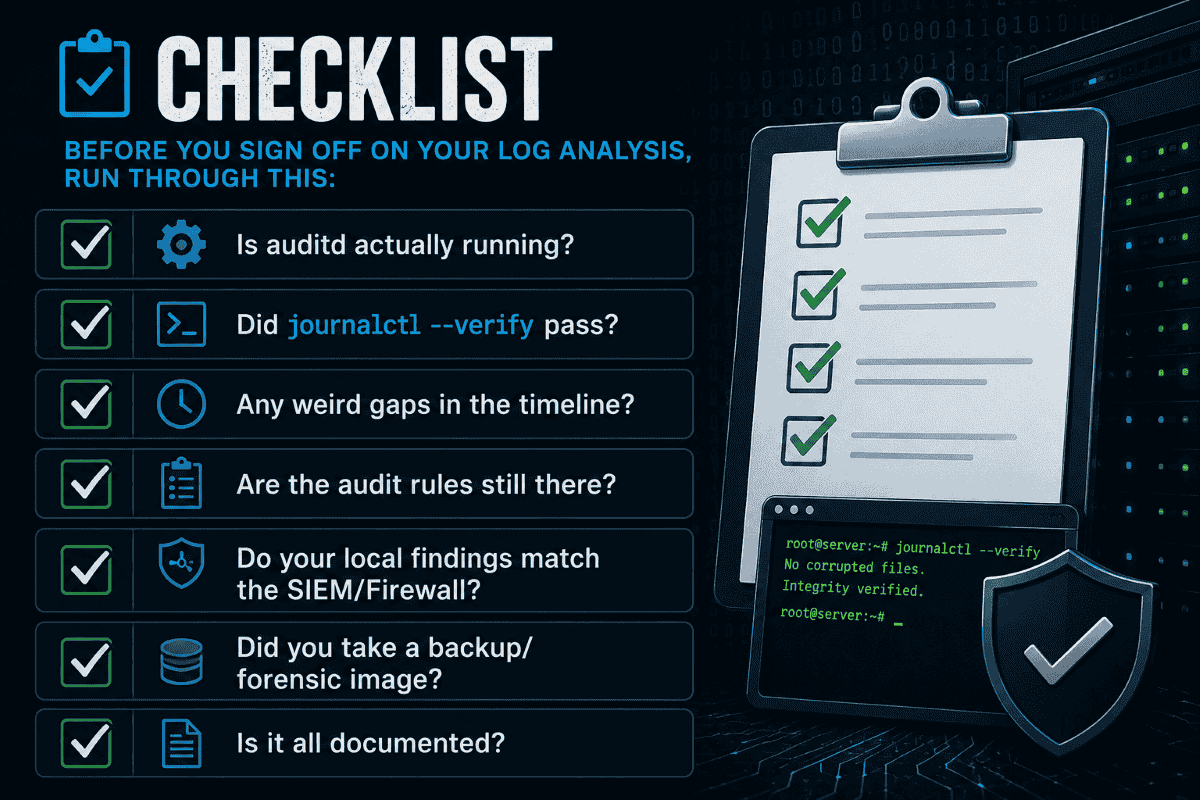
- Image it: Take a bit-for-bit copy.
- Lock down remote logs: Make sure your SIEM isn't purging the data for that host.
- Rebuild the story: Use network flow data and cloud logs to fill in the blanks.
- Document it: The fact that they tried to hide is as important as what they actually did.
A Final Thought on Best Practices
Consistent log analysis only works if you're sending logs off-box before an incident happens. Follow a Security Hardening Guide to establish a strong baseline. This includes configuring your systems to forward logs to a central server, and making sure those logs are read-only for everyone except your security team.
Successful log analysis isn't just about finding the one log file an attacker deleted. It’s about being able to tell the story of the incident despite the gaps. If you follow this process, you’ll find the inconsistencies they left behind, and you’ll have the proof you need to respond effectively.
 PREVIOUS

 NEXT
NEXT


Powered By

Linux Security - Your source for Top Linux News, Advisories, HOWTOs and Feature Releases
QUICK LINKS
subscribe to newsletters!
Like staying secure? So do we.
Sign up for updates, tips, and alerts!