Explore top 10 tips to secure your open-source projects now. Read More
×


Stay Ahead With Linux Security HOWTOs
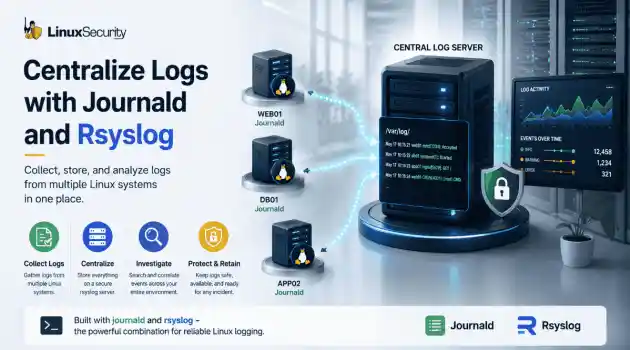
How to Learn Tips and Tricks network security centralized logging
network security centralized logging Linux systems generate a steady stream of authentication, service, kernel, and application logs. On most systems, those logs never leave the machine that created them. If you're responsible for ten or twenty servers, that means checking each one separately. If one disappears before you can investigate it, its logs may disappear with it. Centralized logging solves that by sending log messages to another server as they're created. Instead of searching every machine, you have one place to review...
 Jul 15, 2026

How to Secure My Networksecurity advisory audit
security advisory audit When you’re digging through an incident, your logs are the only thing you can actually trust. The problem is, attackers know that too. If someone gets root on your server, their first move is almost always to delete the evidence and cover their tracks. . If you aren't actively protecting your logs, you're basically flying blind the second a breach happens. It’s a miserable feeling to realize you have no idea what an attacker did because they wiped the logs before you even got there. In this...
Jul 11, 2026
How to Harden My Filesystemlog analysis security incident
log analysis security incident When an attacker breaks into a Linux system, their work is rarely done. Usually, the real work starts after the initial exploit: hiding their tracks. If you’re a Linux admin or security analyst, there is nothing worse than logging in, running a few commands, and realizing the logs aren't telling the whole story. When logs are missing or look "off," your primary source of truth is compromised. This guide covers how to handle that situation. We’ll walk through the workflow you need to determine...
Jul 10, 2026

How to Learn Tips and Trickssecurity practices linux
security practices linux One of the easiest mistakes to make in detection engineering is assuming a rule keeps working simply because nobody has touched it. Most of the time, nobody removes the rule. Nobody disables it. It just gets forgotten. . A few months later, someone upgrades a distribution, changes how SSH keys are managed, replaces a logging agent, or migrates an application to containers. The detection is still enabled, but it's watching an environment that no longer exists. The alert everyone expected never...
Jul 07, 2026
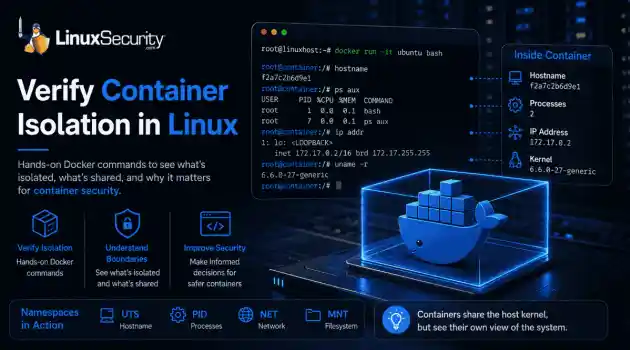
How to Harden My Filesystemlinux security considerations
linux security considerations Docker makes containers feel like separate, lightweight virtual machines. They have their own hostnames, processes, and networking—but are they actually isolated? Many administrators assume they are without ever verifying the boundaries. If you’ve ever wondered what truly separates your application from the host, this guide is for you. We’ll use simple Docker commands to verify container isolation firsthand and uncover exactly what remains shared with the host. . What Is Container Isolation?...
Jul 06, 2026
 Refine HOWTOs
X Clear Filters
Get the latest News and Insights
Get the latest Linux and open source security news straight to your inbox.
Community Poll
Is continuous patching actually viable?
Loading...
Explore Latest Linux Security HOWTOs
We found -3 articles for you...
166
 network securitycentralized logginglog management
How to Configure Centralized Logging with Journald and Rsyslog
Linux systems generate a steady stream of authentication, service, kernel, and application logs. On most systems, those logs never leave the machine that created them. If you're responsible for ten or twenty servers, that means checking each one separately. If one disappears before you can investigate it, its logs may disappear with it. Centralized logging solves that by sending log messages to another server as they're created. Instead of searching every machine, you have one place to review activity across your environment. This tutorial uses journald and rsyslog to build that setup. . Before You Begin To follow this tutorial, you need: One Linux system to act as the central rsyslog server At least one Linux client that will forward logs Root or sudo access on each system rsyslog installed on the server and clients Network connectivity between the systems TCP port 514 allowed through the server firewall The commands in this guide use TCP because it provides more reliable delivery than UDP. File locations and firewall commands may vary between Linux distributions. What Is Centralized Log Management in Linux? Centralized log management collects logs from multiple Linux systems and stores them on a central server instead of leaving them scattered across individual machines. If all you have is one server, local logs usually aren't a problem. Open journalctl or check the files under /var/log , and you're looking at everything that machine recorded. The workflow changes once more systems are involved. An application error on one server often shows up on another. A failed authentication attempt might appear on several systems within a few seconds. Looking for those events means repeating the same searches until you've checked every machine. Forwarding logs removes most of that work. Each server keeps writing logs locally, but it also sends another copy to a central rsyslog server. When you start investigating, that's normally the first systemyou open. You'll use two services to make that happen. journald records the log messages. rsyslog forwards them using your Linux syslog configuration. The logs stay on the local machine, but another copy is already waiting on the central server. How Journald and Rsyslog Work Together journald records the logs on each Linux system. rsyslog moves those logs to the central server, while journalctl lets you check the local copy. Component Role in centralized logging journald Records log messages on the local Linux system. journalctl Reads and searches the logs stored by journald . rsyslog Forwards local log messages to the central rsyslog server. Central rsyslog server Receives logs from multiple Linux systems and stores them in one place. Why Centralized Logging Matters Centralized logging keeps another copy of your logs on a separate system, so they remain available even when the original server isn't. Local logs work well until the server becomes part of the problem. A failed disk, an accidental deletion, or a compromised system can remove the records you were planning to review. A central logging server changes that. Every Linux system still keeps its own logs, but it also forwards another copy across the network. If one machine becomes unavailable, the forwarded logs are still there. The difference becomes obvious during an investigation. The same application error, failed login, or service failure can appear on several systems within a few minutes. Searching one central rsyslog server is usually faster than repeating the same search on every machine. Long-term storage gets easier too. Production servers no longer have to keep months of historical logs because the central server is already collecting them. That's one reason centralized log management is commonly used for troubleshooting, compliance, and incident response. Step 1: Verify Journald and Rsyslog Are Installed journald and rsyslog both need to be running before logs can be forwarded to another system. Start with journald . systemctl status systemd-journald The service should report: Active: active (running) That tells you the local journal is running. rsyslog is next. systemctl status rsyslog You're looking for the same status. Active: active (running) An inactive service isn't running. A failed service tried to start but stopped because of an error. Both need to be fixed before log forwarding will work. Step 2: Configure Persistent Journald Storage Persistent journal storage keeps log messages after a system reboot. A reboot can interrupt an investigation just as quickly as a deleted log file. If the journal only exists in memory, everything recorded before the restart disappears with it. Creating /var/log/journal changes that. sudo mkdir -p /var/log/journal Restart journald after creating the directory. sudo systemctl restart systemd-journald From that point on, new journal entries are written to disk instead of temporary storage. journalctl can confirm the change. journalctl --disk-usage You'll see how much space the journal is using. If the output reports disk usage, journald is writing persistent logs. Step 3: Configure Journal Retention Journal retention controls how long journald keeps logs and how much disk space they can use. Persistent storage keeps logs after a reboot. Retention decides how much of that history stays available. Without limits, the journal keeps growing until it reaches the storage limits of the system. The retention settings live in the journald configuration file. sudo nano /etc/systemd/journald.conf You'll find several options that control how the journal stores and removes log data. Setting What it changes Storage= Chooses whether the journal is stored inmemory, on disk, or both. Compress= Compresses older journal files to reduce disk usage. Seal= Adds integrity protection so changes to journal files can be detected. SystemMaxUse= Limits how much disk space persistent journals can use. RuntimeMaxUse= Limits how much memory runtime journals can use. MaxRetentionSec= Removes journal files after they've reached the configured age. A small server and a production server rarely need the same retention policy. A development system might only keep a few days of logs. A production server often keeps weeks or months, depending on available storage and internal requirements. One example looks like this. [Journal] Storage=persistent Compress=yes Seal=yes SystemMaxUse=2G RuntimeMaxUse=200M MaxRetentionSec=30day Each setting changes a different part of how the journal grows over time. SystemMaxUse keeps the journal from filling the disk. MaxRetentionSec removes older logs after they reach the configured age. Compress reduces the space used by older journal files, while Seal helps detect whether those files have been modified. Together, these settings keep the journal large enough for troubleshooting without allowing it to consume all available storage. Step 4: Configure Rsyslog to Receive Journald Messages journald already has the logs. The next step is getting those logs to rsyslog . Nothing leaves the server yet. Every log message is still local, even though persistent storage is enabled. Forwarding starts once journald begins passing its messages to rsyslog . Open the journald configuration file. sudo nano /etc/systemd/journald.conf Find this setting. ForwardToSyslog=yes On many Linux distributions, rsyslog already receives messages from journald through its default configuration. If ForwardToSyslog is disabled and rsyslog isn't receiving journalentries, enable it by removing the leading # or adding the setting if it doesn't exist. Note If your distribution already forwards journal messages through another input module, enabling ForwardToSyslog=yes may create duplicate log entries. Restart both services after saving the file. sudo systemctl restart systemd-journald sudo systemctl restart rsyslog From this point on, new journal entries are handed to rsyslog as they're created. The logs still exist on the local server, but rsyslog can now process and forward them to another system. One quick check is enough before moving on. systemctl status rsyslog rsyslog should report active (running) . The next step is giving it a server to forward those logs to. Step 5: Configure a Central Rsyslog Server A central rsyslog server receives log messages from every Linux system that forwards logs to it. Open the main rsyslog configuration file: sudo nano /etc/rsyslog.conf Add the following lines to enable a TCP listener on port 514 : module(load="imtcp") input(type="imtcp" port="514") Before restarting rsyslog , check the configuration for syntax errors: sudo rsyslogd -N1 A successful check should end with a message indicating that the configuration validation completed without errors. Next, allow TCP port 514 through the firewall. On Ubuntu or Debian systems using UFW : sudo ufw allow 514/tcp On RHEL-family systems using firewalld : sudo firewall-cmd --permanent --add-port=514/tcp sudo firewall-cmd --reload Restart rsyslog : sudo systemctl restart rsyslog Confirm that the service is running: sudo systemctl status rsyslog Then verify that rsyslog is listening on TCP port 514 : sudo ss -lntp | grep ':514' The output should show a listening socket on port 514 . Important Do not expose an unencrypted rsyslog listener directly to the public Internet. Use a private network, firewall restrictions, or TLS-securedforwarding. By default, some Linux distributions write incoming remote messages to the same system log used for local events, while others use different destinations depending on the rsyslog configuration. For larger environments, many administrators create a dedicated directory such as /var/log/remote/ and store logs in separate folders for each hostname to simplify troubleshooting and log retention. Step 6: Configure Linux Clients to Forward Logs Every Linux client needs a forwarding rule before log messages can reach the central rsyslog server. This rule tells rsyslog where to send copies of locally generated log messages. The server is ready to receive logs. The clients still need to know where those logs should go. That's done with a forwarding rule in the rsyslog configuration. A basic forwarding rule looks like this. *.* @@192.168.1.100:514 Replace 192.168.1.100 with the address of your rsyslog server. The *.* selector forwards every facility and every priority. The double @@ sends log messages over TCP. A single @ sends them over UDP. TCP is the better choice for most centralized logging deployments. It confirms messages are delivered before sending the next one. UDP sends messages without waiting for a response. It's faster, but dropped packets stay dropped. Many production environments also encrypt remote logging with TLS. The forwarding rule stays the same. The rest of the Linux syslog configuration adds the certificates needed to secure the connection. Restart rsyslog after saving the configuration. sudo systemctl restart rsyslog New log messages now have somewhere to go. Tip Use @@ to forward logs over TCP. TCP is generally the better choice because it provides connection-based delivery and can detect transmission failures. A single @ uses UDP, which has less overhead but may lose messages without notifying the sender. Step 7: Verify Logs Reach the Central Server A test message confirms the entirecentralized logging pipeline is working. There's no reason to wait for a real event. Generate one instead. logger "LinuxSecurity centralized logging test" The message should appear in the local journal. journalctl -n 10 Search for the test message if it's easier to spot. journalctl | grep "LinuxSecurity centralized logging test" The same message should also appear on the central rsyslog server. On Debian and Ubuntu systems, check: grep "LinuxSecurity centralized logging test" /var/log/syslog On RHEL-family systems, check: grep "LinuxSecurity centralized logging test" /var/log/messages You can also search both common locations: sudo grep -R "LinuxSecurity centralized logging test" \ /var/log/syslog /var/log/messages 2> /dev/null Log file locations vary by distribution and rsyslog configuration. If you configure a custom template for remote logs, search that directory instead. Step 8: Secure Your Logging Infrastructure A centralized logging server holds data from every system that forwards logs to it, so it needs the same level of protection as the systems it monitors. Log forwarding moves copies of your logs across the network. Encrypting that traffic with TLS keeps log messages from being read or modified while they're in transit. That's especially important when remote logging crosses untrusted networks. The logs themselves need protection too. Limit access to the rsyslog server, use restrictive file permissions, and avoid giving unnecessary users access to log data. The fewer people who can modify log files, the easier they are to trust during an investigation. Some environments take another step and use immutable storage. Once the logs are written, they can't be changed without leaving evidence behind. That's useful when logs need to support compliance requirements or forensic investigations. Many organizations also separate logging traffic from normal application traffic. A dedicated logging network reduces unnecessary exposureand keeps large volumes of log data away from production workloads. The logging server should follow the same maintenance routine as any other Linux system. Rotate log files before they fill the disk, back up important log data, and test those backups regularly. A backup that has never been restored is only a backup on paper. Step 9: Troubleshoot Common Logging Problems Most centralized logging problems come down to a small number of configuration or connectivity issues. A journal that disappears after every reboot usually points to non-persistent storage. Check that /var/log/journal exists and confirm the retention settings in journald.conf . Logs that never reach the rsyslog server often trace back to the forwarding rule. Review the Linux syslog configuration, restart rsyslog , and confirm the service is still running. Firewalls block more logging traffic than most configuration mistakes. If the client can generate logs but the server never receives them, verify the listening port is open on both systems. Missing log entries usually mean looking at both ends of the pipeline. Check the local journal with journalctl first. If the event exists there but not on the central server, the problem happened after journald recorded the message. Incorrect timestamps make investigations much harder. Systems that don't share the same time source rarely produce logs that line up correctly. Keeping every server synchronized with NTP avoids that problem. Duplicate log entries usually mean the same message is being forwarded more than once. Review your rsyslog rules and look for overlapping forwarding configuration. A full disk eventually stops log collection. Check available storage on both the client and the rsyslog server, then review your journal retention and log rotation settings before services start dropping messages. Best Practices A few small configuration choices make centralized logging much easier to manage over time. Keep persistent journald storageenabled. Forward logs from every Linux system instead of only critical servers. Encrypt remote logging with TLS whenever possible. Limit access to the rsyslog server and its log files. Monitor available disk space on both clients and the logging server. Rotate logs before storage becomes a problem. Test log forwarding after configuration changes. Keep every system synchronized with NTP . Review your syslog configuration after major operating system updates. Conclusion You now have a basic centralized logging pipeline: journald records events locally, rsyslog forwards them over TCP, and the central server stores another copy for investigation and retention. Local logs remain useful for troubleshooting individual systems, while the central server gives you one place to compare events across your environment. Test forwarding after every configuration change, monitor available storage, and regularly confirm that incoming logs are being retained as expected. Plain TCP forwarding is a good starting point for a private network. For a production deployment, the next step is to secure the connection with TLS and organize incoming logs by hostname. . Explore how to implement centralized logging using Journald and Rsyslog for improved log management and analysis in Linux.. logging management, centralized logging, Linux log analysis, rsyslog configuration. . Dave Wreski
 Jul 15, 2026
•
Jul 15, 2026
• How to Learn Tips and Tricks
167
 security advisoryauditcentralized logging
How to Build a Tamper-Resistant Logging Infrastructure for Linux
When you’re digging through an incident, your logs are the only thing you can actually trust. The problem is, attackers know that too. If someone gets root on your server, their first move is almost always to delete the evidence and cover their tracks. . If you aren't actively protecting your logs, you're basically flying blind the second a breach happens. It’s a miserable feeling to realize you have no idea what an attacker did because they wiped the logs before you even got there. In this guide, I’m going to show you how to actually lock these things down. We’re going to build a setup that keeps your audit trail safe—even if the host itself is completely compromised. The Strategy: A Layered Defense A tamper-resistant logging strategy combines multiple defensive layers to make the cost of log destruction too high for an attacker: Centralized Logging: Preserves evidence off-host where an attacker cannot reach it. Service Resilience: Prevents the logging daemon from being easily stopped or killed. Immutable Local Storage: Adds "speed bumps" to local files to slow down tampering. Active Monitoring: Detects tampering attempts or "log silence" the moment they occur. 1. The Golden Rule: Centralized Remote Logging Local logs are a liability. By streaming logs to a dedicated centralized server—where even administrators cannot easily modify previously written logs—you ensure that if an attacker wipes the local disk, the evidence is already safely archived elsewhere. Action: Configure rsyslog for TLS forwarding Most modern systems use rsyslog or systemd-journald . For production, use TCP (@@) rather than UDP (@) to ensure packets aren't dropped. Edit /etc/rsyslog.conf : # Encrypted transport via TCP $ActionSendStreamDriver gtls $ActionSendStreamDriverMode 1 $ActionSendStreamDriverAuthMode x509/name *.* @@logserver.example.com:514 Stick with TCP for this. A lot of people use UDP because it’s easy, but it’s 'fireand forget'—meaning you’re going to lose packets the second your network gets busy. You can’t afford to lose audit logs. You should be running TCP, and frankly, you need to layer TLS on top of it. That’s the only way to stop someone from sniffing your traffic or spoofing the logs while they’re moving across the wire. Quick warning: Don’t try to wing the TLS setup. If your client and server aren't playing nice with the same Certificate Authority (CA) , it’s just not going to connect, period. Seriously, check your distro’s docs on how to handle the certs first—don't just force the connection and hope for the best. How to make sure it’s not broken: Once you’ve got the config saved, don't just hope for the best. Run this on your client: logger "Test log message" Then, jump over to your central server. Tail the logs—use journalctl , your SIEM, or whatever standard log file your distro uses (usually /var/log/syslog or /var/log/messages ). If you don’t see that test message pop up, your pipeline isn't working 2. Service Resilience: Making the Daemon Stick Attackers often try to kill the logging service to stop the flow of information. You can use systemd to make the service self-healing. While this example uses rsyslog , the same logic applies to systemd-journald if you are managing it directly. Action: Configure service overrides sudo systemctl edit rsyslog Add this block: Ini, TOML [Service] Restart=always RestartSec=1 StartLimitBurst=5 StartLimitIntervalSec=10 Why this matters: This forces the daemon to restart immediately if killed. While a root user can technically override this, it forces them to continuously fight the system, increasing the likelihood that your monitoring will catch the activity. Verification: Manually kill the process with sudo pkill rsyslog and immediately run systemctl status rsyslog to watch it restart. 3. Local "Speed Bumps": Immutable Attributes If you havesensitive logs that must reside locally, you can use the chattr command to add an "append-only" flag. Action: Set the attribute sudo chattr +a /var/log/auth.log That’s the only way to stop someone from sniffing your traffic or spoofing the logs while they’re moving across the wire. Quick warning: Don’t try to wing the TLS setup. If your client and server aren't playing nice with the same Certificate Authority (CA), it’s just not going to connect, period. Seriously, check your distro’s docs on how to handle the certs first—don't just force the connection and hope for the best. 4. Detecting "Log Silence" A sudden stop in log volume is often an early indicator of compromise. A sudden absence of logs is often just as suspicious as malicious entries. Action: Monitor the heartbeat If you aren't running a full SIEM, add a simple cron job to verify the service is running: pgrep -f rsyslog > /dev/null || logger -p crit "CRITICAL: Logging service is down!" Pro Tip: Hook this logger command into your alerting system (like Prometheus, Zabbix, or Slack notifications) so you know within seconds if your logging goes dark. 5. Auditd: Tracking the Tamperer auditd is one of the most effective tools for detecting unauthorized changes to log files. Action: Add a watch rule Add this to /etc/audit/rules.d/audit.rules : -w /var/log/auth.log -p wa -k log-tamper Verification: Run sudo ausearch -k log-tamper -i to see the results. It will show you exactly which user account or process touched that file. Best Practice: Hardening local logs is valuable, but remote logging should always be your first priority. Once an attacker has root access, no local protection is completely trustworthy. Common Mistakes to Avoid The UDP Trap: Using UDP for production logging leads to lost data. Always prefer TCP or RELP (Reliable Event Logging Protocol), which provides stronger delivery guarantees than traditional syslogover TCP. Ignoring Rotation: Making a file immutable without configuring logrotate will cause your system to fill up or services to crash. Assuming Local Safety: No local log is safe if the host is compromised. Centralization is your only true insurance. Final Implementation Checklist Remote Logging: Enabled TLS/TCP forwarding. Verification: Confirmed messages appear on the central server. Resiliency: Set systemd restart policies on the logging daemon. Monitoring: Set up an alert for "Log Silence." Auditd: Active watch rules on critical files. Next Steps: If you are using immutable log files ( chattr +a ), your next task should be integrating those protections with logrotate so your logs continue to manage themselves without manual intervention. Want more Linux security news, vulnerability analysis, and software supply chain updates? Subscribe to the LinuxSecurity Newsletter and get the latest threats, advisories, and expert insights delivered directly to your inbox. Related Reading Exploring Log Management Tools for Efficient Linux System Monitoring Practical Guide to Hardening Linux Servers for Enhanced Security How to Read Linux Audit Logs During an Intrusion Auditd vs eBPF: Modern Approaches to Linux System Monitoring Linux Features Enhancing Security for 2026: Predictability and Control . Explore strategies to build a tamper-resistant logging infrastructure in Linux to enhance incident response and logging security.. Linux logging security, tamper-resistant logs, incident response. . MaK Ulac
Jul 11, 2026
•
How to Secure My Network


Get the latest News and Insights
Get the latest Linux and open source security news straight to your inbox.
Community Poll
Is continuous patching actually viable?
Search Topics
Powered By

Linux Security - Your source for Top Linux News, Advisories, HOWTOs and Feature Releases
QUICK LINKS
subscribe to newsletters!
Like staying secure? So do we.
Sign up for updates, tips, and alerts!