


Stay Ahead With Linux Security HOWTOs
How to Harden My Filesystem linux security considerations
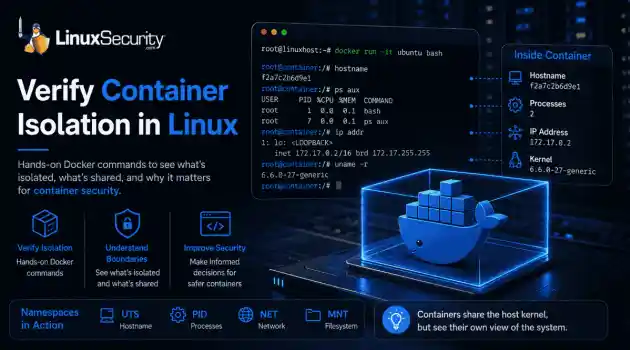
linux security considerations Docker makes containers feel like separate, lightweight virtual machines. They have their own hostnames, processes, and networking—but are they actually isolated? Many administrators assume they are without ever verifying the boundaries. If you’ve ever wondered what truly separates your application from the host, this guide is for you. We’ll use simple Docker commands to verify container isolation firsthand and uncover exactly what remains shared with the host. . What Is Container Isolation?...
 Jul 06, 2026
How to Harden My FilesystemLinux security incident response
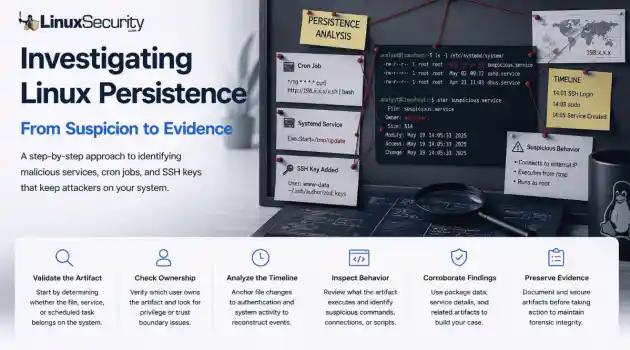
Linux security incident response You’re staring at a service or a cron job that’s giving you a bad feeling. Stop. The most dangerous thing you can do right now is act on that gut feeling alone. Linux systems are inherently noisy—package managers, configuration management, and the occasional "quick fix" from a colleague can all leave weird artifacts behind. . Step 1: Check Whether the File or Service Looks Normal When I'm looking at a scheduled task, I look for logic, not just anomalies. A cron job running...
Jul 03, 2026
How to Learn Tips and Trickssecurity framework process monitoring
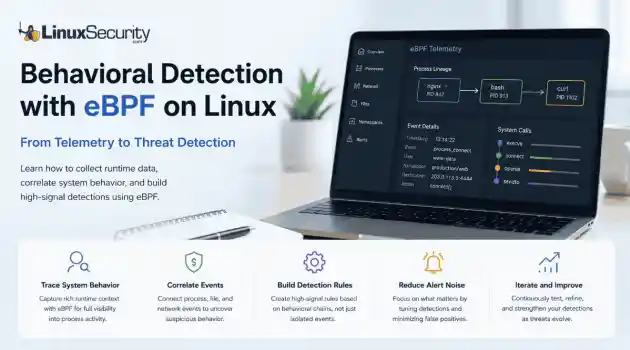
security framework process monitoring Building effective behavioral detections starts with understanding how processes behave at runtime, rather than simply collecting more logs. eBPF gives Linux security teams the visibility needed to correlate those behaviors into meaningful detections, moving away from static signatures and toward real-time analysis. . The first surprise for most people coming from auditd or legacy log collectors is how much context suddenly becomes available. Instead of just seeing that a shell executed, you...
Jul 01, 2026
How to Learn Tips and Tricksincident response linux
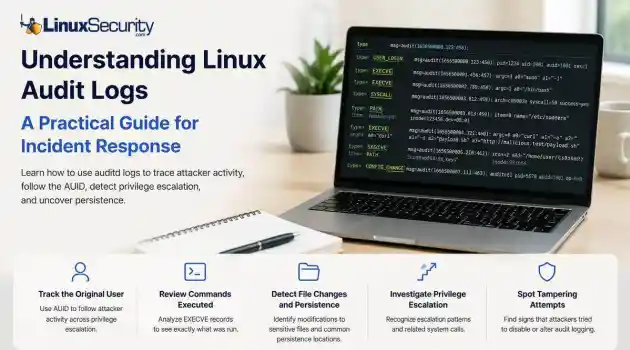
incident response linux When a security alert fires, the panic often sets in before the analysis. Many administrators instinctively reach for /var/log/auth.log or journalctl , but those logs tell only a partial story. They document successful logins and authentication attempts, but they rarely capture the granular "how" of a post-compromise environment. To truly reconstruct an attack, you need to master audit logs . Unlike standard authentication logs, Linux audit logs (managed by auditd ) record system-level...
Jun 29, 2026
How to Harden My Filesystemaccess control SELinux
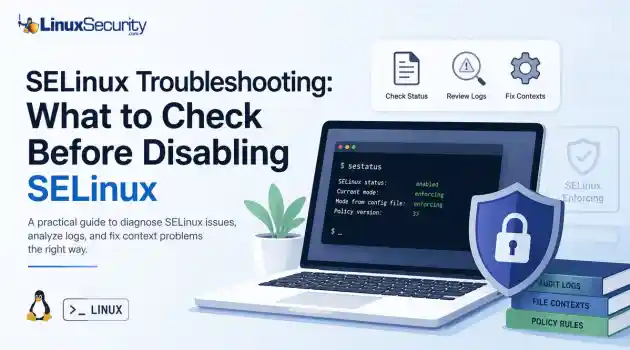
access control SELinux SELinux troubleshooting is a necessary skill for any system administrator. When a service fails despite correct file permissions and ownership, the immediate instinct is often to disable SELinux to confirm if the security policy is the bottleneck. While turning off enforcement frequently "fixes" the immediate symptom, it hides the underlying configuration flaw—such as an incorrect context or a policy violation—that could leave your system exposed. This guide outlines a systematic approach to...
Jun 25, 2026
 Refine HOWTOs
X Clear Filters
Get the latest News and Insights
Get the latest Linux and open source security news straight to your inbox.
Community Poll
Is application sandboxing truly safe?
Loading...

Explore Latest Linux Security HOWTOs
We found -4 articles for you...
160
 linuxsecurity considerationscontainer security
How to Check Docker Container Isolation in Linux
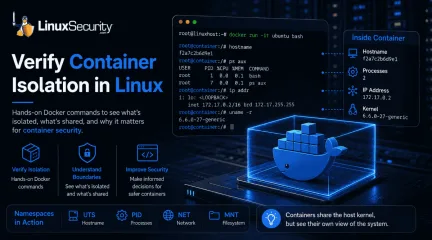
Docker makes containers feel like separate, lightweight virtual machines. They have their own hostnames, processes, and networking—but are they actually isolated? Many administrators assume they are without ever verifying the boundaries. If you’ve ever wondered what truly separates your application from the host, this guide is for you. We’ll use simple Docker commands to verify container isolation firsthand and uncover exactly what remains shared with the host. . What Is Container Isolation? Think of container isolation as a way to trick a process into thinking it has a server all to itself. If you’ve worked with virtual machines, you’re used to a hypervisor handling the heavy lifting—effectively carving out a slice of hardware. Containers are different. They don’t virtualize hardware; they use Linux namespaces to carve up the kernel’s view of the system. Basically, the kernel assigns labels to resources like network stacks or process lists. If a process in a container asks "What can I see?", the kernel only shows it the resources tagged with its specific namespace ID. It’s an illusion, sure, but it’s an incredibly effective one for keeping your applications from interfering with the host or each other. What Is Container Security? When people ask what container security is, they are usually looking for a way to keep their apps safe from start to finish. It’s not just one thing; it’s the whole process of managing your images, the runtime, and the host machine. The reason isolation is the biggest part of this is simple: if you don’t have a clear boundary, one bad script or one compromised app can easily reach into your host system. By knowing exactly what a container can (and can't) see, you can lock down your configuration and make sure that if one container fails, it doesn't take the whole server down with it. Step 1: Launch a Test Container with Docker Run To observe these boundaries, we’ll use the docker run command—the most common way to spin up a newcontainer. We are using the official Ubuntu image because it provides a familiar Linux userspace that is ideal for testing Docker commands. Run this command on your host: docker run -it ubuntu bash docker run : Creates and starts a new container instance. -it : Launches the container in interactive mode so you can run commands inside it. Once the command finishes, your terminal prompt will change. You are now working inside the container’s isolated environment. Step 2: Use Docker PS to Confirm the Container Is Running Open a second terminal window on your host and run: docker ps The output lists every active container, including its unique Container ID, image, uptime, and assigned name. Verify that your Ubuntu container appears in this list before moving to the next step. Step 3: Compare Hostnames to See Basic Isolation Let's see if the container truly has its own identity. Inside the container: Run hostname On your host: Run hostname You will see two different values. This is because the container uses the UTS (UNIX Timesharing System) namespace, which allows it to maintain a unique hostname independent of your machine. Step 4: Compare Running Processes Namespaces are at work here, too, preventing the container from seeing host-level processes. Inside the container: Run ps aux On your host: Run ps aux Inside the container, you will only see a small, clean list of processes, with bash as PID 1 because it is the first process started within that PID namespace. Meanwhile, your host terminal shows every system process. This PID namespace separation is vital for container isolation. Step 5: Use Docker Exec to Access a Running Container Administrators often need to debug a container that is already running in the background. For this, we use docker exec . Feature docker run docker exec Purpose Creates a new container Uses anexisting container State Starts a fresh environment Hooks into a running process Typical Use Initial testing/deployment Debugging or maintenance Run this on your host to jump back into your running container: docker exec -it bash Step 6: Compare Network Settings Run ip addr in both the container and the host. The container uses a separate network namespace, giving it its own virtual interfaces and a private IP address (usually in the 172.17.x.x range). This proves that the container has a private network stack, keeping its traffic separate from your host’s primary interfaces. Step 7: Compare Filesystems Create a file inside the container to test storage boundaries: touch /testfile.txt If you check your host’s current directory, you won't see this file. Although Docker stores the container's writable layer on the host, the file does not appear in your host's current working directory because the container has its own mount namespace. Step 8: See What Containers Still Share Finally, run this on both the host and the container: uname -r You will notice the kernel version is identical. This is the most critical lesson for container runtime security. Because containers share the host kernel, they do not provide the same "hard" security boundary as a virtual machine. According to official Linux kernel documentation , Linux namespaces provide logical partitioning, but they do not replace the need for secure kernel management. Common Container Isolation Mistakes Assuming Containers Are Virtual Machines: Containers are not hardware-virtualized. They are processes on your host, meaning a kernel-level exploit could impact the entire system. Running Privileged Containers: Using --privileged grants a container access to host devices, effectively bypassing many security namespaces. Using Host Networking: Using --net=host shares the host’s network namespace,removing all network isolation. Mounting Sensitive Directories: Mapping /etc or the Docker socket into a container can give the container full control over the host. Quick Reference: Observed Namespaces Namespace What You Verified UTS Different hostname PID Different process list Network Different interfaces and IP Mount Separate filesystem view Verify You've Observed Container Isolation Before you finish, ensure you’ve confirmed the following: Different hostname Different process list Different network interface Same kernel version File created inside the container is not visible in your host's working directory Container Security Best Practices To maintain a hardened environment, follow these container security best practices based on the CIS Docker Benchmark : Use Least Privilege: Never run your applications as root inside a container. Avoid Privileged Containers: Only use elevated privileges when absolutely necessary for hardware access. Keep Images Updated: Rebuild containers regularly using current base images to receive security patches and bug fixes. Patch Host Kernels: Since all containers share the host kernel, keeping your host OS updated is your primary defense against exploits. Audit Mounts: Regularly review which directories are mounted into your containers to prevent unauthorized host access. Final Takeaway You’ve now verified that containers provide effective logical isolation, but they are not the "air-gapped" environments that virtual machines are. Understanding these boundaries allows you to make informed container security decisions. Now that you’ve verified isolation firsthand, the next step is learning how Linux capabilities, cgroups, and seccomp further strengthen your environment. Exploring those features will help you move from basic containerusage to building truly resilient and secure systems. Want more Linux security news, vulnerability analysis, and software supply chain updates? Subscribe to the LinuxSecurity Newsletter and get the latest threats, advisories, and expert insights delivered directly to your inbox. . Explore how to verify Docker container isolation and understand its importance for securing Linux applications.. Docker Isolation, Container Security, Linux Best Practices. . MaK Ulac
 Jul 06, 2026
•
Jul 06, 2026
• How to Harden My Filesystem

Get the latest News and Insights
Get the latest Linux and open source security news straight to your inbox.
Community Poll
Is application sandboxing truly safe?
Search Topics
Powered By

Linux Security - Your source for Top Linux News, Advisories, HOWTOs and Feature Releases
QUICK LINKS
subscribe to newsletters!
Like staying secure? So do we.
Sign up for updates, tips, and alerts!
Discover faster search, smarter navigation, and deeper Linux security insights. Read More