Overly broad permissions can turn one compromised account into a much larger security problem. Learn how to reduce unnecessary access, review privileges, and apply least privilege across modern Linux systems. Review Linux Privileges×


Stay Ahead With Linux Security HOWTOs
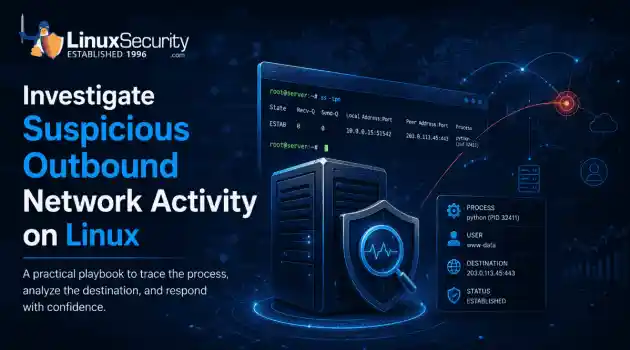
How to Secure My Network incident response network traffic
incident response network traffic Imagine logging into a production Linux server for routine maintenance and noticing background network activity connecting to an unfamiliar external IP address. Your endpoint protection agent is not popping up with an alert, there is no service failure, and on the surface, the system appears to be running normally. . For Linux administrators and security teams, such a situation is a moment of truth: Is this activity a sign of active intrusion or just a tool that was overlooked in the course of...
 Jul 21, 2026
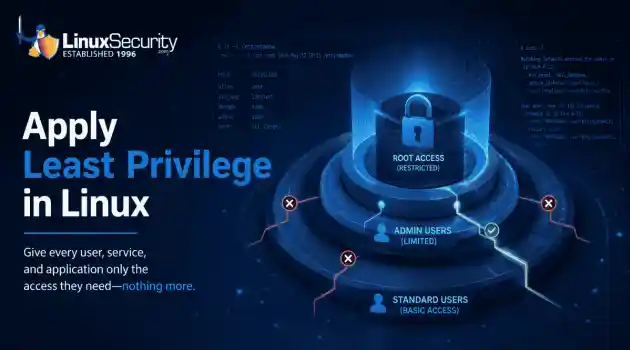
How to Harden My Filesystemsystem hardening open source security
system hardening open source security We all spend a lot of time defending our systems from external threats, but the amount of damage an attacker can cause often depends on what happens after they get in. A single compromised account doesn't always lead to a major incident. The real danger begins when that account has far more access than it actually needs. . That's exactly what the principle of least privilege is designed to prevent. By limiting users, services, and applications to only the permissions required for their jobs,...
Jul 20, 2026
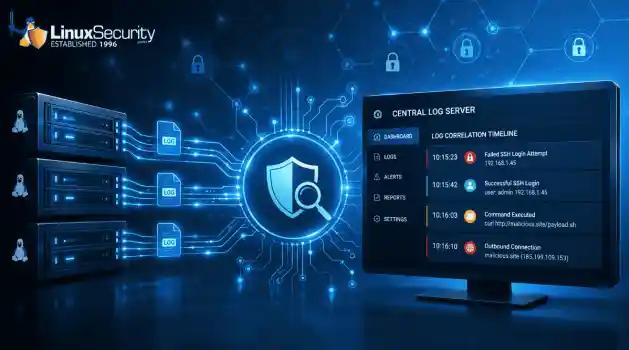
How to Learn Tips and Tricksthreat detection system monitoring
threat detection system monitoring For small security and IT teams, the "enterprise" dream of a fully automated SIEM often feels like a distant luxury. It’s a vision built on massive budgets and dedicated engineering teams—things that, frankly, most of us don't have. But here is the reality: you don’t need a six-figure platform to maintain a secure environment. . Linux systems are, by design, incredibly verbose. Every time a user authenticates, a process executes, or a configuration file changes, your system creates a record of...
Jul 17, 2026
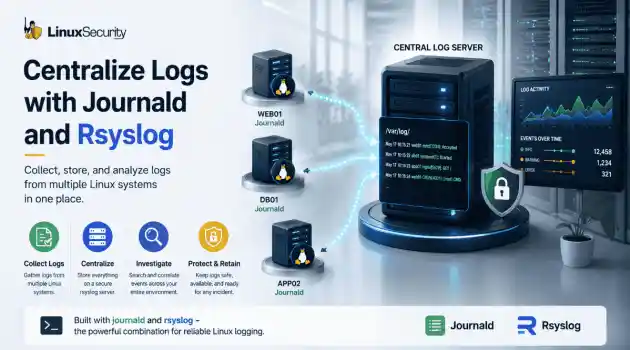
How to Learn Tips and Tricksnetwork security centralized logging
network security centralized logging Linux systems generate a steady stream of authentication, service, kernel, and application logs. On most systems, those logs never leave the machine that created them. If you're responsible for ten or twenty servers, that means checking each one separately. If one disappears before you can investigate it, its logs may disappear with it. Centralized logging solves that by sending log messages to another server as they're created. Instead of searching every machine, you have one place to review...
Jul 15, 2026
How to Secure My Networksecurity advisory audit
security advisory audit When you’re digging through an incident, your logs are the only thing you can actually trust. The problem is, attackers know that too. If someone gets root on your server, their first move is almost always to delete the evidence and cover their tracks. . If you aren't actively protecting your logs, you're basically flying blind the second a breach happens. It’s a miserable feeling to realize you have no idea what an attacker did because they wiped the logs before you even got there. In this...
Jul 11, 2026
 Refine HOWTOs
X Clear Filters
Get the latest News and Insights
Get the latest Linux and open source security news straight to your inbox.
Community Poll
Should Linux servers automatically install security updates?
Loading...
Explore Latest Linux Security HOWTOs
We found 0 articles for you...
166
 security advisorysystem upgradeupdate process
Updating & Upgrading Linux Distributions: Essential Security Practices
Applying security updates promptly after they are released is critically important for us Linux admins, as this practice helps protect against vulnerabilities that malicious actors could exploit. Failing to update could expose your Linux systems to cyberattacks, data breaches, and other severe security risks. . In this article, I'll guide you through checking installed versions of packages and performing security updates on popular Linux distributions, including Ubuntu, Fedora, Debian, Arch Linux, and openSUSE, thus reducing potential risks that could threaten the security and availability of your systems and your critical data. This is precisely the type of resource I was seeking as a junior sysadmin, and I hope these instructions will help make your Linux administration journey simpler and safer when you need to upgrade Linux. Let’s get started! What Are the Implications of Continuing to Use a Linux Distro Beyond Its Supported Date? Using a Linux distro past its supported date leaves your system unpatched, unsupported, and increasingly vulnerable to new security threats. Running a Linux distro beyond its supported date is risky for any admin. Once a distribution has reached its end of life (EOL), it no longer receives security updates, patches, or bug fixes. This leaves your system vulnerable to new security threats that won't be addressed. Over time, this lack of updates can lead to compatibility issues with newer software, which might require dependencies that won't be updated on EOL systems. In practice, it also means that if you encounter any problems, getting help from the community or official support channels will be much harder as the focus shifts to newer, supported versions. Running outdated software can also have compliance implications, especially in regulated industries where maintaining updated and secure systems is required. As a sysadmin, planning and scheduling regular upgrades is crucial to avoid downtime and ensure your systems remain safe and supported. Thisinvolves staying aware of your distro’s release and support schedules, testing new versions in staging environments, and having a clear upgrade path so you’re never caught off guard by an expired support window. Once repositories age out or metadata stops receiving updates, hash mismatches and signature failures also become more common, making it necessary to fall back on standard Linux integrity verification methods to validate files directly. Updates vs. Upgrades: Understanding the Difference While seemingly similar, updating and upgrading a Linux distribution refer to different operations within the context of system maintenance. Understanding this difference is a key part of preventing system drift in Linux and maintaining a stable environment. Updating a Linux distribution typically involves fetching and installing the latest versions of the installed software packages from the repositories. When you run an update command (such as sudo apt-get update or apt update ), the package manager syncs the local list of available packages with the remote repositories. After running apt-get upgrade or apt upgrade , the system retrieves and installs the updated versions of the packages without changing any major versions of the operating system itself. In contrast, upgrading a Linux distribution usually means moving to a newer version of the distribution itself. This involves more significant changes and can include new features, new kernel versions, and more up-to-date software stacks. In Debian-based systems, this is often performed using commands like apt-get dist-upgrade or do-release-upgrade , which handle complexities beyond simple package updates like dependencies and system configuration changes. Benefits of Updating Packages Manually vs. Relying on Automatic Updates Manual updates offer several advantages, such as selective control, allowing admins to prioritize critical security patches while avoiding updates that could disrupt existing configurations. They alsoenhance change management by letting updates be scheduled during maintenance windows, minimizing downtime, and enabling testing in staging environments before deployment. This ensures smoother operation and reduced risk. Additionally, manual updates provide customization options tailored to the system's specific needs, ensuring optimal performance. They also foster increased security awareness, as staying hands-on with updates keeps admins informed about the latest vulnerabilities and mitigations. Collectively, these benefits enable us admins to maintain a robust, secure, and well-managed environment suited to our operational requirements. How To Enable Automatic Updates for Your Linux Distro Should you choose to enable automatic updates for your Linux distro, here's a practical guide for doing so. This will ensure your systems are consistently updated with the latest security patches and improvements. Follow these steps for Ubuntu, Fedora, Debian, Arch Linux, and openSUSE to streamline your update process. Ubuntu First, install Unattended-Upgrades: sudo apt install unattended-upgrades Then enable it: sudo dpkg-reconfigure --priority=low unattended-upgrades Edit: /etc/apt/apt.conf.d/50unattended-upgrades Ensure required lines such as: "origin=Debian,codename=${distro_codename}-security"; are uncommented. Optional auto-removal: Unattended-Upgrade::Remove-Unused-Dependencies "true"; Configure periodic updates in: /etc/apt/apt.conf.d/20auto-upgrades Add: APT::Periodic::Update-Package-Lists "1"; APT::Periodic::Unattended-Upgrade "1"; Fedora Install DNF-Automatic: sudo dnf install dnf-automatic Edit: /etc/dnf/automatic.conf Set: apply_updates = yes Enable the timer: sudo systemctl enable --now dnf-automatic.timer Debian Install Unattended-Upgrades: sudo apt install unattended-upgrades Enable it: sudo dpkg-reconfigure --priority=low unattended-upgrades Edit: /etc/apt/apt.conf.d/50unattended-upgrades Set schedule in: /etc/apt/apt.conf.d/20auto-upgrades Add: APT::Periodic::Update-Package-Lists "1"; APT::Periodic::Unattended-Upgrade "1"; Arch Linux Install cron: sudo pacman -S cronie Enable cron: sudo systemctl enable --now cronie Add a cron job: crontab -e 0 3 * * * sudo pacman -Syu --noconfirm Or configure a systemd timer with: /etc/systemd/system/pacman-update.timer /etc/systemd/system/pacman-update.service Enable timer: sudo systemctl enable --now pacman-update.timer openSUSE Install automatic updates: sudo zypper install zypper-automatic Edit: /etc/zypp/zypp.conf Set: autoupdater=true Enable timer: sudo systemctl enable --now zypper-automatic.timer How Can I Upgrade Ubuntu & Update Packages? You can upgrade Ubuntu by updating your package lists, upgrading installed packages, and running the release upgrade tool. Check Installed Version: dpkg -s | grep Version Update package list: sudo apt update Upgrade an individual package: sudo apt install --only-upgrade Upgrade Linux (Ubuntu): sudo apt update && sudo apt upgrade -y && sudo apt dist-upgrade Clean up: sudo apt autoremove && sudo apt clean Release upgrade: sudo do-release-upgrade Clarification: apt upgrade installs routine package updates, while apt full-upgrade and apt-get dist-upgrade can remove or replace packages to complete a full system transition. Ubuntu Release Schedule Ubuntu has a two-year release cycle , and LTS, or 'Long Term Support, ' releases are published in April. Ubuntu has both Long-Term Support (LTS) releases and interim releases. For desktop and server versions, LTS versions are supported for 5 years, while interim releases are supported for 9 months. How Can I Upgrade Fedora & Update Packages? You can upgrade Fedora by updating packages, installing the system-upgrade plugin, downloading the newrelease, and rebooting to apply the upgrade. Check version: rpm -q Update package: sudo dnf update Upgrade Fedora: sudo dnf install dnf-plugin-system-upgrade sudo dnf system-upgrade download --releasever=XX sudo dnf system-upgrade reboot Fedora Release Schedule Fedora releases two major OS versions each year, aiming for the fourth Tuesday in April and October. Each release is supported for approximately 13 months. How Can I Upgrade Debian & Update Packages? You can upgrade Debian by updating package lists, upgrading current packages, updating your sources list to the next release, and completing a full upgrade. Check version: dpkg -s | grep Version Update package list: sudo apt update Upgrade individual package: sudo apt install --only-upgrade Upgrade Debian: sudo apt update && sudo apt upgrade -y && sudo apt full-upgrade Edit sources: /etc/apt/sources.list Replace the old codename with the new release. Finish upgrade: sudo apt update sudo apt upgrade sudo apt full-upgrade sudo reboot Debian Release Schedule Debian releases do not follow a fixed schedule. The Debian Project has released recent versions roughly every two years. Regular Debian releases are supported for about 3 years after the initial release, while LTS releases are supported for 5 years through the Long-Term Support project. How Can I Upgrade Arch Linux & Update Packages? You can upgrade Arch Linux by checking installed package versions and running a full system upgrade using pacman. Check version: pacman -Qi | grep Version Update package: sudo pacman -S Upgrade system: sudo pacman -Syu ArchLinux Release Schedule Arch Linux does not have a formal release schedule or a predetermined support timeline. Instead, the distro uses a "rolling release" system where new packages are released throughout the day. Its package management allows users to easily keep systems updated. Thereis no fixed support period as new packages and updates are regularly provided. How Can I Upgrade openSUSE & Update Packages? You can upgrade openSUSE by refreshing repositories, updating installed packages, and performing a distribution upgrade with zypper. Check version: rpm -q Update package: sudo zypper update Upgrade system: sudo zypper refresh sudo zypper update sudo zypper dist-upgrade openSUSE Release Schedule openSUSE Leap Micro is released twice a year and receives maintenance updates approximately every 12 months. openSUSE Leap is supported for about 18 months per minor release or until the next minor release. openSUSE Tumbleweed is a rolling release and is continuously updated without a fixed support period. These steps will help you upgrade each of the listed Linux distributions to their latest versions. Always ensure you have backups of your important data before upgrading. Our Final Thoughts on the Importance of Timely Linux Security Updates Maintaining up-to-date Linux distributions with security patches and software upgrades is not only a best practice but also a necessary measure to protect your systems against potential threats. We’ve provided detailed instructions for checking and updating existing packages across popular distributions. Follow these steps to ensure your system remains robust and less susceptible to attacks. Regular updates and a disciplined cybersecurity approach help maintain operational integrity. Always back up important files before upgrading. Stay informed on the latest vulnerabilities, patches, and Linux security developments by following our live updates in the Linux Security News Hub . . Explore essential steps for updating and upgrading Linux distros to enhance security and maintain system integrity.. applying, security, updates, promptly, released, critically, important, linux. . Brittany Day
 Nov 19, 2025
•
Nov 19, 2025
• How to Learn Tips and Tricks
166
 system updatepackage managementautomated updates
Automating Updates In RHEL: Using dnf-automatic For System Security
Applying updates regularly should be the top priority in the day-to-day tasks of a System administrator. Running unpatched systems for a long time is quite risky. There are many ways to patch your Linux systems. Today, we will learn how to apply updates automatically with dnf-automatic in RHEL and its clones like AlmaLinux and Rocky Linux. . The dnf-automatic is an alternative to dnf upgrade command which can be executed automatically and regularly via systemd timers, cron jobs and similar. It synchronizes the package metadata as needed and then checks for updates available for your RHEL-based systems. Depending upon the configuration file settings, dnf-automatic command either downloads the package updates, or downloads and installs the packages, or simply exits. . Discover how to streamline updates using dnf-automatic on RHEL, AlmaLinux, and Rocky Linux to enhance your system's security protocols.. Automated Updates, dnf-automatic, RHEL Administration, Package Management. . Brittany Day
Jan 15, 2023
•
How to Learn Tips and Tricks

166
 software updateopen sourcepackage management
How To Update Flatpak Packages On Linux Systems Effectively
I believe almost all Linux users keep their systems updated. But that update is usually for the default . For example, often means updating all the APT packages. . However, there are other packaging formats like Snap and Flatpak. The Snap applications get updated automatically but not the Flatpak ones. How do you update the Flatpak packages then? . Discover effective techniques to refresh your Flatpak applications in tandem with standard system upgrades on Linux, ensuring a seamless and enhanced user experience.. Flatpak Update, Linux Package Management, Software Update, Open Source Packages. . Brittany Day
Dec 22, 2022
•
How to Learn Tips and Tricks
166
 debianDebianUbuntu
Holding Packages In Debian And Ubuntu: A Practical Guide
Learn how to hold or prevent a package from upgrade in Debian, Ubuntu and its derivatives such as Linux Mint and Pop!_OS in this OSTechnix tutorial. . As you already know, we can upgrade all installed packages using apt upgrade command in Debian, Ubuntu and other Debian-based systems. During this upgrade process, all installed packages will be upgraded, some additional packages (i.e. dependencies) will be installed, and some unnecessary packages will be deleted. Apt package manager does all these things automatically to help the users to maintain a clean system. Apt also has an option to prevent a package from being automatically installed, upgraded or removed in Debian, Ubuntu and its variants. In this guide, we will discuss various methods to hold or prevent a package from upgrade in Debian, Ubuntu and its derivatives such as Linux Mint and Pop!_OS. . Discover the methods to effectively keep a software package from upgrading in Debian, Ubuntu, and their derivatives such as Linux Mint.. Prevent Package Upgrade, Debian Package Management, Ubuntu Apt Commands. . Brittany Day
Dec 31, 2020
•
How to Learn Tips and Tricks
163
 package managementsecurity measuresoftware safety
Boost Security in Your Package Management with EnGarde Solutions
Always a great and useful place for walk-throughs, How-TOS and more, How-to-Forge has yet another quality overview on setting up your platform. This time, it. The link for this article located at HOW-TO-FORGE.com is no longer available. . The link for this article located at HOW-TO-FORGE.com is no longer available.. always, great, useful, place, walk-throughs, how-tos, how-to-forge, another. . LinuxSecurity Contributors
Oct 09, 2007
•
How to Secure My Webserver

Get the latest News and Insights
Get the latest Linux and open source security news straight to your inbox.
Community Poll
Should Linux servers automatically install security updates?
Search Topics
Powered By

Linux Security - Your source for Top Linux News, Advisories, HOWTOs and Feature Releases
QUICK LINKS
subscribe to newsletters!
Like staying secure? So do we.
Sign up for updates, tips, and alerts!