Overly broad permissions can turn one compromised account into a much larger security problem. Learn how to reduce unnecessary access, review privileges, and apply least privilege across modern Linux systems. Review Linux Privileges×


Stay Ahead With Linux Security HOWTOs
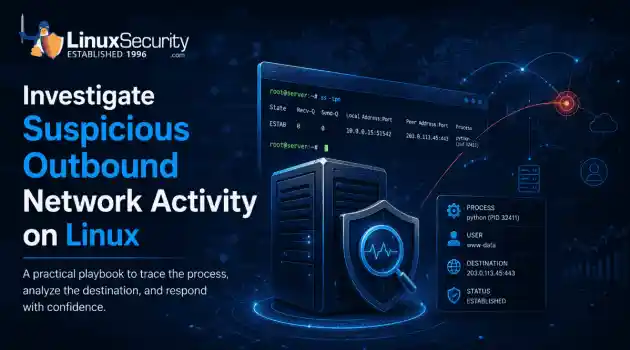
How to Secure My Network incident response network traffic
incident response network traffic Imagine logging into a production Linux server for routine maintenance and noticing background network activity connecting to an unfamiliar external IP address. Your endpoint protection agent is not popping up with an alert, there is no service failure, and on the surface, the system appears to be running normally. . For Linux administrators and security teams, such a situation is a moment of truth: Is this activity a sign of active intrusion or just a tool that was overlooked in the course of...
 Jul 21, 2026
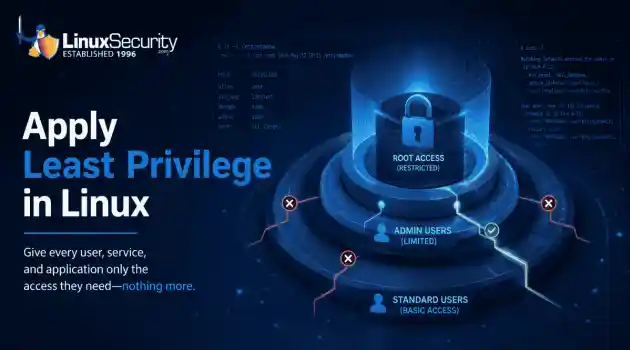
How to Harden My Filesystemsystem hardening open source security
system hardening open source security We all spend a lot of time defending our systems from external threats, but the amount of damage an attacker can cause often depends on what happens after they get in. A single compromised account doesn't always lead to a major incident. The real danger begins when that account has far more access than it actually needs. . That's exactly what the principle of least privilege is designed to prevent. By limiting users, services, and applications to only the permissions required for their jobs,...
Jul 20, 2026

How to Learn Tips and Tricksthreat detection system monitoring
threat detection system monitoring For small security and IT teams, the "enterprise" dream of a fully automated SIEM often feels like a distant luxury. It’s a vision built on massive budgets and dedicated engineering teams—things that, frankly, most of us don't have. But here is the reality: you don’t need a six-figure platform to maintain a secure environment. . Linux systems are, by design, incredibly verbose. Every time a user authenticates, a process executes, or a configuration file changes, your system creates a record of...
Jul 17, 2026
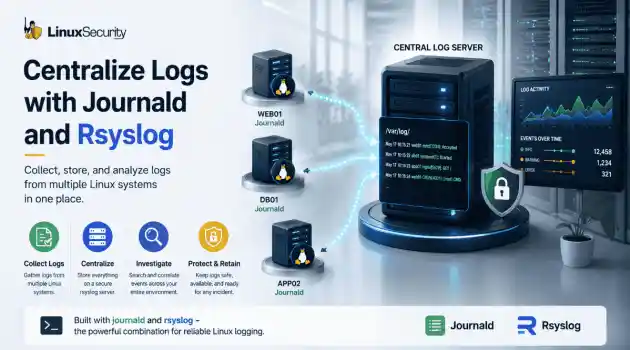
How to Learn Tips and Tricksnetwork security centralized logging
network security centralized logging Linux systems generate a steady stream of authentication, service, kernel, and application logs. On most systems, those logs never leave the machine that created them. If you're responsible for ten or twenty servers, that means checking each one separately. If one disappears before you can investigate it, its logs may disappear with it. Centralized logging solves that by sending log messages to another server as they're created. Instead of searching every machine, you have one place to review...
Jul 15, 2026

How to Secure My Networksecurity advisory audit
security advisory audit When you’re digging through an incident, your logs are the only thing you can actually trust. The problem is, attackers know that too. If someone gets root on your server, their first move is almost always to delete the evidence and cover their tracks. . If you aren't actively protecting your logs, you're basically flying blind the second a breach happens. It’s a miserable feeling to realize you have no idea what an attacker did because they wiped the logs before you even got there. In this...
Jul 11, 2026
 Refine HOWTOs
X Clear Filters
Get the latest News and Insights
Get the latest Linux and open source security news straight to your inbox.
Community Poll
Should Linux servers automatically install security updates?
Loading...
Explore Latest Linux Security HOWTOs
We found 3 articles for you...
167
 unauthorized accesssecurity techniquesSSH
How To Understand Failed Authentication Patterns in Linux Logs
Exposed SSH servers are continuously hammered by brute-force attacks, password spraying, credential stuffing, and recycled passwords from infostealer dumps. Attackers rotate usernames, test weak credentials, and probe for anything that gives them initial access. The logs usually look messy long before the compromise happens. . The difficult part is separating harmless failures from actual intrusion activity. One failed login from an internal workstation rarely matters. Repeated failures against privileged accounts from cloud VPS ranges usually do. Especially when sudo activity or successful authentication starts appearing afterward. This guide walks through how failed authentication activity appears in Linux SSH and PAM logs, how brute-force attacks differ from password-spraying operations, and how administrators surface suspicious login patterns before attackers establish persistence or reach root access. Raw auth logs get noisy fast. Understand Where Linux Authentication Logs Are Stored Linux distributions store authentication events in different locations depending on the platform. Debian and Ubuntu systems typically write authentication logs to: /var/log/auth.log RHEL, CentOS, AlmaLinux, and Rocky Linux systems usually use: /var/log/secure Modern Linux systems running systemd may also expose authentication activity directly through the system journal: journalctl -u ssh Authentication logs usually contain entries generated by both the SSH daemon ( sshd ) and PAM, which stands for Pluggable Authentication Modules. They appear together because SSH relies on PAM during the authentication process itself. SSH handles the network connection. PAM handles authentication checks, account validation, session management, and policy enforcement. That’s why one SSH login attempt can generate multiple related log entries within seconds. New administrators often think the logs are duplicated at first. They aren’t. Authentication logs generally contain four types of events: Failed login attempts Successful logins Session openings and closures Privilege escalation activity through sudo or su One of the most common ways administrators monitor authentication activity is by tailing logs in real time. sudo tail -f /var/log/auth.log Or on RHEL-based systems: sudo tail -f /var/log/secure “Tailing” logs simply means watching new log entries appear live as the file updates. Authentication events are chronological, so the newest events appear at the bottom. This helps administrators observe SSH activity while reproducing login attempts or investigating suspicious behavior. You can also review SSH-specific events through the journal: journalctl -u ssh That becomes useful on systems where older logs rotate quickly or where journald stores events centrally instead of relying entirely on flat files. Learn What Normal Failed Login Activity Looks Like Most failed authentication events are harmless. Linux systems generate routine login failures constantly during normal operations. Users mistype passwords. Somebody tries the wrong SSH username. A scheduled task continues using an old password after credentials change. Service accounts fail periodically when applications restart with outdated secrets. It happens everywhere. A normal failed SSH login often looks like this: Failed password for john from 192.168.1.25 port 51122 ssh2 You’ll usually see a related PAM entry nearby: pam_unix(sshd:auth): authentication failure; user=john These entries typically belong to the same authentication attempt. SSH records the failed password event while PAM records the internal authentication failure generated during credential validation. A single failed password attempt is common and usually harmless. Administrators should focus more on frequency, repetition, timing, and source behavior instead of isolated events. One failed login from an internal workstation rarely matters. Repeated failures against multiple accounts fromunfamiliar external IP addresses matter a lot more. Authentication logs also help administrators monitor long-term patterns. Repeated failures tied to the same system, user account, or subnet often reveal configuration problems before they become security issues. Sometimes broken automation looks almost identical to credential abuse at first glance. How to Detect Brute Force Attempts in SSH Logs Brute force attacks are usually easy to recognize once the pattern becomes repetitive. Attackers repeatedly attempt passwords against the same account until something works or the target blocks further access. Internet-facing Linux servers see this constantly. Especially SSH services exposed directly to the public internet. Administrative accounts like root get targeted heavily because attackers already know the username exists on many Linux systems. They only need to guess the password. Brute force activity often looks like this: Failed password for root from 185.220.101.4 port 55872 ssh2 Failed password for root from 185.220.101.4 port 55881 ssh2 Failed password for root from 185.220.101.4 port 55903 ssh2 The source IP remains consistent while the connection port changes with each new SSH attempt. That’s normal behavior because every SSH connection opens a separate session. Administrators usually start by searching for failed password events directly: grep "Failed password" /var/log/auth.log To focus specifically on root targeting: grep "Failed password for root" /var/log/auth.log This becomes more useful when combined with IP aggregation: awk '/Failed password/ {print $(NF-3)}' /var/log/auth.log | sort | uniq -c That command extracts source IP addresses from failed authentication entries, sorts them, and counts how often each address appears. Repeated login attempts from the same external IP usually stand out quickly. What matters operationally is repetition. One failed SSH login is normal. Hundreds of failures targeting the same administrativeaccount from the same host usually indicate automation. The MITRE ATT&CK framework tracks brute force authentication abuse under T1110 Brute Force . MITRE documents how attackers automate password guessing against exposed services, administrative accounts, and remote access infrastructure. The behavior described there closely matches what administrators see inside Linux authentication logs during active SSH attacks. Attackers automate these attempts because eventually, weak passwords work. Especially on systems that were not hardened properly after deployment. How to Identify Password Spraying in Linux Authentication Logs Password spraying looks different from traditional brute force activity. Instead of attacking one account repeatedly with many passwords, attackers try a small number of passwords across many usernames. Slower. Quieter too. The goal is to avoid account lockouts while testing reused credentials at scale. Many lockout policies trigger after repeated failures against a single account. Password spraying sidesteps that problem by rotating usernames instead. A spraying attempt may look like this: Failed password for admin from 203.0.113.44 Failed password for backup from 203.0.113.44 Failed password for finance from 203.0.113.44 One source IP rotates through multiple usernames carefully over time. Attackers often target predictable accounts first: admin backup finance support deploy test Administrators can start reviewing spraying behavior with simple searches: grep "Failed password" /var/log/auth.log | awk '{print $11}' Or broader sorting: grep "Failed password" /var/log/auth.log | sort Timestamps matter heavily during spraying investigations. Attackers intentionally spread attempts across longer periods to remain below alert thresholds and avoid triggering lockout policies. Ten failures over an hour often attract less attention than ten failures in thirty seconds, even though the intent is the same. This is why authentication logs should always be reviewed as sequences instead of isolated events. Password spraying tends to look subtle until someone lines up the timestamps properly. How to Investigate Stolen Credential Abuse Failed authentication attempts become much more serious once attackers successfully log in. At that point, the investigation shifts from attempted access to potential compromise. A successful SSH login following repeated failures deserves immediate review. Example: Accepted password for backupadmin from 203.0.113.44 port 60211 ssh2 Then shortly afterward: sudo: session opened for user root That sequence matters because attackers frequently escalate privileges immediately after gaining initial access. Especially if compromised accounts already have sudo access or weak privilege restrictions. Administrators investigating suspicious authentication activity usually begin with successful login searches: grep "Accepted password" /var/log/auth.log Then review privilege escalation events: grep "session opened" /var/log/auth.log A practical investigation workflow usually looks like this: Review failed logins leading up to successful authentication Identify the originating IP address Compare timestamps between failures and successful access Review sudo activity and privilege escalation Determine whether the behavior matches normal operational patterns Suspicious login timing often becomes a strong indicator. Administrative accounts authenticating at unusual hours from unfamiliar IP addresses deserve attention, even if the credentials themselves were valid. Research from Elastic Security Labs and Splunk Security Research consistently emphasizes correlating failed and successful authentication activity together instead of reviewing them independently. Rapid privilege escalation, abnormal login velocity, and suspicious authentication sequencing frequently appear during SSH compromise investigations. This iswhere authentication logs stop being troubleshooting data and start becoming incident response evidence. Understand PAM Authentication Failure Messages PAM messages confuse many administrators because the entries look verbose and disconnected from normal SSH logging. They actually provide useful context once you understand how PAM works during authentication. PAM, or Pluggable Authentication Modules, handles authentication processing for many Linux services, including SSH. During login attempts, PAM modules validate credentials, apply account restrictions, enforce authentication policies, and create sessions. That’s why PAM entries appear beside SSH daemon logs constantly. A typical PAM authentication failure looks like this: pam_unix(sshd:auth): authentication failure; logname= uid=0 euid=0 tty=ssh A successful session creation may appear like this: pam_unix(sshd:session): session opened for user john Administrators commonly search PAM-specific activity using: grep "pam_unix" /var/log/auth.log Or through the system journal: journalctl | grep pam PAM logs supplement SSH logs by showing different stages of authentication processing. One SSH login attempt may generate multiple PAM events, including: authentication failure user validation session opened session closed This is normal behavior. PAM modules log actions separately as the authentication process moves through different stages internally. Beginners often assume multiple PAM entries indicate multiple login attempts. Usually, they belong to the same session sequence instead. The Red Hat PAM documentation explains how PAM modules generate authentication and session events during login processing. Understanding those stages helps administrators interpret Linux authentication logs more accurately during both troubleshooting and security investigations. PAM fills gaps that SSH logging alone doesn’t always explain clearly. How to Respond to Suspicious Authentication Activity Once suspicious authentication behavior appears, response speed matters. Attackers rarely stop after gaining initial access. Start by identifying exposed or compromised accounts. Disable accounts showing suspicious activity until the investigation finishes. sudo passwd -l username Review whether Fail2Ban or equivalent rate-limiting protections are active: sudo systemctl status fail2ban Then inspect the SSH daemon configuration d irectly: sudo nano /etc/ssh/sshd_config Several SSH settings reduce exposure significantly: PermitRootLogin no PasswordAuthentication no Disabling password authentication forces SSH key usage instead of credential-based logins. Restricting direct root login removes one of the most heavily targeted accounts from external authentication attempts entirely. Administrators should also review: sudo rules firewall restrictions privileged accounts dormant users MFA coverage SSH key management IP-based access restrictions help reduce the attack surface further on systems that only require administrative access from trusted locations. Continuous log monitoring matters too. Authentication abuse usually escalates gradually. Attackers test footholds quietly first, then move toward privilege escalation once they understand the environment. Most compromises leave warning signs in the logs long before defenders notice the breach itself. Conclusion Failed authentication attempts happen on every Linux system. Most is harmless operational noise. The patterns behind those failures often reveal much more. Brute-force attacks, password-spraying campaigns, and stolen-credential abuse all leave traces in SSH and PAM logs before attackers establish persistence or gain root access. Administrators who understand those patterns can investigate suspicious activity more quickly and reduce the chances of unauthorized access going unnoticed. Authentication logs become far more useful once you stop reading individual entries andstart tracking behavior over time. Repetition matters. Timing matters. Successful logins after repeated failures matter even more. Linux logs look chaotic initially. Eventually, the attack patterns start standing out on their own. Want more Linux security guidance, threat analysis, and hardening tutorials delivered directly to your inbox? Subscribe to the LinuxSecurity.com newsletter for practical updates, emerging threat coverage, and operational Linux administration tips. Related Reading Fail2ban Linux Security Brute Force Protection and Monitoring PAM: Important Risks in Linux Authentication Trust Chain Essential Log Management Tools for Effective Linux Security Detecting Lateral Movement on Linux Systems Without EDR Securing Remote Access to Linux Servers: Best Practices for 2026 . The difficult part is separating harmless failures from actual intrusion activity. One failed login . exposed, servers, continuously, hammered, brute-force, attacks, password, spraying, credential. . MaK Ulac
 May 28, 2026
•
May 28, 2026
• How to Secure My Network
166
 Linux administrationsecurity techniquesservice hardening
Hardening Systemd Services To Secure Linux Systems Against Threats
Learn how to reduce the attack surface of your Linux system by hardening the Systemd service in this tutotal. . In an age where hacker attacks are a daily occurrence, it is of fundamental importance to minimize the attack surface. Containerization is probably the best way to isolate a service provided for the public, but this is not always possible for several reasons. For example, think of a legacy system application developed on systemd. This could make the most of the capabilities provided by a systemd-based operative system and it could be managed via a systemd unit, or it could automatically pull updates using a systemd timer, and so on. For this reason, we are going to explain how to improve the security of a systemd service. But first, we need to step back for a moment. With the latest releases systemd has implemented some interesting features relating to security, especially sandboxing. In this article we are going to show step-by-step how to strengthen services using specific directives, and how to check them with the provided systemd suite. . Discover pivotal strategies to fortify systemd services and effectively minimize your Linux environment's vulnerability footprint.. Systemd Hardening, Linux Security Solutions, Minimize Attack Surface, Service Management. . Brittany Day
May 18, 2021
•
How to Learn Tips and Tricks

166
 security techniquesselinuxsystem control
Mastering SELinux Booleans For Security Management in Linux Systems
This tutorial examines the flexibility that Booleans offer SELinux and how to make use of them. . Security-Enhanced Linux, better known as SELinux , has been around for a while now—and for good reason. Originally developed by the National Security Agency, it has been a part of the open source community since 2000 and a part of the Linux kernel since 2003. SELinux helps administrators keep tabs on how different parts of a Linux system can perform actions with fine-grain controls. . Explore the potential of SELinux Booleans to optimize security controls in Linux environments.. SELinux Management, Policy Control, Linux Security Techniques. . Brittany Day
Oct 21, 2020
•
How to Learn Tips and Tricks
160
 security techniquesLinux enhancementkernel hardening
Strengthening Linux Kernel Security Against Malicious Threats
This whitepaper shows how to harden your Linux kernel to prevent malicious attacks.. . This whitepaper shows how to harden your Linux kernel to prevent malicious attacks.. whitepaper, shows, harden, linux, kernel, prevent, malicious, attacks. . Anthony Pell
Jun 20, 2006
•
How to Harden My Filesystem
163
apachehardeningsecurity techniques20 Crucial Methods To Fortify Your Apache Configuration Security
Here are 20 things you can do to make your apache configuration more secure.. . Here are 20 things you can do to make your apache configuration more secure.. things, apache, configuration, secure. . Anthony Pell
Jun 16, 2006
•
How to Secure My Webserver
167
security practicessystem hardeningsecurity techniquesComprehensive Guide To Hardening Linux Systems For Enhanced Protection
The process of modifying a system to make it highly secure is known as hardening.. . Discover methods to enhance the security of your infrastructure through robust fortification strategies.. Linux Hardening Techniques, System Security, Secure Configuration. . Anthony Pell
Nov 23, 2004
•
How to Secure My Network
160
security measuressecurity techniqueskernel hardeningExploring Kernel Hardening Approaches for Secure Linux Production Systems
This article will cover the issues of Linux hardening, with a specific focus on kernel hardening and its use on production systems. Several kernel-hardening approaches and their usability will be analyzed.. . This article will cover the issues of Linux hardening, with a specific focus on kernel hardening and. hardening, article, cover, linux, specific, focus, kernel. . Anthony Pell
Nov 23, 2004
•
How to Harden My Filesystem
166
security techniquesUnixpenetration testingUnderstanding Penetration Techniques For Unix And Windows Systems
This documentation discusses different phases of systems penetration techniques against Windows and Unix based systems.. . Examine stages of system infiltration strategies for Windows and Unix systems to sharpen your cyber skills.. penetration techniques, Unix security, Windows systems, hacking practices. . Anthony Pell
Nov 23, 2004
•
How to Learn Tips and Tricks

Get the latest News and Insights
Get the latest Linux and open source security news straight to your inbox.
Community Poll
Should Linux servers automatically install security updates?
Search Topics
Powered By

Linux Security - Your source for Top Linux News, Advisories, HOWTOs and Feature Releases
QUICK LINKS
subscribe to newsletters!
Like staying secure? So do we.
Sign up for updates, tips, and alerts!