Audit Linux privileges now to limit compromise, escalation, and system-wide damage. Review Linux Privileges×


Stay Ahead With Linux Security HOWTOs

How to Learn Tips and Tricks incident response system monitoring
incident response system monitoring A Linux server can be fully patched, hardened, and compliant, yet still leave investigators unable to explain how an attacker got in. Without reliable Linux logging, even a well-secured system can become impossible to investigate. . Hardening defines what a system should allow, but logs reveal what actually happened. When visibility is incomplete, security teams lose the evidence they need to detect attacks, understand their scope, and determine how they unfolded. Why Linux Logging Must Come...
 Jul 23, 2026
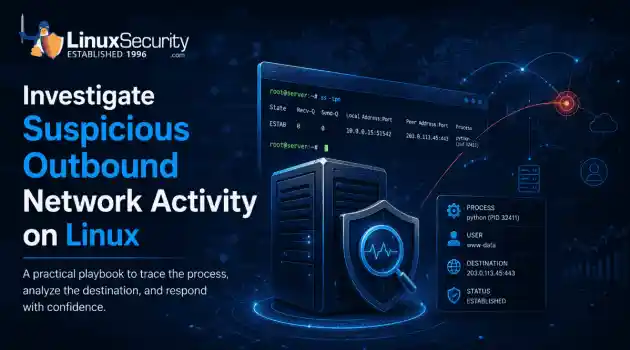
How to Secure My Networkincident response network traffic
incident response network traffic Imagine logging into a production Linux server for routine maintenance and noticing background network activity connecting to an unfamiliar external IP address. Your endpoint protection agent is not popping up with an alert, there is no service failure, and on the surface, the system appears to be running normally. . For Linux administrators and security teams, such a situation is a moment of truth: Is this activity a sign of active intrusion or just a tool that was overlooked in the course of...
Jul 21, 2026
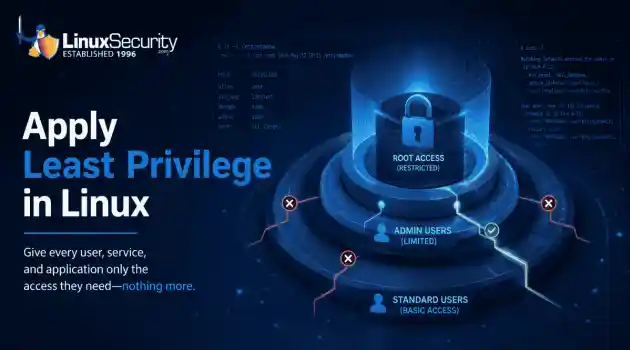
How to Harden My Filesystemsystem hardening open source security
system hardening open source security We all spend a lot of time defending our systems from external threats, but the amount of damage an attacker can cause often depends on what happens after they get in. A single compromised account doesn't always lead to a major incident. The real danger begins when that account has far more access than it actually needs. . That's exactly what the principle of least privilege is designed to prevent. By limiting users, services, and applications to only the permissions required for their jobs,...
Jul 20, 2026
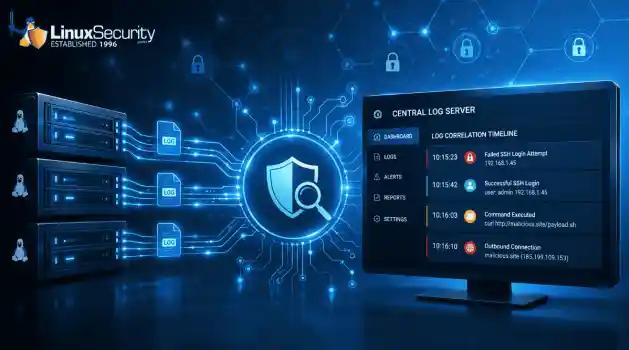
How to Learn Tips and Tricksthreat detection system monitoring
threat detection system monitoring For small security and IT teams, the "enterprise" dream of a fully automated SIEM often feels like a distant luxury. It’s a vision built on massive budgets and dedicated engineering teams—things that, frankly, most of us don't have. But here is the reality: you don’t need a six-figure platform to maintain a secure environment. . Linux systems are, by design, incredibly verbose. Every time a user authenticates, a process executes, or a configuration file changes, your system creates a record of...
Jul 17, 2026
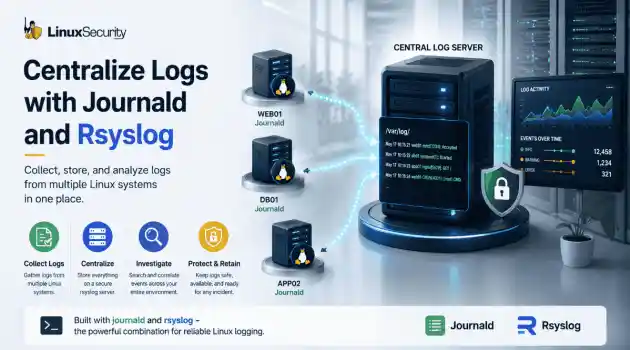
How to Learn Tips and Tricksnetwork security centralized logging
network security centralized logging Linux systems generate a steady stream of authentication, service, kernel, and application logs. On most systems, those logs never leave the machine that created them. If you're responsible for ten or twenty servers, that means checking each one separately. If one disappears before you can investigate it, its logs may disappear with it. Centralized logging solves that by sending log messages to another server as they're created. Instead of searching every machine, you have one place to review...
Jul 15, 2026
 Refine HOWTOs
X Clear Filters
Get the latest News and Insights
Get the latest Linux and open source security news straight to your inbox.
Community Poll
Should Linux servers automatically install security updates?
Loading...

Explore Latest Linux Security HOWTOs
We found -4 articles for you...
166
 network securityencryptionaccess control
OpenSSH Secure Remote Access Setup And Configuration Guide
Telnet is a popular way to access a remote system, unfortunately, it is incredibly insecure.. Telnet, along with rlogin, rcp, and rsh, are known to be insecure ways of connecting to a remote system. They are unencrypted and send login information in plain text. Because of this, anyone between the telnet client and the telnet server can intercept the packets and gain private information. Secure SHell (SSH) is a replacement for these types of remote access schemes. OpenSSH (the version of SSH that is talked about in this tip) uses Secure Socket Layer (specifically OpenSSL) to create an encrypted tunnel between the SSH client and the SSH server. With this tunnel in place, everything sent between the two computers is encrypted, so if a packet sniffer between the two systems is capturing packets, it will not be able to make use of the data collected. Installation Download and install the rpms: openssl-0.9.5a-3.i386.rpm openssh-2.1.1p4-1.i386.rpm openssh-server-2.1.1p4-1.i386.rpm openssh-clients-2.1.1p4-1.i386.rpm Setup After reading man sshd, although it is probably correct as is, read /etc/ssh/sshd_config. Since OpenSSH uses TCP_WRAPPERS, add the hosts to be allowed to use SSH into /etc/hosts.allow and block everyone else in /etc/hosts.deny. An example for /etc/hosts.allow that allows everyone in the 192.168.1 subnet to use SSH is: sshd: 192.168.1.0/255.255.255.0 In /etc/hosts.deny, add this line to default block everyone from using Secure SHell: sshd: ALL Start sshd by running: /etc/rc.d/init.d/sshd start To use the SSH client, first you must make a key. Run /usr/bin/ssh-keygen ssh-keygen creates a public and private key to be used for encryption and decryption of data sent through the encrypted tunnel. Here is a sample run of ssh-keygen: [sabaka00@CC989892-A sabaka00]# ssh-keygen Generating RSA keys: ...............................ooooooO...ooooooO Key generation complete. Enter file in which to save the key (/sabaka00/.ssh/identity): Enterpassphrase (empty for no passphrase): Enter same passphrase again: Your identification has been saved in /sabaka00/.ssh/identity. Your public key has been saved in /sabaka00/.ssh/identity.pub. The key fingerprint is: c2:ff:74:c5:e5:7d:b7:23:56:bb:11:8c:8a:97:77:7a sabaka00@CC989892-A [sabaka00@CC989892-A sabaka00]# For more information about ssh-keygen, read man ssh-keygen. Once you have created the public and private keys, copy the public key, normally found at $HOME/.ssh/identity.pub, to the host that is going to be connected to. The key should be in $HOME/.ssh/authorized_keys of the user that will be logged into on the remote system. Make sure the public key is on a single line in the authorized_keys file. Use After the keys are set up on the local and remote systems, connect to an SSH server like this: ssh -l -i host An example would be: [sabaka00@CC989892-A sabaka00]$ ssh -l sabaka00 192.168.1.1
 Aug 14, 2000
•
Aug 14, 2000
• How to Learn Tips and Tricks

Get the latest News and Insights
Get the latest Linux and open source security news straight to your inbox.
Community Poll
Should Linux servers automatically install security updates?
Search Topics
Powered By

Linux Security - Your source for Top Linux News, Advisories, HOWTOs and Feature Releases
QUICK LINKS
subscribe to newsletters!
Like staying secure? So do we.
Sign up for updates, tips, and alerts!