Overly broad permissions can turn one compromised account into a much larger security problem. Learn how to reduce unnecessary access, review privileges, and apply least privilege across modern Linux systems. Review Linux Privileges×


Stay Ahead With Linux Security HOWTOs
How to Secure My Network incident response network traffic
incident response network traffic Imagine logging into a production Linux server for routine maintenance and noticing background network activity connecting to an unfamiliar external IP address. Your endpoint protection agent is not popping up with an alert, there is no service failure, and on the surface, the system appears to be running normally. . For Linux administrators and security teams, such a situation is a moment of truth: Is this activity a sign of active intrusion or just a tool that was overlooked in the course of...
 Jul 21, 2026
How to Harden My Filesystemsystem hardening open source security
system hardening open source security We all spend a lot of time defending our systems from external threats, but the amount of damage an attacker can cause often depends on what happens after they get in. A single compromised account doesn't always lead to a major incident. The real danger begins when that account has far more access than it actually needs. . That's exactly what the principle of least privilege is designed to prevent. By limiting users, services, and applications to only the permissions required for their jobs,...
Jul 20, 2026
How to Learn Tips and Tricksthreat detection system monitoring
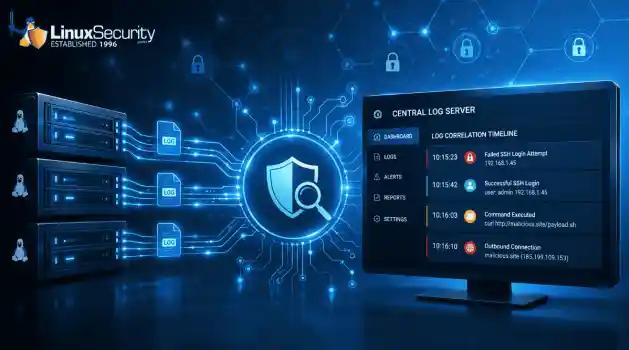
threat detection system monitoring For small security and IT teams, the "enterprise" dream of a fully automated SIEM often feels like a distant luxury. It’s a vision built on massive budgets and dedicated engineering teams—things that, frankly, most of us don't have. But here is the reality: you don’t need a six-figure platform to maintain a secure environment. . Linux systems are, by design, incredibly verbose. Every time a user authenticates, a process executes, or a configuration file changes, your system creates a record of...
Jul 17, 2026
How to Learn Tips and Tricksnetwork security centralized logging
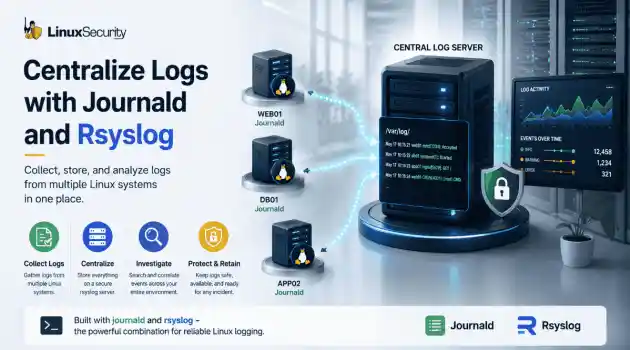
network security centralized logging Linux systems generate a steady stream of authentication, service, kernel, and application logs. On most systems, those logs never leave the machine that created them. If you're responsible for ten or twenty servers, that means checking each one separately. If one disappears before you can investigate it, its logs may disappear with it. Centralized logging solves that by sending log messages to another server as they're created. Instead of searching every machine, you have one place to review...
Jul 15, 2026
How to Secure My Networksecurity advisory audit
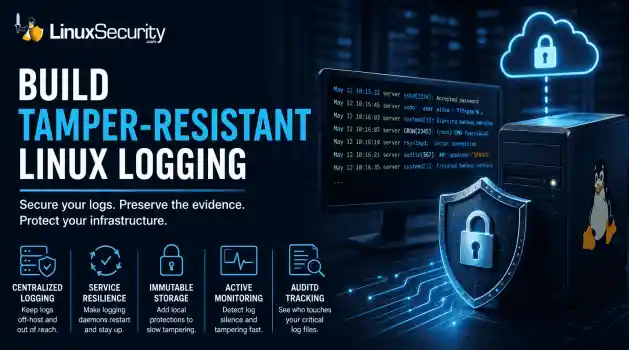
security advisory audit When you’re digging through an incident, your logs are the only thing you can actually trust. The problem is, attackers know that too. If someone gets root on your server, their first move is almost always to delete the evidence and cover their tracks. . If you aren't actively protecting your logs, you're basically flying blind the second a breach happens. It’s a miserable feeling to realize you have no idea what an attacker did because they wiped the logs before you even got there. In this...
Jul 11, 2026
 Refine HOWTOs
X Clear Filters
Get the latest News and Insights
Get the latest Linux and open source security news straight to your inbox.
Community Poll
Should Linux servers automatically install security updates?
Loading...
Explore Latest Linux Security HOWTOs
We found 6 articles for you...
161
 firewallsecurity integrationfirewall techniques
Introduction to Troubleshooting Linux Firewalls (2026 Guide)
Firewall problems usually come from small mistakes that hide in plain sight. A rule tied to the wrong interface, a default policy no one noticed, or an old setting that never actually applied. Once you’ve run into a few of these, the pattern starts to show up earlier. . New admins hit the same trouble points. A service looks open, but acts closed, outbound traffic stalls without explanation, or connectivity flips between working and broken. The common assumption is that if a rule is present, it must be active, but Linux does not care about intention. It evaluates context, order, and state, and it follows the exact Linux firewall rules you give it. This guide stays on real behavior. You watch what packets do, check how the host interprets them, and confirm whether your Linux firewall settings line up with the Linux firewall configuration you think you deployed. Step 1: Make Sure the Firewall Is Actually Running A lot of “firewall issues” start with a service that never entered enforcement. You see a full rule list, everything looks aligned, yet packets move through untouched. This check keeps you from debugging behavior that the system never applied. A quick workflow keeps it simple: Check the service state with systemctl status . You want a clean running process. Anything inactive, failed, or stuck in a reload loop means the rules you’re testing aren’t in play. Some tools load rules even when enforcement is off. They accept new entries, display them back, and still leave the kernel using defaults. Restart and reload aren’t interchangeable. Reloading refreshes tables in place. Restarting resets the entire engine. If the service failed earlier, reload won’t recover it. Check the service first. Otherwise, your test results mix real traffic with assumptions that don’t match the system state. If the firewall isn’t active, your Linux firewall settings stay cosmetic. Don’t treat the Linux firewall configuration as live until the serviceactually enforces it. Step 2: Check Logs for Drops, Rejects, and Unexpected Behavior Logs show what happened to the packet, not what you expected it to do. When traffic disappears with no obvious pattern, the log is where you confirm whether it touched a chain, got filtered early, or never reached the host at all. Most systems surface firewall-related messages through the journal or kernel logs . You scan for DROP, REJECT, or odd interface paths. After enough troubleshooting sessions with Linux firewall rules, you start to trust these traces more than the rule list because they reveal which decision ran first. Drops give you context about the path. Rejects send something back to the client, which is useful during controlled tests. Silent drops take longer because the client sees nothing. And if no log entry appears at all, the packet was either filtered upstream or logging isn’t active for that segment. When packets keep jumping past the rule you expect, the issue is usually order or policy. The behavior makes more sense once you walk through packet filtering basics and remember how each chain short-circuits on the first match. Log Snapshot: Why the Rule Didn’t Apply A quick look at how the log exposes the real match. Log snippet: DROP IN=eth0 SRC=192.168.1.50 DST=192.168.1.10 PROTO=TCP DPT=80 Cause: A drop rule higher in the chain matches first. The allow rule never runs. Step 3: Confirm Rule Order and Matching Behavior Most broken rules come from order, not syntax. Linux reads a chain from the top, matches the first condition that fits, and stops. Once you’ve debugged a few of these, you start noticing that the rule people think should fire sits too low in the list to matter. A clean way to think through it: A broad DROP near the top wipes out everything that follows. A specific allow only works if it appears before anything that could catch the same traffic. Old entries left above new ones often decide the entire path. Rewriting a rule rarelyfixes anything if it sits in the wrong place. Reordering almost always does. When you’ve looked at enough real cases, you stop trusting intention and start trusting position. The chain shows you which rule the kernel will hit first, long before you check the details of any single entry. Once you line up the sequence, the logic becomes predictable again. Watching the chain flow this way also helps you compare what you meant to apply with the Linux firewall settings that are actually in effect. You see it especially clearly when you trace behavior against the Linux firewall rules listed on the system. The mismatch between order and expectation explains most of the confusion, and understanding that flow connects naturally with firewall rule ordering basics . Step 4: Inspect Default Policies Before You Touch Anything Else Default policies set the baseline . They sit underneath every rule you write and decide what happens when nothing else matches. New users skip this check because the rule list looks fine, but the baseline is quietly set to DROP. After you run into this a few times, you start checking the defaults before adding anything new. Defaults create symptoms that feel inconsistent. You allow a service, but the client still times out. You open a port, but traffic never reaches the end of the chain. The rules look correct, yet the behavior stays the same. That pattern almost always points at a policy issue, not a rule issue. The policies on INPUT, OUTPUT, and FORWARD work as a final decision. If no rule claims the packet, the policy acts instead. When a default is DROP, you can add allow entries all afternoon and still watch packets fall through untouched. Reading the Linux firewall configuration at this point tells you whether the system will ever reach the logic you expect. Once the baseline is right, the rest of the Linux firewall rules start behaving the way you intended. Policy Check: The Default That Overrode the Rules A user kept adding allow rules and still saw drops.Nothing was wrong with the entries. The default INPUT policy was set to DROP, so no traffic ever reached the new rules. Setting it to ACCEPT temporarily made the flow visible again, and the intended behavior appeared as soon as the baseline changed. Step 5: Check Interfaces and Zone Assignments Interface mistakes show up almost as often as ordering mistakes. The packet enters on one path, but the rule sits on another. Once you’ve seen it happen a few times, you start checking the incoming interface before you question anything else in the chain. Firewalld adds another layer with zones. An allow rule tied to the public zone won’t help if the interface is bound to internal. Multiple NICs create the same pattern. A rule on eth0 never fires if the traffic arrives through eno1. VPN tunnels and virtual adapters from containers add more surfaces where packets can show up in places you didn’t plan for. The quickest way to sort this out is to compare the interface the packet actually used with the interface the rule expects. If they don’t match, the rule never had a chance. This is also where your Linux firewall settings show gaps that are easy to overlook until you trace the packet’s exact path. Step 6: Test Linux Firewall Connectivity A structured path keeps troubleshooting clean. You start at the host, then move outward. Each stage tells you how far the packet gets, and the order helps you see where the flow breaks. Work through the checks in order: Test on the host If the service responds locally, the process is running and listening. Test from the LAN A failure here usually points to ingress filtering, an interface mismatch, or a rule that only allows loopback traffic. Test from the WAN This separates internal reachability from true external access. If the LAN test works but the WAN test fails, the block often sits closer to the perimeter. When the Failure Is Outbound Inbound tests only show one direction. Sometimes the service is reachable, but thehost itself cannot contact external destinations. Local checks pass. Internal checks pass—requests leaving the host time out or disappear on the way out. Outbound traffic follows a different decision path, and this is where the basic idea behind egress filtering helps you understand why the two directions behave differently. Outbound rules can block traffic after it leaves the application, even if every inbound check looks clean. Tie the results back to the Linux firewall rules you expect to match. Once you align the failure direction with the rule path, the issue usually becomes obvious. Connectivity Check: Local Works, LAN Fails A user can reach a service on localhost but not from the LAN. The application is running and responds internally. External traffic never reaches it. The firewall allows local traffic but blocks network requests. Checking ingress rules and confirming interface bindings quickly exposes the issue. Step 7: When the Problem Is the Firewall Tool Itself Sometimes the issue isn’t the rule, the policy, or the interface. It’s the tool. Linux has several layers that manage packet filtering, and they don’t always work together cleanly. After you run into a few of these conflicts, you start checking which layer owns the ruleset before touching anything else. Different tools write to the same underlying system. Some expect full control. Others only update parts of the ruleset. Manual nftables changes can look correct, but they disappear the moment another tool reloads. Old rules also linger on systems that have been reconfigured several times, which makes the final behavior hard to trust at first glance. You see the conflicts in small ways. A rule applies, but the traffic still ignores it. A reload brings back an older state. The system looks active, but the behavior reflects a different layer entirely. Certain tools manage their own view of the ruleset. UFW is one example, and its behavior is shaped by the patterns described in UFW basics , where simple,high-level commands generate a complete underlying ruleset that can override manual changes. Once you confirm which component owns the rules, the rest of the troubleshooting becomes more predictable. Tool Conflict: One Layer Overriding Another A user edits nftables rules directly, but a higher-level tool overwrites them on reload. The fix is not to adjust the manual rule. The fix is to disable one tool before using another, so only a single layer manages the active ruleset. It is the same type of overlap you deal with when choosing a Linux firewall , where multiple tools shape the final ruleset. Linux Firewall Troubleshooting Table (Quick Reference) A quick way to see patterns as they come up. Most issues fall into a few familiar shapes, and once you know where each one sits in the flow, the fix becomes easier to spot. Symptom What to Check Likely Cause Step Firewall rules are set, but nothing changes Service state, active ruleset Firewall is not running or not enforcing rules Step 1 Traffic keeps getting dropped even though the Linux firewall rule looks correct Logs, DROP or REJECT entries A different rule matched earlier in the chain Step 2 Port shows as allowed, but the service is still unreachable Rule order A broad DROP rule placed above the allow rule Step 3 Added multiple allow rules, but connections still fail Default policies INPUT, OUTPUT, or FORWARD policy set to DROP Step 4 Service works on the server, but other devices cannot reach it Interface bindings, zone assignment The rule applied to the wrong network interface or zone Step 5 Local and LAN access work, but external access never connects Outbound path Outbound filtering affecting the return or forward path Step 6 Firewall changes work until reload, then reset or behave differently Active firewall tools Another firewall tool overwrites or rebuilds the ruleset Step 7 These checks help you compare the behavior you see with the Linux firewall settings that are actually in effect. Example: Diagnosing a “Rule Exists but Still Blocked” Issue A full walk-through helps you see how the pieces work together. You move through each layer the same way you would in a real troubleshooting session and let the behavior tell you where the mismatch sits. Symptom Port 443 is allowed, but external clients still cannot connect to the service. Step-by-step diagnosis Firewall active, confirmed: The service is running, and the ruleset is loaded, so the issue is not an inactive firewall. Logs show DROP on port 443: A DROP entry confirms the packet reached the host and hit a filter before any allow rule. Allow rule sits below a broad DROP: The allow rule never matched. The chain hit the broader rule first. The default policy is set to DROP: Anything reaching the end of the chain is dropped by the baseline decision. Interface mismatch: The allow rule targeted eth0, but the traffic arrived through ens3. The rule applied to the wrong interface. After corrections, connectivity restored: Once the rule order, default policy, and interface binding were adjusted, the service became reachable from external clients. Each layer explains a different part of the outcome. Checking the Linux firewall configuration reveals the baseline. Tracing the Linux firewall rules shows which decision was made first. When these pieces finally match the Linux firewall settings applied to the service, the flow becomes predictable, and the connection succeeds. Final Thoughts: Understanding Linux Firewalls Makes Troubleshooting Easier Troubleshooting gets easier once you understand the small patterns that shape how a firewall behaves. You start noticing the same issues comefrom the same places, and the flow makes more sense every time you walk through it. The goal here was to show how to diagnose what is happening in front of you, not to teach configuration or theory. If you want a clearer picture of how these patterns form, it helps to step back and look at the fundamentals that sit underneath them. That foundation is the focus of Linux firewall basics , and it ties directly into the way you read decisions, match entries, and make sense of the packet path. The behavior you observe always comes from the Linux firewall configuration on the system and the Linux firewall rules that actually run. Once those pieces line up in your head, most troubleshooting becomes a matter of following the packet and watching where it turns. . New admins hit the same trouble points. A service looks open, but acts closed, outbound traff. firewall, problems, usually, small, mistakes, plain, sight. . Mak Ulac
 Dec 04, 2025
•
Dec 04, 2025
• How to Secure My Firewall
166
 system managementuser permissionsgroup access
Resolving Group Access List Issues in Linux: A Troubleshooting Guide
Linux distros are increasingly becoming more and more GUI-based and easier for beginners to use. That said, their real power still lies in the terminal which requires the user to know different commands and syntaxes to be able to use them properly. . The same applies to troubleshooting any errors you might encounter as Linux isn’t exactly the most helpful OS when it comes to error messages. In this article, we’re talking about the “Error initialising the supplementary group access list” issue on Linux, its causes and what you can do to fix the problem. The error is mainly caused after the user makes a change in the user or user group access permissions. Outside of making the change itself, there are additional steps that you need to follow to ensure the OS recognise those changes. . Encountering an error with supplementary group access in Linux requires a systematic approach. Check group membership, inspect the /etc/group file, and review PAM configurations.. Linux GUI, Group Access Issues, Command Line Fixes. . Brittany Day
Mar 06, 2023
•
How to Learn Tips and Tricks

167
 remote accessnetwork protocolsystem administration
Resolving SSH Connection Refused Problems for Effective Remote Access
The SSH "connection refused" error can prevent you from accessing remote machines on a network. Here's how you can troubleshoot it. . SSH is a network protocol that allows you to securely access and manage a remote system over a network. While connecting to a remote machine via SSH, you might have encountered the "connection refused" error. Experiencing this issue can be frustrating especially if you are a system admin and have to perform some tasks on the remote system on an urgent basis. Let's look at some of the possible causes of getting the SSH "connection refused" error and methods to resolve it. . To swiftly fix SSH connection refused issues, confirm the server IP, verify SSH status, and check firewall settings. Review sshd configs and network logs for further insights. SSH Connection, Remote Access, Error Resolution, Network Security, Linux Admin. . Brittany Day
Mar 03, 2023
•
How to Secure My Network
166
 system managementlinux administrationtroubleshooting
How To Check Shutdown And Restart History On Linux Systems
Getting information about the last shutdowns and reboot history is rather easy on Linux. . As a system administrator, it's your responsibility to keep the system up and running to avoid any service disruptions. However, sometimes, there are situations when your system shuts down or reboots. This can be due to the system unexpectedly losing power or some user intentionally rebooting it. Whatever the reason is, you can check your Linux system's shutdown and restart history to see when this activity exactly happened. This information will provide you with a starting point to begin the troubleshooting. . Discover how to effortlessly retrieve shutdown and restart logs on your Linux machine for improved diagnostics.. Shutdown Management, System Log, Linux Admin Guide. . Brittany Day
Oct 10, 2022
•
How to Learn Tips and Tricks
167
 tcpdumpopen sourcetraffic analysis
Learn How to Effectively Capture Network Traffic in Linux with Tcpdump
tcpdump is a networking utility used to capture incoming and outgoing traffic. Here's everything you need to know about using tcpdump on Linux. . Linux comes equipped with a plethora of networking utilities to choose from. tcpdump is one such powerful networking tool that can capture and analyze network traffic should you need to troubleshoot network errors on Linux. Let's get hands-on with the tcpdump command and explore how to use it to capture network traffic. . Discover the essential techniques for utilizing tcpdump in Linux to intercept and scrutinize network packets for diagnosing connectivity problems.. tcpdump, network capture, Linux networking tools. . Brittany Day
Jul 05, 2022
•
How to Secure My Network
166
 security practicedisk encryptiontroubleshooting
How To Interrupt The Linux Boot Process With Full Disk Encryption
Interrupting the boot process is useful for troubleshooting and maintenance, but make sure you enable full disk encryption first. . During a computer's boot process, you must transition from a firmware (UEFI or BIOS) process to loading a kernel and then finally to the user environment. When booting a POSIX system, you can choose to interrupt the boot process to adjust settings or even to log in using a chroot environment. This is a useful troubleshooting and maintenance technique, but it's also the reason it's so important to utilize full disk encryption when installing your operating system. When a drive is encrypted, nothing on the drive is accessible without your passphrase, even from a preboot environment. As long as you have the passphrase to decrypt your drive, you can interrupt a Linux system's boot process and access the drive without booting into a full operating system (OS). . Master the methodology of halting the Linux startup sequence for diagnostic purposes, whilst maintaining complete disk encryption for safeguarding sensitive data.. Linux Boot Process, Disk Encryption Techniques, Troubleshooting Techniques. . Brittany Day
Jun 16, 2022
•
How to Learn Tips and Tricks
167
network monitoringtroubleshootingcommand line tool20 Essential Netstat Commands for Effective Linux Network Management
Learn 20 useful netstat commands for network monitoring and troubleshooting in this Tecmint tutorial. . netstat (network statistics) is a command line tool for monitoring network connections both incoming and outgoing as well as viewing routing tables, interface statistics etc. netstat is available on all Unix-like Operating Systems and also available on Windows OS as well. It is very useful in terms of network troubleshooting and performance measurement. netstat is one of the most basic network service debugging tools, telling you what ports are open and whether any programs are listening on ports. . Uncover powerful ifconfig commands to configure and monitor network interfaces on UNIX systems.. Netstat Commands, Linux Network Management, Network Troubleshooting. . Brittany Day
Jun 30, 2021
•
How to Secure My Network
167
 tcpdumpnetwork monitoringpacket analysis
Using Tcpdump for Effective Network Monitoring and Troubleshooting
Get started using tcpdump for network troubleshooting and monitoring with this comprehensive cheat sheet, which demonstrates different types of packet capture scenarios using actual tcpdump examples. . When it comes to network troubleshooting and monitoring, what types of tools you are using make a world of difference. While required tools may vary depending on the types of network problems you are dealing with, there are a set of essential tools that every network administrator must be familiar with, and tcpdump is definitely one of them. tcpdump is a command-line tool packet sniffing that allows you to capture network packets based on packet filtering rules, interpret captured packet content, and display the result in a human-readable format. The main power of tcpdump comes from its (1) flexible packet filtering rules and (2) versatile protocol dissection capability . Although GUI-based Wireshark provides equally powerful filtering/dissecting capabilities via a more user-friendly interface, its relatively high memory footprint (for buffering packets) and GUI-based operations make Wireshark unsuitable when you are troubleshooting directly from remote headless servers. . Become proficient in network diagnostics through practical tcpdump illustrations for efficient packet analysis and oversight activities.. Tcpdump Examples, Network Tools, Packet Capture, Monitoring Guide. . Brittany Day
Apr 07, 2021
•
How to Secure My Network

Get the latest News and Insights
Get the latest Linux and open source security news straight to your inbox.
Community Poll
Should Linux servers automatically install security updates?
Search Topics
Powered By

Linux Security - Your source for Top Linux News, Advisories, HOWTOs and Feature Releases
QUICK LINKS
subscribe to newsletters!
Like staying secure? So do we.
Sign up for updates, tips, and alerts!