


Stay Ahead With Linux Security Features
 security advisory risk management
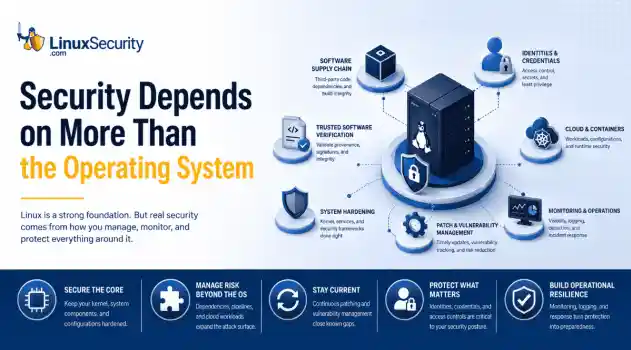
 If more than 12 million enterprise systems can be exposed by flaws in a security control designed to harden Linux, it's probably worth asking whether Linux gives people a false sense of security. That's a question that has come up repeatedly throughout 2026. . This year alone, researchers have disclosed privilege-escalation vulnerabilities, root-level kernel flaws, and multiple supply-chain compromises affecting Linux environments. That doesn't mean Linux suddenly became insecure. It means...
 Jun 15, 2026
  security advisory attack
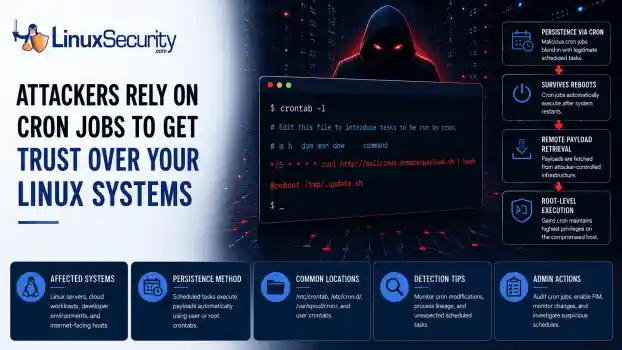
 A Linux server gets cleaned up after an intrusion. The suspicious process is terminated, credentials are rotated, and the system is rebooted during maintenance. Everything seems secure. A few hours later, the same outbound connection appears again. . Situations like that point to persistence . The attacker no longer needs the original exploit because something on the host continues restoring access behind the scenes. Finding that mechanism is often more important than understanding how the...
Jun 08, 2026 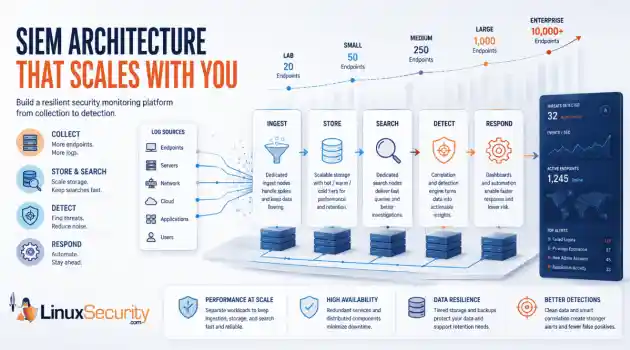 threat detection scalability
 Building a SIEM is easier than scaling one. Most open-source deployments start as a simple "all-in-one" server. It is easy to set up, but that design rarely survives the transition from a lab to a production workload. . A SIEM watching 20 endpoints is not doing the same job as one watching 500. More endpoints mean more logs; more logs require more storage; more storage makes search heavier. Eventually, the very architecture that made your lab easy to deploy becomes the reason your production...
Jun 04, 2026 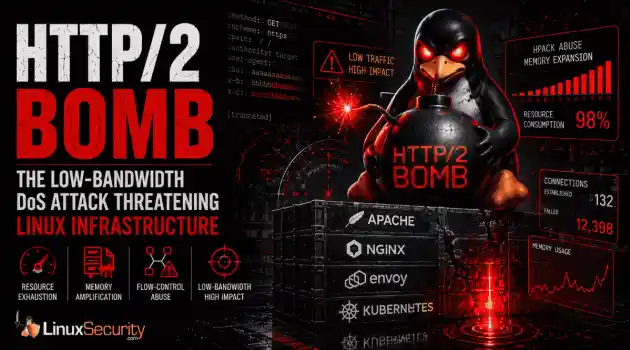 security advisory apache
 A newly disclosed attack technique called HTTP/2 Bomb is drawing attention because it targets the software that sits at the front of much of the Linux internet. Apache HTTP Server, NGINX, Envoy, and the ingress layers that many Kubernetes environments depend on can be forced into consuming disproportionate amounts of memory using relatively small amounts of attacker traffic. . For Linux administrators, the concern is not the HTTP/2 protocol itself. It is the possibility that a single...
Jun 04, 2026  security advisory important
 The compromise of Nx Console shows how much infrastructure now sits behind a single developer account. GitHub repositories, CI/CD pipelines, container build systems, Terraform projects, Kubernetes deployments. None of those systems was the initial target. The workstation was. . Attackers did not need a Linux privilege escalation bug or a remote code execution chain. They needed developers to trust a tool they were already using. For many organizations, that was enough. What Happened? Federal...
Jun 03, 2026  Refine features
X Clear Filters Get the latest News and Insights
Get the latest Linux and open source security news straight to your inbox.
Community Poll
Is automated patching safe for servers?
Loading...

Explore Latest Linux Security features
We found -4 articles for you...
102
 open source toolssecurity toolsLinux tools
Top Linux Malware Scanners for Detection and System Hardening
In this blog, we will break down the most relevant examples, so you’ll see exactly what kinds of attacks are active today and why scanning tools are necessary to catch them before they cause damage. . What Types of Malware Do Users and System Administrators Face Today? Linux isn’t immune to attacks, which is why a linux malware scanner is important. The number of linux malware families has grown in recent years. Admins deal with trojans, ransomware, worms, botnets, keyloggers, and rootkits. In some cases, zero-day exploits give attackers a way in before patches are available. Cryptojacking This attack mines cryptocurrency with stolen CPU cycles. On Linux, it often runs quietly on servers or cloud instances where usage spikes can go unnoticed. Certain cryptojacking malware goes as far as killing competing processes to maximize resource usage, a tactic that also makes detection harder — unless a linux malware scanner is in place to catch unusual patterns before they spiral. Newer approaches also use browser-based mining techniques, such as WebAssembly, so even client machines can be pulled into the operation. Xbash Xbash was first reported in 2018. Written in Python, it blended ransomware, cryptomining, and botnet features in one package. While it isn’t dominating headlines in 2025, it remains a reference point for how linux malware evolves. Its design showed early on that attackers would merge multiple techniques to maximize impact, a trend that continues in more recent campaigns and underscores why relying on a linux malware scanner is critical for visibility. XorDDoS XorDDoS is still one of the most active linux malware families. It began by brute-forcing SSH on servers, but newer builds don’t stop there. They hit Docker containers and cloud workloads, adapting to whatever environment gives them reach. Campaigns also rely on fallback servers to keep command-and-control alive, even when some nodes are blocked. The result is a botnet that’s harder to shake off and moreflexible than it was a few years ago — making a dependable linux malware scanner one of the few tools that can reliably spot its activity. The takeaway: Linux malware keeps evolving, and it becomes clearer when you look at how secure Linux is . Attackers usually succeed because of misconfigurations, not the OS. Regular linux malware analysis and consistent use of a trusted linux malware scanner are essential to detect issues early and prevent serious damage. Emerging Linux Threats in 2025 Older malware families are still active, but new names are appearing too. In mid-2025, researchers reported Plague, a malicious PAM module that hides inside authentication and gives attackers a quiet, persistent way back in. Around the same time, PXA Stealer showed up — an infostealer aimed at Linux that goes after browser data, saved passwords, and other sensitive information. XorDDoS hasn’t gone away either. What started as brute-force SSH attacks has stretched into Docker containers and cloud systems. Recent campaigns also rely on fallback servers to keep command-and-control alive even if parts of the network are taken down. Taken together, these examples show how linux malware is no longer just about rootkits or cryptominers. It’s moving toward stealthier, data-driven attacks — and catching them early means relying on a trusted linux malware scanner. The pace of rising malware threats to Linux makes a strong linux malware scanner more critical than ever. What If There's Malware? Choosing the Right Linux Malware Scanner If malware is found or suspected, running a linux malware scanner is the first step. The tools below can help audit your system and uncover traces of compromise. Lynis: Beyond a Linux Malware Scanner Lynis is an open-source auditing tool for UNIX-based systems. While not a dedicated linux malware scanner, it runs a deep security scan, testing defenses and pointing out areas for hardening. Many administrators take it a step further by setting Lynis to run automaticallyon a schedule — a process covered in our guide to automating audits with Lynis . The tool reviews system details, installed packages, and configuration issues. It also checks for weak user accounts, wrong file permissions, firewall settings, and other risks. Key uses: Security auditing – thorough checks with clear recommendations. Compliance testing – verifies systems against security standards. System hardening – practical steps to strengthen defenses. Vulnerability detection – highlights weak points that linux malware could exploit. We demonstrated a full example of this process in our article on performing Linux security audits with Lynis , where common findings and fixes are explained. Lynis works methodically, covering everything from accounts to software to firewall rules. Its reports make it a reliable linux malware scanner for administrators who want a clear view of their system’s security. To see what a full audit report looks like in practice, we broke down each stage in our guide to auditing Linux systems with Lynis . How to install via terminal: root@sage:~# dnf install lynis Note: While the basic setup is simple, there are additional audit modes and options worth knowing. Our Lynis Linux security audit tool guide walks through those details for admins who want full control over the process. How to check Lynis Commands: root@sage:~# lynis -h | grep " " This should output: [ Lynis 3.1.5 ] Lynis comes with ABSOLUTELY NO WARRANTY. This is free software, and you are welcome to redistribute it under the terms of the GNU General Public License. See the LICENSE file for details about using this software. 2007-2025, CISOfy - https://cisofy.com/lynis/ Enterprise support available (compliance, plugins, interface and tools) [+] Initializing program Usage: lynis command [options] Command: audit audit system : Perform local security scan audit system remote : Remotesecurity scan audit dockerfile : Analyze Dockerfile show show : Show all commands show version : Show Lynis version show help : Show help update update info : Show update details Options: Alternative system audit modes --forensics : Perform forensics on a running or mounted system --pentest : Non-privileged, show points of interest for pentesting Layout options --no-colors : Don't use colors in output --quiet (-q) : No output --reverse-colors : Optimize color display for light backgrounds --reverse-colours : Optimize colour display for light backgrounds Misc options --debug : Debug logging to screen --no-log : Don't create a log file --profile : Scan the system with the given profile file --view-manpage (--man) : View man page --verbose : Show more details on screen --version (-V) : Display version number and quit --wait : Wait between a set of tests --slow-warning : Threshold for slow test warning in seconds (default 10) Enterprise options --plugindir : Define path of available plugins --upload : Upload data to central node More options available. Run '/usr/bin/lynis show options', or use the man page. Lynis Audit Command: root@sage:~# lynis audit system This should output: [ Lynis 3.1.5 ] ################################################################################ Lynis comes with ABSOLUTELY NO WARRANTY. This is free software, and you are welcome to redistribute it under the terms of the GNU General Public License. See the LICENSE file for details about using this software. 2007-2025,CISOfy - https://cisofy.com/lynis/ Enterprise support available (compliance, plugins, interface and tools) ################################################################################ [+] Initializing program ------------------------------------ - Detecting OS... [ DONE ] - Checking profiles... [ DONE ] --------------------------------------------------- Program version: 3.1.5 Operating system: Linux Operating system name: Fedora Linux Operating system version: 42 Kernel version: 6.16.7 Hardware platform: x86_64 Hostname: sage --------------------------------------------------- Profiles: /etc/lynis/default.prf Log file: /var/log/lynis.log Report file: /var/log/lynis-report.dat Report version: 1.0 Plugin directory: /usr/share/lynis/plugins --------------------------------------------------- Auditor: [Not Specified] Language: en Test category: all Test group: all --------------------------------------------------- - Program update status... [ NO UPDATE ] [+] System tools ------------------------------------ - Scanning available tools... - Checking system binaries... [+] Plugins (phase 1) ------------------------------------ Note: plugins have more extensive tests and may take several minutes to complete - Plugins enabled [ NONE ] [+] Boot and services ------------------------------------ - Service Manager [ systemd ] - Checking UEFI boot [ ENABLED ] - Checking Secure Boot [ DISABLED ] - Checking presence GRUB2 [ FOUND ] - Checking for password protection [ OK ] - Checkrunning services (systemctl) [ DONE ] Running the lynis audit system creates two files: lynis.log and lynis-report.dat. On distributions like Ubuntu and Rocky Linux, some of the commands and paths differ — something we explained in our guide to running a Lynis security audit . The log is a record of each test the audit runs and the outcome it reports. The report is more focused, pulling out the issues it detects, listing possible vulnerabilities, and offering suggestions to harden the system. Below is an example of a lynis-report.dat file: report_version_major=1 report_version_minor=0 report_datetime_start=2025-09-22 19:34:08 auditor=[Not Specified] lynis_version=3.1.5 os=Linux os_name=Fedora Linux os_fullname=Fedora Linux 42 (Adams) os_version=42 linux_version=Fedora os_kernel_version=6.16.7 os_kernel_version_full=6.16.7-200.fc42.x86_64 hostname=sage test_category=all test_group=all plugin_directory=/usr/share/lynis/plugins lynis_update_available=0 binaries_count=4350 binaries_suid_count=/usr/bin/at /usr/bin/atq /usr/bin/atrm /usr/bin/chage /usr/bin/chfn /usr/bin/chsh /usr/bin/crontab /usr/bin/fusermount /usr/bin/fusermount-glusterfs /usr/bin/fusermount3 /usr/bin/gpasswd /usr/bin/grub2-set-bootflag /usr/bin/mount /usr/bin/mount.nfs /usr/bin/mount.nfs4 /usr/bin/newgrp /usr/bin/pam_timestamp_check /usr/bin/passwd /usr/bin/pkexec /usr/bin/sg /usr/bin/staprun /usr/bin/su /usr/bin/sudo /usr/bin/sudoedit /usr/bin/umount /usr/bin/umount.nfs /usr/bin/umount.nfs4 /usr/bin/unix_chkpwd /usr/bin/userhelper /usr/bin/vmware-user /usr/bin/vmware-user-suid-wrapper /usr/sbin/grub2-set-bootflag /usr/sbin/mount.nfs /usr/sbin/mount.nfs4 /usr/sbin/pam_timestamp_check /usr/sbin/umount.nfs /usr/sbin/umount.nfs4 /usr/sbin/unix_chkpwd /usr/sbin/userhelper binaries_sgid_count=/usr/bin/locate /usr/bin/lockdev /usr/bin/plocate /usr/bin/screen/usr/sbin/lockdev binary_paths=/var/lib/snapd/snap/bin,/usr/bin,/usr/sbin,/usr/local/bin,/usr/lib64/ccache vm=2 container=0 systemd=1 plugins_enabled=0 hostid=95d4692a387be7f441ca6e1213a446e9ae6e0bde hostid2=0936e5cd8a0702ef829eaf6c24e715cfb0b335c6a96c0ec19fe69c00c59ecbe5 running_service_tool=systemctl running_service[]=abrt-journal-core running_service[]=abrt-oops running_service[]=abrt-xorg running_service[]=abrtd running_service[]=accounts-daemon running_service[]=alsa-state running_service[]=atd running_service[]=auditd running_service[]=avahi-daemon running_service[]=bluetooth running_service[]=chronyd Chkrootkit Rootkits are hard to detect and often give attackers hidden access to a system. Chkrootkit is a lightweight script that scans binaries for tampered commands and known signatures. It’s still useful, but since it depends on a fixed signature set, it can miss newer or more advanced threats. Some administrators address this gap by pairing Chkrootkit with AIDE, a file integrity monitor that spots unexpected changes in system files. How Does Chkrootkit Protect You from Rootkits? Detection: It scans system binaries for signs of rootkits, checking for tampered commands and known malicious signatures. Simplicity: Chkrootkit’s use of basic commands makes it accessible for beginners, reducing the learning curve typically associated with security tools. This tool is precious for its targeted approach, focusing on one of the most elusive types of malware. Pairing it with integrating AIDE with Chkrootkit extends its coverage to file integrity monitoring as well. How to install via terminal: root@sage:~# dnf install chkrootkit How to check Chkrootkit Commands: root@sage:~# chkrootkit -h Usage: /usr/lib64/chkrootkit-0.58/chkrootkit [options] [test ...] Options: -h show this help and exit -V show version information and exit -l show available tests and exit -d debug -q quiet mode -x expert mode -r dir use dir as the root directory -p dir1:dir2:dirN path for the external commands used by chkrootkit -n skip NFS mount points -T fstype skip mount points of the supplied file system type Chkrootkit Running: root@sage:~# chkrootkit ROOTDIR is `/' Checking `amd'... not tested Checking `basename'... not infected Checking `biff'... not found Checking `chfn'... not infected Checking `crond'... not infected ... Chkrootkit with Grep: root@sage:~# chkrootkit | grep -E "INFECTED|not infected|not tested|nothing found|Vulnerable" ROOTDIR is `/' Checking `amd'... not tested Checking `basename'... not infected Checking `biff'... not found Checking `chfn'... not infected Checking `crond'... not infected ... These are the messages Chkrootkit prints during its tests: INFECTED – the command was likely modified by a known rootkit. not infected – no known rootkit signature was found. not tested – the test wasn’t run, often because the command isn’t available. nothing found – the command to be checked doesn’t exist on the system. Vulnerable but disabled – the command is infected but not active (not running or disabled in inetd.conf ). Chkrootkit in Expert mode: root@sage:~# chkrootkit -x Searching for suspicious strings in binaries... /usr/bin/awk: not infected /usr/bin/ls: not infected /usr/sbin/sshd: not infected ... Chkrootkit in Expert mode with Grep: root@sage:~# chkrootkit -x | egrep '^/' /usr/bin/awk: not infected /usr/bin/ls: not infected /usr/sbin/sshd: not infected ... The parameters in chkrootkit -x | egrep '^/' run Chkrootkit in expert mode. This tells it to include pathname strings in system commands, which can reveal suspicious patterns in the binaries. Since Chkrootkit relies on a fixed signature set, this option gives it a bit more reach. Rootkits are still a real problem. They letattackers hide access through weak spots or misconfigurations, making effective Linux rootkit detection and prevention critical for long-term security. Chkrootkit isn’t perfect, but used with a linux malware scanner, it can flag signs of compromise and point you toward cleanup. Linux Malware Detect (LMD): A Dedicated Linux Malware Scanner Linux Malware Detect is a free, open-source linux malware scanner. It pulls in threat data from intrusion detection systems and uses that to build signatures, so it’s aimed at catching malware that’s actually active in the wild. Why consider LMD? Active monitoring –the signatures are updated often, so this linux malware scanner doesn’t fall behind on new threats. Broad coverage – it can scan for many kinds of linux malware, which makes it useful as a general tool. For admins who want something simple but effective, LMD is a solid option. It keeps up with the threat landscape without adding much overhead. How to install via terminal: root@sage:~# wget http://www.rfxn.com/downloads/maldetect-current.tar.gz HSTS in effect for www.rfxn.com:80 Saving 'maldetect-current.tar.gz' HTTP response 200 [https://www.rfxn.com/downloads/maldetect-current.tar.gz] maldetect-current.ta 100% [=========================================================> ] 1.58M --.-KB/s [Files: 1 Bytes: 1.58M [6.65MB/s] Redirects: 0 Todo: 0 E] Linux Malware Detect has to be downloaded from the R-fx Networks – Linux Software & Blog website. We use the command wget rfxn to get the download and save it in our current working directory. How to extract the download (LMD): root@sage:~# tar -zxvf maldetect-current.tar.gz maldetect-1.6.6/ maldetect-1.6.6/files/ maldetect-1.6.6/install.sh maldetect-1.6.6/README maldetect-1.6.6/LICENSE maldetect-1.6.6/CHANGELOG maldetect-1.6.6/conf.maldet ... root@sage:~# cd maldetect-1.6.6 We use the tar -zxvf maldetect-current.tar.gz command to extract the tar file.After extraction, you’ll see a new folder, usually named maldetect-1.6.6. After extraction, you’ll see a new folder, usually named something like maldetect-1.6.6 (the current release as of 2025). The version number may be different if a newer release is available, so adjust the command to match what you see with cd maldetect-1.6.6. Run the Install Script: root@sage:~/maldetect-1.6.6# ./install.sh ./install.sh sh /path/to/install.sh Doing this should output: Created symlink '/etc/systemd/system/multi-user.target.wants/maldet.service' → '/usr/lib/systemd/system/maldet.service'. Linux Malware Detect v1.6.6 (C) 2002-2023, R-fx Networks ; (C) 2023, Ryan MacDonald ; This program may be freely redistributed under the terms of the GNU GPL installation completed to /usr/local/maldetect config file: /usr/local/maldetect/conf.maldet exec file: /usr/local/maldetect/maldet exec link: /usr/local/sbin/maldet exec link: /usr/local/sbin/lmd cron.daily: /etc/cron.daily/maldet maldet(1533069): {sigup} performing signature update check... maldet(1533069): {sigup} local signature set is version 20250225482944 maldet(1533069): {sigup} new signature set 202509223097979 available maldet(1533069): {sigup} downloading https://cdn.rfxn.com/downloads/maldet-sigpack.tgz maldet(1533069): {sigup} downloading https://cdn.rfxn.com/downloads/maldet-cleanv2.tgz maldet(1533069): {sigup} verified md5sum of maldet-sigpack.tgz maldet(1533069): {sigup} unpacked and installed maldet-sigpack.tgz maldet(1533069): {sigup} verified md5sum of maldet-clean.tgz maldet(1533069): {sigup} unpacked and installed maldet-clean.tgz maldet(1533069): {sigup} signature set update completed maldet(1533069): {sigup} 17638 signatures (14801 MD5 | 2054 HEX | 783 YARA | 0 USER) After installation, let’s edit the configuration file: root@sage:~# vi /usr/local/maldetect/conf.maldet Using the vi /usr/local/maldetect/conf.maldet command, we can update the configuration file of maldet toedit some settings. Email Alerts: email_alert="1" email_addr="
 Sep 24, 2025 •

Get the latest News and Insights
Get the latest Linux and open source security news straight to your inbox.
Community Poll
Is automated patching safe for servers?
Search Topics
Powered By

Linux Security - Your source for Top Linux News, Advisories, HOWTOs and Feature Releases
QUICK LINKS
subscribe to newsletters!
Like staying secure? So do we.
Sign up for updates, tips, and alerts!
Discover faster search, smarter navigation, and deeper Linux security insights. Read More