Overly broad permissions can turn one compromised account into a much larger security problem. Learn how to reduce unnecessary access, review privileges, and apply least privilege across modern Linux systems. Review Linux Privileges×


Stay Ahead With Linux Security HOWTOs
How to Secure My Network incident response network traffic
incident response network traffic Imagine logging into a production Linux server for routine maintenance and noticing background network activity connecting to an unfamiliar external IP address. Your endpoint protection agent is not popping up with an alert, there is no service failure, and on the surface, the system appears to be running normally. . For Linux administrators and security teams, such a situation is a moment of truth: Is this activity a sign of active intrusion or just a tool that was overlooked in the course of...
 Jul 21, 2026
How to Harden My Filesystemsystem hardening open source security
system hardening open source security We all spend a lot of time defending our systems from external threats, but the amount of damage an attacker can cause often depends on what happens after they get in. A single compromised account doesn't always lead to a major incident. The real danger begins when that account has far more access than it actually needs. . That's exactly what the principle of least privilege is designed to prevent. By limiting users, services, and applications to only the permissions required for their jobs,...
Jul 20, 2026

How to Learn Tips and Tricksthreat detection system monitoring
threat detection system monitoring For small security and IT teams, the "enterprise" dream of a fully automated SIEM often feels like a distant luxury. It’s a vision built on massive budgets and dedicated engineering teams—things that, frankly, most of us don't have. But here is the reality: you don’t need a six-figure platform to maintain a secure environment. . Linux systems are, by design, incredibly verbose. Every time a user authenticates, a process executes, or a configuration file changes, your system creates a record of...
Jul 17, 2026
How to Learn Tips and Tricksnetwork security centralized logging
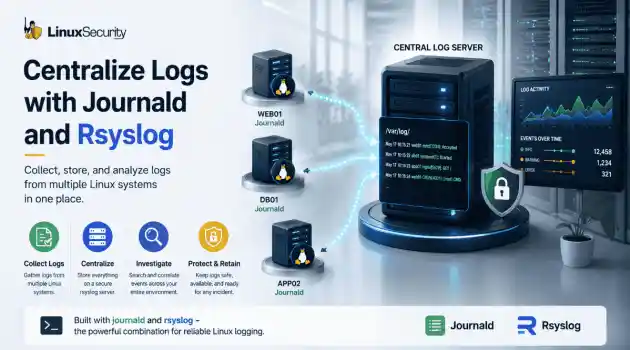
network security centralized logging Linux systems generate a steady stream of authentication, service, kernel, and application logs. On most systems, those logs never leave the machine that created them. If you're responsible for ten or twenty servers, that means checking each one separately. If one disappears before you can investigate it, its logs may disappear with it. Centralized logging solves that by sending log messages to another server as they're created. Instead of searching every machine, you have one place to review...
Jul 15, 2026
How to Secure My Networksecurity advisory audit
security advisory audit When you’re digging through an incident, your logs are the only thing you can actually trust. The problem is, attackers know that too. If someone gets root on your server, their first move is almost always to delete the evidence and cover their tracks. . If you aren't actively protecting your logs, you're basically flying blind the second a breach happens. It’s a miserable feeling to realize you have no idea what an attacker did because they wiped the logs before you even got there. In this...
Jul 11, 2026
 Refine HOWTOs
X Clear Filters
Get the latest News and Insights
Get the latest Linux and open source security news straight to your inbox.
Community Poll
Should Linux servers automatically install security updates?
Loading...
Explore Latest Linux Security HOWTOs
We found 4 articles for you...
167
 incident responseopen-sourceperformance monitoring
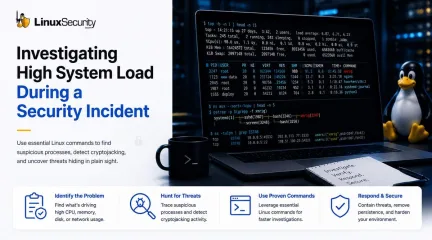
How to Investigate High System Load During a Security Incident
When a production server spikes at 99% CPU or the disk starts grinding, the knee-jerk reaction is usually to blame a bad code push or a runaway backup job. But if you’ve spent enough time in security incident response, you know that "performance issues" are often the first sign that you’re dealing with Linux malware. . If you don't have a systematic way to look past the performance graphs, you’re just guessing. Here is how you use Linux commands to peel back the layers when a system starts acting erratically. Understanding What "Normal" Load Means Before you touch a command, figure out what changed. A lot of ugly-looking spikes in Linux CPU usage end up being backups, software updates, or some forgotten batch job that nobody documented. Sometimes it's worse. The point is that you don't know yet. Build a timeline before you start chasing theories. When did the load increase? Did it happen after a deployment? Is it one server or twenty? The answers usually tell you where to look next. Once you've got that, start identifying what's actually consuming the resources. Step 1: Identify the Resource Under Stress Stop looking at the load average and start looking at the character of the load. Use standard Linux commands to isolate the bottleneck: CPU: Use the Linux top command or htop to identify the most active tasks. Memory: Run free -h to see if your Linux memory usage is being cannibalized by unauthorized processes. Disk: Run iostat -xz 5 to see if the disk I/O is saturated. Network: Use iftop to see if there is unexpected data movement. Step 2: Find the Process Responsible At some point, every load investigation comes down to a process. Maybe the server is pinned at 100% CPU. Maybe memory usage is climbing until the system starts swapping. Whatever the symptom, the next question is always the same: what's actually consuming the resources? Start by looking at the busiest processes on the system: ps aux --sort=-%cpu | head If memory pressureis the problem, switch your focus: ps aux --sort=-%mem | head Finding the process is only the beginning. The more useful question is how it got there. A process name by itself rarely tells the whole story, which is why I usually follow the process tree next: pstree -p Attackers don't need creative names. A malicious process can blend in perfectly if it's launched from something that looks legitimate. The parent-child relationship often reveals far more than the process name ever will. A service spawning an unexpected shell, a web server launching a binary, or a user process creating background workers are all worth a closer look. Step 3: Investigate the Process Context If a process looks suspicious, don't kill it yet. If it’s a Linux security incident, you might be helping the attacker clear their tracks. Verify location: Use which or ls -lah /proc/ /exe . If the binary is running out of /tmp or /dev/shm , treat it as suspicious until proven otherwise. Check User Context: Run ps -o user,pid,cmd -p . A process running as root that originates from a temporary directory is a massive red flag. Step 4: Detecting Cryptojacking Cryptojacking has become the go-to for attackers because it’s easy money. It doesn't look like an intrusion; it just looks like a hungry application. But miners have a tell: they have to talk to a mining pool. Use the Linux ss command ( ss -tulpn ) or netstat -plant to view your connections. If you see persistent, long-lived connections to foreign IPs on unknown ports, that is your indicator. If a process is consuming 80% CPU and talking to an external host, you have found the source of your Linux malware. Step 5: Check for Persistence Attackers aren't stupid. They know you’ll restart the machine or kill the process, so they need a way to make sure their code comes back. I start with the basics. Run crontab -l for the current user, but don't stop there. Attackers love hiding in the system-wide crons. Go dig through thefiles in /etc/cron.* —I’ve personally caught more than one backdoored script tucked into cron.daily or cron.weekly because the attacker knew a once-a-week execution would keep their resource footprint low enough to dodge most basic alerts. Then, hit the services. Run systemctl list-units --type=service . If you see a service name that looks like a garbled string or just doesn't belong, that’s your lead. Pull the unit file and see what it’s actually executing. It’s almost never a legitimate service; it’s usually just a lazy wrapper script that points to a hidden binary somewhere else on the disk. Step 6: Review Logs for Supporting Evidence When you’re in the middle of a security incident response event, looking at logs feels like a chore, but it’s where the story is actually written. Stop scrolling blindly. Use journalctl -xe to see what the kernel and system have been complaining about. If I suspect a remote breach, my first stop is journalctl -u ssh . I'm looking for the obvious stuff—failed logins that look like brute-force attempts—but keep an eye out for the successful logins from IPs that make no sense. If you see a user you don't recognize, or a sudden sudo elevation right before the resource spike started, you’ve found your entry point. Attackers aren't usually quiet about service installations, either; look for entries that show new binaries being dropped or permissions being changed. It’s the digital equivalent of seeing someone leave muddy footprints all over your clean floor. When to Remediate When you are sure it’s malicious, you may need to kill a Linux process—but don't destroy your evidence first. Before you execute the command to kill a process in Linux ( kill -9 ), make sure you have: Captured the process arguments and environment variables: ps eww -p and cat /proc/ /cmdline . Documented active network connections. Preserved logs and taken screenshots or exports from your EDR. Collected hashes of the suspiciousbinary: sha256sum /path/to/binary . After the adrenaline fades, align your internal procedures with CISA Incident Response & Recovery guidance . If you find a compromised process, cross-reference the behavior with the MITRE ATT&CK Resource Hijacking technique . Final Thoughts on Linux Security High load is a symptom. Whether it’s just a bad database index or a serious breach, the methodology remains the same: keep your head, trace the process, verify the context, and don't take anything at face value. Tools like Red Hat's performance monitoring documentation are there for a reason—master them, and you’ll spend a lot less time guessing. Want more Linux security news, vulnerability analysis, and software supply chain updates? Subscribe to the LinuxSecurity Newsletter and get the latest threats, advisories, and expert insights delivered directly to your inbox. Related Reading How to Diagnose Suspicious Outbound Connections on Linux How to Detect Unauthorized File Changes on Linux GitHub Actions Runner Security on Linux: Risks and Hardening Tips Linux IDS vs. IPS: What's the Difference and Which Do You Need? . Discover effective Linux command techniques to investigate high system load during security incidents and enhance response strategies.. Linux system load, performance issues, investigate security incidents. . Dave Wreski
 Jun 23, 2026
•
Jun 23, 2026
• How to Secure My Network
160
 system utilitiesfile managementcommand line
Master Five Core File And Folder Management Commands In Linux
Linux offers over 1,000 commands for a simple service. This number increases when you move to the desktop. In Pop!_OS, for example, /usr/bin has 1,615 commands, and /usr/sbin has 609. There are more than 2,000 commands available. . You will probably use only 1% of these commands in your lifetime, and this number is even lower for file and folder management. However, you'll eventually need to know more than just the basic commands. Here are the five next Linux file and folder management commands that you should know. . Uncover five crucial Linux commands for managing files and directories that will elevate your terminal proficiency and boost productivity.. Linux Commands, File Management, Command Line Usage, System Utilities. . Anthony Pell
Mar 26, 2024
•
How to Harden My Filesystem

167
 network securityport scanninglinux commands
Boost Linux Network Security Through Comprehensive Open Ports Auditing
Know your network inside out by regularly checking for open ports with these Linux commands. . Open network ports are the easiest entry points to your network. Sometimes, there might be unwanted services running on ports that are externally visible from the internet. In case these services are vulnerable, your network would be at constant threat of an attack as every day the entire internet is being mass scanned for vulnerable services on open ports. Learn how you can scan and view open ports on your Linux systems, so you can defend your network from threats. Network ports are logical access points of your system that can be used as a channel to host multiple services. A port is represented by a 16-bit integer so, the highest port number is 65535. You can think of ports like windows and doors of a house—basically all the different entry points to a house or, a computer. Ports are of three types: system ports (1-1023), registered ports (1024-49151), and ephemeral, or dynamic ports (49152-65535). . Unmonitored network ports can serve as vulnerable access points for cyber threats. Consider these strategies to bolster your Linux network defense.. Open Ports, Linux Network, Port Scanning, Network Security, Linux Commands. . Brittany Day
Jul 16, 2023
•
How to Secure My Network
166
 user managementadministrative toolslinux commands
Discover The Best Sudo Alternatives For Enhanced Linux Management
For those who don't fancy sudo and find it bloated, there are several sudo alternatives you can try instead. . sudo is probably one of the most used Linux commands. It allows you to gain administrative or elevated privileges on a Linux machine. You normally need elevated privileges to execute actions such as installing software, managing services, and deleting critical system files. But did you know there are alternatives to the sudo command on Linux? . Explore numerous alternatives to the sudo command for Linux, like doas, pkexec, su, and others for secure and efficient user role management and administration. Sudo Alternatives, Linux Commands, Admin Tools, User Privileges. . Brittany Day
Jan 15, 2023
•
How to Learn Tips and Tricks
160
file permissionsfile managementfile typesExploring Linux Directory Structures: Types, Permissions, and Methods
There’s a lot more to working with files on Linux than creating, listing and updating them. After all, files can be Linux commands (i.e., binaries), scripts, images, simple text files, pointers to other files or folders. You might remember the "everything is a file" description of Unix and Linux systems. . Even sockets and named pipes are files in their own way. Sometimes only the owner can see and use files, sometimes everyone can and sometimes select individuals will also have access. Here are some of the subtleties. . Linux file manipulation encompasses creation, deletion, and modification, while understanding file types and permissions enhances system security and functionality. File Management, File Types, File Permissions. . Brittany Day
Jan 15, 2023
•
How to Harden My Filesystem
166
system administrationubuntucommand lineEssential Ubuntu Commands for Improved User Productivity
What are the essential Ubuntu commands?I have been asked this question several times by regular readers, and I have tried to avoid answering it. . Why? Don’t I know Ubuntu commands? Nope. That’s not the reason. It is because it is difficult to categorize them. What’s essential to me may not be essential to you. But I guess that applies to everything and every such list of recommended applications on our portal. That’s why I finally gave in and created this list of basic yet essential Linux commands that should be helpful to you as a Ubuntu user. This is more focused on desktop Ubuntu users, but if you use Ubuntu as a server, they should also help you. . Uncover vital Linux commands that any Ubuntu user should master to boost efficiency and simplify workflows.. Ubuntu Commands List, Essential Linux Commands, Command Line Basics, Terminal Usage, System Administration. . Brittany Day
Nov 26, 2022
•
How to Learn Tips and Tricks
160
 security managementfile permissionslinux commands
How to Adjust Default File Permissions with Umask in Linux
File permissions are critical for the security of a Linux system. But how do you set default permissions for new files on Linux? . If you've used Linux for any length of time, you'd know how important Linux file permissions are. But what about permissions for when you create new files? A utility called umask lets you set default file permissions for new files on Linux. A umask is a "bit mask" that sets permission bits on new files. On Linux systems, it's a standalone command, though modern shells like Bash or Zsh include it as a built-in command. . Learn how to configure default access rights for newly created files in Linux through umask settings, and improve the security oversight of your system.. Umask Command, File Permissions, Linux Security, System Management, Linux Administration. . Brittany Day
Oct 22, 2022
•
How to Harden My Filesystem
163
 server managementsystem monitoringlinux commands
Comprehensive Evaluation of User Activity on Linux Server Systems
If you’re managing a Linux server, you'll want to have a selection of commands that you can use to check user activity. This article examines some helpful commands that Linux server admins can use to view user activity. . If you’re managing a Linux server, it’s good to be ready with a number of commands that you can use to check user activity – when your users are logging in and how often, what groups they belong to, how much disk space they’re consuming, what command they're running, how much disk space they're occupying, if they’re reading their mail and more. In this post, we'll look at a number of commands that can help you understand who your user are and how they work. . Uncover key commands to track and assess user interactions on your Linux server seamlessly.. Linux User Commands, Server Activity Monitoring, Disk Usage in Linux, User Log Analysis. . Brittany Day
Jun 30, 2020
•
How to Secure My Webserver

Get the latest News and Insights
Get the latest Linux and open source security news straight to your inbox.
Community Poll
Should Linux servers automatically install security updates?
Search Topics
Powered By

Linux Security - Your source for Top Linux News, Advisories, HOWTOs and Feature Releases
QUICK LINKS
subscribe to newsletters!
Like staying secure? So do we.
Sign up for updates, tips, and alerts!