Overly broad permissions can turn one compromised account into a much larger security problem. Learn how to reduce unnecessary access, review privileges, and apply least privilege across modern Linux systems. Review Linux Privileges×


Stay Ahead With Linux Security HOWTOs
How to Secure My Network incident response network traffic
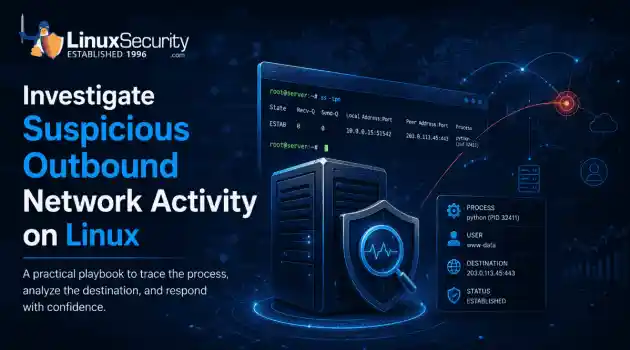
incident response network traffic Imagine logging into a production Linux server for routine maintenance and noticing background network activity connecting to an unfamiliar external IP address. Your endpoint protection agent is not popping up with an alert, there is no service failure, and on the surface, the system appears to be running normally. . For Linux administrators and security teams, such a situation is a moment of truth: Is this activity a sign of active intrusion or just a tool that was overlooked in the course of...
 Jul 21, 2026
How to Harden My Filesystemsystem hardening open source security
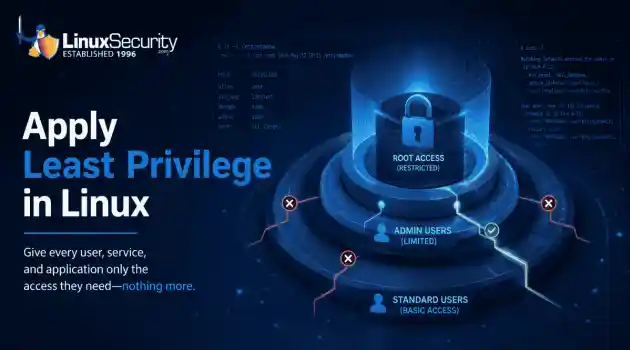
system hardening open source security We all spend a lot of time defending our systems from external threats, but the amount of damage an attacker can cause often depends on what happens after they get in. A single compromised account doesn't always lead to a major incident. The real danger begins when that account has far more access than it actually needs. . That's exactly what the principle of least privilege is designed to prevent. By limiting users, services, and applications to only the permissions required for their jobs,...
Jul 20, 2026
How to Learn Tips and Tricksthreat detection system monitoring
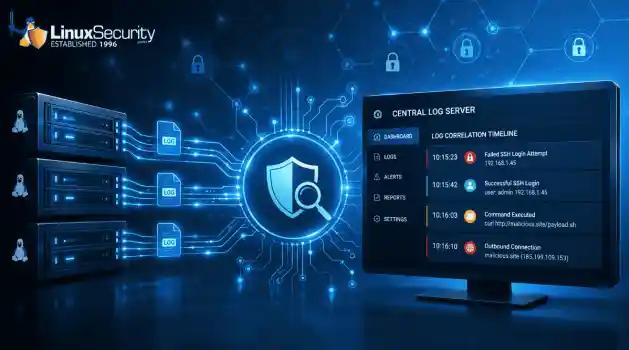
threat detection system monitoring For small security and IT teams, the "enterprise" dream of a fully automated SIEM often feels like a distant luxury. It’s a vision built on massive budgets and dedicated engineering teams—things that, frankly, most of us don't have. But here is the reality: you don’t need a six-figure platform to maintain a secure environment. . Linux systems are, by design, incredibly verbose. Every time a user authenticates, a process executes, or a configuration file changes, your system creates a record of...
Jul 17, 2026
How to Learn Tips and Tricksnetwork security centralized logging
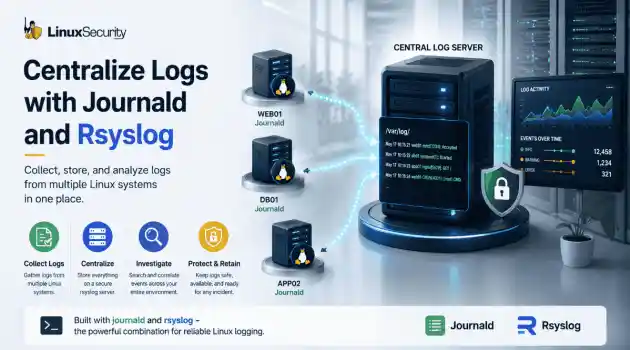
network security centralized logging Linux systems generate a steady stream of authentication, service, kernel, and application logs. On most systems, those logs never leave the machine that created them. If you're responsible for ten or twenty servers, that means checking each one separately. If one disappears before you can investigate it, its logs may disappear with it. Centralized logging solves that by sending log messages to another server as they're created. Instead of searching every machine, you have one place to review...
Jul 15, 2026
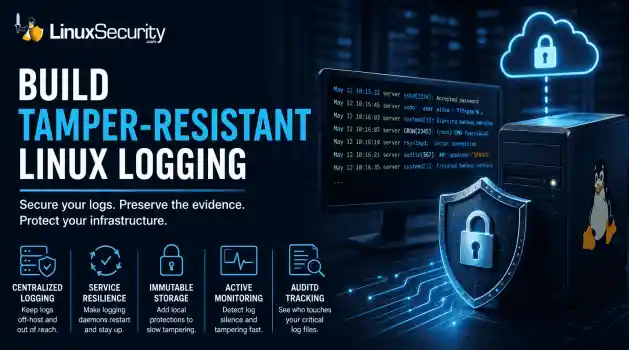
How to Secure My Networksecurity advisory audit
security advisory audit When you’re digging through an incident, your logs are the only thing you can actually trust. The problem is, attackers know that too. If someone gets root on your server, their first move is almost always to delete the evidence and cover their tracks. . If you aren't actively protecting your logs, you're basically flying blind the second a breach happens. It’s a miserable feeling to realize you have no idea what an attacker did because they wiped the logs before you even got there. In this...
Jul 11, 2026
 Refine HOWTOs
X Clear Filters
Get the latest News and Insights
Get the latest Linux and open source security news straight to your inbox.
Community Poll
Should Linux servers automatically install security updates?
Loading...
Explore Latest Linux Security HOWTOs
We found 7 articles for you...
166
 Linux securitypassword managementshell scripting
Installing Sshpass: Secure Password Handling in Linux Shell Scripts
Shell scripts are an integral part of Linux but can often require passwords that shouldn't be hard-coded for security reasons. Instead, sshpass is a non-interactive tool specifically created for password automation in shell scripts. Here's how to install and use sshpass on Ubuntu-based and Fedora-based distributions to put a password in your Bash script. . How Can I Install sshpass? You'll need to run a Linux distribution to use sshpass . I will demonstrate using Ubuntu Server 22.04, but the app is also available for Fedora distributions. You'll need to have a user who has sudo permissions. Open a terminal and enter the following command to install sshpass in Ubuntu: Sudo apt-get sshpass install -y This command is for Fedora-based Distributions: sudo dnf install sshpass -y This is the end of the installation. Pretty simple, wasn't it? How Can I Use sshpass ? We will stick to our backup script. We must first create an encrypted password file. Create the file using the command: nano ~/.password You can name the file however you want, but I suggest hiding it by adding a period to the beginning. Add the password of the shell script account in that file and save it using the Ctrl x keyboard shortcut. Use the following to encrypt your file: gpg -c ~/.password You will be asked to enter and confirm a password. This command creates a file named .password.gpg which contains the encrypted password. The /.password can be deleted. How Do I Create the Shell Script? We're going to stick with our simple backup script. To demonstrate the sshpass commands, I will first show you how it works. A rsync back command that requires authentication looks like this: sshpass -p "PASSWORD" rsync -av /backup USER@SERVER:/home/USER/backup Where PASSWORD represents the remote user's password, USER is the remote username, and SERVER is the IP address of the remote server. The sshpass App will pass the password on to the rsync Command, andeverything should be working as expected. You don't want that password hard-coded, do you? You can avoid this by being creative in your script. Here's how it might look: #!/bin/bash gpg -d -q ~/.password.gpg | sshpass rsync -av /backup USER@SERVER:/home/USER/backup The SERVER parameter is the IP or domain address of the remote server. We've decrypted the .password.gpg and sent the output to sshpass, which is then used by rsync for connecting to the remote server to backup. It is a little tricky, but it's effective! Our Final Thoughts on sshpass and Its Security Implications for Linux Users Using sshpass will add an extra layer of security and allow you to automate scripts. While sshpass offers a convenient way to automate password-dependent scripts and enhance security by avoiding hard-coded passwords, it raises concerns. For instance, what happens if an attacker gains access to the machine and obtains the script? They would also have access to the encrypted password file, potentially compromising the security of the system. This highlights the importance of implementing additional security measures, such as proper file permissions and encryption protocols. Need additional guidance installing and using sshpass? Connect with us on X @lnxsec - we're here to help! . Learn how to install and use sshpass to manage passwords securely in shell scripts, streamlining automating SSH logins and enhancing efficiency. sshpass, secure password automation, shell scripting, Linux administration, password management. . Brittany Day
 Feb 12, 2024
•
Feb 12, 2024
• How to Learn Tips and Tricks
162
 authenticationubuntupassword management
Change Your Password on Ubuntu Linux: Easy Terminal Steps
Looking to change your old password on Ubuntu? It's easy to do so through the terminal. Let's examine how this can be done in a straightforward tutorial. . Ubuntu Linux isn't the most popular desktop operating system, but there are many valid reasons why a large crowd of people prefers it over macOS or Windows. It's free and open source and offers plenty of distributions with different features and interfaces. However, there's a learning curve when switching over from a Mac or Windows PC. Even trivial things, such as changing your password, can get complicated. But don't worry, it's much easier than it sounds! Like most things on Linux, you can use a few quick terminal commands to get the job done. You can even use it to recover your forgotten password, even if you can't log into the OS. Let's look at how you can change your old password on Ubuntu via the terminal. Check out the article linked below for a step-by-step tutorial! . Discover the steps to swiftly modify your password on Ubuntu using terminal commands in this informative article.. Password Management, Ubuntu Terminal, Change Password, User Authentication. . Brittany Day
Dec 03, 2023
•
How to Strengthen My Privacy
163
mysqlauthenticationdatabase securityStep-By-Step Guide to Change MySQL or MariaDB Root Password in Linux
MySQL and MariaDB are popular relational database management systems used for storing and managing data. The root user in MySQL and MariaDB has extensive privileges and control over the databases, making it a prime target for potential security breaches. It is crucial to change the root password regularly to enhance the security of your system. In this article, we will explore the step-by-step process of changing the root password of MySQL or MariaDB in Linux. . Changing the root password of MySQL or MariaDB in Linux is a fairly straightforward process. First, you need to log in to the machine as the root user. Once logged in, you can use the mysqladmin program to change the root password by running the command “mysqladmin -u root password ‘new_password'”. After entering the command, the root password of MySQL or MariaDB will be changed to the new_password you provided. You can also use the command line program mysql to change the root password by running the command “SET PASSWORD FOR ‘root’@’localhost’ = PASSWORD(‘new_password’);”. Once the command is executed, the root password will be changed to the new_password you provided. It is important to remember to use a strong password for your root user to ensure the security of your database. Changing the root password at regular intervals is essential for maintaining the security of your MySQL or MariaDB server. The root user has complete access and control over all databases and tables within the system. By changing the root password periodically, you can prevent unauthorized access to your data and protect against potential server breaches. . Enhancing the safety of MySQL and MariaDB involves updating the root password, which is crucial. Follow this tutorial for steps applicable to Linux.. MySQL Password Change,MariaDB Authentication,Database Root Access. . Brittany Day
Sep 08, 2023
•
How to Secure My Webserver
162
security practicespassword managementcommand lineChecking Password Strength In Linux With Command Line Techniques
We already posted a brief guide about - how to generate a strong password in Linux a while ago. Now, we are going to find out if the generated password is really strong or not. In this short tutorial, we will see how to check the password complexity in Linux from commandline. . Before going further, here are some useful tips to all those who wants to keep their system safe. Never ever use the same password for different Email accounts, ssh/ftp/sftp logins. If a hacker managed to crack your password, s/he literally have access to all accounts. So, generate and use different unique password for each account. A good password should be the combination of letters, numbers, special characters. Make sure your password has at least 12 or more characters. Check our guide how to force users to use strong password . Don't save your passwords online. Use good password manager or memorize them. Consider two factor authentication if possible. More importantly, don't use valid answers for security questions, eventually with enough data breaches, hackers will have all the answers . The common security questions are father's maiden name, school name, favorite pet's name, last name of first girlfriend/boyfriend, etc. Since much of the time these are stored in plain text on websites someone can gain access to many of your accounts by knowing these answers. Instead, put in mixed letters/numbers as answers and use a secure password manager to keep track of your answers. I came across this tip on Reddit . So I thought sharing it here would be helpful to someone. . In Linux, evaluate password strength with `pam_pwquality` for complexity, use `pwgen` to create secure passwords, and adopt 2FA and updates for enhanced security. Password Complexity, Linux Security, Account Safety, Password Management, Strong Passwords. . Brittany Day
Feb 11, 2023
•
How to Strengthen My Privacy
162
 security practicespassword managementautomation
Securely Protect Passwords In Linux Bash Scripts For Automation
Shell scripts can save you time and effort, but if you don't protect your passwords, they can be a liability. Here's how to stay safe. . Bash scripts are an important part of a system administrator's job. They allow you to automate both mundane and critical tasks. One of the best things with scripts is that they can run independently without human intervention, but sometimes it can be challenging to automate tasks that require user passwords. Let's look at how you can securely automate scripts that require passwords without compromising security. . Discover methods to streamline Linux shell scripting safely with the implementation of encrypted credentials, boosting both security and operational effectiveness.. encrypted passwords, secure scripting, password management. . Brittany Day
Oct 05, 2022
•
How to Strengthen My Privacy
166
 security advisoryencryptionpassword management
Enhancing Digital Security for Your Business with Linux
One of the beauties of using Linux for your business is that it’s one of the most secure operating systems available. However, that doesn’t mean you can leave your digital security up to chance. Cyberattacks are becoming increasingly sophisticated and can have devastating consequences, including financial loss, reputational damage, and the theft of sensitive data. . As a Linux user, there are still steps you need to take to make sure your business information is safe from cyber threats. Here are some tips to help you keep your business safe. Use a Strong Password A strong password is the first line of defense against digital threats. A strong password is at least 12 characters long and includes a mix of uppercase and lowercase letters, numbers, and symbols. Avoid using easily guessed words like "password" or easily accessible personal information like your birthdate. Instead, create a phrase that you can easily remember but would be hard for someone else to guess. For example, "I always start my day with a cup of coffee" could become "iA$DwacM$C." Avoid using easily guessed words or phrases, and mix up letters, numbers, and special characters. You should also never use the same password for more than one account. Consider the Best Tools for Password Cracking to check whether your passwords are as secure as they can be. Set Up Digital Authentication Features In today’s business world, it’s more important than ever to have strong security measures in place to protect your company’s data. One way to do this is by setting up digital authentication features, such as two-factor authentication or biometric login. These features add an extra layer of security by requiring users to provide additional information beyond just a username and password. Two-factor authentication (2FA) is an additional layer of security that requires you to have two out of three types of identification before you can log in to an account. The three types of identification are something you know (like apassword), something you have (like a physical key or token), and something you are (like a fingerprint). Enabling 2FA adds an extra step to the login process, but it’s worth it because it makes it much harder for cybercriminals to gain access to your account, even if they have your password. For example, with two-factor authentication, a user would need to enter both a password and a code that is sent to their mobile phone. This makes it much harder for hackers to gain access to your systems, as they would need to not only know the passwords but also have access to the user’s mobile phone. Similarly, biometric login requires users to provide a fingerprint or other type of biometric data, which is much harder for hackers to spoof. Passwords can be a reliable digital identity authentication factor when used correctly in accordance with strict security procedures. Use Encryption Encryption is a process that encodes data so that it can only be accessed by authorized parties. When data is encrypted, even if someone gains access to it, they won’t be able to read it unless they have the encryption key. That’s why encryption is an important part of digital security . There are various levels of encryption, but 256-bit encryption is considered military grade and should be more than sufficient for most businesses. Luckily, most Linux distributions come with full disk encryption enabled by default. This makes it difficult for unauthorized individuals to access sensitive information, such as customer credit card numbers or confidential business documents. Encryption can be used in a variety of ways, such as encrypting email messages, stored data, and even entire websites. Create a Cybersecurity Plan This plan should include measures for preventing attacks, detecting threats, and responding to incidents. It should also be reviewed and updated on a regular basis. Some other key components of a strong cybersecurity program include employee training, email filtering, and two-factorauthentication. Focus On Training Your Staff Phishing and ransomware are two of the largest risks that organizations must deal with. If staff receive malicious emails and cannot recognize that they are scams, the entire firm is at risk. Similar to internal error, privilege abuse, and data loss, these issues are often brought on by staff members who neglect their security responsibilities. To contain these issues, organizations must support their IT division by regularly providing staff awareness training. Don't post personal information like your address or date of birth, and think twice before sharing sensitive information like photos or financial details. Be Wary of Email Attachments Email attachments are one of the most common ways for cyber criminals to spread malware because people are often tricked into opening them without realizing they contain malware. That’s why it’s important to be wary of email attachments, even if they appear to come from someone you know. If you receive an email attachment from someone you know but weren't expecting one, confirm with the sender that they actually sent it before opening it. If you receive an attachment from someone you don't know, delete the email without opening it because there's a good chance it contains malware designed to infect your system as soon as you open the attachment. Set Up Firewalls A firewall monitors traffic going in and out of your network and blocks suspicious activity. It’s basically like a barrier between your network and the internet, and it’s an important part of digital security because it can block many types of attacks before they even reach your systems. Most Linux distributions come with a firewall installed by default, but it might not be enabled. Check with your system administrator or consult your distribution’s documentation on how to enable the firewall if it isn’t already enabled. The first line of protection against a hacker attempting to hack into your terminals is a good firewall. Withoutone, a hacker can infect your computer with malware and steal crucial data such as personal and credit card information. Update Your Software Software updates often include security patches that close vulnerabilities that could be exploited by cybercriminals. Make sure you set your software applications to update automatically or that you manually update them on a regular basis. It’s also important to keep your operating system up-to-date for the same reason. Fortunately, most Linux distributions include automatic updates, so you don’t have to worry about manually updating them. Similar to passwords, once these vulnerabilities are made public, hackers start looking for users of that particular software who might be exposed. Installing an update will take less time than dealing with a real data breach. Consult an Expert Every small business requires strong support. Security professionals focus solely on your network architecture, and can evaluate present and potential risks. Hiring digital security professionals can acquire the most recent security features. Additionally, if your team hasn't yet received sufficient training, cybersecurity professionals can bridge this knowledge gap and safeguard the business until your team is prepared to take over. Data security should always be a major priority as the world transitions from paper-based systems to digital ones. You may better secure your data, employees, customers, and organizations from security risks and hackers by choosing the appropriate technology, implementing policies, and training staff. By taking some simple precautions, you can make sure your Linux system is as secure as possible against digital threats, keeping your business safe in the process. Following these tips will help safeguard your business against any potential cyber threats. . Strengthen your online defenses as a user of Linux by implementing practical strategies to protect your information and reduce vulnerabilities.. Linux Security Tips, Cyber AttackPrevention, Strong Password Practices, Business Data Protection. Martin William. Brittany Day
Sep 30, 2022
•
How to Learn Tips and Tricks
162
data securityfile protectionaccess controlSecure Your Files with Passwords on Linux for Enhanced Security
Securing your files and directories with a strong password is a sure-fire way to prevent unauthorized access and snooping on Linux. . Whether you want to share a file online, store it in the cloud, carry it on a thumb drive, or add it to your archive, password-protecting it is the best approach to secure its content and prevent unauthorized access. The same holds true for folders too. Therefore, it's crucial to encrypt them as well. On Linux, you have several ways to password-protect files and folders. Most of these methods use encryption, which offers additional protection than others. . Discover reliable techniques for locking files and directories on Linux through encryption to boost security measures.. Password Protection,Linux Security,File Encryption,Secure Directories. . Brittany Day
Aug 09, 2022
•
How to Strengthen My Privacy
160
 data securitydata protectionfile protection
Discover Seven Essential Tools for Linux File Encryption and Security
Learn about seven great tools you can use to encrypt/decrypt and password protect files on Linux in this tutorial. . Encryption is the process of encoding files in such a way that only those who are authorized can access it. Mankind is using encryption from ages even when computers were not in existence. During war they would pass some kind of message that only their tribe or those who are concerned were able to understand. Linux distribution provides a few standard encryption/decryption tools that can prove to be handy at times. Here in this article we have covered 7 such tools with proper standard examples, which will help you to encrypt, decrypt and password protect your files. If you are interested in knowing how to generate Random password in Linux as well as creating random password you may like to visit the below link: . Discover seven robust applications for encrypting, decrypting, and safeguarding files on Linux with ease and efficiency.. Encryption Tools, File Security, Password Management, Data Protection. . Brittany Day
May 27, 2021
•
How to Harden My Filesystem

Get the latest News and Insights
Get the latest Linux and open source security news straight to your inbox.
Community Poll
Should Linux servers automatically install security updates?
Search Topics
Powered By

Linux Security - Your source for Top Linux News, Advisories, HOWTOs and Feature Releases
QUICK LINKS
subscribe to newsletters!
Like staying secure? So do we.
Sign up for updates, tips, and alerts!