


Stay Ahead With Linux Security HOWTOs
How to Secure My Network network security Linux administration
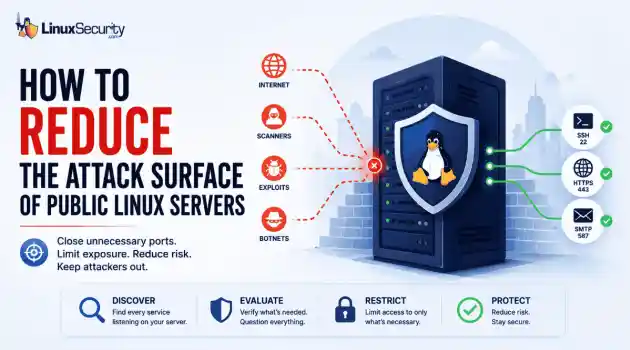
network security Linux administration Open ports have a way of accumulating over time. A test environment gets deployed and never removed. An administrative interface is exposed for troubleshooting and left in place. A database that was supposed to listen internally ends up reachable from the internet. . Attackers look for these mistakes constantly. Redis, Elasticsearch, MongoDB, Jenkins, and similar services still show up on internet-facing systems where they were never meant to be exposed. Sometimes it's a temporary change that...
 Jun 10, 2026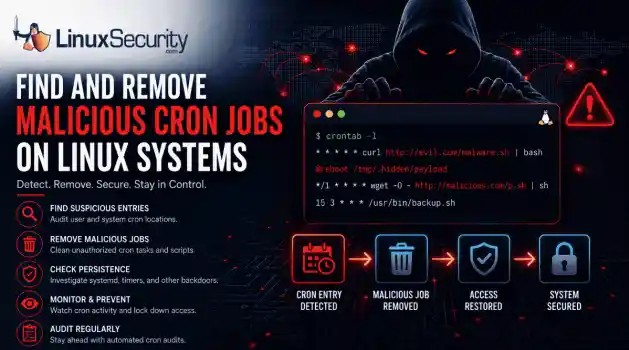
How to Secure My Networksecurity advisory intrusion detection
security advisory intrusion detection A compromised Linux server can continue running malware long after the initial intrusion. One of the most common persistence techniques is a malicious cron job that silently downloads payloads, restarts malware, or re-establishes attacker access every few minutes. This guide shows how to identify suspicious cron entries, preserve forensic evidence, remove unauthorized scheduled tasks, and verify that no additional persistence mechanisms remain. . What Should You Save Before Removing Cron Jobs...
Jun 09, 2026 
How to Secure My Networkaccess control Linux administration
access control Linux administration Most SSH hardening advice ends at the same recommendation: Disable password authentication and use SSH keys. . That's good advice. It removes entire classes of attacks, including password spraying, credential stuffing, and brute-force attempts against exposed servers. The problem is what happens next. Many administrators treat SSH keys as the finish line when they are really the beginning of the hardening process. Attackers rarely care whether they obtained access with a password or a private...
Jun 05, 2026 
How to Secure My Networksecurity advisory remote access
security advisory remote access Most of the time, nobody notices. SSH authentication succeeds, no alerts are generated, and the connection looks exactly the way it did the day the key was installed. That's part of the problem. . When security teams investigate unauthorized access on Linux systems, they often focus on passwords, exposed services, or vulnerable software. Trusted access receives less attention. Yet a single forgotten or unauthorized SSH key can provide the same access as a legitimate user while attracting very...
Jun 03, 2026 
How to Secure My Networkintrusion detection application security
intrusion detection application security The wrong IPS rule can look like a security fix right up until it becomes an outage. . On Linux systems, detection and prevention are often discussed together, but they do not carry the same operational risk. One tells admins that something suspicious happened. The other can decide whether traffic is allowed to continue. That is why IDS vs IPS is not just a definition to memorize. It is a deployment decision about where to monitor, where to block, and how much confidence a team needs before...
Jun 01, 2026  Refine HOWTOs
X Clear Filters Get the latest News and Insights
Get the latest Linux and open source security news straight to your inbox.
Community Poll
What got you started with Linux?
Loading...
Explore Latest Linux Security HOWTOs
We found 27 articles for you...
167
 security advisoryremote accessauthentication
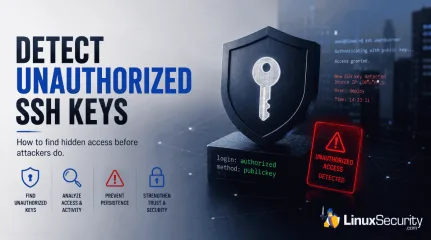
How to Detect Unauthorized SSH Keys on Linux Systems
Most of the time, nobody notices. SSH authentication succeeds, no alerts are generated, and the connection looks exactly the way it did the day the key was installed. That's part of the problem. . When security teams investigate unauthorized access on Linux systems, they often focus on passwords, exposed services, or vulnerable software. Trusted access receives less attention. Yet a single forgotten or unauthorized SSH key can provide the same access as a legitimate user while attracting very little scrutiny. This guide explains how to identify unauthorized SSH keys, investigate suspicious SSH activity, and determine whether the trust you've granted over time still belongs there. Why Unauthorized SSH Keys Are So Dangerous SSH keys bypass many controls that organizations traditionally depend on. A password-based attack often generates warning signs. Failed authentication attempts appear in logs. Lockout thresholds trigger. Users report suspicious activity. Security tools generate alerts. A valid SSH key behaves differently. When an attacker possesses a legitimate private key, the authentication process may look completely normal. The SSH daemon sees a trusted credential. The login succeeds. No password failures occur. No brute-force signatures appear. Nothing obviously breaks. That makes SSH keys attractive for persistence. An attacker who gains administrative access frequently adds a new public key to an existing account. Sometimes they create a new account. Sometimes they target the root directly. Other times, they hide inside a service account that rarely receives attention because administrators assume it belongs to an application. The objective is simple: maintain access after the original vulnerability gets patched. Keys also support lateral movement. Once attackers compromise one Linux host, they often search for private keys stored in home directories, automation scripts, CI/CD systems, backup repositories, or deployment servers. A single exposed private key can unlockmultiple systems. Suddenly, one foothold becomes several. The dangerous part is that none of this necessarily looks suspicious. The attacker is using a trusted authentication method exactly as it was designed to work. Where SSH Key Abuse Usually Starts Unauthorized SSH key usage rarely begins with SSH itself. The problem usually starts somewhere else in the attack chain: Developer Workstations: A compromised laptop may contain private keys used for production access. Public Repositories: Developers occasionally commit private keys, configuration files, backup archives, or deployment scripts. Automated scanning tools continuously search for exposed secrets. Service Accounts: Many organizations grant broad permissions to automation accounts because restricting access requires additional engineering work. Those accounts often hold keys that provide access across multiple environments. Vendor Access: A contractor receives temporary access to support a project. The project ends. Nobody removes the key. Months later, the account still works. Manually Added Keys: An administrator troubleshooting an outage might temporarily add a key for convenience and forget about it afterward. Step 1: Inventory Authorized SSH Keys Across Linux Systems The first step is understanding what trusted access currently exists. Many organizations cannot answer a simple question: Which SSH keys are authorized across the environment right now? Start by identifying every authorized_keys file . Most administrators immediately think about user accounts, but SSH keys appear in many places: Root accounts Service accounts Application users Automation accounts Dormant accounts Document the username, home directory, public key fingerprint, source system, key owner, business purpose, and date added, if available. This process can be tedious, but detection depends on knowing what normal looks like. If a SOC analyst discovers a public key during an investigation, the first question should be: Who owns this key? Too often, the answer is unknown. That uncertainty creates management blindness. Step 2: Compare Keys Against Known Owners Once an inventory exists, every key should be mapped to a specific owner and business purpose. A key without an owner should immediately attract attention. The same applies to keys associated with former employees, retired systems, completed projects, old vendors, or abandoned automation. Duplicate usage is another warning sign. If the same public key appears across unrelated accounts or systems, investigate why. Shared keys often emerge from convenience-based administration practices. One administrator creates a key pair and distributes it widely because it simplifies management. Convenient. Also dangerous. Compromise that one key and the attacker inherits every trust relationship attached to it. Step 3: Monitor Changes to authorized_keys Periodic audits help, but they are not enough. An attacker does not need to wait for the next quarterly review. They only need a few seconds to add a new key. Focus on locations such as: ~/.ssh/authorized_keys /root/.ssh/authorized_keys Service account SSH directories and configuration files File integrity monitoring can detect additions, removals, and modifications. Linux audit rules can also record changes and identify which process or user performed the action. Monitoring creates a timeline. A timeline reveals who changed what and when. That evidence becomes extremely valuable during incident response. Step 4: Review SSH Authentication Logs Linux authentication logs provide insight into how SSH keys are used after they are installed. Common locations include /var/log/auth.log, /var/log/secure, or journalctl. Review successful public-key authentication events rather than focusing only on failures. Several patterns warrant investigation: Logins originating from unfamiliar IP addresses. Authentication events occurring outside normal maintenance windows. Service accounts thatsuddenly begin interactive logins. Administrator accounts that have remained dormant for months and then become active again. One successful login might be legitimate. Twenty successful logins across ten servers from a previously unseen source network tell a different story. Step 5: Correlate Key Usage With User Behavior A valid key can still be used in an invalid way. Security teams should correlate SSH activity with information about users, devices, networks, and expected administrative behavior. Questions worth asking include: Did the login originate from an approved source IP? Does the user normally access systems from this network? Does the login align with the user's role and approved change tickets? Unauthorized SSH key usage often appears as a context mismatch rather than an authentication failure. The login works exactly as expected. Everything around it does not. Step 6: Look for Persistence Patterns Persistence leaves clues. Not always immediately, but attackers tend to follow recognizable patterns. Watch for a new SSH key appearing shortly after suspicious activity. High-privilege targets deserve special attention. Keys added to root accounts, infrastructure management accounts, or systems with broad sudo privileges carry elevated risk. Watch for the same key appearing across multiple hosts, as an attacker may distribute a trusted key widely. If a login is immediately followed by privilege escalation, file staging, or outbound network connections, you aren't looking at an admin—you’re looking at an adversary. Step 7: Close Audit Gaps Many SSH-related incidents are enabled by process failures rather than technical failures. Organizations often lack a centralized inventory of SSH keys. Alerting is frequently absent. A new key can be added to a production server without generating any notification. Vendor access deserves particular attention. External access is often granted quickly, but removal tends to happen much more slowly. What Security TeamsShould Alert On Security monitoring should generate alerts for: New keys added to privileged accounts Public-key logins from previously unseen source IPs Dormant users authenticating through SSH The same key appearing across unrelated accounts SSH activity outside approved maintenance windows Modifications to the SSH configuration that weaken access controls How to Respond When Abuse Is Suspected The first instinct is often to remove the key immediately. Be careful. Preserve authentication logs, shell history, audit records, and system artifacts before making changes whenever possible. Understanding how the key arrived on the system is just as important as removing it. Identify affected accounts first. Then determine which systems trust the key. Disable or remove suspicious keys only once evidence collection is complete. Rotate exposed keys. Check cron jobs, startup scripts, and scheduled tasks. Look for lateral movement because attackers rarely stop at one host when additional access is available. Prevention: Make SSH Key Trust Verifiable The strongest defense is reducing uncertainty. Every SSH key should have a documented owner, a defined purpose, and a known lifecycle. Centralized inventories help maintain that visibility. Regular reviews help remove stale access. Continuous monitoring helps identify suspicious changes before attackers can establish long-term persistence. Separate human access from service access. Treat SSH keys as privileged credentials, because that is exactly what they are. SSH keys are trusted access mechanisms, but trust alone is not a security control. Once a key is added, many organizations assume the problem is solved. Attackers benefit from that assumption. Unauthorized SSH key usage rarely resembles a brute-force attack. It rarely generates obvious authentication failures. It often looks like a successful login from a credential the system already trusts. That is why detection depends on visibility rather than simple access controls.The key that causes a future incident is often not the newest key in the environment. It is the one nobody remembered to question. Related Reading SSH Key Sprawl on Linux: Unmanaged Access Threats and Cleanup Guide Enhance Linux Server Security Through Effective SSH Best Practices Understanding Linux Persistence Mechanisms and Detection Tools . Learn how to identify and manage unauthorized SSH keys in Linux environments effectively to enhance security.. SSH Keys, Unauthorized Access, Linux Security Practices, Key Management, Security Monitoring. . Dave Wreski
 Jun 03, 2026 •
 How to Secure My Network
 166
 remote accessaccess managementremote desktop
Discover Raspberry Pi Connect for Safe Remote Access Solutions
Raspberry Pi has announced the beta release of Raspberry Pi Connect as "a secure and easy-to-use way to access your Raspberry Pi remotely, from anywhere on the planet, using just a web browser." . It is useful to access the desktop of your Raspberry Pi remotely, but doing so can be challenging. VNC and the X protocol are two technologies that can be used. They can be difficult to configure, especially when accessing a computer on a different network. Enter Raspberry Pi Connect! Learn how the underlying technology works and how to get Raspberry Pi Connect in the article linked below. . Utilize your Raspberry Pi interface from afar; discover safe techniques and applications to improve your connectivity.. Remote Access Solutions,Raspberry Pi Connect,Secure Raspberry Pi Connection. . Brittany Day
May 08, 2024 • How to Learn Tips and Tricks 
166
 remote accesssecurity measuressecurity concerns
Check RDP Service Status And Security on Linux with XRDP
XRDP is an open-source RDP implementation that we use to enable Remote Desktop Protocol on Linux. Managing XRDP remote desktop sessions in Linux can be difficult if you're not familiar with the process. . The tutorial linked below teaches you how to use a few commands on Linux to check the RDP service status and the number of active RDP sessions. It also examines measures you can take to enhance security and potential security concerns with using RDP on Linux. . This guide provides instructions on verifying the SSH service status and strengthening its protection on Unix-based platforms.. Remote Desktop Protocol, XRDP Security, Linux Commands, RDP Management, Open Source Solutions. . Brittany Day
Apr 22, 2024 • How to Learn Tips and Tricks 166
 cyber threatsremote accesssecurity measures
Ways to Determine if Your Linux Server Has Been Compromised or Hacked
Linux SSH servers are a favorite target among cyber attackers due to their ability to provide remote command-line access. This ability positions them as essential conduits for controlling and managing server operations. . As a result, this remote access makes them prized entry points for malicious actors looking to exploit or compromise critical services. Server administrators can run updates, apply patches , and use fewer standard ports to deter attackers, but how can they determine if they are at risk or have been hacked? Learn how to check if your Linux server has been hacked and signs of malicious activity to be on the lookout for. . Keep an eye on your system for indicators of unauthorized access and discover useful methods for detecting breaches in Linux environments.. Check Linux Server, Detect Hacks, Cybersecurity Measures, Server Security Protocols. . Brittany Day
Mar 09, 2024 • How to Learn Tips and Tricks 166
remote accessinstallation guidesecurity measureSetting Up and Configuring Fail2ban for Enhanced SSH Security
SSH is essential for Linux users, allowing them to log into remote servers and desktops for various admin tasks. Although SSH is notably more secure than what it replaced (Telnet), it doesn't guarantee security. . For instance, a brute force attack will bombard your machine with login attempts until it gets the login credentials correct. Fortunately, there's a piece of software that can help prevent such issues: fail2ban . It can automatically block IP addresses used for unwanted login attempts. Let security expert Jack Wallen walk you through installing and configuring fail2ban. . Discover the steps to effectively set up and optimize fail2ban for safeguarding your SSH access against brute force attempts while bolstering overall security.. SSH Security, Fail2ban Configuration, Brute Force Protection. . Anthony Pell
Mar 09, 2024 • How to Learn Tips and Tricks 166
 remote accesskey managementsecurity settings
Ensuring Safe Remote Access with SSH Key Authentication on UNIX Servers
You will most likely use a Secure Shell (SSH). to perform remote work with Linux servers or containers . Although the name of the software includes "secure," you shouldn't assume it is locked down by default. It's certainly more secure than telnet, but you still need to do extra to ensure your data and systems are safe. . Secure Shell is ready to use out of the box. It requires a username and a password. You issue the command "ssh" ralph@example.com, and you will be asked for the password of the user ralph. This is a much safer way to do it and one that's less likely to result in server hacking. This method is SSH-key authentication. SSH key authentication uses an SSH pair generated locally. The key pair consists of a public and private key. The private key stays on your machine, while the public key goes to the remote server. Once the pair of keys are in place, every time you log in, they will do a handshake and verify that they match. You will be granted access to the server if these keys match. You're outta luck if the keys do not match. This is a much more secure method than the traditional username/password setup and should be used on every Linux server. I will show you how SSH key authentication can be made a reality. Let's get started! What You Need You'll need two Linux machines for this demonstration -- one local and one remote. This is done through the command line, so you do not need to configure a desktop. You'll also need to know the IP address of the remote machine and its domain. How Can I Create an SSH Key Pair? You will need to generate your SSH key pair first. This is done locally. Log in to the machine you want to create the key pair on and use the command: ssh-keygen The key pair will be asked for a password. You will be asked to enter and confirm the password. Use a unique/strong password. The command above will create two files: id_rsa (the private key) & id_rsa.pub (the public key). You Can Copy Your Key to the RemoteMachine Next, you will need to copy your public keys to the remote computer. SSH includes a built-in feature that makes this process easy. Run the following command to copy the key: ssh-copy-id USER@SERVER> The SERVER address is the domain or IP address of the remote server. The remote user's SSH passphrase will be requested first. The public key is saved in the /.ssh on the remote server upon successful authentication. Then, you can test SSH key verification by trying to log in again with the following: ssh User@SERVER> The SERVER can be either the IP or domain address of the remote server. You'll now be asked for your SSH key password and not the user password. SSH key Authentication is now working. We can improve security further. Configure the SSH Server to Heighten Security Be sure to create key pairs before you proceed. Copy the public keys to the server and any client machines that need access to the remote servers. You'll have to take this step if you want the machines you need to log in with (even if they use valid user accounts). The only way around this would be to manually copy/paste the contents of the SSH public key from the client machine to the ~/.ssh/authorized_keys file on the server. We're now going to make sure that public key authentication and password authentication are disabled on both the local server and the remote server. Use the following command to edit the SSH daemon configuration (on the remote server). sudo nano /etc/ssh/sshd_config Look for the following line: #PubkeyAuthentication yes Replace that line with: PubkeyAuthentication Yes Then, find the following line: #PasswordAuthentication yes Replace that line with: PasswordAuthentication no Close the file and save it. Start SSH by using the following command: sudo systemctl restart sshd Open another terminal (on the machine where you copied the public keys to the server), and log in using SSH. You've now successfully made sure that theonly way you can log in to SSH using key authentication is if you have access. Anyone attempting to login to your Linux Server without the matching key pair is denied. Have additional questions about securing remote Linux server logins with SSH key authentication? Connect with us on X @lnxsec - we're here to help! . Establish reliable remote connectivity to your Linux server using SSH key verification by generating key pairs and adjusting server configurations.. SSH Authentication, Secure Shell, Key Pair Setup, Remote Server Login. . Dave Wreski
Feb 04, 2024 • How to Learn Tips and Tricks 166
 remote accessnetwork managementlinux server
Essential Guide for Configuring a Linux Server for IoT Remote Access
Setting up a Linux server for remote accessing IoT devices is essential for managing and controlling these devices efficiently. Whether you are a system administrator or an IoT enthusiast, having remote access to your devices allows you to monitor and control them from anywhere in the world. By utilizing a Linux server, you can establish secure connections and ensure seamless communication with your IoT devices. . In this guide, we will walk you through the process of setting up a Linux server for remote accessing IoT devices. We will cover the installation and configuration of necessary software, as well as implementing security measures to protect your devices and network. Before we begin, it is important to note that this guide assumes you have basic knowledge of Linux operating systems, command-line interfaces, and networking concepts. Additionally, you will need a compatible IoT device and a stable internet connection. Now let’s dive into the step-by-step process of setting up your Linux server for remote accessing IoT devices. . Discover the steps to configure a Linux server for seamless remote access to IoT gadgets, ensuring robust security and effective oversight.. Linux Server Setup, IoT Device Management, Remote Server Access, Network Control, Security Measures. . Brittany Day
Oct 17, 2023 • How to Learn Tips and Tricks 166
network securityremote accessLinuxUtilizing SSH for Safe Remote Access on Linux Systems: A Complete Guide
In today’s interconnected landscape, the ability to manage computers from different geographical locations has grown from luxury to necessity. There are several ways to do this, depending on the operating system in use. For Linux-based systems , the most common and most secure way to manage your PC remotely is to use SSH (or Secure Shell). . Let’s dig into how to use SSH on Linux to connect to other computers. Before you can successfully connect to another Linux computer with SSH, you’ll need to meet the following prerequisites: The target computer must remain powered on and connected to a network. The necessary client and server software must be installed and activated. You’ll need to know the IP address or hostname of the target machine. Appropriate permissions for remote access must be in place. Firewall configurations on the remote computer must allow the incoming connection . If you’re accessing a Linux computer run by, say, your web hosting company, they should have already taken care of all of that. Next, you may have to do some basic software installation on your own Linux computer. . Understand key processes to access distant machines via SSH on Linux. Explore requirements and setup protocols necessary.. SSH Secure Shell, Linux Remote Management, Secure File Transfer. . Brittany Day
Oct 15, 2023 • How to Learn Tips and Tricks 
Get the latest News and Insights
Get the latest Linux and open source security news straight to your inbox.
Community Poll
What got you started with Linux?
Search Topics
Powered By

Linux Security - Your source for Top Linux News, Advisories, HOWTOs and Feature Releases
QUICK LINKS
subscribe to newsletters!
Like staying secure? So do we.
Sign up for updates, tips, and alerts!
Discover faster search, smarter navigation, and deeper Linux security insights. Read More