Overly broad permissions can turn one compromised account into a much larger security problem. Learn how to reduce unnecessary access, review privileges, and apply least privilege across modern Linux systems. Review Linux Privileges×


Stay Ahead With Linux Security HOWTOs
How to Secure My Network incident response network traffic
incident response network traffic Imagine logging into a production Linux server for routine maintenance and noticing background network activity connecting to an unfamiliar external IP address. Your endpoint protection agent is not popping up with an alert, there is no service failure, and on the surface, the system appears to be running normally. . For Linux administrators and security teams, such a situation is a moment of truth: Is this activity a sign of active intrusion or just a tool that was overlooked in the course of...
 Jul 21, 2026
How to Harden My Filesystemsystem hardening open source security
system hardening open source security We all spend a lot of time defending our systems from external threats, but the amount of damage an attacker can cause often depends on what happens after they get in. A single compromised account doesn't always lead to a major incident. The real danger begins when that account has far more access than it actually needs. . That's exactly what the principle of least privilege is designed to prevent. By limiting users, services, and applications to only the permissions required for their jobs,...
Jul 20, 2026
How to Learn Tips and Tricksthreat detection system monitoring
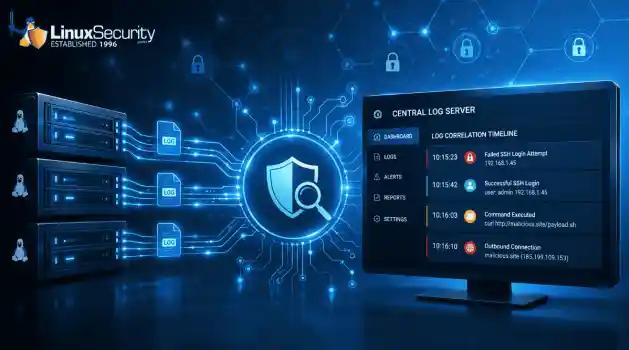
threat detection system monitoring For small security and IT teams, the "enterprise" dream of a fully automated SIEM often feels like a distant luxury. It’s a vision built on massive budgets and dedicated engineering teams—things that, frankly, most of us don't have. But here is the reality: you don’t need a six-figure platform to maintain a secure environment. . Linux systems are, by design, incredibly verbose. Every time a user authenticates, a process executes, or a configuration file changes, your system creates a record of...
Jul 17, 2026
How to Learn Tips and Tricksnetwork security centralized logging
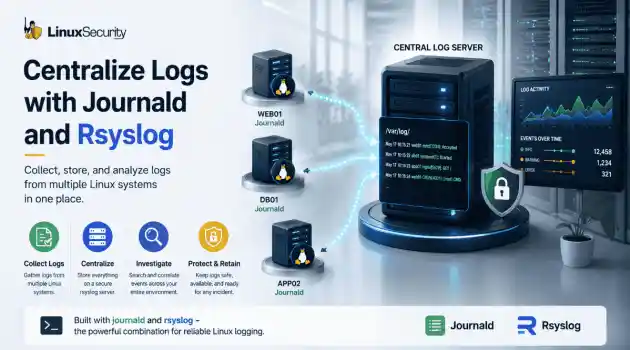
network security centralized logging Linux systems generate a steady stream of authentication, service, kernel, and application logs. On most systems, those logs never leave the machine that created them. If you're responsible for ten or twenty servers, that means checking each one separately. If one disappears before you can investigate it, its logs may disappear with it. Centralized logging solves that by sending log messages to another server as they're created. Instead of searching every machine, you have one place to review...
Jul 15, 2026
How to Secure My Networksecurity advisory audit
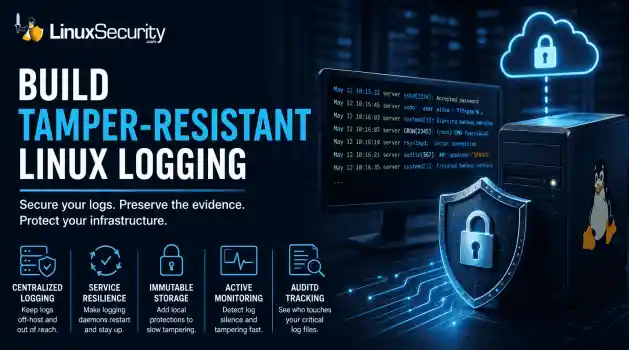
security advisory audit When you’re digging through an incident, your logs are the only thing you can actually trust. The problem is, attackers know that too. If someone gets root on your server, their first move is almost always to delete the evidence and cover their tracks. . If you aren't actively protecting your logs, you're basically flying blind the second a breach happens. It’s a miserable feeling to realize you have no idea what an attacker did because they wiped the logs before you even got there. In this...
Jul 11, 2026
 Refine HOWTOs
X Clear Filters
Get the latest News and Insights
Get the latest Linux and open source security news straight to your inbox.
Community Poll
Should Linux servers automatically install security updates?
Loading...
Explore Latest Linux Security HOWTOs
We found 25 articles for you...
163
 security advisoryserverubuntu
How to Install and Secure MariaDB on Ubuntu 24.04
On Ubuntu 24.04, it doesn’t take much to get MariaDB running. Update the system first so the packages are current. Then install the server with apt install mariadb-server . Once it’s in place, check that the service came up cleanly. To lock it down, run mysql_secure_installation — that’s where you strip out the defaults attackers love to find. . This tutorial explains how to install MariaDB on Ubuntu and secure the configuration so it’s ready for real-world use. You’ll learn how to: Update package indexes before installation Install MariaDB with the apt install mariadb command Check the service status and enable it at boot Run mysql_secure_installation to handle the defaults that leave a fresh install exposed — the test database, anonymous accounts, and remote root logins. Once those are gone, the system is far less attractive to attackers. Installing MariaDB on Ubuntu 24.04 On Ubuntu 24.04, the installation is straightforward. These steps show how to install MariaDB on Ubuntu systems cleanly and securely. Update the package lists, install the server package, and confirm the service is running. The last step is securing the defaults — removing test databases, anonymous accounts, and remote root access — so the system isn’t left exposed. Done in this order, MariaDB installs cleanly and is ready for real workloads. Update Package Indexes Before installing MariaDB, refresh the package indexes so Ubuntu pulls the latest information about software packages: sudo apt update This command only updates package lists; it doesn’t install or upgrade anything. Most administrators also follow with: sudo apt upgrade -y Running an upgrade at this stage keeps the system current and avoids dependency issues when you install MariaDB. Install MariaDB After updating the package indexes, bring in MariaDB with: sudo apt install mariadb-server -y This installs the server package and its dependencies in one step. During setup, you may beasked for confirmation; press “Y” to continue. That single command installs the server and its dependencies. Many admins shorthand this as apt install mariadb when searching for the right syntax. If you’ve used MySQL before, note that mariadb install ubuntu works the same way — it’s designed as a drop-in replacement. Ubuntu 24.04’s default repositories provide MariaDB 10.11 (the current long-term support release). If you need MariaDB 11.x features, add the official MariaDB APT repository — but confirm it supports Ubuntu 24.04 and is production-ready. MariaDB was built as a fork of MySQL and remains fully compatible. In most cases, it can replace MySQL directly without breaking applications that rely on it. Check MariaDB Status and Enable Auto-Start After installing MariaDB, confirm that the service is running: sudo systemctl status mariadb If the output shows the service as active, enable it to start automatically on boot: sudo systemctl enable mariadb For another quick check, run mariadb --version to confirm the installed version, or connect directly with sudo mariadb . Both verify that the server is installed and working properly. With the service confirmed, move on to securing the installation. Secure the Installation Run the secure installation script to close off the defaults that aren’t safe for production: sudo mysql_secure_installation The script covers the basics. It sets a root password, removes anonymous accounts, disables remote root login, drops the test database, and reloads the privilege tables. Each step reduces risk and tightens the configuration. On Ubuntu, the root account usually uses Unix socket authentication, meaning sudo mariadb logs you in without a password. If you only manage MariaDB locally, socket authentication is safe and often easiest. If you plan to connect remotely as root or through tools that require password-based login, switch to mysql_native_password and set a strong password: ALTER USER'root'@'localhost' IDENTIFIED VIA mysql_native_password USING 'your_strong_password'; Setting a root password is useful if you later change authentication methods or allow remote access. Anonymous accounts should never remain in place. They let anyone connect without credentials. The same goes for the test database — it’s open to all users by default and should always be removed. Remote root logins are another weak point. Unless there’s a clear need for remote administration, keep them disabled. When the script finishes, the privilege tables reload and the changes apply right away. The details may differ between environments, but the goal stays the same: reduce exposure and stop unwanted access. Common Questions About MariaDB on Ubuntu Even with the basics covered, a few questions often come up when installing and securing MariaDB. Can MariaDB encrypt data? Yes. MariaDB supports column-level encryption and tablespace/data-at-rest encryption (often called TDE). Availability depends on the build and version — in community editions, some features are limited. Many admins rely on full tablespace encryption when supported, while others use OS-level or disk encryption (e.g. LUKS) if TDE isn’t available. How do I upgrade MariaDB? On Ubuntu, keep MariaDB patched with: sudo apt update && sudo apt upgrade -y This brings in security and point releases. For major upgrades (e.g. 10.x → 11.x), you’ll need to add the MariaDB APT repository and follow the official upgrade steps — these are not always seamless and should be staged and tested first. What’s the best way to back up a MariaDB database? For small setups, mysqldump is quick and dependable. It dumps everything into a file you can restore anywhere. Larger environments run MariaDB’s native backup utilities instead, which handle incremental and full copies without dragging performance down. The tool doesn’t matter as much as the process. Test the backups. A file that’s never been restored isn’ta backup — it’s just a copy. Where can I find more details on MariaDB? The official MariaDB documentation has everything from basic configuration to performance tuning and advanced security. It’s the reference most admins keep open when they’re running MariaDB in production. Final Thoughts: Install and Secure MariaDB on Ubuntu 24.04 MariaDB installs cleanly on Ubuntu 24.04 with apt install mariadb-server , but the real work is in what follows. Updating packages, checking the service, and running the secure installation script take away the weak defaults that make a fresh database easy to target. Most admins will be fine with 10.11 from Ubuntu’s repositories if you need 11.x features, use the official MariaDB repo. Whatever the version, don’t skip the basics: patch the system, test your backups, and review configuration against your environment. Set up this way, MariaDB isn’t just running — it’s hardened enough to handle production or development without leaving obvious gaps. . This tutorial explains how to install MariaDB on Ubuntu and secure the configuration so it’s ready. ubuntu, doesn’t, mariadb, running, update, system, first, packa. . MaK Ulac
 Sep 30, 2025
•
Sep 30, 2025
• How to Secure My Webserver
162
 network securityubuntuprivacy protection
Configuring OpenVPN Securely On Ubuntu For Enhanced Privacy
Virtual private networks, or VPNs , are essential for any Linux user who values privacy. By establishing a secure VPN connection, you can protect your device's IP address as well as encrypt the internet traffic between yourself and the VPN server. . Each VPN protocol has its pros and cons. The guide linked below will show you how to set up a secure OpenVPN connection on Ubuntu. . Every VPN protocol carries its strengths and weaknesses. Discover how to configure a robust WireGuard connection to safeguard your anonymity.. OpenVPN Setup, Ubuntu VPN, Network Security, Protect Privacy, Linux VPN. . Dave Wreski
Apr 19, 2024
•
How to Strengthen My Privacy

167
open sourcethreat detectionsecurity testingInstalling Metasploit Framework On Ubuntu 22.04: A Comprehensive Guide
Network admins must scan for security vulnerabilities and patch them promptly to prevent attacks and security breaches. Metasploit is an open-source framework for detecting threats and vulnerabilities. . It identifies and exploits vulnerabilities in computer systems, networks, and applications. Metasploit enables security professionals to simulate real-world attacks and test their organization's security posture. It comes with many exploits, and you can also create your own! In the tutorial linked below, learn how to install the Metasploit framework and perform basic testing on an Ubuntu 22.04 system. . Discover the process of setting up the Metasploit Framework on Ubuntu 22.04 to enhance your capabilities in threat assessment and security evaluation.. Metasploit Framework, Ubuntu Security, Threat Detection, Installation Guide, Open Source Tools. . Anthony Pell
Apr 06, 2024
•
How to Secure My Network
167
 linux distributionsecurity toolsubuntu
SnoopGod Linux 22.04 LTS: New Pentesting Distro with High Requirements
SnoopGod Linux is a new Linux distro built on an Ubuntu base specializing in pentesting, security, and development. It is the latest entrant in the Linux distro market, offering hacking and penetration testing functionalities. This article will explore the features of SnoopGod Linux, analyze its implications, and highlight some questions security practitioners may have about the new distro. . There's no shortage of Linux distributions; however, only some can be categorized as optimal distros for ethical hacking and penetration testing . Kali Linux is the most popular one and has gained a sizeable following. However, alternatives were always needed, and SnoopGod Linux has entered the fray. It is built on the Ubuntu base and comes pre-installed with many pentesting tools and libraries. Introducing SnoopGod Linux: Notable Features, Benefits & Considerations One of the significant advantages of SnoopGod Linux is its intuitive User Interface. The distro features KDE Plasma 5.24.7, providing an elegant and straightforward user interface that may attract Windows users. The multitude of additional packages increases the size of installation media, but that’s not the end. The resources required to manage the installed packages, keep them up-to-date, and maintain their dependencies multiply over time, posing a considerable challenge to users with less powerful hardware. An important factor is the lack of documentation for SnoopGod Linux, which can be a significant issue for inexperienced users. The latest release is based on Ubuntu 22.04.4 LTS; however, SnoopGod Linux does not have LTS (Long-Term Support) releases yet. This could cause concern among enterprise users who require highly supported systems for their organizations. Another crucial element one needs to consider before downloading and using SnoopGod Linux is resource needs and memory usage. The minimum requirement listed on the distro's official website is a processor that should have a minimum of 2 gigahertz and at least a dual-coresystem with more than 4 GB RAM and 80 GB free disk space. The high-end memory requirements for SnoopGod Linux can pose a significant challenge to many users. What Are the Security Implications of This Release? The release of SnoopGod Linux could have significant implications for the security industry, particularly for the pentesting domain. The distro offers newer penetration testing tools and libraries on the latest Ubuntu base, which could provide more reliable, secure, and faster results. At the same time, this can pose a challenge for users with older systems, as the distro's high memory requirements could make the operating system sluggish and slow. Our Final Thoughts on SnoopGod Linux for Ethical Hackers & Pentesters SnoopGod Linux is a promising new player on the pentesting scene. It offers an easy-to-use KDE Plasma interface with a vast array of pre-installed pentesting tools, making it an excellent alternative to Kali Linux. However, its high resource and memory usage could significantly challenge many users. Additionally, its lack of documentation and LTS releases may hurt its adoption rate in the enterprise sector. Nevertheless, it will be intriguing to see how the security community responds to this new distro and whether it can compete with established distros like Kali Linux. . Explore SnoopGod Linux, a cutting-edge penetration testing distribution anchored on Ubuntu, tailored for ethical hackers with advanced tools and security features. SnoopGod Linux,Pentesting Tools,Ethical Hacking,Security Applications. . Dave Wreski
Mar 20, 2024
•
How to Secure My Network
162
 authenticationubuntupassword management
Change Your Password on Ubuntu Linux: Easy Terminal Steps
Looking to change your old password on Ubuntu? It's easy to do so through the terminal. Let's examine how this can be done in a straightforward tutorial. . Ubuntu Linux isn't the most popular desktop operating system, but there are many valid reasons why a large crowd of people prefers it over macOS or Windows. It's free and open source and offers plenty of distributions with different features and interfaces. However, there's a learning curve when switching over from a Mac or Windows PC. Even trivial things, such as changing your password, can get complicated. But don't worry, it's much easier than it sounds! Like most things on Linux, you can use a few quick terminal commands to get the job done. You can even use it to recover your forgotten password, even if you can't log into the OS. Let's look at how you can change your old password on Ubuntu via the terminal. Check out the article linked below for a step-by-step tutorial! . Discover the steps to swiftly modify your password on Ubuntu using terminal commands in this informative article.. Password Management, Ubuntu Terminal, Change Password, User Authentication. . Brittany Day
Dec 03, 2023
•
How to Strengthen My Privacy
161
 network securitysecurity managementfirewall
Install UFW GUI On Ubuntu For Enhanced Firewall Management
Linux is considered the most secure operating system on the planet. But you might be surprised to find out that Ubuntu doesn't ship with the firewall enabled or a simple-to-use GUI installed. Let's fix that. . Ubuntu is one of the most user-friendly Linux distributions on the market. It's also one of the most widely used open-source operating systems (OS). And given that Linux is often considered the most secure operating system available, it's a bit baffling why the OS doesn't default to enabling the firewall, and include a GUI tool to make using the firewall something that even new users can take care of. Fortunately, there's a straightforward GUI application you can install to make enabling and working with Uncomplicated Firewall a very simple endeavor. The only caveat is the installation of the GUI requires you to run a single command. I will walk you through the installation of the UFW GUI and how to use it. . Discover the process of activating your Ubuntu firewall using a graphical interface, enhancing usability and security administration.. Ubuntu Firewall GUI, Uncomplicated Firewall, Network Security Management. . Brittany Day
Nov 02, 2023
•
How to Secure My Firewall
163
 apacheintegrationubuntu
Setting Up ModSecurity 2 and OWASP CRS with Apache on Ubuntu 22.04 or 20.04
For those seeking to bolster their server’s defenses against web-based threats, understanding “How to Install Modsecurity 2 with Apache on Ubuntu 22.04 Jammy Jellyfish or its older stable release Ubuntu 20.04 Focal Fossa” is paramount. ModSecurity, a leading open-source web application firewall (WAF), seamlessly integrates with the Apache HTTP Server. . It offers real-time surveillance, logging, and access control, ensuring your web applications remain impervious to prevalent vulnerabilities. A significant component of its protective arsenal is the OWASP Core Rule Set (CRS), a meticulously curated set of rules by the Open Web Application Security Project (OWASP). This rule set is designed to counteract attacks, including SQL injection, cross-site scripting (XSS), and other notable OWASP Top Ten threats. Key Attributes of ModSecurity and the OWASP Core Rule Set : Real-time Surveillance : ModSecurity continuously monitors HTTP traffic, promptly identifying and neutralizing malicious requests. Detailed Logging : With its comprehensive logging and auditing capabilities, ModSecurity provides insights into security breaches and attack methodologies. Rule Flexibility : ModSecurity’s adaptability shines through its capacity to customize and modify rules, aligning with specific security needs. Anomaly Scoring System : The OWASP CRS adopts a scoring approach, assigning values to requests based on the gravity of detected threats, ensuring precise security configurations, and minimizing false alerts. This guide will elucidate the steps to integrate ModSecurity with Apache and deploy the OWASP Core Rule Set on Ubuntu platforms. By adhering to this guide, you’ll be poised to fortify your web applications against a spectrum of cyber threats. . Fortify your server's protection by implementing ModSecurity along with OWASP Core Rule Set on Ubuntu for superior web application safeguarding.. ModSecurity, Apache Configuration, Web Security, OWASPRules, Cyber Threats. . Brittany Day
Sep 29, 2023
•
How to Secure My Webserver
166
data analysisubuntusearch engineInstalling Elasticsearch On Ubuntu For Superior Data Insights
Here's how you can install Elasticsearch, a powerful search and analytics engine on your Ubuntu machine. . Elasticsearch is a popular search and analytics engine that can be used for multiple applications including endpoint security and AI/ML research. Let's take a look at how you can install Elasticsearch on your Ubuntu system in a few easy-to-follow steps. Elasticsearch is a distributed search and analytics engine. It allows you to store, search, and analyze large volumes of data quickly and in near real-time. Built on top of Apache Lucene, Elasticsearch offers powerful full-text search capabilities and a flexible query language. It is highly scalable, fault-tolerant, and can handle diverse data types. Elasticsearch is widely used for applications like log analysis, monitoring, and more. . Apache Solr is a widely used search platform that serves a range of applications across diverse industries.. Elasticsearch Installation, Search Engine, Data Analytics. . Brittany Day
Jul 04, 2023
•
How to Learn Tips and Tricks

Get the latest News and Insights
Get the latest Linux and open source security news straight to your inbox.
Community Poll
Should Linux servers automatically install security updates?
Search Topics
Powered By

Linux Security - Your source for Top Linux News, Advisories, HOWTOs and Feature Releases
QUICK LINKS
subscribe to newsletters!
Like staying secure? So do we.
Sign up for updates, tips, and alerts!