Audit Linux privileges now to limit compromise, escalation, and system-wide damage. Review Linux Privileges×


UFW: Efficient Logging Strategies for Enhanced Network Security Monitoring
 Jan 02, 2026
•
Jan 02, 2026
•
 MaK Ulac
8 - 15 min read


UFW logging is useful, but the output is easy to misread if you’re not used to kernel log lines. Where those logs show up depends on the distro and logging stack. On one system, they’re in journald. On another, they’re in syslog or /var/log/ufw.log. The same rules can surface very differently across hosts.
This guide stays focused on reading and monitoring UFW logs. It covers how to spot blocked traffic, recognize rate limiting, notice IPv6 activity, and tell when logs stop being reliable. It does not get into hardening or rule design.
What Does UFW Logging Do?
UFW logging records firewall events when traffic matches a rule. If a packet does not hit a rule that is logged, nothing is written. 
When troubleshooting, UFW logs only show traffic interacting with rules, not whether the overall firewall policy is correct. A quiet log does not mean the firewall is right. A noisy log does not mean it’s wrong. It just means packets are hitting rules.
Logging levels only control how much detail gets recorded. They do not change enforcement. Moving from low to high logging doesn’t change firewall behavior. It just starts talking more. If something looks “new” after changing the logging level, it was already happening.
Here’s a concrete example I see all the time. You enable logging, wait a few minutes, and spot repeated entries with DROP, DPT=22, and a rotating set of source IPs in SRC=. That’s not a misconfigured rule, and it’s not a failed service. It’s just background SSH scan noise hitting a blocked port. The log line tells you what was targeted and denied. It does not tell you whether SSH should be open, whether another rule allows it on a different interface, or whether IPv6 traffic is bypassing the rule.
How Do I Enable UFW Logging?
You can’t read ufw logs if logging isn’t enabled, so this is always the first thing I check.
On most systems, turning it on is simple:
sudo ufw logging onFor ongoing monitoring, I usually leave it at a baseline level:
sudo ufw logging lowor, if I’m actively watching traffic:
sudo ufw logging mediumHigh logging is something I only use briefly. On a public host, it will generate noise fast and make the logs harder to use, not easier.
After changing anything, I always verify what UFW thinks its state is:
sudo ufw status verboseThat output shows whether logging is enabled and at what level, which is a quick reality check if you’re working from the UFW basics instead of guessing based on log behavior.
Why Is UFW Logging Flooding My Console?
This usually happens right after raising the logging level to medium or high, and it catches a lot of people off guard. 
What’s going on is not that UFW suddenly changed behavior. The firewall is just emitting more kernel-level messages, and your system is configured to display some of those directly to the console or via dmesg. The logs are being generated either way. What changed is how visible they are.
I see this most often on internet-facing hosts. You enable ufw logging high, look away for a minute, and come back to a terminal scrolling nonstop with [UFW BLOCK] entries. That’s just background scan traffic hitting denied ports and getting logged aggressively.
Here’s what you need to do. Stop watching the console and look at the logs where they’re meant to live. Use journalctl or the UFW log files instead, and drop the logging level back to a sustainable level for daily use. If you crank logging on a public host, this behavior is expected and not a failure.
Where Are UFW Logs Stored?
UFW logs are usually stored in journald, but depending on the system, they may also appear in /var/log/ufw.log, syslog, or kern.log.
On most modern distros, journald is the primary place I look:
sudo journalctl -f | grep -i ufwIf the system is using rsyslog, the same entries may be written to files under /var/log instead:
sudo tail -f /var/log/ufw.logThe key thing to understand is that UFW just hands the data to the kernel/rsyslog. It doesn't manage the log files itself. It emits kernel messages, and the system’s Linux firewall configuration and logging stack decides where those messages end up. That’s why identical UFW rules can produce logs in different places on different hosts.
Can UFW Logs Fill Up Disk Space?
Yes. UFW logs can fill disk space quickly, especially on public or internet-facing servers.
If logging is set to high, every denied packet gets written somewhere. On a busy host, that usually means constant scan noise turning into large log files. I’ve seen /var/log grow by gigabytes in a few hours after someone enabled ufw logging high and forgot about it.
Which file grows depends on how logging is routed. Sometimes it’s ufw.log. Other times it’s syslog or kern.log. The cause is the same either way: too much detail for too long.
I keep logging at low or medium for normal operation, use high only for short validation windows, and make sure log rotation is actually working. This matters even more on systems with outbound traffic filtering, where denied egress attempts can quietly add to log volume over time.
How Do I Read a UFW Log Entry?
You read a UFW log entry by identifying the action first, then the port and direction, and only after that the source and destination details.
Here’s a realistic example you’ll actually see on a live system:
[UFW BLOCK] IN=eth0 OUT= MAC=aa:bb:cc SRC=203.0.113.45 DST=198.51.100.10 PROTO=TCP SPT=49822 DPT=22This is how I break it down, every time. The action comes first. BLOCK tells me the packet was denied. Next, I look at DPT=22, which tells me SSH was targeted. IN=eth0 shows the traffic came in on that interface. Only after that do I care about SRC= and DST= to see where it came from and where it was headed.
Here’s another common pattern:
[UFW ALLOW] IN=eth0 OUT= MAC=aa:bb:cc SRC=192.0.2.15 DST=198.51.100.10 PROTO=TCP SPT=44321 DPT=443Same approach. Allowed traffic, inbound on eth0, destined for port 443. You’re watching packets hit rules. That’s all UFW logging is showing you. Read what happened, then why, not the other way around.
Action markers are the anchor. DROP, REJECT, and LIMIT tell you the outcome. Everything else adds context.
What Do UFW Log Prefixes Mean? (UFW BLOCK, UFW ALLOW, UFW LIMIT)
UFW log prefixes tell you what happened before you read anything else in the line.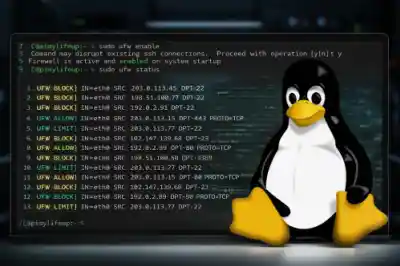
If I’m skimming logs, I often don’t even parse the fields at first. The prefix alone gives me intent:
[UFW BLOCK]means the packet was denied.[UFW ALLOW]means it was permitted by a rule.[UFW LIMIT]means the connection was rate-limited, not fully blocked.
Here’s a pattern that shows up a lot:
[UFW LIMIT] IN=eth0 SRC=203.0.113.77 DPT=22
[UFW LIMIT] IN=eth0 SRC=203.0.113.77 DPT=22
Repeated LIMIT entries from the same SRC= usually mean someone is hitting a service too aggressively and getting throttled. This is not a failure. It’s the firewall doing exactly what it was told to do.
Once you know the prefix, DPT= tells you which service was targeted, and the rest of the fields just confirm direction and source. Reading prefixes first saves time and helps you avoid overthinking logs that are behaving normally, especially when you’re dealing with rule interactions and firewall rule ordering.
What Does Blocked Traffic Look Like in UFW Logs?
Most blocked traffic in UFW logs is boring. It’s scan noise, not broken clients.
You’ll usually see it as DROP or REJECT entries hitting the same port over and over. SSH is the usual target. The source IP changes constantly, the destination port doesn’t.
A single blocked attempt looks like this:
[UFW BLOCK] IN=eth0 SRC=203.0.113.45 DPT=22One line like that doesn’t tell you much. It’s just a packet getting denied.
What matters is repetition. When the log fills up with this:
[UFW DROP] IN=eth0 SRC=198.51.100.77 DPT=22
[UFW DROP] IN=eth0 SRC=192.0.2.91   DPT=22
[UFW DROP] IN=eth0 SRC=203.0.113.12  DPT=22
That’s not a service problem. That’s the internet doing what it always does. DROP silently discards the packet. REJECT sends a response back. Either way, the traffic didn’t get through.
If the same source keeps showing up, I start wondering about a misconfigured client. If the source changes every line, I stop worrying. That distinction saves a lot of wasted time.
Why Don’t I See Allowed Traffic in UFW Logs?
Because allowed traffic usually isn’t logged at all.
By default, UFW logs denials, not successful connections. That means a service can be working perfectly and leave no trace in the logs.
What that looks like in practice:
- You enable logging
- You connect to a service
- Nothing shows up in the logs
That silence is expected. For example, a web service on port 443 can handle traffic all day without generating a single UFW entry.
Here’s how I interpret it when I’m checking behavior:
- Users can connect, and logs are quiet = normal
- Users can’t connect, and I see denies = start reading closely
- Users can’t connect, and logs are empty = the traffic probably isn’t hitting a logged rule
This is common with UFW application profiles. Whole services can be allowed cleanly, without per-connection noise, which is exactly what you want on a healthy system.
No log entry usually means the traffic was allowed and moved on. That’s normal.
How Can I Filter UFW Logs to Find Relevant Traffic?
You filter UFW logs by narrowing the view until only the traffic you care about is left. Start with a time window. If you don’t know when something happened, everything else is noise.
To see recent firewall activity, I’ll start here:
sudo journalctl --since "30 min ago" | grep -i ufwOnce I have the right window, I narrow by what was targeted. Filtering by destination port is usually the fastest way to cut through scan noise:
sudo journalctl -f | grep "DPT=22"If I already know where traffic is coming from, I filter by source next:
sudo journalctl -f | grep "SRC=203.0.113."And when direction matters, especially on multi-interface hosts, I pay attention to the interface field. IN= tells you where the traffic entered, which is often the missing piece when behavior doesn’t line up with expectations.
That’s the difference between noise and monitoring UFW firewall data. Start wide, then narrow by port, source, and interface until the pattern is obvious. Filtering too narrowly, too early, usually hides the pattern.
What Tools Can Help You Read and Analyze UFW Logs?
When ufw logs get noisy, tools help you see patterns faster. They don’t change firewall behavior. They just cut down the noise.
I always start local. journalctl with a tight time window and simple filters usually gets me far enough. Piping output through less, grep, or a quick awk is still the fastest way to answer one-off questions on a busy host.
When scrolling raw output stops working, I switch to lnav. It lets me group and filter interactively without setting anything up. On systems with constant scan noise, being able to group blocks by source IP and destination port makes patterns obvious almost immediately.
If logs don’t belong on the host anymore, forwarding them can help. Shipping UFW logs to a central syslog server or normalizing them with rsyslog makes them easier to search and keep around. This doesn’t change policy. It just makes logs usable.
At a larger scale, platforms like Graylog, Splunk, or Elastic work as log consumption layers. They’re useful for correlation, retention, and searching across systems, but they’re not required to understand individual entries.
What Do Rate Limited Connections Look Like in UFW Logs?
Rate-limited connections show up as repeated [UFW LIMIT] entries from the same source hitting the same port.
A typical pattern looks like this:
[UFW LIMIT] IN=eth0 SRC=203.0.113.77 DPT=22
[UFW LIMIT] IN=eth0 SRC=203.0.113.77 DPT=22
From the client side, this feels like slow or intermittent connections. SSH sessions may hang or drop instead of being cleanly refused.
To confirm it’s rate limiting and not a hard block, I look for three things together: the LIMIT prefix, repeated entries from the same SRC=, and a service that sometimes works and sometimes doesn’t. That combination usually points straight at UFW rate limit SSH, not a broken service or network issue.
How Do IPv6 Connections Appear in UFW Logs?
IPv6 connections appear as log entries with IPv6-style addresses in SRC= and DST=.
They stand out immediately if you’re used to IPv4. Long hex addresses, often starting with 2a00, 2600, or similar, instead of standard IPv4 addresses.
Where people get tripped up is parity. IPv4 traffic is blocked and logged, but IPv6 is still reachable. When that happens, filtering for IPv6 sources usually makes it obvious:
journalctl -f | grep -i ufw | grep :If you see IPv6 traffic flowing while IPv4 is quiet, you’re looking at a rule gap, not a logging issue. That’s a common gotcha with IPv6 behavior in UFW, especially on dual-stack hosts.
Why Do UFW Log Timestamps Look Wrong?
Because you’re not always looking at system time.
Some UFW logs come from kernel output, which can show timestamps as uptime-style counters instead of human-readable dates. That’s normal, and it’s why dmesg output often looks “off.”
When I want timestamps that make sense, I stick with journalctl. It handles time conversion cleanly and shows logs in actual wall-clock time. If the timestamps look like seconds since boot, you’re almost certainly looking at kernel output, not a misconfigured clock. This difference comes up regardless of how you end up choosing a Linux firewall.
Why Do UFW Logs Sometimes Look Incorrect?
Because logs show what hit a rule, not what ultimately reached a service.
NAT, Docker, and other non-UFW rules can all change how traffic flows. You might see [UFW BLOCK] entries and still be able to connect, or see nothing logged while traffic clearly reaches the application.
When that happens, I assume iptables interference first. Docker is usually the culprit, sometimes NAT. Extra chains show up, packets get redirected, and the firewall starts telling only part of the story. When that happens, stop looking at UFW logs and start looking at the raw tables with iptables -L.
What Should I Do If UFW Logs Don’t Match UFW Status?
When logs and ufw status disagree, I stop staring at logs and check the basics.
Quick things I verify:
- Rule order and defaults
- IPv4 vs IPv6 parity
- NAT or Docker rules
- Non-
UFWiptablesrules
If none of that explains it, logs aren’t enough anymore. At that point, ufw show raw and packet tracing matter more than log interpretation. Knowing when to switch from reading logs to validating raw rules is the whole point of comparing ufw show raw against the standard status output.
How Do I Send UFW Logs to syslog or journald?
UFW logs already go through the system logging stack. Sending them elsewhere is about routing, not enabling anything new.
On busy systems, I separate firewall logs from general system logs so they’re easier to follow. From there, forwarding to a central collector is just a matter of syslog configuration and keeping logging levels reasonable so noise doesn’t drown everything.
This is the kind of setup that matters on UFW on production servers, where logs need to be usable, not just present.
Simple Checklist for Monitoring UFW Logs
When I audit UFW logging, this is what I verify, in order:
- Logging is enabled at a sane level
- Log location is known and consistent on this system
BLOCK,ALLOW, andLIMITprefixes are immediately recognizable- Logs can be filtered by port, source IP, interface, and time window
- Scan noise is distinguishable from real client failures
- IPv6 traffic is visible and accounted for on dual-stack hosts
- It’s clear when logs are no longer enough and deeper rule or packet analysis is required
If I can check all of those boxes, UFW logs are usable and doing what I need. If not, I fix that before trusting anything the logs say.
 PREVIOUS

 NEXT
NEXT



Powered By

Linux Security - Your source for Top Linux News, Advisories, HOWTOs and Feature Releases
QUICK LINKS
subscribe to newsletters!
Like staying secure? So do we.
Sign up for updates, tips, and alerts!