


Security Vulnerabilities  security advisory authentication
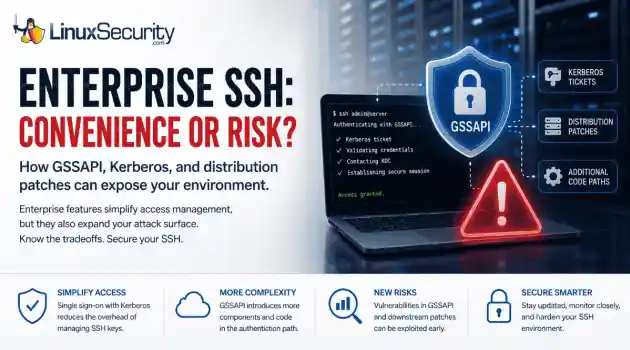
security advisory authentication We often view OpenSSH security updates through the lens of standard patch management. When a new CVE hits, we scramble to update, check our versions, and return to business as usual. But recent vulnerabilities tied to distribution-added OpenSSH GSSAPI patches are a reminder that the danger doesn't always lie in the core code; it often resides in the "convenience" features we layer on top. . These recent issues shouldn't just trigger an apt upgrade or dnf update; they should trigger a...
 Jul 06, 2026

Security Trends privilege escalation Linux security
privilege escalation Linux security Linux security teams are drowning. Patches, kernel updates, new CVEs every week. SSH exposed here, an old web service there, and a forgotten cron job running as root. On top of that, SIEM dashboards blink all day with alerts that all claim to be “high priority.” . It’s no surprise that people stop paying attention. The real problem isn’t a lack of data. It’s the opposite. Too much noise, not enough signal. Security teams see huge lists of vulnerabilities and thousands of alerts, but very...
Jul 06, 2026

Cloud Security incident response Linux administration
incident response Linux administration Over the span of just 14 days, threat actors unleashed more than 81 million login attempts against Microsoft’s Azure command-line interface (CLI). The campaign , which security researchers at Huntress identified as an ongoing, automated password-spraying effort, successfully compromised at least 78 Microsoft accounts across 64 organizations between June 12 and June 26, 2026. . While the scale is massive, the underlying strategy is surprisingly surgical. Attackers aren't exploiting a flaw in...
Jul 01, 2026
Security Trends security update mobile security
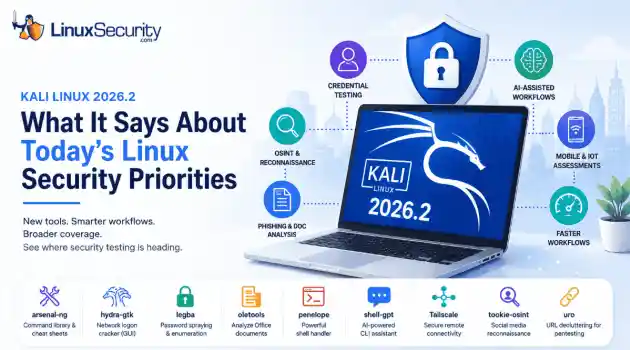
security update mobile security Offensive Security just dropped Kali Linux 2026.2 , and at first glance, it looks like a standard quarterly refresh. You’ve got the usual kernel bumps, desktop environment updates, and a handful of new utilities. But don't write this off as just another routine version update. If you look past the changelog, this release highlights several capabilities that continue to be important in offensive security. From AI-assisted workflows to credential testing and mobile assessments, Kali Linux 2026.2...
Jun 30, 2026
Security Projectssecurity advisory vulnerability management
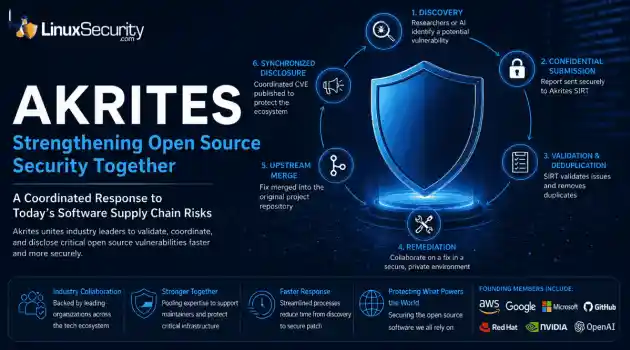
security advisory vulnerability management The Linux Foundation has officially launched Akrites , a coordinated industry initiative designed to improve how critical open source vulnerabilities are validated, coordinated, and disclosed before patches reach downstream users. Backed by a diverse coalition—including AWS, Google, Microsoft/GitHub, Red Hat, NVIDIA, and OpenAI—Akrites establishes a shared Security Incident Response Team (SIRT) to streamline the validation, remediation, and disclosure of vulnerabilities in the foundational...
Jun 29, 2026
 Refine news
X Clear Filters
Get the latest News and Insights
Get the latest Linux and open source security news straight to your inbox.
Community Poll
Is application sandboxing truly safe?
Loading...
Explore Latest Linux Security news
We found 1,631 articles for you...
81
 web browserinternet securityidentity protection
What Is Tor Browser & How Does It Impact Linux Security Teams?
Tor Browser is a privacy-focused web browser that routes traffic through the Tor network to obscure a user’s identity and destination—and that design has direct implications for Linux security teams. It’s built to limit tracking, resist surveillance, and reduce visibility into browsing activity. On a Linux endpoint, that means user activity can intentionally bypass many of the controls and assumptions your security stack relies on. . If you’ve ever noticed Tor Browser on a Linux system and thought, “Should I be worried?”, you’re not overreacting—but you’re also not looking at an automatic incident. Tor Browser is a legitimate tool used by researchers, journalists, and developers. At the same time, it can become a blind spot in Linux security, especially when it appears outside of an approved use case or without clear ownership. For Linux security admins, the real issue isn’t whether Tor Browser should exist—it’s understanding what Tor Browser is, how it behaves on Linux systems, and how its traffic model changes what you can and can’t see. Once you understand that impact, you’re in a better position to decide whether Tor Browser is acceptable noise, a policy exception, or a signal worth investigating. What Is Tor Browser? Tor Browser is a modified version of Firefox ESR that routes all browser traffic through the Tor network by default. The browser is hardened with privacy-focused settings, bundled with Tor client components, and designed to reduce fingerprinting at the application layer. It is not a VPN , not malware, and not synonymous with “the dark web.” Tor Browser does not magically grant access to illegal content, nor does its presence alone indicate malicious activity. It is a user-space application running on top of standard Linux libraries. From a security operations perspective, Tor Browser introduces classification and visibility problems. Network destinations are obscured, traffic blends with other Tor users, and traditional perimeter controlslose context. That makes it relevant even when policy forbids its use. How Does Tor Browser Work on Linux Systems? Before you can decide whether Tor Browser is a risk, you need a clear picture of what actually changes on a Linux system when it runs. Let’s focus on observable behavior at the network, process, and file levels. Network Behavior on Linux Tor uses onion routing to move traffic through multiple volunteer-operated nodes. Each layer knows only the hop before and after it, not the full path. A typical connection involves: An entry node that sees the client IP but not the destination One or more relay nodes that pass encrypted traffic along An exit node that sees the destination but not the originating client From a Linux host’s perspective, outbound connections go to Tor entry nodes. From a network monitoring perspective, you see encrypted traffic to known Tor infrastructure, but you cannot see the final destination or content without endpoint visibility. Process and File-Level Behavior Tor Browser runs entirely in user space and does not require root privileges. This matters because it lowers the barrier to installation and use. On Linux systems, it is commonly found: Extracted into a user’s home directory Run as a portable application without system-wide installation Launched from user-writable paths that bypass package managers Processes typically appear as Firefox-derived binaries with associated Tor processes, all running under the user’s UID. Why This Matters for Linux Security Monitoring At the network perimeter, visibility is limited by design. You can often identify Tor usage, but not intent. That shifts the burden inward. Endpoint telemetry, process context, file access patterns, and user behavior become more important than packet inspection alone. Linux security monitoring that assumes the network is the primary control plane tends to miss this shift. Why Tor Browser Exists and Why That Impacts You Tor Browserexists to reduce exposure in environments where observation carries real consequences. Journalists rely on it to protect sources, researchers use it to study censorship and surveillance, and developers test how applications behave when networks are constrained or hostile. Linux is often the platform of choice in these cases because it allows tighter control over execution, networking, and local state, not because the work itself is inherently suspicious. At the same time, those same properties can conceal activity you would normally expect to see. Tor has been documented as a channel for data exfiltration, policy evasion, and command-and-control traffic when direct outbound access is restricted. For a Linux security admin, the distinction between legitimate and risky use is rarely visible at the point of detection. Decisions have to be grounded in context: where the browser appears, what role the system plays, and what other behavior surrounds its use. Tor Browser and Linux Security Risk Models Tor Browser fits cleanly into some Linux environments, provided its use is intentional and bounded. Approved research or investigative roles may require it as part of their work, particularly when systems are segmented, and data access is deliberately limited. In controlled lab or testing environments, Tor Browser is often just another tool, with risk reduced through isolation rather than inspection. In these cases, its presence is contextual and typically mitigated by design choices made upstream. The posture changes when Tor Browser appears without explanation. Unexpected installs on user workstations, any presence on production servers, or usage that coincides with credential access, data staging, or unusual process trees should trigger closer scrutiny. Tor itself is rarely the deciding factor. It matters because it removes visibility at the same moment other behaviors suggest increased risk. From a threat modeling perspective, Tor Browser most often intersects with scenarios you are already planningfor. That includes insider threats where monitoring is intentionally bypassed, data leakage paths that evade standard egress controls, and compliance violations in regulated environments with logging requirements. Linux security frameworks that account for these realities tend to treat Tor as a conditional risk. Not harmless, not inherently malicious, but meaningful only when placed inside a broader behavioral model. Can You Detect or Control Tor Browser on Linux? Detecting or controlling Tor Browser on Linux is less about total visibility and more about knowing where observation still works. On the endpoint, you can see process execution, parent-child relationships, file system artifacts, and where the browser is installed or launched from. Local configuration changes and persistence attempts are also observable. This is the layer where host-based monitoring and EDR tools provide real value, especially in environments where user-space applications are otherwise lightly governed. What you cannot see is just as important to acknowledge. Tor is designed to obscure final destinations, session content, and in-browser activity, and it generally succeeds at that goal. Network traffic will indicate Tor usage, but not intent or outcome. Assuming deeper insight than this creates blind spots of a different kind, where confidence replaces accuracy. Practical Linux security controls tend to work best when they accept these limits and focus on behavior rather than perfect inspection. Effective programs usually combine: Application allow or deny policies where they make sense operationally Endpoint detection and response tuned for user-space tools Clear user education and unambiguous policy language around acceptable use Controls are most effective when users understand why they exist and how they are enforced, not when they are treated as invisible guardrails. Policy Decisions: Block, Allow, or Monitor? Policy decisions around Tor Browser work best when they are driven by intent andenvironment, not instinct. Blocking can reduce casual or accidental use, but it rarely holds up as a long-term control. Users who are determined will find alternatives, and adversaries already operate under the assumption that simple blocks are in place. In many cases, blocking removes a visible artifact without reducing underlying risk. Allowing Tor Browser with guardrails often aligns more closely with operational reality. Role-based access, system segmentation, and clear expectations around logging and acceptable use acknowledge that some loss of visibility is intentional. This approach trades complete observation for policy clarity, which can be the more defensible choice in environments where Tor has a legitimate purpose. Monitoring without overreach tends to produce the most durable outcomes. By focusing on behavior rather than specific tools, Linux security teams can prioritize signals that actually indicate risk. Anomalous access patterns, data movement, and process activity usually matter far more than the mere presence of Tor Browser. Our Final Thoughts: Key Takeaways and Considerations for Linux Security Admins Tor Browser is a tool, not a verdict. On Linux, it is easy to install, easy to run, and deliberately hard to observe at the network level. That does not make it inherently dangerous, but it does make assumptions risky. Your Linux security posture improves when you understand what Tor Browser is, plan for its presence, and evaluate it in context instead of reacting to it. Over time, you start to see the difference between noise and signal. That is usually where the real security work lives. . If you’ve ever noticed Tor Browser on a Linux system and thought, “Should I be worried?”, you. browser, privacy-focused, routes, traffic, through, network, obscure. . LinuxSecurity.com Team
 Jan 18, 2026
•
Jan 18, 2026
• Privacy
81
 security advisorylinux distributionprivacy
Comprehending Fingerprinting Risks Faced by Linux Users Today
Linux systems block a lot of noise that targets other platforms, but they still leak enough information through the browser to make users identifiable. Fingerprinting takes the data a site can read in the first few milliseconds of a connection and turns it into a profile that follows the device across sessions, networks, and privacy tools. Cookies aren’t involved. The browser itself is the signal. . The mix of distributions, desktop environments, GPU drivers, and hardware variations makes Linux machines stand out more than most users expect. Tracking scripts take advantage of that uniqueness. Attackers do the same when they want to link activity from one session to another, even when the machine moves between networks or hides behind a VPN. Below are the fingerprinting methods that matter most for Linux security and how they expose device-level details. Browser Fingerprinting on Linux Browser fingerprinting collects configuration data that reveals how the system is built and how the browser behaves. Screen size, timezone, fonts, plugin support, language settings, rendering quirks, GPU information, and driver details all feed into a single device fingerprint. Linux setups generate high entropy because few systems look alike. A workstation running Wayland on AMD hardware leaves a different device fingerprint than a lightweight Debian install running X11 with Intel graphics. The Chromium sandbox, Firefox ESR, and hardened builds introduce their own patterns. These patterns persist. A fresh session in a private window won’t change them. Switching networks won’t change them. Several research groups maintain in-depth analyses of how these models operate, making it straightforward to track new browser fingerprinting techniques and understand how they evolve. Canvas Fingerprinting on Linux Canvas fingerprinting forces the browser to draw an image through HTML5 Canvas. The result depends on GPU type, drivers, subpixel rendering, anti-aliasing, font libraries, and the compositor.Linux diversity shows through in the output. Wayland and X11 differ. Mesa and proprietary Nvidia drivers differ. Fontconfig settings, color profiles, and the specific browser build all affect the final canvas fingerprint. Most users never see any of it. A script draws the image in the background, reads the pixel data, and uses the variation as a stable identifier. Even when a Linux browser runs in a VM or container, the rendering pipeline leaves recognizable fingerprints unless the environment forces strict uniformity. WebGL Fingerprinting and Linux Graphics Stacks WebGL fingerprinting goes deeper into the GPU. It uses shaders, floating-point math tests, and rendering operations that reveal the fine details of the graphics stack. The output exposes information about the GPU model, driver version, Mesa implementation, GLX behavior, and how the browser interfaces with the hardware. Because Linux supports multiple driver branches, open-source stacks, and hardware-specific quirks, WebGL output is rarely generic. Scripts only need a few WebGL calls to build a unique device fingerprint. For users relying on Tor or a VPN, WebGL fingerprinting becomes a problem. The network path might be hidden, but the GPU pipeline is not. Audio Fingerprinting in Linux Browsers Audio fingerprinting runs a short signal through the system and records the final waveform. Differences in sound cards, PulseAudio or PipeWire configuration, chipset behavior, and browser audio APIs all influence the result. The technique isn’t as strong on its own, but it strengthens browser fingerprinting, canvas fingerprinting, and WebGL fingerprinting when combined. Linux distros often ship with different audio stacks, driver versions, and kernel modules, which increases system variability and makes audio fingerprinting more useful to attackers building a full device fingerprint. Fingerprinting Methods That Affect Linux Users Each method reveals different pieces of information that an attacker can use to identify aLinux host. Device Fingerprinting on Linux Systems Device fingerprinting pulls data from hardware, kernel behavior, system libraries, and the surrounding software stack. The goal is to build a device fingerprint that stays consistent no matter which browser is used. Linux exposes more variation than most operating systems. Kernel versions shift from one distro to the next. Firmware differs. Compositors, drivers, and CPU features create small changes in timing and behavior that can be measured. These signals help an attacker connect activity across browsers. A device fingerprint can match a Chromium session to a Firefox session when both run on the same machine. Entropy on Linux systems is high enough that the link often survives. Website Visitor Identification in a Security Context Website visitor identification is treated as an analytics tool in most discussions, but the security impact is more important here. Fingerprinting makes it possible to track a Linux system across IP changes, browser resets, and privacy modes without relying on cookies. Tracking scripts watch how the browser draws text, how the GPU renders specific tests, which drivers are active, and how the OS responds to timing probes. Attackers use website visitor identification to follow a specific workstation across sessions, see which services it contacts, recognize repeated visits from the same Linux host, and map behavior to a single device fingerprint. When a phishing lure is reused, the same fingerprint confirms whether it reached its target. Linux diversity strengthens these signatures instead of obscuring them. Cookie Alternatives That Matter for Linux Users Cookies are simple to block or clear, so tracking scripts use cookie alternatives that survive resets. These identifiers blend with browser fingerprinting, canvas fingerprinting, audio fingerprinting, and WebGL fingerprinting to create a more persistent profile. The cookie alternatives that matter most for Linux security include: LocalStorageidentifiers IndexedDB data ETags reused as trackers HSTS supercookies that outlive regular clearing Service Worker caches TLS session identifiers Linux users often depend on hardened browsers or privacy extensions, but these cookie alternatives work outside those controls. When combined with a device fingerprint, they create an identifier that can stay active through fresh sessions, proxy changes, and browser resets. How Fingerprinting Methods Combine Against Linux Users Each fingerprinting method reveals only part of the system. When combined, they create a stable identifier. A device fingerprint, a canvas fingerprinting signature, GPU output from WebGL fingerprinting, and the variations exposed through audio fingerprinting all feed into one profile. Cookie alternatives reinforce it. Linux machines rarely produce similar fingerprints. Driver branches differ. Kernels differ. Hardware mixes differ. Distributions ship different defaults. That separation gives tracking systems more confidence when they attempt to match one session to the next. Attackers use the same signals to follow a Linux host across networks and privacy tools . The combined fingerprint persists through private browsing, browser reinstalls, VPN rotation, network changes, IP masking techniques, and many anti-tracking features. For Linux users, this means the system itself becomes the identifier unless steps are taken to reduce the entropy that fingerprinting relies on. How Attackers Use Fingerprinting Against Linux Users Fingerprinting gives attackers a way to follow a Linux system even when the user rotates IP addresses or switches browsers. A canvas fingerprinting signature helps confirm that two separate visits come from the same host. WebGL fingerprinting shows GPU and driver characteristics that don’t change often. Audio fingerprinting and device fingerprinting add their own variations. Together, these signals form a stable profile that attackers can use to track a workstation over time. Forhigh-value targets, fingerprinting supports targeted phishing and session correlation. A unique device fingerprint can confirm when a specific Linux machine lands on a decoy page or triggers a malicious script. Attackers also use website visitor identification to watch which services a machine contacts after an initial compromise attempt. Cookie alternatives make this persistence harder to shake, even when privacy controls are in place. Reducing Fingerprinting Exposure on Linux Linux users can limit exposure by lowering the system’s entropy — the unique characteristics that make a device fingerprint stand out. The goal isn’t to hide every detail. It’s to blend into a common profile that tracking scripts can’t separate easily. The most effective steps include: Using Firefox ESR, Tor Browser, or a hardened Chromium configuration that restricts fingerprintable APIs Limiting fonts and disabling optional rendering libraries when possible Using Wayland, where supported, since it reduces some timing leaks compared to X11 Restricting WebGL or forcing it into a safer, more uniform mode Clearing or disabling cookie alternatives such as LocalStorage, IndexedDB, and Service Worker caches Avoiding unnecessary browser extensions that introduce new signals into the device fingerprint Running high-risk browsing in a dedicated VM or container that maintains a consistent environment None of these steps eliminates fingerprinting on its own. They reduce the reliability of the device fingerprint and make it harder for scripts to match one session to the next. Hardening Linux Browsers Against Fingerprinting Browser-level controls matter because many fingerprinting operations originate from JavaScript. Linux users can gain a significant advantage by tightening the browser’s permissions and limiting access to features that feed canvas fingerprinting, WebGL fingerprinting, audio fingerprinting, and device fingerprinting. Practical adjustments include: Disabling WebGLentirely when it isn’t required Restricting Canvas readout functions instead of blocking Canvas altogether Enforcing a uniform User-Agent string Blocking third-party scripts and cross-site requests that enable website visitor identification Using privacy filters that randomize some fingerprinting outputs without breaking core functionality The aim is to reduce the number of unique values the browser exposes. As entropy increases, fingerprinting becomes less precise because systems become more diverse and unpredictable. Conclusion Fingerprinting persists because the browser and the system behind it reveal more than most users realize. Linux offers strong security fundamentals, but the variety in hardware, drivers, kernels, and browser builds gives scripts more ways to build a device fingerprint. When these signals combine, they allow tracking to continue across sessions, networks, and privacy tools. Reducing exposure requires controlling which signals the system leaks and keeping the environment as uniform as possible. Browser configuration, system settings, and disciplined separation of tasks help limit how fingerprinting scripts identify the device. For Linux security, understanding these methods is part of maintaining a defensive posture against tracking, targeted phishing, and long-term session correlation. . Understanding fingerprinting techniques is vital for Linux users to enhance privacy and security against tracking risks.. Fingerprinting Techniques, Linux Privacy, Browser Security, Device Identification, Tracking Protection. . MaK Ulac
Nov 28, 2025
•
Privacy

81
 network securityprivacy tipsopenvpn setup
Linux VPN Explained: Simple Setup and Privacy Tips
You’ve got Linux installed, the terminal doesn’t scare you anymore, and now you want to take your online privacy to the next level. . While Linux offers strong built-in security, it doesn’t protect your traffic from snooping ISPs, public Wi-Fi vulnerabilities, or regional content restrictions. That’s where VPNs (Virtual Private Networks) come in — encrypting your connection and masking your identity online. In this guide, we’ll break down exactly how VPNs work on Linux, why they matter even for open-source users, and how to set one up using simple tools — no bloated apps or sketchy scripts required. What Is a Linux VPN and Why Use It on Linux? A VPN, or Virtual Private Network, creates a secure tunnel between your device and the internet. It hides your IP address. It encrypts your traffic. Even your Internet Service Provider (ISP) is cut out of the picture. Linux is more transparent and less bloated than most operating systems. It is more secure by design. But it doesn’t shield your traffic. Anyone watching the network can still see where you go. A Linux VPN closes that gap with privacy and protection that Linux alone can’t deliver. On Linux, VPNs tend to run faster and cleaner than on other systems. No ads. No popups. Just command-line tools or a NetworkManager plugin that gets out of the way. If you''re curious about which free desktop VPNs actually work — including those that support Linux — this detailed review for PC VPNs covers several solid options worth exploring. How VPNs Work on Linux A Linux VPN takes your traffic, encrypts it, and pushes it through a secure server before it leaves the system. From the outside, all anyone sees is a connection to that server. Not the site you’re actually visiting. This doesn’t make you anonymous, but it makes tracking far more difficult. Websites can’t easily link activity back to your real IP. Network surveillance has less visibility into your browsing. The mechanics are the same acrossWindows, Mac, and Linux. What sets Linux apart is its flexibility. You’re not locked into the app your VPN provider offers. You can run OpenVPN, WireGuard, or native NetworkManager modules. You can even build your own scripts if you want complete control. That control extends beyond connection tools. On Linux, you see what’s happening under the hood. You can check the logs, manage the firewall, and edit the config directly. For privacy-conscious users, that visibility is a real advantage — as long as the VPN is set up correctly. An effective VPN works by routing internet traffic through a remote server, making that server appear as the source of the connection. This creates an encrypted tunnel between the user and the destination, helping protect data from interception by ISPs or other third parties. Some providers offer Linux-compatible VPN services designed to support encrypted traffic routing and privacy-focused configurations, including options like Linux VPN services . Setting Up a VPN on Linux: A Beginner’s Walkthrough Let’s get hands-on. There are a few ways to connect to a Linux VPN, and the method you pick usually comes down to how comfortable you are with the terminal. Some people stick with graphical tools. Others live in the command line. Both work, and we’ll cover each. Using NetworkManager (Graphical) If you’re on GNOME, KDE, or another Linux desktop, NetworkManager is already handling Wi-Fi and Ethernet for you. What doesn’t always get noticed is that it can run VPNs too. Install the right plugin. OpenVPN and WireGuard are common choices. Once it’s in place, you can import a profile, save credentials, and connect from the same panel that manages your network. To set it up, you’ll need the plugin installed. On Ubuntu, for example: sudo apt install network-manager-openvpn-gnome Once that’s in place, you can add a VPN connection directly through system settings. Import the .ovpn file from your provider, or drop in the server details by hand.After that, it’s just a click on “Connect,” and you’re online. Using OpenVPN from the Terminal If you’d rather stay in the terminal — or you’re on a headless system — OpenVPN is the standard tool. It’s been around for years, it’s open source, and it still gets the job done. Start by checking it’s installed: sudo apt install openvpn Then move to the directory where your .ovpn config file lives and run: sudo openvpn --config yourvpnfile.ovpn Logs will start scrolling as the tunnel comes up. When you see Initialization Sequence Completed, the connection is live. To confirm, check your new IP address: curl ifconfig.me And boom — new IP, encrypted traffic, safe browsing. Using WireGuard (For Speed and Simplicity) WireGuard is fast. It’s lightweight, built straight into the Linux kernel since 5.6, and a solid option on newer systems. Install the tools: sudo apt install wireguard You’ll need a config. A simple one might look like this: [Interface] PrivateKey = your_private_key Address = 10.0.0.2/24 DNS = 1.1.1.1 [Peer] PublicKey = server_public_key Endpoint = your.server.com:51820 AllowedIPs = 0.0.0.0/0 PersistentKeepalive = 25 Save it to /etc/wireguard/wg0.conf. Bring the tunnel up with: sudo wg-quick up wg0 Take it down when you’re finished: sudo wg-quick down wg0 That’s it. Small config, quick commands, no overhead. Common VPN Issues on Linux (and How to Fix Them) VPNs work well — until they don’t. Most problems on Linux look bigger than they are, but the fixes are usually straightforward once you know what’s happening. The VPN Connects, But There’s No Internet This usually comes down to routing. The tunnel is active, but your default gateway isn’t pointing traffic where it should. Check your routing table: ip route Make sure packets are moving through the VPN interface. If they’re not, the config is missing a critical line. For OpenVPN, that’s redirect-gateway.For WireGuard, it’s AllowedIPs = 0.0.0.0/0. DNS Leaks Are Exposing You A connected VPN doesn’t always mean your DNS traffic is protected. If requests are still going to your ISP, the sites you visit can be tracked. To check, run a test at dnsleaktest.com while the VPN is active. If you see a leak, update your config with a custom DNS server. Cloudflare (1.1.1.1) and Google (8.8.8.8) are solid defaults. Another option is to disable systemd-resolved and manage DNS manually with a custom resolv.conf. VPN Drops and Your Real IP Gets Exposed When a tunnel fails, your real IP can slip through. A kill switch prevents that by blocking all traffic unless the VPN interface is live. One way to build it is with iptables. The following rule blocks any connection that doesn’t leave through the VPN: iptables -I OUTPUT ! -o tun0 -m conntrack --ctstate NEW -j DROP This limits outbound traffic to tun0, your VPN interface. If the VPN drops, the rule blocks everything else. To clear it, remove the rule: iptables -D OUTPUT ! -o tun0 -m conntrack --ctstate NEW -j DROP Keep in mind you''ll want to fine-tune this based on your system and network setup. Linux VPN Best Practices for Everyday Use A working VPN isn’t something you set once and forget. Small adjustments keep it useful and stop it from dragging on performance. Turn It On When It Matters Not every session needs a tunnel. Reading open-source forums or pulling packages from trusted mirrors is usually safe. Public Wi-Fi is not. Same with remote work, or when you’re trying to reach geo-restricted content. In those cases, keep the VPN active. If you don’t want to click through menus, script it. A few lines of shell code can toggle the connection with wg-quick, openvpn, or nmcli. Test If It’s Working A VPN that connects isn’t always a VPN that protects. Too many users never check. Start with your external IP: curl ifconfig.me Then look for DNS leaks with an online test. If you use abrowser, sites like browserleaks.com can confirm whether WebRTC is leaking your real address. Make it routine. Auto-Start on Boot On a headless server — or anytime you don’t want to think about it — set the VPN to start automatically. For OpenVPN: sudo systemctl enable openvpn@yourconfig For WireGuard: sudo systemctl enable wg-quick@wg0 That way, the tunnel comes up even if you forget. Keep an Eye on Logs Linux gives you full access to logs. Use it. OpenVPN writes to /var/log/syslog by default. If you’d rather keep it separate, set a custom log path in the config. That way it’s easier to spot errors or connection drops without digging. WireGuard is leaner. Run: sudo wg show and check peers and status right in the terminal. Final Thoughts: Linux and Privacy in 2025 In 2025, privacy isn’t theoretical. Threat actors are faster, regulators are stricter, and users are caught in the middle. Linux gives you visibility and control, but it won’t protect your traffic by itself. A VPN closes part of that gap. On Linux, you decide how to run it — a NetworkManager plugin, an OpenVPN config, or a WireGuard script. The point isn’t the method. It’s making sure the tunnel is reliable and that you know what it’s protecting. Privacy isn’t a checkbox. It’s practice. Test your setup, watch your logs, and adjust as the environment changes. Linux gives you the tools. The rest is discipline. . Discover how to enhance your online privacy and security with VPNs on Linux. Set up your VPN easily and enjoy safe browsing.. Linux VPN, OpenVPN, WireGuard, Network Security, Privacy Tips. . MaK Ulac
Sep 10, 2025
•
Privacy
81

Tails OS 7.0~rc2: A Closer Look at What’s Coming in This Security-Focused Release
If you’ve worked with Tails OS before, you already know it’s not just another privacy-focused Linux distro —it’s the go-to for anonymous computing. Now, with the release candidate for Tails 7.0 , the team is shaking things up significantly. Debian 13 (codename Trixie) forms the foundation of this version, bringing modern libraries, fresh packages, and improved hardware compatibility into the mix. With that comes some rethinking of system requirements, UI polish courtesy of GNOME 48, and a house-cleaning of legacy tools. . If you haven't taken it for a spin yet, here’s what you need to know—especially if you're the admin responsible for deploying and supporting it. Let’s walk through it together. The New Base Layer: Debian 13 (Trixie) and GNOME 48 First things first: Tails 7.0~rc2 is built on Debian 13 , which instantly bumps up its compatibility with current hardware and modern Linux kernels. That’s a great step forward for sysadmins juggling aging systems and newer devices alike. GNOME 48 is also here, bringing the standard fare of UI changes. Some folks love these GNOME tweaks; some tolerate them. I’d say the GNOME Console (replacing GNOME Terminal) feels smoother and more integrated with the overall desktop. For anyone who values consistency across tools, this name alignment is a win. From a practical standpoint, what this really means is updated libraries and fewer worries about outdated dependencies. If you work in an infosec role, these building blocks are vital—they’re the foundation of secure, stable systems. Trixie also includes better support across hardware, especially if you're dealing with modern Wi-Fi adapters or GPUs. This base is a learner. It's faster. But it does demand more. Oh, and speaking of demands… The Hardware Tradeoff: Say Hello to 3 GB Minimum RAM One of the most noticeable changes in Tails 7.0~rc2 is the bump in RAM requirements. The team decided to raise the bar from 2 GB to 3 GB of minimum RAM. Now, for many Linux admins working onsemi-modern machines, this isn’t exactly world-shattering, but it’s something to keep in mind. If you’re deploying Tails on slimmed-down devices or older laptops (say, those handy machines tucked into reserve at the office), 3 GB might not be feasible. Worse, if you miss this new requirement, Tails will now warn you outright at boot, so there’s no way to fly under the radar for long. In short: if you've got dusty, resource-limited systems still hanging on for dear life, you might have to give them a hardware upgrade or retire them entirely. Application Shake-Ups Are Subtle but Noticeable You’ll start seeing little changes as soon as you dive into the app suite. To start with, Tails has done a bit of shuffling: the “Root Terminal” is now called “Root Console.” No functionality changes—it’s just following GNOME’s naming conventions. This is one of those edits that you’ll shrug at after a few seconds. What’s less subtle? The removal and replacement of some tools. GNOME Loupe now replaces GNOME Image Viewer. It’s sleek—probably a better fit for most users—but if you’ve grown attached to the old tool, don’t freak out. The experience is largely the same. On the other hand, the Places menu, that quirky list of bookmarks tucked into the desktop top-bar? It’s gone, likely because maintaining simplicity trumps nostalgia. You’ll also notice Kleopatra has been shuffled into a less prominent spot in the Accessories menu rather than remaining a Favorite. And then… aircrack-ng . Seeing it land on the chopping block feels bittersweet. The Tails team cites irrelevance, but for anyone out there still relying on wireless security testing workflows, it might feel like one of your tools was quietly pulled out of the toolbox. You’ll need to plan for alternatives here (or install it manually). What’s Truly Upgraded in Tails OS 7.0~rc2? Of course, most admins aren't logging into Tails just for the fluff of apps. What makes this version of Tails shine is what’shappening at the core. The Linux Kernel jumps to 6.12.41. Whether you’re troubleshooting stubborn hardware compatibility issues or just embracing better performance on modern machines, this upgrade alone is worth attention. If you’ve struggled with flaky graphics support or those pesky Wi-Fi adapters that never wanted to work properly… this might straighten them out. Tor 0.4.8.17 ensures you’re getting the most secure routing options right now. When your environment is all about trusted anonymity, having the latest Tor is a no-compromise necessity. Thunderbird, Electrum, KeePassXC, GIMP, Inkscape , and the list goes on—all of these jump to newer, shinier versions (yes, GIMP is fully rocking the 3.0 era). For folks managing diverse privacy workflows, this is the good stuff, and it keeps you in sync with more mainstream systems. There’s one standout worth noting: OnionShare moves from 2.6.2 to 2.6.3, a minor bump but part of that quiet reassurance that the Tails team is watching over all the apps we trust. Persistent Storage: Back Everything Up Before Installing Heads-up for anyone planning manual installations: persistent storage isn’t exactly seamless yet. Running Tails 7.0~rc2 as a fresh install on a USB stick comes with a price. You’ll lose anything you’ve stored unless you back it up beforehand , since installing will wipe the persistent storage clean. No automatic upgrades here either—for now, you’re looking at a manual process. This isn’t the smoothest ride, but hey, we’re still in release candidate territory, so some rough edges are understandable. Treat this as part of the “beta rules” and test wisely. Known Issues Indicate Patience May Be Required Tails 7.0~rc2 has its share of annoyances. For one: longer-than-usual boot times. It’s not dramatic—maybe just enough to make you glance at the clock and wonder if something’s stuck. While it doesn’t impact functionality, it’s something you’ll notice during testing phases. Expectthis to smooth out by the final version. Why Is Tails 7.0~rc2 a Turning Point for Privacy-Conscious Admins? For the sysadmin community, one thing is clear: this isn’t just another version of Tails. The jump to Debian 13, coupled with tooling changes, makes this release something of a transitional moment. On one hand, you’ve got significant improvements—better hardware compatibility, modern core packages, and the most polished privacy tools yet. On the other hand, new system requirements and the shedding of legacy utilities will require some adjustment. Is it worth it? Absolutely. The Tails team is staying laser-focused on their mission while cutting the dead weight. Just remember: test before deploying widely—and if you find quirks, send feedback to the Tails team. This Linux distro thrives because of its community. In the end, Tails 7.0~rc2 isn’t just a security-focused toy—it’s a battle-hardened operating system evolving steadily to meet the challenges of modern privacy. You’ll want to make space for it in your workflows, even if that means saying goodbye to a few old tools along the way. . Explore Tails OS 7.0~rc2 and its security-focused enhancements—improved usability, tooling, and system demands for privacy-conscious admins.. you’ve, worked, tails, already, another, privacy-focused. . Brittany Day
Aug 22, 2025
•
Privacy
81

Browsing Securely & Anonymously with Parrot OS
Security-conscious Linux admins have no shortage of tools at their disposal these days, but Parrot OS stands out as a versatile and privacy-focused solution that doesn't force you into any one box. Whether you're managing systems, probing vulnerabilities, or just seeking a secure environment for everyday use, Parrot OS delivers the means to browse anonymously without the usual hassle or complexity. . Anonymity isn't just for penetration testers or activists—it’s increasingly relevant for IT professionals dealing with confidential data or simply trying to avoid creating unnecessary digital footprints. Parrot OS takes this concept seriously while remaining approachable even to admins who aren't neck-deep in forensic analysis every day. Let's break down what makes Parrot OS a standout option while keeping things grounded enough not to feel like you're reading a manual. AnonSurf—Anonymous Browsing Without the Growing Pains Let’s say your goal is straightforward: surf the web anonymously without jumping through hoops or relying on third-party tools. This is where AnonSurf shines. Built into Parrot OS, AnonSurf automatically routes your network traffic through the Tor network—a globally trusted cornerstone for anonymous communication. The magic lies in how accessible it is. You’re not fiddling with obscure config files or memorizing terminal commands. Instead, activating AnonSurf is about as simple as clicking a button. Literally. The green shield icon at the top makes anonymity one click away. Need to clear out old cache before switching over? The “Kill” option in AnonSurf’s menu handles that in a few seconds. From an admin’s perspective, this simplicity is invaluable. Whether you're troubleshooting a network, researching sensitive topics, or testing out websites anonymously, AnonSurf works seamlessly in the background. It encrypts outgoing traffic, masks your IP, and throws your browsing into the anonymity blender—all without begging for constant micromanagement. Privacy Tools That Aren't an Afterthought Beyond AnonSurf, Parrot OS layers its security philosophy with other built-in privacy tools that sysadmins will appreciate. Take BleachBit , for example, which is a powerful utility for clearing out sensitive data—everything from cached browser files to application traces that are too niche for typical cleanup tools to catch. It’s the kind of detail you might forget in the frenzy of managing multiple systems, but having it pre-installed as part of the OS is a good reminder that these are things you should care about. Encryption is another area where Parrot doesn’t stop with the basics. Tools like zuluCrypt and EncryptPad enable safe storage of locally saved files and easy encryption of plaintext content. Whether you’re protecting engineering diagrams, client files, or just your SSH keys , these utilities are just a click away. There’s no hunting through software repositories or spending an hour reviewing which encryption tool to install—you’re covered from the moment you boot up. A Hybrid OS That Balances Practicality and Purpose One thing Linux administrators understand better than most is that operating systems often make trade-offs depending on the audience they cater to. Parrot OS finds an unusual middle ground. It doesn't go all-in on offensive security tools like Kali Linux , nor does it lock you into perfect anonymity at the expense of usability like Tails . Instead, it offers a hybrid experience: user-friendly features combined with several layers of privacy and security enhancements. The MATE desktop environment is a great example of this hybrid approach. MATE, while unpretentious, delivers a clean and configurable interface reminiscent of legacy GNOME 2 days. It’s lightweight, which matters if you’re running on older hardware or virtual machines, but not so stripped down that you feel like you’re working with a minimal build. It takes less than a couple of minutes to navigate settings like firewall rules orappearances, and for admins managing their workstation between environments, having Parrot's ease-of-use complements its security ethos well. When Should Admins Pick Parrot OS? There’s an inherent appeal in Parrot OS for admins who want security baked into a general-purpose Linux distro—whether for their workstation or as a baseline system for certain projects. If you find yourself toggling between spreadsheets, terminal windows, and occasionally running forensic tools, Parrot Home Edition delivers functionality without bogging you down in features you don’t necessarily need day-to-day. But if penetration testing is your bread and butter, you might want to explore the Security Edition instead. Likewise, certain admins may gravitate toward Tails depending on their preferences for transient sessions or ultra-disposable workflows, particularly in environments where anonymity is paramount above all else. For everyone else, Parrot OS feels flexible without sacrificing its focus. Want encrypted storage? It's there. Need anonymity on demand? AnonSurf makes it simple. Looking for a Linux desktop that doesn’t make you jump through a dozen hoops just to configure basic permissions or install productivity apps? Done. Our Final Thoughts: Why Parrot OS Is Worth Your Time For sysadmins who are evaluating potential tools to secure their systems or maintain privacy while doing their work, Parrot OS deserves a test drive. Toss it on a VM, load up the Home edition, and start exploring. Whether you’re poking at AnonSurf or customizing firewall rules directly through MATE’s Control Center, you’ll quickly see how Parrot OS balances security and usability in ways most distros don’t. Linux distributions make statements through their design, and Parrot’s is clear: security matters, but usability shouldn’t be an afterthought. The anonymity and privacy tools aren’t “extras”—they’re integral to the OS’s DNA. If that sounds like what you’ve been looking for, it’s worth downloading and seeing how it fits into your workflow. . Experience secure anonymous browsing with Parrot OS for IT professionals balancing privacy and usability seamlessly.. security-conscious, linux, admins, shortage, tools, their, disposal, these, parrot. . Brittany Day
Jul 15, 2025
•
Privacy
81
security advisoryimportantbug fixesTails 6.17 Security Updates: Important Bug Fixes and Privacy Tools
For those of us who lean on Tails to safeguard our digital privacy and anonymity, the 6.17 release doesn’t come with flashy headlines or gimmicks—but that’s exactly the point. Tails continues to be a cornerstone for those who need a secure operating environment, and this iteration focuses on refinement. . It’s a mix of quiet usability tweaks, privacy-enhancing updates, and some practical bug fixes. Think of it as the kind of release that reinforces why you trust Tails in the first place. Let’s dig into what’s new. Show Password: Convenience Meets Caution One of the smaller, but undeniably practical, additions is the "Show Password" option for the screen lock. If you''ve ever fumbled while typing a long, complex password to secure your system, this feature will feel like a welcome improvement. It’s particularly handy in environments where accuracy matters and retyping even once feels like an eternity. That said, sysadmins—and anyone really—should treat this option with care. Just because you can see the password doesn’t mean you should get lax about its complexity. And of course, ensure the physical security of your workspace when screen locking comes into play. It’s a useful feature, yes, but it doesn’t replace common sense. Privacy Gets a Boost with uBlock Origin 1.62.0 If you’ve spent time trying to navigate the modern web on the Tor Browser without a solid content blocker, you already know how invasive trackers have become. The included update to uBlock Origin (now at version 1.62.0 ) sharpens Tails 6.17’s defenses against intrusive ads and other undesirable scripts. While the extension might not catch everything, its inclusion in Tails ensures a baseline of protection for those who prioritize control over their digital footprint. For browsing that’s often routed through high-latency Tor connections, a lightweight yet effective blocker like uBlock Origin is critical. Reducing tracker bloat doesn’t just add privacy—it helps with performance. Lessbandwidth wasted on unnecessary scripts, fewer calls to external servers. Simple, effective, important. A New Tor Browser Version: 14.5.4 The Tor Browser gets its own upgrade in this release, moving to version 14.5.4 . This isn’t purely cosmetic—every update brings performance optimizations and patches for vulnerabilities that could potentially expose a weak point in your anonymous browsing environment. Tails relies on Tor to shield its users from a vast range of threats, so these updates are crucial. Even if you don’t notice a significant change day-to-day, keeping the Tor Browser current is non-negotiable for anyone depending on Tails for sensitive communications or tasks. Habitually staying updated ensures you''re not leaning on outdated software with exploitable flaws. Bug Fixes That Actually Matter It’s often the little things that make or break a system’s overall feel, and Tails 6.17 smooths out a couple of important rough edges. Take the Unsafe Browser, for instance. Previously, opening new tabs would default to showing the homepage. For a browser that’s inherently limited in scope yet potentially risky if not used correctly, that’s not a behavior you want. With the fix (#21004), opening a new tab now gives you an empty page, more aligned with privacy expectations. It’s a minor inconvenience corrected, but an important one nonetheless. Another fix that experienced users will appreciate is the removal of duplicated CPU microcode in the system image (#21001). While not a visible change for most, this adjustment trimmed down the size of the Tails image, making downloads faster and reducing the storage footprint. If you’re deploying Tails across multiple small USB sticks, every bit saved counts. These are the sorts of thoughtful touches that remind you why Tails remains so well-regarded in its niche. What Does This Release Mean for You? Tails 6.17 reinforces the values that make it indispensable for security-conscious individuals: up-to-date software, robustprivacy tools, and an emphasis on reliability over unnecessary complexity. The refinements to the Tor Browser, uBlock Origin, and the Unsafe Browser demonstrate a commitment to enhancing both usability and protection. Meanwhile, optimizations like the reduced image size echo the project’s foundational ethos of portability and streamlined performance. It''s the kind of iterative maintenance that instills confidence in the operating system’s ability to remain relevant and responsive to users’ needs. For Linux admins or infosec professionals deploying Tails within their organizations or personal workflows, this release should be seen as a necessary update, not just for the sake of “newness,” but because it directly contributes to the ongoing integrity of the tool. How Can I Get Tails 6.17? If you''re running Tails 6.0 or newer, upgrading is straightforward: auto-upgrade is likely your easiest route. But if that''s not working for any reason, manual upgrades remain a reliable fallback. For new installs, follow the usual process—whether you prefer Windows, macOS, or Linux, the official documentation has you covered. Just remember that installing Tails on a new USB stick will overwrite any existing Persistent Storage, so plan accordingly. Our Final Thoughts on the Tails 6.17 Release Tails 6.17 doesn’t try to reinvent itself—it doesn’t need to. Instead, it builds incrementally, ensuring the system stays dependable, efficient, and secure. As someone who’s probably dealt with more distributions, updates, and tools than most people you know, you’ll recognize the value of these meticulous adjustments. Staying current with Tails isn’t just about taking advantage of new features; it’s about actively mitigating risks while embracing incremental improvements. And these small changes? They keep your system resilient, adaptable, and ready for whatever lies ahead. So, if you haven’t already, carve out some time and update—it’s worth it! . Tails 6.17 offers essentialbug fixes and privacy updates, enhancing security while maintaining system efficiency.. Tails 6.17, privacy updates, usability tweaks, security enhancements, bug fixes. . Brittany Day
Jul 08, 2025
•
Privacy
81
Securonis: A Linux Distro That’s Raising the Privacy Bar
Linux admins who value privacy directly baked into their operating system should undoubtedly give Securonis a hard look. It’s not a name that’s been bouncing around forums for years – not yet, anyway – but for anyone managing secure environments, evaluating anonymity-focused setups, or tracking developments in privacy-first operating systems, Securonis is a compelling contender. . Built on Debian testing, it’s not your average Linux distro. This one routes all traffic through the Tor network by default. That’s not just a feature; it’s the backbone of the entire experience. If privacy isn’t a checkbox in your setup but the whole argument, Securonis is worth the dive. However, this isn’t a click-and-forget kind of distro either. It’s geared toward those who are willing to work through technical quirks and performance tradeoffs for the sake of securing communications, shielding identity, and eliminating an attack surface most modern distros don’t even attempt to address by default. Think of it less as a replacement for your daily-use Linux and more as a tool purpose-built for specific, privacy-heavy operational scenarios. Let’s break down what makes it tick. Privacy Built from the Ground Up Securonis prioritizes anonymity in a way that you don’t often see with other distributions that support Tor. Every piece of internet traffic gets routed through the Tor network by default—no config files to tweak, no browser extensions to install, no terminal gymnastics. From the moment this OS boots—whether you’re running live off a USB or settling in after an install—all traffic goes through Tor. This is where it singles itself out from competitors like Tails or Qubes OS, which often require manual intervention. That “set-it-and-forget-it” approach will immediately appeal to privacy-conscious admins who need to bypass excessive configuration for temporary secure environments. That said, it isn’t strictly a Tor distro. The system includes an impressive roster ofprivacy tools spanning encryption, DNS security, and network monitoring utilities. DNSCrypt is baked in, ensuring requests to your DNS resolvers are encrypted—a necessity for preventing eavesdropping and man-in-the-middle attacks. For those needing application-level encryption, utilities like VesperaCrypt handle encrypted file transfers with precision. And on the forensics end, having Wireshark bundled in means you’ll be ready for packet analysis if you need it. The point is this: Securonis isn’t a one-trick privacy pony. It’s built for privacy-first workflows, but it supports a range of use cases that go beyond masking your IP or anonymizing browsing sessions. That’s where tools like System Knight (for network management) add more depth to the distro than outsiders might suspect. The Browser You Didn''''t Know You Needed If there’s one thing that deserves its own callout, it’s FireScorpion, the default web browser in Securonis. With its emphasis on encrypted traffic routed through Tor, FireScorpion doesn’t feel like yet another re-skinned Chromium browser. It feels purpose-built. It’s minimalist but highly functional, stripping away features that might accidentally leak data while still functioning as a practical daily driver for privacy-conscious users. In testing, it handled sites reliant on HTTPS encryption better than expected, though you’ll still encounter some friction with services that outright reject Tor traffic (Google’s CAPTCHA circus being a frequent example). For admins who don’t want to toggle extensions or cross-reference browser settings with dozens of privacy guides, having FireScorpion set up and ready to go adds a layer of convenience that many find refreshing. Yes, it’s different, and yes, Tor routing will slow down your browsing speeds—it’s Tor, after all—but the tradeoff for anonymity feels justified here. Installation and Versatility One thing I appreciate about Securonis is its flexibility. It runs great as a live OS—noinstallation required—but it also offers persistence through the Calamares installer. Setting this up in a virtual machine is painless in comparison to some other privacy-first distros, so if you’re eyeing this for temporary use cases or isolated environments, getting started won’t keep you up late. You’ll want to spend time balancing your system’s performance, though. Routing all traffic through Tor inherently creates bottlenecks, especially if your workflows require consistent real-time internet connectivity or heavy data transfers. If you’re dealing with these kinds of resource-intensive tasks, you won’t find Securonis ideal. Also worth noting: for Linux pros used to ironclad reliability, certain quirks with Securonis could feel like speed bumps. The time zone syncing issue has cropped up for multiple users, requiring some manual configuration post-install. While this isn’t a dealbreaker, it’s something to plan for if your use case involves precision timing or large-scale automation. Who Should Consider Using Securonis? Admins operating in sensitive environments—say, dealing with whistleblower resources, network isolation experiments, or anonymized communications—are the primary audience. It’s also an excellent option for infosec professionals running pentesting exercises or needing heightened privacy for critical projects. Beyond professional settings, journalists and activists—particularly those operating in repressive regions—stand to benefit from its hardened focus on anonymity. But let’s be clear: this is not meant for everyone. Daily-use admins managing general-purpose workloads might find compatibility issues with mainstream services frustrating, and the slower traffic speeds will hold you back if latency-sensitive operations are critical for your environment. For system admins who are curious but cautious, the live OS route is absolutely the way to test it out before committing to an installation. Boot it up, test FireScorpion, and poke around withSystem Knight—it gives you a solid feel for the distro’s toolset without dedicating your hardware to it. What Should I Think About Before Making the Jump to Securonis? Adapting to Securonis isn’t just about learning another Linux desktop environment; it’s about understanding the tools it bundles. DNSCrypt, I2P Router, and some of the other apps it features have nuances that demand your attention, especially if you’re not familiar with configuring these utilities via CLI or GUI. The solid MATE desktop certainly helps flatten the curve a bit, but make no mistake: this is a technical distro for technical users. Interactive troubleshooting is almost inevitable too. Whether it’s network DNS conflicts popping up unexpectedly or minor quirks with local system settings like hardware clock adjustments, Securonis isn’t designed to hold your hand through its pitfalls. Experienced users who don''''t mind rolling up their sleeves and tinkering will fare much better than novices looking for an out-of-the-box “magic bullet” solution. Wrapping it Up Securonis is a tool—not an all-purpose OS—and it’s unapologetic about that. If you’re a Linux admin working in cybersecurity, research, or privacy-first workflows, it’s the kind of distro that rewards deep exploration. The automatic Tor routing, pre-installed privacy tools, and versatile live OS option clearly cater to professionals who need security above all else. But it’s not perfect. Slow Tor-based traffic, occasional quirks, and non-mainstream compatibility make it harder to recommend for general use or resource-heavy deployments. If you approach it expecting technical challenges—and you’re ready to troubleshoot—Securonis becomes an incredibly effective weapon for secure communications and anonymized workflows. My advice? Don’t jump straight into an install. Start with the live version, test its tools, and see if it’s the right fit for your use case before you commit. For privacy-focused Linux admins and infosec pros,though, this distro demands your attention. . Built on Debian testing, Securonis is a Linux distro routing all traffic through Tor for enhanced privacy.. linux, admins, value, privacy, directly, baked, their, operating, system, should. . Brittany Day
Jun 24, 2025
•
Privacy
81

Tails 6.16 Released with Key Security & Privacy Updates
Managing privacy-focused systems like Tails requires vigilance. Any update—no matter how routine—can shift the way you work, secure data, or even interact with hardware.Tails 6.16 isn’t just another mundane release. This security-focused update brings meaningful changes that directly impact how we handle sensitive workflows. From improved security in the Tor Browser to upgraded hardware compatibility through the Linux kernel, this version aims to keep pace with the evolving demands of security-centric systems. . But there’s more happening under the hood than meets the eye! Here’s the tricky part: some upgrades feel seamless, while others require caution. If you’re already using Tails 6.0 or beyond, the automatic upgrade works without losing configurations—you’re good to go. But fresh installations? That’s a different story. Persistent storage, the lifeline of saved data, doesn’t automatically migrate. Missteps here could mean wiping out valuable files and configurations. The release is undoubtedly a step forward, but understanding how to make the most of it without disrupting your workflows is critical. Let’s take a look at what’s new and improved in Tails 6.16 and why these changes matter in keeping your systems robust and secure. What Key Updates Have Been Introduced in Tails 6.16? An upgraded Tor Browser, now version 14.5.3 , is a key focus of the Tails 6.16 release. This isn’t just a surface-level polish; it’s a fundamental anonymity and security improvement. With this update, users gain access to stronger privacy features that help safeguard online activity. Bugs that could have disrupted workflows or compromised browsing have also been addressed. This means fewer headaches when you’re relying on Tor to keep your movements invisible. Another game-changer in Tails 6.16 is the Linux kernel update, now at version 6.1.14.0. If you’ve wrestled with hardware compatibility issues, this is a breath of fresh air. The newer kernel introduces better support formodern devices and fixes long-standing bugs that may have slowed down performance. Maybe you’ve tried to connect newer peripherals or machines to Tails, only to hit frustrating roadblocks. This update works to smooth out those wrinkles, making it easier for your system to operate seamlessly across various hardware setups. It also improves system security, shutting down vulnerabilities that can arise in older kernel versions. Both updates pack a punch individually, but together, they reinforce the core promise of Tails: a reliable, secure environment for managing sensitive tasks. Whether you’re maintaining privacy during online research or want to be sure that your workflows run on cutting-edge hardware, these upgrades are pivotal. That said, it’s worth your time to dig into how these changes might intersect with your specific needs—especially if you rely on persistent storage or highly customized setups. Enhanced Security Measures in Tails 6.16 Tails 6.16 makes a clear statement: staying secure means staying updated. By rolling out new versions of the kernel and Tor Browser, this release closes off vulnerabilities that could leave systems exposed. The kernel upgrade provides better protection at a deeper, foundational level, while the browser update safeguards your online activities. This is a reminder that managing sensitive systems requires constant awareness of advancing threats. A missed update isn’t just a missed opportunity—it’s a cracked door for potential attacks. Upgrading to 6.16 helps keep that door firmly shut. If you’re working with persistent storage, though, stop and plan carefully. Automatic upgrades work smoothly for systems already running Tails 6.0 or later, preserving your configurations and data without requiring much effort on your part. But things get trickier if the automatic process fails or if you’re setting up a fresh USB install. In that case, manual upgrades are your fallback—but they’ll demand more time and may require extra steps to rebuild orsecure your system. And remember, starting from scratch with a new USB stick will wipe out any existing persistent storage. To avoid surprises, back up anything critical before diving in. On the hardware front, the upgraded Linux kernel is a lifesaver. If you’ve struggled with getting Tails to play nicely on newer machines, this update will make your life much easier. Better hardware compatibility means fewer obstacles when deploying Tails across diverse environments, especially in organizations where standardizing devices isn’t always practical. It’s a solid reliability boost, as it makes Tails run more smoothly across a wide range of setups. For admins juggling multiple systems, this is one less thing to wrestle with—and one more reason to embrace this update! How Can I Upgrade or Install Tails 6.16? Upgrading an existing Tails system is straightforward if you're already running version 6.0 or later. Automatic upgrades are the easiest option and are designed to retain settings, configurations, and persistent storage. Just initiate the upgrade and let it handle the heavy lifting. However, things don’t always go as planned. If the process stalls or the system refuses to boot, you’ll need to roll up your sleeves and perform a manual upgrade . This involves downloading the new version, creating a fresh USB stick, and then copying over your persistent storage, if applicable. It’s more time-intensive, but it’s a reliable fallback. For fresh installations, you’ve got flexibility depending on your setup. Whether you’re on Windows, macOS, or Linux, you can create a Tails USB stick using the official installation tools. If you’re on a Debian or Ubuntu-based Linux system, you can step it up by using command-line tools like GnuPG to verify the Tails image before installing. This adds an extra layer of security by making sure that the download hasn’t been tampered with. Either way, the process is well-documented and straightforward, so even if you’re juggling multiplesystems, you’ll be able to get up and running quickly. Our Final Thoughts - Tails 6.16 Is an Update You Don't Want to Miss Tails 6.16 isn’t just another update—it’s a necessary step forward for anyone prioritizing privacy and security. If you’re an admin running Tails as your OS, don’t wait. Schedule those upgrades to close any gaps that might leave your systems vulnerable. Be methodical when handling persistent storage during installations—losing data is a headache you can avoid with a little planning. And make sure to dig into the changelog. It’s a valuable resource for understanding exactly what’s been improved. With its sharpened security measures, upgraded tools, and better hardware compatibility, this release sets the stage for faster workflows, stronger protections, and a smoother experience for everyone in privacy-critical environments. . Explore Tails 6.16's significant security and hardware updates, ensuring robust privacy and system compatibility enhancements.. managing, privacy-focused, systems, tails, requires, vigilance, update—no, matter, routine. . Brittany Day
May 30, 2025
•
Privacy

Get the latest News and Insights
Get the latest Linux and open source security news straight to your inbox.
Community Poll
Is application sandboxing truly safe?
Search Topics
Powered By

Linux Security - Your source for Top Linux News, Advisories, HOWTOs and Feature Releases
QUICK LINKS
subscribe to newsletters!
Like staying secure? So do we.
Sign up for updates, tips, and alerts!
Discover faster search, smarter navigation, and deeper Linux security insights. Read More