Audit Linux privileges now to limit compromise, escalation, and system-wide damage. Review Linux Privileges×


Stay Ahead With Linux Security Features

 security advisory path traversal
 Two newly fixed storage bugs in Kubernetes showed more than just a problem with path traversal. They found a common security flaw in the cloud: powerful parts often think that requests accepted by a higher system are safe to run. This is a simple lesson for the platform and security teams: RBAC can accept a request without showing that its parameters will stay within a certain filesystem boundary. This is clear from a new study from SentinelLabs into flaws in the Kubernetes CSI drivers for NFS...
 Jul 24, 2026
 security advisory update
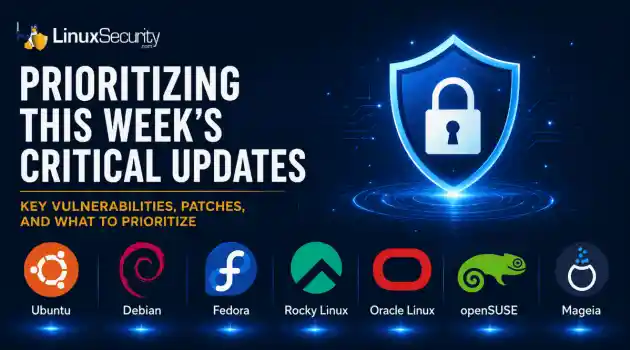
 A large volume of Linux security updates and advisories this week across major distributions once again, but it wasn't just the volume that was the story. Where maintainers and security teams focused their attention was evident in the concentration of fixes targeting Linux kernel updates, identity services, DNS infrastructure, and internet-facing software. . Instead of looking at each advisory in isolation, administrators gain more value from the general trends they reveal about Linux security...
Jul 23, 2026
 identity management security tactics
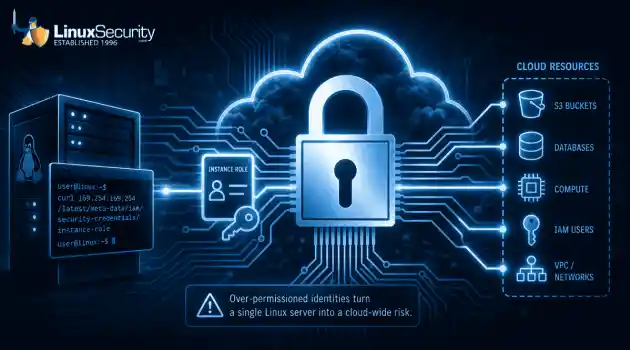
 For years, we secured our Linux infrastructure by building walls: VPCs, security groups, and hardened SSH configurations. We treated the cloud like a virtual data center, assuming that if we kept the "bad guys" out of the network, our workloads were safe. . That model is no longer sufficient. Today, one of the most common paths from an initial compromise to a major cloud breach is the identity assigned to your Linux workload. When an attacker gains code execution on a Linux instance—through a...
Jul 17, 2026
 security practices patch management
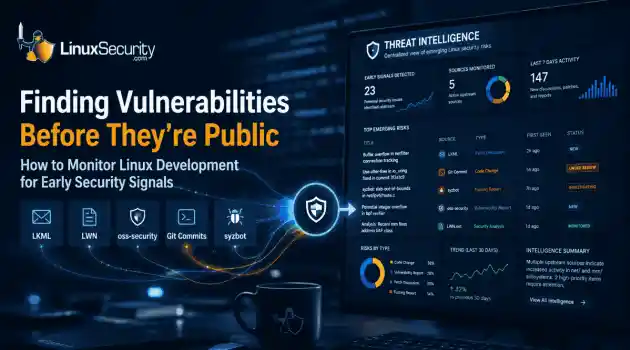
 Most of us don't hear about a kernel vulnerability until a CVE lands in our inbox or the vulnerability scanner starts complaining. By then, the patch isn't new anymore. Kernel developers may have been passing it around for review, arguing over the implementation, or revising it for days before anyone outside that community noticed it. None of those discussions are secret. They're sitting in mailing list archives, Git commits, and patch reviews where they've been the whole time. The strange...
Jul 14, 2026
 Linux security cyber attacks
 Every Linux server in your fleet produces thousands of events every minute. From journald logs and auditd records to kernel-level eBPF hooks, your systems are constantly talking. Most of that noise is just the mundane churn of system services, CI/CD runners, or routine administrative automation. But among that noise, an attacker might be establishing a foothold, moving laterally, or setting up persistence. The challenge for any security team is: how do you separate the routine from the...
Jul 13, 2026
 Refine features
X Clear Filters
Get the latest News and Insights
Get the latest Linux and open source security news straight to your inbox.
Community Poll
Should Linux servers automatically install security updates?
Loading...
Explore Latest Linux Security features
We found -3 articles for you...
102
 data protectionbackup solutionautomation
Top Backup Tools for Linux: Prevent Data Loss from Ransomware Attacks
Linux ransomware is on the rise , and an attack on your system could result in the loss of critical data and significant downtime - if important files have not been backed up frequently and stored securely. . The Linux ransomware attacks rise, which can threaten to compromise your data security and cause operational downtime and data loss. To prevent this, a backup strategy becomes necessary. This article outlines reliable techniques to securely back up your Linux systems to guarantee that your data remains intact even in the face of a cyber attack. We present six top backup software for Linux desktops, servers, and enterprise systems. These tools allow you to automate backups, minimize risks, and protect information. These solutions offer convenience, guarantee the security of your backups, and enable swift recovery and continuity in your operations. In this article, you'll learn about our six favorite Linux backup solutions and how they compare: Timeshift Kbackup Rsync Duplicati Amanda Bacula Top Linux Backup Tools Comparison Table What Is Data Backup & How Can It Mitigate the Risk of Data Loss from a Ransomware Attack? Data backup involves copying critical files to secure and high-performing external systems to prevent a single point of failure (SPOF). A recent backup survey highlights the importance of backups; it found that while 78% of users back up their data, only 33% do so regularly. So, backing up your desktop and server regularly is critical to protect against data loss during a ransomware attack. You also should check that these files are not corrupted and that they are stored securely. This guarantees that your backups are immediately available for restoration, which allows quick recovery and minimal downtime after an attack. However, while the digital cloud is a popular storage option, as administrators can automate the backup process, statistics indicate that about 50% of users do not use physical backups for their stored data. Consequently, it is advisable to complement cloud backupswith physical storage solutions to improve security and provide data protection. It should be noted that if users implement a proactive, defense-in-depth security strategy and adhere to security best practices, they can greatly reduce their ransomware risk—but cannot eliminate it entirely. Users must maintain up-to-date servers and endpoints, implement the principle of least privilege for user accounts, closely monitor network activity and system logs, and audit systems regularly. Thus, a backup plan should be considered a critical “layer” of any successful cybersecurity strategy. 4 Top Tips for Secure Data Backup While 85% of ransomware attacks still target Windows systems, Linux is becoming an increasingly popular target due to the high value of the devices it powers, such as enterprise and government servers, web services, and large databases. Organizations capable of paying ransoms to restore operations and data are especially at risk. These attacks, which often use advanced encryption and extortion tactics, can lead to serious consequences such as data loss, damage to reputation, high recovery costs, and extensive downtime. Data backup remains the best defense against data loss should you suffer a ransomware attack. 56% of organizations recover their data from backups, compared to 26% that pay the ransom. So why are ransomware victims often unable to restore their systems from their backups? Nearly every admin and organization has backups; however, certain principles must be followed to implement a secure, successful data backup strategy. Data should be backed up frequently to meet recovery point objectives and keep potential data loss acceptable. Recovery time objectives should be established based on an acceptable period of downtime, as restore time will often determine the true impact of a ransomware attack. We recommend using folder comparison and synchronization software like FreeFileSync to resolve the differences between a source and a target folder so that only the minimum amount of datanecessary is transferred. Ransomware attacks can spread across networks, affecting backups as well. To protect backups, use a backup solution that creates unchangeable snapshots and keeps them in a read-only state to prevent encryption by ransomware. Alternatively, an “air-gapped” backup system, isolated from the rest of the IT environment, can also protect backups from malware. However, this method may be costly and complex, and there’s a risk that backups may capture the ransomware if a backup occurs before an attack is detected. Therefore, it’s necessary to check backups regularly to confirm they are not corrupted. Diversification is also a key consideration when it comes to creating and implementing a successful data backup strategy. Admins and organizations are quickly learning the importance of defense-in-depth in any type of security. Redundancy and resilience of backups can be accomplished with a “three-two-one” backup strategy, which guarantees that three copies of data are kept, with two on different media formats, one of which is off-site. This strategy makes it highly difficult for a malicious actor to encrypt and lock up every copy of their target’s data. Finally, you must restore and recover data from backups with minimal downtime in the event of a ransomware attack. This technical and time-consuming process requires that sysadmins and IT teams practice regularly to identify and improve any potential weaknesses. Luckily, the cloud facilitates easy recovery testing and makes data readily accessible. Bonus: Comparative Table of The Best Linux Backup Tools This article is extensive and contains a wealth of information. To assist you in navigating through the Linux backup software we have reviewed, we have compiled a general comparative table. We understand the importance of clear, accessible information, and this table aims to provide concise comparisons. Rsync Duplicati Timeshift Kbackup Amanda Bacula Easy to set up & configure? Yes (for simpleinstances) Yes Yes Yes Yes No Full client-side encryption? No Yes Yes Yes Yes Yes Supports file compression? Yes Yes Yes Yes Yes Yes Creates automated backups? Yes (with shell scripting) Yes Yes Yes Yes Yes Supports full backups? No Yes Yes Yes Yes Yes Supports incremental backups? Yes Yes Yes Yes Yes Yes Command-Line? Yes Yes Yes Yes Yes Yes GUI? Yes (Grsync) Yes Yes Yes Yes Yes Continuous data protection? No Yes Yes No No Yes Best suited for: Servers Desktops & servers Desktops Desktops Enterprise servers Enterprise servers Open-source version available? Yes Yes Yes Yes Yes Yes 6 Best Linux Backup Tools to Mitigate Data Loss Now that you understand the importance of data backups, we will analyze six top backup solutions for Linux. We provide a detailed overview of each tool, including general descriptions and highlighting their advantages. This analysis will help you compare the features and benefits of each tool. We recommend that you review all the tools sequentially, assess their capabilities, and then select the one that best suits your needs. Timeshift (for Desktops) Timeshift is one of the most popular Linux desktop backup tools, and LinuxSecurity users and team members rave about it. It is quick and easy to use, comes pre-installed with many popular Linux distros, and is available in the distribution repository. Timeshift supports Btrfs, a modern copy-on-write filesystem that is out of the box. Its Setup Wizard makes configuration simple, and setting up a backup configuration in Timeshift takes less than a minute. Additionally, Timeshift for Linux offers functionality similar to the System Restore feature in Windows and the Time Machine tool in MacOS. To protect systems, it takes incremental snapshots of the filesystem at regular intervals. These snapshots can later be restored to reverse any changes made to the system. It is important that Timeshift is designed to protect only system files and settings. User files such as documents, images, and music are notprotected. ✅ Why do we love Timeshift? Timeshift is ideally suited for backing up Linux desktop environments. The tool is fast and easy to navigate, which makes it accessible to users of all skill levels. Timeshift supports the Btrfs filesystem right out of the box, which improves the security and reliability of backups. Setup Wizard makes setup and configuration simple and quick. Users can create system snapshots at any moment ( Timeshift allows for multiple levels of snapshots, including Hourly, Daily, Weekly, Monthly, and Boot). 📆 Last update: The last update to Timeshift was made three years ago. 📥 Install Timeshift: For detailed instructions on how to install Timeshift, please visit the Timeshift GitHub page. These guidelines will help you set up and start using Timeshift on your system. Kbackup (for Desktops) Kbackup is a user-friendly, highly portable backup tool for both Linux and Unix that enables users to create automated, unattended backups. It creates archives, compresses them using the tar and gzip utilities, and then creates backups. Kbackup is highly reliable and supports full or incremental backups. It also offers encryption and double buffering for added security, support for tape drives, floppies, or removable media, and remote backup across networks. Kbackup has a menu-driven interface and a Command Line interface that can be included in automated scripts. ✅ Why do we love Kbackup? The software provides high reliability for securely storing data. It is designed to perform automated backups, which makes the process of data protection easier. The software supports full and incremental backups for flexibility, depending on your data protection needs. It can handle backups on various storage media, including tape drives and removable media, and also supports remote backups over networks. Features such as compression, encryption, and double buffering are available to enhance the security and efficiency of backups. The software has a user-friendly menu-driven interface and acommand line interface, ideal for integration into automated scripts. It can be easily adapted across different environments. 📆 Last update: January 9th, 2025. 📥 Install Kbackup: Visit the project’s GitHub page for detailed installation instructions. Rsync (for Desktops & Servers) Rsync is a simple but powerful utility that comes pre-installed with many popular Linux distros or is available in the repository. It is memory-friendly and can do anything a file manager can do from the Command Line, using a user-friendly command syntax. For instance, you can synchronize two directories by deleting existing files from the destination directory and copying all files from the backup directory using the command rsync -av --delete /backup/ /destination/. While rsync isn’t strictly a backup application, it’s the foundation for many of them. It’s quite possibly the most versatile file transfer application available. It was designed years ago to synchronize two files efficiently. But now, it has evolved into a powerful command-line tool to maintain files across different systems. Rsync supports any Cloud storage destination available online, including Google Cloud and an Amazon AWS instance. You can transfer backup files to remote storage using rsync with SSH ( from most modern desktops, this will automatically use SSH, but if it doesn’t, you can manually tunnel the file transfer through SSH). 🔴 Note: Rsync also has a GUI called Grsync that can be installed from your distro repository. ✅ Why do we love Rsync? These tools are ideal for backing up both Linux desktops and servers, which provide complete data protection across your entire infrastructure. Users can perform any action that a file manager can from the Command Line with a user-friendly command syntax. The tool supports incremental backups, which facilitates easy adaptation to an increased backup schedule and minimizes the storage footprint. It offers the option to tunnel through SSH, which adds an extra layer of security to protectdata during transfer. This tool supports both local and remote backups. It preserves file permissions and ownership settings during the backup process. Updates the file system and the directory tree after an operation that backs up new files on an already-established backup directory structure. They support both anonymous and authenticated rsync daemons, which is ideal for mirroring data across different locations. 📆 Last update: April 6th, 2024. 📥 Install Rsync: To install Rsync, you can find complete installation instructions on the Rsync GitHub page. Duplicati (for Desktops & Servers) Duplicati is a free and open-source Linux backup software that supports many popular third-party storage providers, including Google Drive, Dropbox, OneDrive, Amazon S3, and Google Cloud. It also stores backups on various remote file servers using SSH, making it easy to use an off-site destination far away from the original data—an important component of securing backups against ransomware. This feature also makes it a viable solution for desktop users. Duplicati supports incremental backups, so only changed parts need to be transferred. Theol features a built-in scheduler and auto-updater. It protects data privacy with AES-256 encryption and supports GPG encryption for backups. It also regularly tests backup content to detect broken backups on corrupt storage systems before it’s too late. ✅ Why do we love Duplicati? Duplicati provides data security by encrypting it before upload, which protects your information against unauthorized access. The software compresses files and supports incremental backups, which reduce both storage space requirements and bandwidth usage. Duplicati includes an integrated scheduler that automatically updates backups to keep your data protection up-to-date without manual intervention. It is available as a user-friendly graphical application and a command-line tool. Under Linux, Duplicati utilizes the Logical Volume Manager (LVM) to back up open or locked files. Users can adapttheir backup operations with various filters, deletion rules, and options for data transfer and bandwidth management. Duplicati regularly tests the integrity of backups to identify and address storage issues that may lead to corrupted data. 📆 Last update: Duplicati received its last software update in November 2024. 📥 Install Duplicati: Duplicati can be downloaded from the project’s GitHub page for free. Amanda Community (for Enterprise Servers) Amanda Community Edition is a free version of Amanda, the popular open-source data Linux backup and recovery software. It enables IT administrators to set up a single master backup server to back up many servers and workstations running multiple versions of Linux or Unix. Amanda Community Edition provides a rapid installer to minimize installation time. It also has an intelligent scheduler to automate backups. Amanda offers database, application, broad platform protection, and automated data retention in the event of transmission faults. Backup fault tolerance guarantees that initiated backups will remain synced in the case of network interference and will not compromise the entire backup. 🔴 Note: Amanda Community is available for free, while its professional version, Zmanda Pro, is a paid service that offers additional features and functionalities. ✅ Why do we love Amanda? This system enables the configuration of a single master backup server that backs up numerous servers and workstations using various Linux or Unix versions. An intelligent scheduler automates the backup process for timely updates without manual intervention. Amanda guarantees that backups remain uninterrupted and synchronized, even in network disruptions, which eliminates the need to restart the process. Users can choose from various storage media options to meet their backup needs. Maintains secure communication between the server and client via OpenSSH to allow secure backup of machines in a DMZ or on the Internet. Automated disposition policies streamline the management ofbackup lifecycles and simplify compliance and data control. 📆 Last update: Amanda was last updated on August 15th, 2023. 📥 Install Amanda: Amanda binary packages can be downloaded from the project’s website. Source packages can be downloaded from the project’s SourceForge page. Bacula (for Enterprise Servers) Bacula is a popular enterprise-level Linux backup solution available in all major Linux distro repositories. Linux security admins report that it can be difficult to set up, but once you do, you can easily manage its settings via a GUI or the Command Line. Bacula can create automatic backups on a remote or local server, manage backups using a CLI or a GUI, add volume pools, add storage blocks, include or exclude files, and more. It uses Transport Layer Security (TLS) authentication, supports virtual backup and duplicate job control, and can create accurate backups with compression support. ✅ Why do we love Bacula? This software provides an enterprise-level backup solution for data protection that is suitable for large-scale operations. It enables automatic backups on both remote and local servers. The software can be easily managed through a graphical user interface (GUI) or the Command Line. It employs Transport Layer Security (TLS) authentication to secure data transfers and improve the integrity and confidentiality of your backups. The system supports virtual backups, which allow seamless data protection in virtualized environments. It includes support for cloud storage and provides scalable and accessible backup storage options. The software offers duplicate job control to manage backup tasks and prevent redundant data storage. It allows data compression to increase the accuracy of backups, reduce storage requirements, and speed up data transfer. 📆 Last update: The software received its latest update on September 12th, 2023. 📥 Install Bacula: While the open-source tools required to build a Bacula enterprise backup system can be downloaded for free, Bacula also offerssubscription-based enterprise data backup solutions that combine Snapshots, advanced deduplication, single file restores, single mailbox restores, and data verification into one platform. Bacula Enterprise also includes assistance with onboarding and implementation and customized, ongoing support. Key Takeaways for Secure Data Backup on Linux The ransomware threat is here to stay and must be proactively addressed—but also prepared for. Data backup is an important part of secure Linux administration and can enable you to restore your system in the event of ransomware. While keeping on top of backups is difficult for most admins, using one of the automated, cloud-based tools introduced in this article can save time and improve your system's security. When choosing a Linux backup tool, admins should consider functionalities like database support, the nature of the backup media, encryption support, and supported data or file formats. It is critical to do your research and select a reliable backup solution, such as one of the tools featured in this article, to prevent the potential compromise of sensitive information. Remember, prevention is far better than reaction when it comes to ransomware and other cyber threats. Invest in your backup strategy now. Should something ever go wrong, you’ll be very thankful you did! Have additional questions about secure data backup on Linux? Are you using one of these tools in your backup strategy or another tool you think we should cover? Please reach out to us on Twitter, ask questions, and share your experience. We love to discuss topics like this with others who share our passion for Linux and security! Top Linux Backup Tools Comparison Table Timeshift Kbackup Rsync Duplicati Amanda Bacula For Desktops? Yes Yes Yes Yes No No For Servers? No No Yes Yes Yes Yes Easy to set up & configure? Yes Yes Yes (for simple instances) Yes Yes No Full client-side encryption? Yes Yes No Yes Yes Yes Supports filecompression? Yes Yes Yes Yes Yes Yes Creates automated backups? Yes Yes Yes (with shell scripting) Yes Yes Yes Supports full backups? Yes Yes No Yes Yes Yes Supports incremental backups? Yes Yes Yes Yes Yes Yes Command-Line? Yes Yes Yes Yes Yes Yes GUI? Yes Yes Yes (Grsync) Yes Yes Yes (Baculum) Continuous data protection? Yes No No Yes No Yes Best suited for: Desktops Desktops Servers Desktops & servers Enterprise servers Enterprise servers Open-source version available? Yes Yes Yes Yes Yes Yes. The Linux ransomware attacks rise, which can threaten to compromise your data security and cause ope. linux, ransomware, attack, system, critical. . Brittany Day
 Feb 24, 2025
•
Feb 24, 2025
•
102
 remote accessdisaster recoverydata integrity
ARCserveIT v6.61: Comprehensive Backup Solution for Linux Users
ARCServeIT, the Computer Associates Backup Software Solution for Linux, Helps Linux Users Stay on Top of Storage Issues/Disaster Recovery . Introduction: Data backup and recovery is one of the most essential parts in administering computer networks. Up to this point, many system administrators have relied on a combination of shell scripts and dump to backup their system. Many administrators have already found from experience that this combination has limited functionality and often requires custom scripting to fit the needs of each individual. Last month, Computer Associates, Inc . asked us to review ARCserveIT v6.61 Advanced Edition for Linux. The initial installation was not complicated and each function executed as documented. The Advanced Edition for Linux has many interesting features. Perhaps the most interesting one is the Java interface. ARCserveIT requires apache and installs the Java control panel at ( ) It can be accessed locally or via a network. This makes ARCserveIT administration easy. ARCserveIT also can be access and controlled from the command line. The appearance, ease of use, and functionality of ARCserveIT were all excellent. In the two week testing period, ARCserveIT remained stable, executed all jobs, and logged all events. If you are looking for a better Linux backup solution, ARCserveIT may be what you need. To the left: A screen shot of ARCServeIT's Java based user interface. After apache is configured, this interface can be called from any remote location with WWW access. Overall Grade: A Features of ARCserveIT v6.61: Integrated Client Support Multiple Server Support (Deploy ARCserveIT to backup unlimited servers throughout the network.) Integrated Tape and Optical Library Support Extensive Device Support Advanced Scheduling Data Verification (CRC - byte by byte verification) Parallel Streaming (Back up/restore data simultaneously, to or fromup to 32 devices) Automatic Alerts ARCserveIT writes data to tape using the Universal Tape Format (UTF). Functions of ARCserveIT v6.61: Backup: (Backup Manager) This section is used to configure which computer(s) on the network you wish to back up, path, destination media, and backup schedule. Restore: (Restore Manager) This section is obviously for restoring previous backups. It can be used to restore local or networked machines. Job Status: (Job Status Manager) This section displays the current jobs to be executed. It can also be used to configure more advanced backup schedules. Backup schedules can be extremely complex. (ie. M-W-F full backup, T-H incremental, every 6 days regardless, full backup, etc. ) Devices: (Device Manager) This section gives a detailed summary of the backup devices installed. Other commands such as format, erase, compress, clean, can be executed. Database: (Database Manager) This section gives a more detailed view of the hard drive, network, and ARCserveIT configuration. Merge: (Merge Manager) This section is used to determine/choose how a particular media source is merged. Scan: (Scan Manager) This section is used to configure backup scans. Reports: (Report Manager) This section is used to organize log messages, and to gatherbackup job reports. Profiles: (Profile Manage) This section is used to add, remove, and configure backup managers. *NOTE: It is extremely important that you set a password for the arcroot user. The default password is blank. Evaluation Platform: Pentium 466 mhz, 64 mb Ram, SyQuest Syjet 1.5GB Portable SCSI tape Backup, Red Hat Linux v6.1, Apache 1.3.12 System Software Requirements: Apache Web Server and pdksh need to be preinstalled. pd-ksh is a clone of the Korn Shell.The ksh shell is a command interpreter intended for both interactive and shell script use. Ksh's command language is a superset of the sh shell language. Browser With Java Support, and at least 800x600 resolution to view httpd interface frames correctly. Supported Distributions: Red Hat 6.1, SuSE 6.3 , Caldera OpenLinux 2.3 , Turbo Linux 6.0 Hardware Requirements:(server) Pentium class processor with minimum 64 mb RAM, although it did not seem to be RAM intensive Minimum of 30 mb Hard Disk space. You must have at least one tape drive. ARCserveIT supports any drive that is supported under Linux. Restore Basics: ARCserveIT can restore entire hosts, drives, file systems, and volumes. The restore capabilities are flexible enough to backup/restore the data from Linux, Unix, Netware, and Windows servers. In order to restore a host back its original filestate, ARCserveIT must be reinstalled on the system. To perform the restore, pull up the administrative menus ( ), and follow the restore wizard menus. General ARCserveIT Security: ARCserveIT has built-in data encryption functionality to better secure critical data against malicious activities. ARCserveIT also has its own methods of data verification to help ensure data integrity and minimize errors. The security of ARCserveIT is comparable to other backup packages. The http administrative menus have password protection by default. If you are planning to use the http administrative menus remotely, I would suggest adding password protection to the general web directory. This can be done by adding a .htaccess file to the default web directory. ( ie. /opt/ARCservIT/httpd ) - Use htpasswd to generate a password file: # htpasswd .password_file_name username - A general .htaccess file ( located in /opt/ARCservIT/httpd ) should look like: AuthUserFile /path/to/.password_file_name AuthName "ARCserveIT Backup" AuthType Basic deny from all allow from 123.123.123.123
Apr 25, 2000
•


Get the latest News and Insights
Get the latest Linux and open source security news straight to your inbox.
Community Poll
Should Linux servers automatically install security updates?
Search Topics
Powered By

Linux Security - Your source for Top Linux News, Advisories, HOWTOs and Feature Releases
QUICK LINKS
subscribe to newsletters!
Like staying secure? So do we.
Sign up for updates, tips, and alerts!