Explore top 10 tips to secure your open-source projects now. Read More
×


Stay Ahead With Linux Security Features
 identity management security tactics
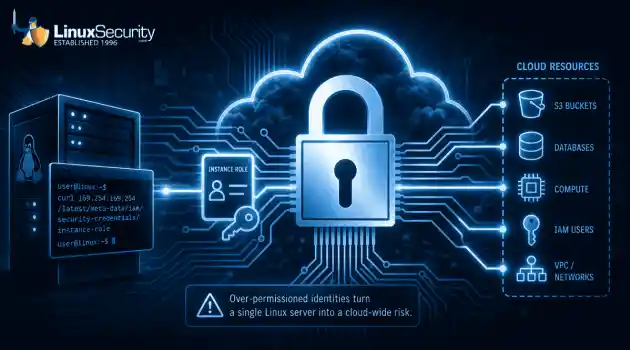
 For years, we secured our Linux infrastructure by building walls: VPCs, security groups, and hardened SSH configurations. We treated the cloud like a virtual data center, assuming that if we kept the "bad guys" out of the network, our workloads were safe. . That model is no longer sufficient. Today, one of the most common paths from an initial compromise to a major cloud breach is the identity assigned to your Linux workload. When an attacker gains code execution on a Linux instance—through a...
 Jul 17, 2026
 security practices patch management
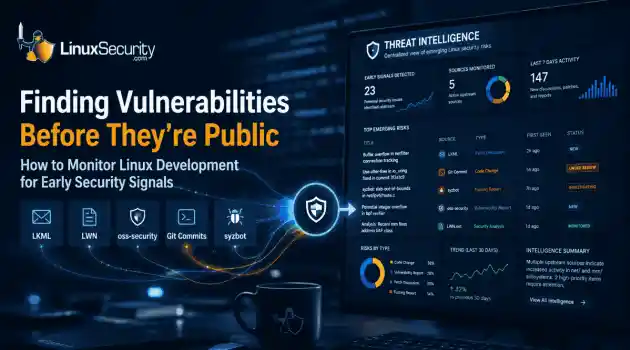
 Most of us don't hear about a kernel vulnerability until a CVE lands in our inbox or the vulnerability scanner starts complaining. By then, the patch isn't new anymore. Kernel developers may have been passing it around for review, arguing over the implementation, or revising it for days before anyone outside that community noticed it. None of those discussions are secret. They're sitting in mailing list archives, Git commits, and patch reviews where they've been the whole time. The strange...
Jul 14, 2026
 Linux security cyber attacks
 Every Linux server in your fleet produces thousands of events every minute. From journald logs and auditd records to kernel-level eBPF hooks, your systems are constantly talking. Most of that noise is just the mundane churn of system services, CI/CD runners, or routine administrative automation. But among that noise, an attacker might be establishing a foothold, moving laterally, or setting up persistence. The challenge for any security team is: how do you separate the routine from the...
Jul 13, 2026
 open-source infrastructure risk
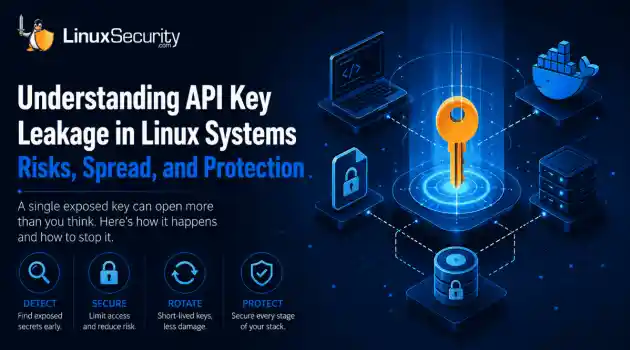
 Security scanners flag exposed API keys in public repositories every day. The initial response is usually predictable: delete the commit, revoke the credential, and move on. That’s a mistake. . In a real Linux environment, an API key never stays in one place. By the time it hits a public repo, it’s already everywhere. It’s in the CI/CD pipeline. It’s in your container registry. It’s in the build logs. It’s in the backups. Git makes this worse because the history never dies. Deleting a file in...
Jul 11, 2026
 open-source rootkit
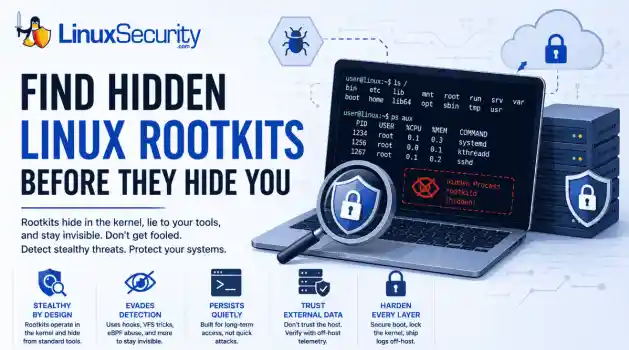
 Most of us think of Linux rootkits as ancient history—the stuff of 90s hacking forums and clunky malware that would crash your system if you looked at it the wrong way. But if you think they’ve gone away, you’re mistaken. They’ve just gotten smarter. . Modern attackers aren't using the noisy tools of the past. Today’s threats are surgical. Many of today’s most advanced Linux rootkits operate at the kernel level or abuse legitimate system features to blend in with normal traffic. They’re...
Jul 09, 2026
 Refine features
X Clear Filters
Get the latest News and Insights
Get the latest Linux and open source security news straight to your inbox.
Community Poll
Is continuous patching actually viable?
Loading...
Explore Latest Linux Security features
We found -3 articles for you...
102
 access controlsystem administrationfile permissions
File Permissions: Common Mistakes And How To Correct Them
Greetings, gentle reader, and welcome to linuxsecurity.com and our new recurring series of articles on security related mistakes and how to avoid them. I'm your host, Pax Dickinson, and today we'll be reviewing basic Linux file and directory permissions and how to avoid some common pitfalls in their use, in this episode of Hacks From Pax. . One common mistake Linux administrators make is having file and directory permissions that are far too liberal and allow access beyond that which is needed for proper system operations. A full explanation of unix file permissions is beyond the scope of this article, so I'll assume you are familiar with the usage of such tools as chmod , chown , and chgrp . If you'd like a refresher, one is available 49 on linuxsecurity.com. I've witnessed systems administrators whose response to a user complaining about being denied access to a given file is to chmod 777 the file (or entire directory tree) in question. This is an absolutely disastrous security practice, the administrator has just granted write access to the file to any user on the system. Any compromised service will allow an attacker to modify the file, which could result in further access depending on the file in question. For example, an attacker gaining write access to a script that is occasionally run by root can parlay this seemingly minor security hole into full root access for himself. Never make files world-writable. Most files do not need to be world readable either. You can search for world-writable files under your current directory by issuing the following command: find . -perm -2 -print A related mistake is in the misuse of suid root binaries. These are programs which can be launched by a user but run with all the privileges of root. These programs are needed to perform tasks such as changing a user's password, since that requires a write to the system's password file which normally cannot be modified by anyone but root. A flaw that allows an attacker to gain a shell prompt in sucha program can give an attacker root access to the system. These binaries should be carefully limited and must be kept up to date with appropriate security patches to minimize their risk. A common backdoor installed by successful attackers is a copy of /bin/sh set suid root. This can be run by any user on the system, without a password, and will result in full root access. Suid root bits should never be set on a shell script, as they are impossible to make secure. In fact, because of their insecurity, modern versions of Linux do not allow their use and will not respect the suid or sgid bits on shell scripts. Don't try to make shell scripts suid root. If you must, investigate suidperl , which is safer but still should be used carefully and only when absolutely necessary. You can search your system for suid and sgid files by issuing the following command: find / -type f -perm +6000 -ls A close eye should also be kept on the file permissions within the /dev directory. Improper permissions here can allow users to read or write directly to hardware devices such as hard disks and network interfaces. Most devices should only be writable by root, and readable only by the group they belong to, with the exception of terminal devices ( /dev/tty and /dev/pty ), /dev/null and /dev/zero . Generally device files only exist within the /dev directory, but this is not required. An attacker my attempt to replicate a device file outside of this directory in order to gain access to otherwise protected data. You can search the /dev directory for world writable files by issuing the following command: find /dev -perm -2 -print You can locate all device files on your system by issuing this command: find / ( -type b -o -type c -o -type s -o -type p ) -ls As you can see, the find command is extremely useful for keeping an eye on the file permissions of your system. A script that runs several find commands can be launched by cron periodically to monitor your file permissions.Combining this with an intrusion detection system, discussed later in this series of articles, will help you both implement and maintain a high security environment. It may be a cliche to say this, but security truly is a process and absolutely requires an ongoing commitment. Stay secure, and I'll see you soon, in the next episode of Hacks From Pax! -- Pax Dickinson has over ten years of experience in systems administration and software development on a wide variety of hardware and software platforms. He is currently employed by Guardian Digital as a systems programmer where he develops and implements security solutions using EnGarde Secure Linux. His experience includes UNIX and Windows systems engineering and support at Prudential Insurance, Guardian Life Insurance, Philips Electronics and a wide variety of small business consulting roles. . One common mistake Linux administrators make is having file and directory permissions that are far t. greetings, gentle, reader, welcome, linuxsecurity, recurring, series, articles. . Anthony Pell
 Jun 24, 2005
•
Jun 24, 2005
•
102
access controlfile permissionsEnGarde LinuxGetting Started with File Permissions: Chmod in EnGarde Linux
Welcome to the first tutorial in the 'Getting to Know Linux Security' series. The topic explored is Linux file permissions. It offers an easy to follow explanation of how to read permissions, and how to set them using chmod. This guide is intended for users new to Linux security, therefore very simple. If the feedback is good, I'll consider creating more complex guides for advanced users. Please let us know what you think and how these can be improved. If you have ideas for future topics, please post them in the discussion forum below. . Script Hello, my name is Benjamin Thomas and I am with Guardian Digital, Inc, the primary sponsor of LinuxSecurity.com Welcome to the first of the "Getting to know Linux Security" series tutorials that will be featured on our site. Today's topic is file permissions. This lesson is primarly intended for those users who are just getting started, and other wishing to brush up old skills. The examples I show you today are from a typical Linux command line. Today, I'll be using EnGarde Secure Linux. More information about this distribution can be found at Guardian Digital.com and it can be downloaded at EnGardeLinux.org. ... Lets Begin. To see a listing of files in a directory, execute the command 'ls'. As you'll see, there are no files in the temporary directory that I'm using. Let's first create several files. touch file1 file2 file3 The command 'ls' then shows the files we have created. A more informative way to show the files is ls -la. The 'l' switch lists files in long format, and the 'a' switch lists all files, including hidden ones. ... Lets look at file1 (select line) The first field reprents the file's type. For regular files this is always a dash, for directories, it will be reprented as a d. (There are other's, but beyond the scope of this lesson) The next nine represent the file's permission. The the number of 'hard' links to the file, the file owner's username, the owner's group, the file's size, its modification date and time, and the file'sname. ... Lets examine the permission field closer. The first three blocks represents the access granted to the file's owner. The next three, represent access granted to other group members, and the last three represent everyone else's level of access. The possibilities for permissions include: r - read w - write x - execute - - no permission ... If you are the owner of a file, you have the ability to change its permissions with the chmod command. There are several ways chmod can be used, however in today's lesson I will only focus on the octal system. The first number represents the owner's permission, the 2nd represents the groups permission, and the last one' represents the world's or everyone's access. The permission is calculated using simple arimetic. 1 is for exectute permission 2 is for write permission 4 is for read permission The permission is set using the chmod command: chmod 755 file1 You may asking, but what does 755 mean? 7 comes from 1 + 2 + 4. 5 comes from 1 + 4. This means that the file's owner has read, write, and execute permission, but group and world only have read and execute. ... Overtime you'll find that this method of setting permissions becomes natural. After getting comfortable with this method you'll find that Linux permisssion aren't difficult at all to understand. ... Once again, thank you for visiting LinuxSecurity.com. I hope you have found this guide helpful and you are looking forward to other tutorials in the Getting to know Linux Security series. Please do no hesitate to send comments, questions, or ideas to me at the following email address:
Feb 03, 2005
•


Get the latest News and Insights
Get the latest Linux and open source security news straight to your inbox.
Community Poll
Is continuous patching actually viable?
Search Topics
Powered By

Linux Security - Your source for Top Linux News, Advisories, HOWTOs and Feature Releases
QUICK LINKS
subscribe to newsletters!
Like staying secure? So do we.
Sign up for updates, tips, and alerts!