Audit Linux privileges now to limit compromise, escalation, and system-wide damage. Review Linux Privileges×


Stay Ahead With Linux Security Features
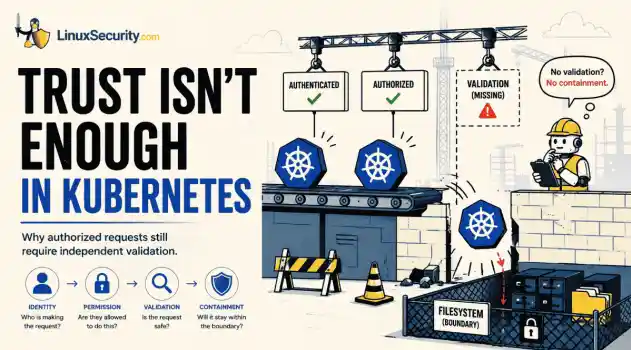
 security advisory path traversal
 Two newly fixed storage bugs in Kubernetes showed more than just a problem with path traversal. They found a common security flaw in the cloud: powerful parts often think that requests accepted by a higher system are safe to run. This is a simple lesson for the platform and security teams: RBAC can accept a request without showing that its parameters will stay within a certain filesystem boundary. This is clear from a new study from SentinelLabs into flaws in the Kubernetes CSI drivers for NFS...
 Jul 24, 2026
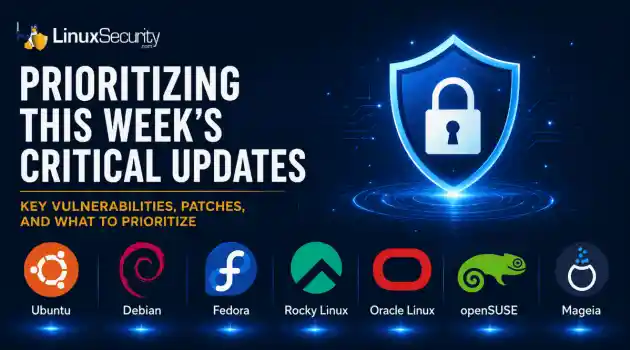 security advisory update
 A large volume of Linux security updates and advisories this week across major distributions once again, but it wasn't just the volume that was the story. Where maintainers and security teams focused their attention was evident in the concentration of fixes targeting Linux kernel updates, identity services, DNS infrastructure, and internet-facing software. . Instead of looking at each advisory in isolation, administrators gain more value from the general trends they reveal about Linux security...
Jul 23, 2026
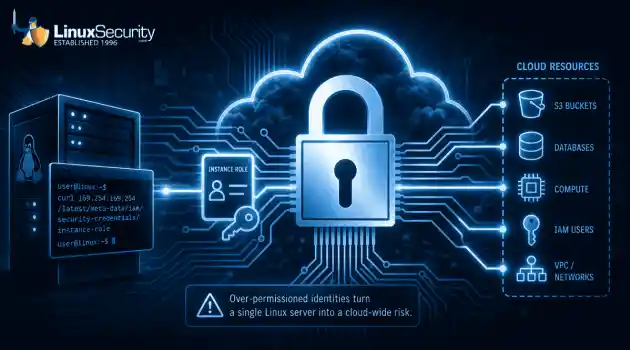 identity management security tactics
 For years, we secured our Linux infrastructure by building walls: VPCs, security groups, and hardened SSH configurations. We treated the cloud like a virtual data center, assuming that if we kept the "bad guys" out of the network, our workloads were safe. . That model is no longer sufficient. Today, one of the most common paths from an initial compromise to a major cloud breach is the identity assigned to your Linux workload. When an attacker gains code execution on a Linux instance—through a...
Jul 17, 2026
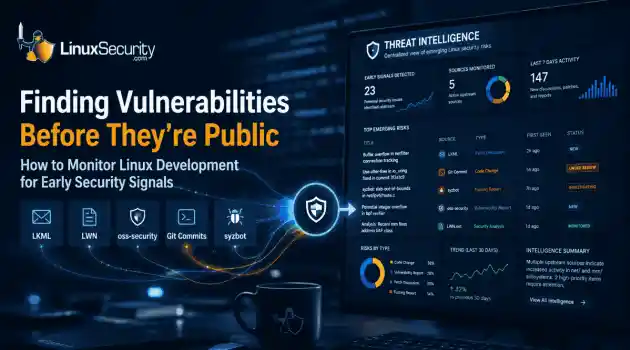 security practices patch management
 Most of us don't hear about a kernel vulnerability until a CVE lands in our inbox or the vulnerability scanner starts complaining. By then, the patch isn't new anymore. Kernel developers may have been passing it around for review, arguing over the implementation, or revising it for days before anyone outside that community noticed it. None of those discussions are secret. They're sitting in mailing list archives, Git commits, and patch reviews where they've been the whole time. The strange...
Jul 14, 2026
 Linux security cyber attacks
 Every Linux server in your fleet produces thousands of events every minute. From journald logs and auditd records to kernel-level eBPF hooks, your systems are constantly talking. Most of that noise is just the mundane churn of system services, CI/CD runners, or routine administrative automation. But among that noise, an attacker might be establishing a foothold, moving laterally, or setting up persistence. The challenge for any security team is: how do you separate the routine from the...
Jul 13, 2026
 Refine features
X Clear Filters
Get the latest News and Insights
Get the latest Linux and open source security news straight to your inbox.
Community Poll
Should Linux servers automatically install security updates?
Loading...
Explore Latest Linux Security features
We found -3 articles for you...
102
 patchingcomplianceautomation
Enterprise Linux Compliance: Insights on Patching and Resource Management
The Linux vulnerability landscape is becoming increasingly complex, in part due to a seemingly never-ending number of new vulnerabilities that are constantly surfacing. . Even when Linux-based operating systems are used at a small scale, it is challenging to patch vulnerabilities consistently. At an enterprise scale, the task of managing hundreds of vulnerabilities over fleets of thousands of servers is not simple at all. Yes, there are a variety of tools that can help – but awareness of tools such as automated patching and live patching varies, and these tools are used inconsistently. With the management of vulnerability assessment and patching varying so much from one organization to another, TuxCare set out to investigate how enterprises approach this challenging task. Our survey, State of Enterprise Vulnerability Detection and Patch Management, revealed several interesting insights into how organizations handle vulnerability and patch management at an enterprise scale. The survey explores how these tools are used and examines the restrictions faced by organizations in their ongoing fight against threat actors. Vulnerability Management Is a Compliance Priority One of the reasons that TuxCare initiated a survey into the enterprise vulnerability and patching environment is that, for large organizations, vulnerability management and patching is a compliance issue. Over and above the obvious security concerns surrounding vulnerabilities, enterprise Linux users also need to meet compliance obligations. In other words, there are laws and regulations in place that demand that large organizations meet minimum requirements around the remediation of vulnerabilities. Where organizations covered by these regulations fail to meet minimum requirements it can lead to stiff penalties. The rules that apply to companies operating in a specific industry vary, with organizations that deal with personal data – finance and healthcare firms, for example – under much stricter supervision. We mentioncompliance because it has a direct effect on how large organizations approach vulnerability management and patching. Some enterprise Linux users must respond much faster to emerging vulnerabilities than others. The results we gathered in our survey clearly highlight how compliance requirements affect day-to-day vulnerability operations. The TuxCare Enterprise Vulnerability and Patch Management Survey TuxCare started surveying key IT security personnel across enterprise organizations at the start of 2021. We wanted to take a close look at three key aspects of vulnerability and patch management: deployment practice, maintenance windows, as well as the broader level of security awareness in an organization. We published the initial results, but the survey is still actively running and you are welcome to contribute . Initial responses have already revealed several interesting observations. From the start, we noted that the geographic location of the respondent had a negligible effect on the response we received. In other words, there was no correlation between the location of a respondent, and the answers returned by that respondent. That indicates that vulnerability and patch management practices are roughly the same across the globe. However, our survey revealed significant differences between industries. The sector in which an organization operates clearly has an impact on the way that an organization manages vulnerabilities and patching. Taking a First Look at the Results A few points jumped out at us. For example, we noted that automated patching is commonly used by organizations around the globe, as 76% of our respondents said that they apply automated patching across their workloads. We also noted that live patching, a step up from automated patching, is in use at many organizations, as about half of our respondents reported that they relied on live patching to fix vulnerabilities. It makes sense that, at the enterprise scale, teams would rely on automated and live patching because of thesheer number of vulnerabilities that require patching. Given today’s pervasive cybersecurity threats, it is no surprise that automation is a commonly used tool, so we found it interesting to note that manually researching vulnerabilities via online resources is in fact the most commonly used tool in our respondents’ vulnerability management arsenal. Even though automation of vulnerability management is commonplace, comprehensive vulnerability management still requires a few manual steps. Another interesting fact emerged: 73% of our respondents suggested that their server fleets rely on a single Linux OS. In other words, rather than utilizing a specific Linux distribution for each different server role, most respondents reported that they picked a single OS – in most cases, it was CentOS or a fork of CentOS. Organizations are probably choosing to do so because using a single distribution makes maintaining server fleets so much easier – whereas a mix of distributions increases the time spent on server maintenance and addressing vulnerabilities. Vulnerability and Patch Management Practices Vary by Industry Looking more closely at what our respondents said, we noticed that vulnerability and patch management procedures and practices varied significantly from one industry to another. For example, when compared to the banking and financial services sector, respondents in the tech sector reported spending three times as much time in any given week on vulnerability monitoring. It’s possible that tech sector respondents are simply much more aware of cybersecurity threats than those working in banking and finance. Another observation we made is that the tolerance or indeed the need for patching-related downtime varied significantly from one industry to another. In transports and logistics, our respondents reported that their organizations experienced around 15 hours a week of patching-related downtime. In contrast, respondents working for healthcare enterprises reported downtime of only about anhour a week. The staff resources dedicated to monitoring for vulnerabilities also appear to be allocated very differently depending on the industry the respondent works in. In public and social services, respondents suggested that a large proportion of staff hours are spent on monitoring tasks – whereas respondents in the industrial sector said that very little time is spent on monitoring for vulnerabilities. Resources Remain a Restriction In the last section, we pointed to the allocation of staff resources when it comes to vulnerability management. Staff hours are a limited resource, and we found a few interesting trends in the responses we received. First, when it comes to documenting patching efforts, our respondents reported that documentation takes up very little time when compared to the other efforts made around patching. In fact, we found that respondents suggested that trying to settle on a maintenance window that keeps everyone happy takes up a significant amount of staff time. We suspect this may be because of the many stakeholders involved in settling on an acceptable maintenance window – after all, maintenance windows cause significant disruption. Resourcing is without a doubt a restriction, as 38% of our respondents said that they wanted to increase their IT security headcount in an effort to improve how effective their patching regime is. In further supporting evidence, 29% of respondents suggested that on at least one occasion patch installation was delayed because of a lack of resources. That’s probably why 54.5% of our respondents said that the staff resources at their disposal are not sufficient to meet the patching workload. A further 27.2% indicated they have active plans to hire more staff to cope with the growing vulnerability and patch management workload. The Tools that Support IT Security Staff We also asked our respondents to give us some insight into the tools used to support the human efforts behind vulnerability and patch management. We found that there wereseveral key tools that respondents suggested would help them make better use of the resources at their disposal. In response to our survey, respondents pointed to several features that they would like to see in a patch management tool. First, enterprise Linux users wanted quick responses to new CVEs to ensure new vulnerabilities are rapidly covered. Live patching was also top of the list, while respondents wanted to see more comprehensive automated reporting. We left the question open-ended. One respondent suggested that vulnerability tools should offer better logging capabilities than they currently do. That may be because many tools simply do not offer a lot of transparency into the functionality of the tool, or how the tool modifies systems as it manages vulnerabilities. Our respondents requested a few other features, including phased rollouts to manage patching in a more controlled manner in order to prevent disruption. The Implications for Enterprise Linux Users Just like any other major operating system, Linux-based operating systems are subject to new exploits on a weekly - if not daily - basis. The number of exploits keeps growing and one of the reasons for this is that threat actors rely on automation to f ind vulnerabilities. Battling a cybersecurity threat that’s underpinned by automation won’t be easy and using automation in security efforts is really the only way forward. This includes patching automation, already used by many of our respondents. Similarly, automated vulnerability management tools that have just the right feature set will prove equally valuable. It is heartening to see that so many of our respondents are engaging with automated and live patching, but neither of these tools has full penetration and there is little doubt that automation is the best way forward. Win a Course for Kubernetes We stated earlier that the survey is still running. Even though we’ve collated some of the initial responses, we’re still eager to hear from respondents working in theenterprise Linux environment. For this reason, we’re offering ten free CKA (Certified Kubernetes Administrator) certification courses run by the Linux Foundation. You stand the chance of winning one of ten courses from us simply by completing our survey on this link . By completing the survey, you also help us to gauge how vulnerability and patch management is handled by enterprise Linux users. Don’t forget – you can download the full report covering the initial results of our survey, State of Enterprise Vulnerability Detection and Patch Management, state of enterprise vulnerability detection and patch management report . Thank you to CloudLinux for contributing this article. . Handling weaknesses in corporate Linux systems poses challenges; delve into observations regarding regulatory standards, software solutions, and best practices within the sector.. Enterprise Security, Patch Management, Vulnerability Tools, Cybersecurity Insights, Linux Compliance. . Brittany Day
 Jul 13, 2021
•
Jul 13, 2021
•
102
 security advisorydebiansystem update
Installing Updates For Ubuntu 22.04 LTS And Debian 10: Security Steps
Whether you are a DevSecOps engineer responsible for managing your organization’s application infrastructure or you have your own personal Linux server that you use at home, the importance of keeping your systems safe and secure against malicious attacks by bad actors cannot be over emphasized. . While there are many aspects with regards to securing systems, one fundamental best practice is to continuously patch your systems and applications as soon as they are made available. The infamous WannaCry ransomware attack from the summer of 2017, that caused much grief to millions of users is a case in point. While the patch was made available much ahead of the actual attack, it was due to a sheer lack of security discipline that the attack was successful. “While Microsoft had released patches previously to close the exploit, much of WannaCry's spread was from organizations that had not applied these or were using older Windows systems that were past their end-of-life. These patches are imperative to an organization's cyber-security, but many were not applied because of needing 24/7 operation, risking having applications that used to work break, inconvenience, or other reasons.” (Source: WannaCry ransomware attack - Wikipedia ) This article will walk you through specific steps you need to patch your Ubuntu and Debian based systems for operating system packages. We shall cover the basics of commands you need to execute through the CLI and through the GUI. We shall also cover some additional tips and techniques for automation, package conflict resolution, kernel patches and how to manage docker/container-based security updates. How Can I Update Ubuntu via the Command-Line? Most programmers prefer the command line or programmatic execution of commands. This method is quicker, you have better control, and the commands can be easily incorporated into scripts that can be setup for regular execution through automation. If you are new to the topic, the Ubuntu command manuals is a goodplace to get started. The commands we shall cover pertaining to this topic are: apt update: This command only fetches the information on latest packages that can be upgraded. Note that it does not actually upgrade any packages on the system, only refreshes the index local to the system. This package information is obtained from standard official sources and then stored locally on the system. If ever you need to check from which sources the package information gets picked, you will see it in under /etc/apt/sources.list on the system. apt list –upgradable: This command will then display the packages that have updates available and therefore can be upgraded on the system. This information is based on the information fetched previously from the update command apt upgrade: This is the actual command that does the upgrade of the packages in the system. Once executed, the OS will be successfully upgraded. Note that this command can install new packages if the dependencies require it, but it will never remove packages. apt full-upgrade: This command does a little more than what the upgrade command does. In addition to upgrading new packages and installing new packages as required, it also removes existing installed packages if it determines that the dependencies are no longer required. Use this option with caution as it can cause unexpected system behavior if your application is dependent on a specific version of the package. apt autoremove: This command is used to remove unused packages which are no longer needed by the dependent packages. This can be executed after apt upgrade Note that all of this discussion is with respect to packages that are already on the system. If you need new packages that are not already there, you need to use the apt install command. As you research and look for commands on upgrading, you will come across apt-get commands with similar options of upgrade/update etc. So, what should you use and what is the difference? Bothare package management command line tools and there is a bit of history as to how the command evolved over the years. The apt CLI is the more recent (made available since Ubuntu 18.04 and Debian 10), preferred and the officially recommended tool. It is clearer in explaining what exactly it is doing, the options that come with apt are considered to be more user friendly and covers the range of frequently used options for the average user. The apt-get CLI, on the other hand, is more low level and contains a lot more options that are for the advanced user. So how does one typically sequence these commands? Once you are comfortable with what each of these does, you can combine them together into a single command that can be set up for automated regular execution. More about that in later sections. Here are a couple of screen captures to illustrate what you would see for some of the above commands. apt update: Here you can see the various ubuntu sources that it is fetching the package information from. apt list –upgradable: Here you can see, that from that list of package information fetched from earlier step, the packages that are having new versions and can be upgraded: apt upgrade -y: This command upgrades all the packages from the previous step and shows a neat progress bar as it proceeds. The -y option installs it silently without you having to prompt again. (Side Note: This is one example of how the apt is more user- friendly than the apt-get . You would not see the progress bar in the apt-get ). How Can I Update Ubuntu via the GUI? Some users may prefer the UI way of upgrading packages as it gives neat visual steps that tells you details of the packages that makes easy reading and unlike the CLI, prompts you that a restart of the system is required after install (if needed). The GUI way of upgrading is easy to do if you have only one or two systems to manage, personal installations and only on systems which have gnome or alternative desktopavailable. In the above section, we had installed Ubuntu Desktop and connected to the system using a VNC Server/VNC viewer. Depending on your system - there are many different ways to get to the GUI. To upgrade via GUI, open the Ubuntu “Activities” folder and search for the “Software Updater” Click on Details twisty to check the listing and description of the packages that will get upgraded. A dialogue box will appear to ask you for permission to install the updates right now or later. You can also use the checkbox selector to check/uncheck the packages that you want to install. (The equivalent of this in the CLI is to upgrade only the required package instead of a general upgrade on all packages). Click “Install Now” to begin the installation. Once the updated version of Ubuntu and the updated packages are installed on your system, a window may appear asking you to restart your system in order for the changes to take effect. And after restart, you get confirmation that the computer is up to date! Update Debian via the CLI Updating Debian via CLI uses the exact same set of commands as already demonstrated in the Ubuntu section. Ubuntu is the newer operating system based on the older Debian. They are very similar in many aspects and in the context of this article, the same commands for upgrade can be used. Update Debian via the GUI In this section, we used the GNOME Desktop that came with the default installation of Debian 10. Depending on your system setup, there may be several ways of getting to the GUI. So, to get started for upgrades, press the “Super key” on your keyboard. (It is a key with Windows logo if you are on a Windows machine. If it is an Apple keyboard it is the Command key.) Type "gnome-software" and click on the software icon. Click on the Updates tab on the popup as shown in the image. If there are updates available, it will show here. Click on Download . Next, it will prompt you forupdate and restart. Once updated and rebooted you will see a confirmation as below. Extras & Tips How to block upgrades on specific packages Sometimes, there is a need to block specific packages from getting upgraded as your application may have some dependencies on the specific version and upgrading it may have a detrimental effect on the application behaviour. You still want to upgrade all other packages in the system except those specific packages. This is where the apt mark hold and apt mark unhold commands will come in handy. In the example below, we do not want to upgrade the Jenkins package as it will break the Jenkins jobs running, so we hold back its upgrade. apt-mark hold jenkins apt update -y apt upgrade -y Later when you are ready to upgrade the package, you can execute the following: apt-mark unhold jenkins apt update -y apt upgrade -y How to perform a dry run to test the configuration As the name suggests, this parameter that can be combined with (most of) the apt commands, is very useful when you want to check what would happen if you executed an upgrade, without actually running it. So, from the following output, it lays out what would happen: that one new package will be installed, one package will not be upgraded, and a few packages will be upgraded. This lets you do a quick sanity check to see if this is what you really want. apt full-upgrade --dry-run Reading package lists... Done Building dependency tree Reading state information... Done Calculating upgrade... Done The following NEW packages will be installed: libzstd1 The following packages have been kept back: logdna-agent The following packages will be upgraded: apt dpkg libapt-pkg5.0 3 upgraded, 1 newly installed, 0 to remove and 1 not upgraded. Managing kernels that build up in the system over a period of time A special note should be mentioned regarding kernel upgrades. Every time youupgrade a kernel, a new version of the kernel gets installed. Over a period of time, these kernels can accumulate on the system and consume significant disk space. Whenever a new kernel gets installed as part of the upgrade, you can clean up the old ones. As a best practice you can keep three kernels, the current active one plus two old ones – so that you can fall back to the old one if needed. The Debian package “byobu” has a script “purge-old-kernels” that can be used for this purpose. apt install byobu purge-old-kernels --keep 3 You can learn more purge old kernels . To see all the kernels installed on the system, check using: dpkg --list | grep linux-image To see the list of currently active kernel uname -mrs In the system below there are three kernels and the active one is the latest version Managing automatic upgrades in GUI Search for the “Software & Updates” application in the GUI Click on the Updates tab and in the option for “When there are security updates:” , from the drop down, click on the “Download and Install automatically” option. The corresponding steps in Debian are very similar: Click on Update Preferences : And set it up for automatic upgrade using these options: Managing automatic upgrades through scripts Using the "unattended-upgrades" package you can set up the system for automatic upgrades including optional reboot, email notification etc. You can check for details AutomaticSecuri . Again, the above works when you have a few systems to manage. When you are talking about hundreds of systems with live running applications that cannot be afforded to be disrupted, you have to come up with a more organized custom approach with regression testing and scheduled downtimes built into your automation scripts. Managing upgrades in the containerized world As more organizations move towards microservices and containerization of their applications, the adoption of Ubuntubased base images for running the microservices and other containers can become a common practice. Here too, updating the OS vulnerabilities periodically becomes imperative. The easiest way to handle this is to have a line of code, that does the upgrades, in the Dockerfile of your service. This way every time your Docker image gets built; it is automatically up to date with the latest OS packages. # full-upgrade' -> the function of upgrade is to install the newest versions of all packages, also intelligently handles changing dependencies with new versions of packages # 'autoremove' -> Remove packages that were automatically installed to satisfy dependencies for some packages that are no longer needed. # 'autoclean' -> Clears out the local repository of retrieved package files RUN apt update && apt full-upgrade -y && apt autoremove -y && apt autoclean -y This same combination command can be used for automation on server systems. Managing vulnerabilities that cannot be remediated through upgrade Sometimes, you can run into situations when the packages do not get upgraded through any of these usual methods and yet your system is left vulnerable. (This can only get caught when you run vulnerability scans against the system). One such example would be when there are no more new versions available on the package, when the OS version has reached EOS/EOL. In such a case, you have to upgrade to the latest OS version and if you need to buy time, another option would be to manually remove that package and install an alternative, if required. Conclusion A typical application environment, whether a cloud or on-prem model, contains 100s or even 1000s of systems that need to be kept up to date with respect to operating system patches. Self-aware organizations should ensure that their security policies mandate timely application ofpatches that get released periodically from vendors. Keeping OS packages upgraded not only improves your security posture but will also improve the stability and performance of the system. This will take you one step closer to staying compliant to various regulatory certifications like HIPAA, GDPR, SOC2, ISO and so on. And finally, that makes your customers happy! About the Authors Mrudula Madiraju Mrudula Madiraju's technical career spans across multiple technologies, domains, customers, services and products. In her current role, she manages the Security Controls and Compliance of the Spark based Analytics Engine service on IBM Cloud. Whenever time permits, she loves to learn and share tidbits of epiphanies through sessions and writings. Connect with her on LinkedIn . Chetan Bhatia Chetan Bhatia is a seasoned DevSecurityOps consultant. He is an avid problem solver, and is skilled in Python, Unix scripting, Jenkins andTekton. Chetan is great at handling crisis situations, and never has to repeat a job more than once. “Automation Automation Automation” is his mantra. He currently leads the DevOps CI/CD pipeline development for the Spark based Analytics Engine service on IBM Cloud. Connect with Chetan on LinkedIn . . Ensure strong defense for your Debian and Ubuntu systems by following these steps for effective patch management and security upkeeping. Debian Updates, Ubuntu Security, Package Management, System Patching, Security Automation. . Brittany Day
Jul 12, 2021
•


Get the latest News and Insights
Get the latest Linux and open source security news straight to your inbox.
Community Poll
Should Linux servers automatically install security updates?
Search Topics
Powered By

Linux Security - Your source for Top Linux News, Advisories, HOWTOs and Feature Releases
QUICK LINKS
subscribe to newsletters!
Like staying secure? So do we.
Sign up for updates, tips, and alerts!