


Stay Ahead With Linux Security Features

 threat detection scalability
 Building a SIEM is easier than scaling one. Most open-source deployments start as a simple "all-in-one" server. It is easy to set up, but that design rarely survives the transition from a lab to a production workload. . A SIEM watching 20 endpoints is not doing the same job as one watching 500. More endpoints mean more logs; more logs require more storage; more storage makes search heavier. Eventually, the very architecture that made your lab easy to deploy becomes the reason your production...
 Jun 04, 2026
 security advisory apache
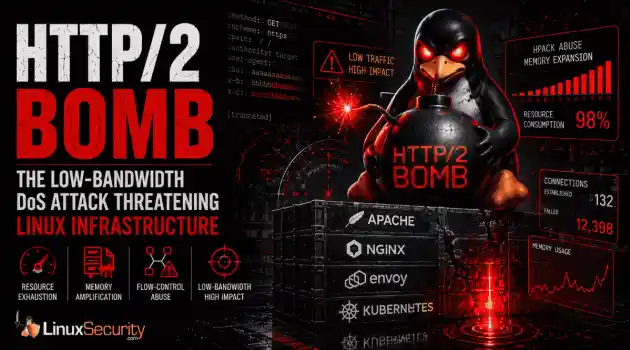
 A newly disclosed attack technique called HTTP/2 Bomb is drawing attention because it targets the software that sits at the front of much of the Linux internet. Apache HTTP Server, NGINX, Envoy, and the ingress layers that many Kubernetes environments depend on can be forced into consuming disproportionate amounts of memory using relatively small amounts of attacker traffic. . For Linux administrators, the concern is not the HTTP/2 protocol itself. It is the possibility that a single...
Jun 04, 2026
 security advisory important
 The compromise of Nx Console shows how much infrastructure now sits behind a single developer account. GitHub repositories, CI/CD pipelines, container build systems, Terraform projects, Kubernetes deployments. None of those systems was the initial target. The workstation was. . Attackers did not need a Linux privilege escalation bug or a remote code execution chain. They needed developers to trust a tool they were already using. For many organizations, that was enough. What Happened? Federal...
Jun 03, 2026
 security advisory open-source
 You remove the malware. You rotate the compromised credentials. You patch the original vulnerability and close the ticket. Two weeks later, the attacker is back. . What happened? You didn't lose the battle at the exploit; you lost it at the cleanup. In many modern Linux intrusions, the malware you found wasn't the main problem—it was the fallback mechanisms left behind. These hooks quietly restore attacker access the moment you look away. If you clean a host but miss these persistence layers,...
Jun 02, 2026
 security advisory Red Hat
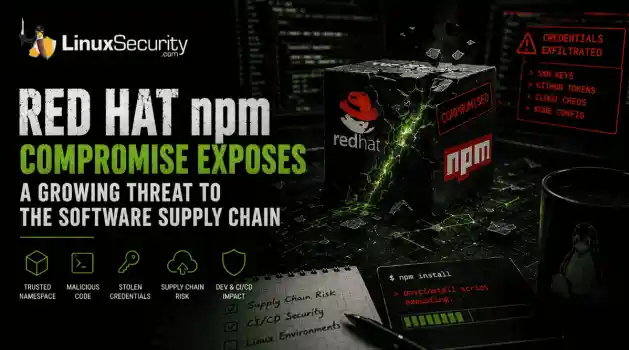
 Researchers investigating a campaign now tracked as Miasma found that more than 30 packages in Red Hat's @redhat-cloud-services npm namespace had been altered to deliver credential-stealing malware. . The packages weren't being used to deploy ransomware or sabotage systems. From what has been reported so far, the objective appears to have been much simpler: collect credentials from developer environments and use that access elsewhere. GitHub tokens, cloud credentials, SSH keys, and other...
Jun 02, 2026
 Refine features
X Clear Filters
Get the latest News and Insights
Get the latest Linux and open source security news straight to your inbox.
Community Poll
What got you started with Linux?
Loading...
Explore Latest Linux Security features
We found -3 articles for you...
102
 system updateroot accessdisk encryption
Enhance Security On Ubuntu 22.04: Encrypt Drives, Update, And More
Thanks to the fact that Linux is open-source, it is one of the most secure operating systems available . However, it is not perfect—like any software, it is open to exploits and there is a lot that can be done to improve its security. Improving the operating system is not just for experienced users—there are some simple things that everyone can do to make Ubuntu Linux more secure. . Encrypt Your Hard Drive While a strong password is important for keeping your computer locked, it is not a foolproof way to keep your files secure—an experienced Linux user can access the files from a stolen laptop without a password. However, encrypting your hard drive makes it so that the password is not just a key to your computer but a code that is essential to accessing your files—without the password, any files that a hacker steals are impossible to read. Unlike the other tips in this article, full hard drive encryption must be done during Ubuntu’s installation—while it is possible to encrypt partitions after installation, it is not as straightforward—plus, it is not all-encompassing like full hard drive encryption. Below, we have a brand new image of Ubuntu 22.04. When you boot up your machine, whether it be on a physical device or a virtual machine, follow the set up as normal until you reach the screen shown below: After reaching this screen, make sure to click on the “advanced features” option under “Erase disk and install ubuntu”. Once you do so, you should be greeted with the following screen: Once the advanced features menu opens up, make sure to select the “Use LVM…” option as well as the Encryption option. Once you do so, hit OK and click the Install Now option. Afterwards, you should see a screen similar to the one below: Here, we want to establish a security key as well as a recovery key in case you forget the initial security key. For additional security, you can overwrite the empty disk space and being that this is all done at installation, your diskshould be empty. Once you have that all set up, you can continue with installation as normal and you should be all set, you now have disk encryption enabled! Update your Operating System Regularly While operating system updates are seen as a nuisance by many, keeping an operating system up to date is one of the most important measures that can be done to keep a system safe. A perfect example of the dangers of out-of-date software is the infamous WannaCry attack, in which a North Korean ransomware infected over 200,000 computers and caused hundreds of millions of dollars in damages in 2017. WannaCry only affected Windows computers that did not have the latest security update. While not all of the widely used versions of Windows had this update available, according to research from the Kaspersky Lab , 98% of users affected by WannaCry were using Windows 7, which did have the security update available. If these users simply updated their computers, they would not have been affected by one of the largest ransomware attacks. While Linux is generally more secure than Windows, it is just as important to regularly update Linux. Since Linux is open-source, anyone can search its code for bugs and help to fix them. This means that once an exploit in Linux is found, it will generally be fixed quickly, but it also means that it is important to update as soon as possible because the exploit will be known to the public. The easiest way to update Ubuntu is to run the software updater application. To update via the terminal, enter the command “sudo apt update && sudo apt upgrade -y.” Disable Root Access Linux is a command-heavy operating system—while an average user can use Linux and never see the terminal, it is still a powerful tool that can potentially give attackers full access to a computer. The unrestricted ability to run any command in Linux is known as “root access,” and can be safely disabled since it is not really needed most of the time. If root access isever needed, it can always be locked behind a password. To lock root access behind a password, open the terminal and enter “sudo -i.” When the next line, a # prompt, appears, enter “password.” This will give you the prompt for setting a root password. Disable unnecessary services Because Linux has been around for so long, it contains many leftover features that are outdated and no longer necessary. If allowed to run, these features can be a security flaw, especially if they provide access to ports. To list all services that are running in Linux, open the command line. See the below resources for more information on this: tldp How to List Services in Ubuntu Server / Desktop Safe Internet Browsing Nowadays, most browsers make a profit by selling their users’ data to advertisers. While this is usually unnoticeable by users, allowing websites to install data-collecting third-party cookies can make users open to attacks, phishing, and identity theft. Ubuntu comes with Firefox installed as the default browser. While Firefox is already a great browser for privacy, it is always good to disable third-party cookies. Additionally, browser extensions such as Adblock, HTTPS Everywhere, and NoScript can help make browsing the internet more secure. Adblock Adblock extensions disable advertisements on websites, making browsing the internet easier by hiding obstructing ads. They also prevent users from seeing malicious scam advertisements and disable third-party cookies. Popular adblock extensions include Adblock, AdBlock Plus, and uBlock Origin. HTTPS Everywhere Even though most people do not write “ before URLs anymore, the Hypertext Transfer Protocol is still used to connect to every website. Since 2008, websites have started to switch to the Hypertext Transfer Protocol Secure, or HTTPS, which encrypts traffic between the user and the site, and sites that only use HTTP are considered insecure. HTTPS Everywhere automatically switchesHTTP connections to HTTPS connections whenever it is available, helping keep internet traffic safer. NoScript While websites are still primarily built using HTML and CSS, they often have a lot of behind-the-scenes code written in languages such as JavaScript and Java. While there are many legitimate uses for these scripts, they are also one of the main tools used by malicious sites and hackers to run malware. NoScript disables scripts that are not from sites that users declare that they trust. Conclusion While Linux is a secure operating system by default, its ability to be customized allows for a multitude of ways to make it more secure. Making Linux more secure is something that anyone, not just cybersecurity experts, can and should do for the best and safest experience. . Fortify your Ubuntu system’s security by implementing drive encryption, ensuring regular updates, and managing root permissions meticulously.. Encrypt Hard Drive, Secure Ubuntu, Internet Browsing Tips, Linux Practices, OS Update Strategies. . Brian Gomez
 Oct 10, 2022
•
Oct 10, 2022
•
102
 system configurationservice managementsecurity optimization
Exploring Linux Runlevels and Services for Enhanced Security
While the Firewall may be configured to block the ports utilized by the various Linux services, it is also a good practice to stop any unnecessary services on the Linux system. Not only does this increase Linux security, but it also prevents unneeded programs from running and using system resources. . Before delving deeper into Linux services, it is necessary to first grasp Runlevels. A standard Linux system may be set to boot into one of five distinct runlevels. During boot, the init process searches the /etc/inittab file for the default runlevel. After determining the runlevel, it proceeds to execute the necessary startup scripts to start the system's services. The good news is that both the runlevel and the services that are launched may be customized. What Are Runlevels? Consider Linux runlevels to be distinct "modes" in which the operating system operates. Each of these modes, or runlevels, has its own set of processes and services that may be enabled or disabled. Linux is always in some runlevel from the moment it boots up. This runlevel may change while you use your computer, based on the services that the operating system requires. How Many Runlevels Does Linux Have? In Linux, there are seven distinct runlevels ranging from zero to six. Because different distributions use the seven runlevels in different ways, compiling a clear list of what the runlevels perform is difficult. Instead, you should investigate how the runlevels function on the distribution that you are using. The list below, for the most part, depicts how Linux distributions typically configure runlevels: Runlevel 0 terminates the system. Runlevel 1 is a single-user mode for maintenance and administrative duties. This mode may alternatively be referred to as runlevel S. The second runlevel is a multi-user mode. This runlevel employs no networking services. Runlevel 3 is a networking-enabled multi-user mode. If you use a system that does not boot into a GUI, this is the standard runlevel. Runlevel 4 isnot employed. The user can modify this runlevel to suit their needs. Runlevel 5 is identical to Runlevel 3, except it additionally launches a display manager. If you have a system that boots into a GUI, this is the runlevel you are using. Runlevel 6 causes the machine to reboot. What Is My Current Runlevel? (SysV) If you want to know your current runlevel, run the command below: # runlevel Alternatively, you can also run the command: # who -r For systemd linux distributions, the setup is a little bit different. This is a list of how runlevels in sysv now compare to systemd: Run level 0 is matched by poweroff.target (and runlevel0.target is a symbolic link to poweroff.target ). Run level 1 is matched by rescue.target (and runlevel1.target is a symbolic link to rescue.target ). Run level 3 is emulated by multi-user.target (and runlevel3.target is a symbolic link to multi-user.target ). Run level 5 is emulated by graphical.target (and runlevel5.target is a symbolic link to graphical.target ). Run level 6 is emulated by reboot.target (and runlevel6.target is a symbolic link to reboot.target ). Emergency is matched by emergency.target . To check your current run level, run the command: # systemctl get-default How To Change Runlevel? (Sysv) Run levels can be changed easily. To change run level root privilege is required. Run the command below to change to runlevel 3: # init 3 The command above would change the run level to runlevel 3. Alternatively, you can also run the command using sudo if you are not a root user. In systemd, you would run the command below to change to the default runlevel 3: # systemctl isolate multi-user.target How To Change the Default Runlevel? To change default run level in sysv, run the command below: # vi /etc/inittab In a systemd distribution, the command would be a little different. You can run the command below (keeping the list from above in mind): # systemctl set-default multi-user.target Security Vulnerabilities with Linux Runlevels As stated earlier in this article, the goal of Linux runlevels is to provide an administrator with control over which services run in specific conditions. This degree of granular control over your system helps security by ensuring that no superfluous services are running. When an administrator is unaware of which services are running, he or she may fail to protect those attack surfaces. The methods described in this article can be used to set your default runlevel and control which apps run. These solutions will not only free up system resources, but they will also make your server more secure. Remember to only use the runlevels that you need.For example, beginning runlevel 5 makes little sense if you simply want to utilize the terminal. Changing runlevels may bring in a slew of new services, some of which may run fully in the background and you may forget to secure them. What Are Services? A service in Linux is a program or application that runs or intends to operate in the background. That is, it runs without requiring the user to be aware of it at all times. In general, a Linux service has no graphical interface, which means that users cannot interact with them via an interface, and the services are initiated by the system. Third-party services like MySQL can be set to start or stop alongside the system. They run in the background and wait for a signal to begin a certain activity. What Do You Need to Know about Services? As a system administrator, you must know how to query the status of services, stop and restart them, and customize them to fit the needs of your firm. If you're operating a DNS server, for example, you'll need to specify the DNS zones that you wish to serve. In general, any unique security and backup standards shouldbe applied to all of your services. The configuration files for the installed services are found in the /etc directory on Linux. While some products may have graphical configuration editors, you will almost always need to change the configuration files on linux. It is important to keep in mind what services are running as well as their configuration files so that you can appropriately set them up. How To Configure Services Without having to go into the depths of your Linux system, there are a variety of ways to manage what services start using both command line and graphical tools. Run the command(s) below to start and stop services on systemd: $ sudo systemctl start application.service $ sudo systemctl stop application.service To restart or reload services, you can run the following commands below: $ sudo systemctl restart application.service You may use the restart command to restart a running service as shown above. If the program in question can reload its configuration files without restarting, you can start the process with the reload command as shown below: $ sudo systemctl reload application.service The command below, iff available, will reload the settings in-place. Otherwise, it will restart the service to take up the updated configuration: $ sudo systemctl reload-or-restart application.service Below are the commands to disable and enable different services: $ sudo systemctl enable application.service $ sudo systemctl disable application.service To check any active, running services, you can run the command below as well: systemctl list-units To completely deny a service from running, lets say mandb in this instance, you can use the mask command as shown below: sudo systemctl mask mandb.service Why Should YouConfigure Services? Services do tasks without involving the user, which means they either perform a job at a predetermined frequency or when a specific software with a user front-end requests something from the service. The user is not participating in the call process and is not interested in or needs to know what the service is doing in the background. For these reasons comes the importance of configuring your services. Having your services properly running and configured so you do not run into issues later on down the road is essential to a fully functioning and secure linux system. Final Thoughts Hopefully, this tutorial helped you understand the Linux runlevels and services. To review, A run level is a state of init and the whole system that defines what system services are operating while Services are essential processes that usually run in the background, rather than being under the direct control of an interactive user, waiting for requests from other software programs, or to carry out essential tasks at the appropriate time. Knowing what these two things are, how they work, and how you can configure them properly is essential to keeping your system more secure. We hope you stick around for more upcoming articles! . Grasping the concept of Windows boot modes is crucial for optimizing applications and improving network resilience efficiently.. Linux Services, Runlevels Management, Service Configuration, Linux Optimization. . Brian Gomez
Sep 05, 2022
•


Get the latest News and Insights
Get the latest Linux and open source security news straight to your inbox.
Community Poll
What got you started with Linux?
Search Topics
Powered By

Linux Security - Your source for Top Linux News, Advisories, HOWTOs and Feature Releases
QUICK LINKS
subscribe to newsletters!
Like staying secure? So do we.
Sign up for updates, tips, and alerts!
Discover faster search, smarter navigation, and deeper Linux security insights. Read More