Audit Linux privileges now to limit compromise, escalation, and system-wide damage. Review Linux Privileges×


Stay Ahead With Linux Security Features
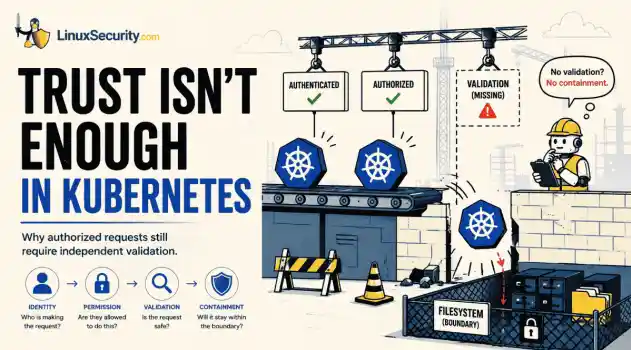
 security advisory path traversal
 Two newly fixed storage bugs in Kubernetes showed more than just a problem with path traversal. They found a common security flaw in the cloud: powerful parts often think that requests accepted by a higher system are safe to run. This is a simple lesson for the platform and security teams: RBAC can accept a request without showing that its parameters will stay within a certain filesystem boundary. This is clear from a new study from SentinelLabs into flaws in the Kubernetes CSI drivers for NFS...
 Jul 24, 2026
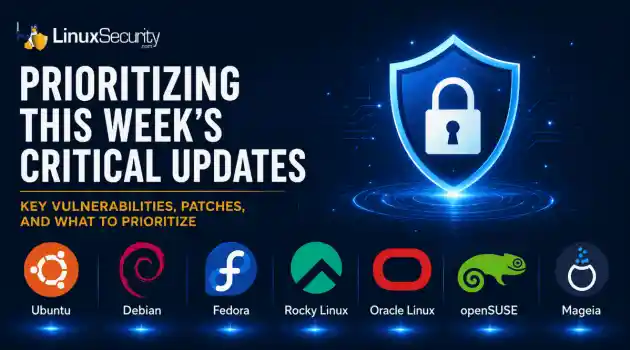 security advisory update
 A large volume of Linux security updates and advisories this week across major distributions once again, but it wasn't just the volume that was the story. Where maintainers and security teams focused their attention was evident in the concentration of fixes targeting Linux kernel updates, identity services, DNS infrastructure, and internet-facing software. . Instead of looking at each advisory in isolation, administrators gain more value from the general trends they reveal about Linux security...
Jul 23, 2026
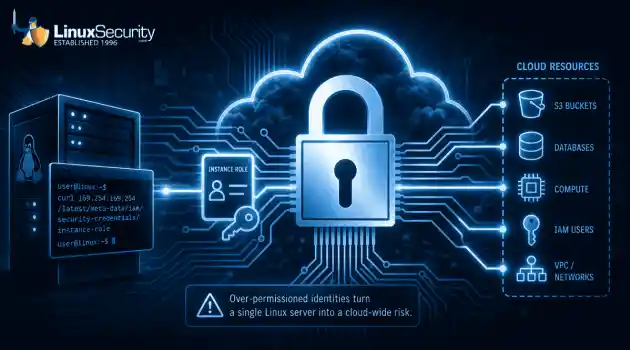 identity management security tactics
 For years, we secured our Linux infrastructure by building walls: VPCs, security groups, and hardened SSH configurations. We treated the cloud like a virtual data center, assuming that if we kept the "bad guys" out of the network, our workloads were safe. . That model is no longer sufficient. Today, one of the most common paths from an initial compromise to a major cloud breach is the identity assigned to your Linux workload. When an attacker gains code execution on a Linux instance—through a...
Jul 17, 2026
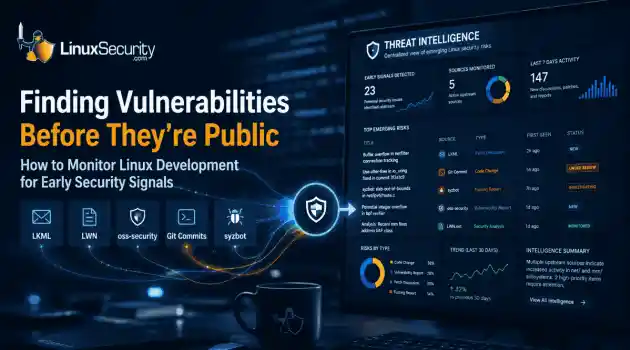 security practices patch management
 Most of us don't hear about a kernel vulnerability until a CVE lands in our inbox or the vulnerability scanner starts complaining. By then, the patch isn't new anymore. Kernel developers may have been passing it around for review, arguing over the implementation, or revising it for days before anyone outside that community noticed it. None of those discussions are secret. They're sitting in mailing list archives, Git commits, and patch reviews where they've been the whole time. The strange...
Jul 14, 2026
 Linux security cyber attacks
 Every Linux server in your fleet produces thousands of events every minute. From journald logs and auditd records to kernel-level eBPF hooks, your systems are constantly talking. Most of that noise is just the mundane churn of system services, CI/CD runners, or routine administrative automation. But among that noise, an attacker might be establishing a foothold, moving laterally, or setting up persistence. The challenge for any security team is: how do you separate the routine from the...
Jul 13, 2026
 Refine features
X Clear Filters
Get the latest News and Insights
Get the latest Linux and open source security news straight to your inbox.
Community Poll
Should Linux servers automatically install security updates?
Loading...
Explore Latest Linux Security features
We found 2 articles for you...
102
 remote accessLinux securitydata exfiltration
New Supply Chain Attack: Protect Linux Systems from Typosquatting Threats
In a sneaky new supply-chain attack , threat actors have been discovered exploiting package naming conventions to trick unsuspecting developers into installing malicious packages that appear legitimate at first glance. You are likely fastidious about checking package names. Still, in today's fast-paced environment, I could see myself overlooking a small error and putting my systems and data at risk of persistent compromise. Falling for this stealthy scam impacting npm users could enable bad actors to remotely control your servers, siphon sensitive information, and retain continuous access through injected SSH keys. . This emerging threat is a much-needed reminder of the critical importance of robust dependency auditing and network monitoring to protect against silent compromises in your environment. In this article, I'll help you better understand and prepare for this new threat, equipping you to safeguard your Linux systems from this attack and similar vulnerabilities introduced in the modern software supply chain. The Mechanics of Typosquatting Attacks Source: Socket Typosquatting attacks exploit software package managers and dependency resolution processes, such as npm or pip, to take advantage of software dependency resolution mechanisms and ease library integration for developers. However, they depend on exact naming conventions when pulling library content into projects. By publishing malicious packages with names similar to trusted libraries, such as those offered through these package managers, attackers hope to fool users into silently installing their code. Once installed, it may take advantage of system permissions to perform unauthorized actions. The Telegram bot-related packages recently discovered by Socket contained scripts designed to inject SSH keys directly into their victims' server, opening hidden backdoors that allowed for persistent access even after the malicious package had been uninstalled. Furthermore, these packages included capabilities forexfiltrating private keys or configuration data, further expanding an attack's reach into connected machines — making what initially may seem like an isolated attack into an event with far-reaching effects. Why Linux Environments are at Risk Linux systems are particularly susceptible to these attacks for several reasons. First, these servers often host essential applications, databases and services - making them high-value targets for attackers. With developer ecosystems like Node.js frequently running on Linux systems and extensively using Node Package Manager (npm) packages as part of their development workflows, there is an increased potential for exposure to typosquatting threats if left unmonitored. Linux's open nature encourages flexibility and customization, which can have unintended security ramifications. While administrators and developers take advantage of the extensive freedom to configure environments, malicious actors can exploit overlooked details, such as dependency management or package installations, that go undetected by admins and developers alike. Its portability and accessibility make Linux popular among enterprises — but those same qualities require a strong defense against potential supply chain compromises. Proactive Defenses: Auditing Dependencies and Infrastructure Preventing typosquatting attacks begins with better dependency hygiene. Security-conscious Linux admins should enforce strict practices to audit and validate packages before they are installed. While many developers rely on npm’s default settings for fetching libraries, tools like dependency checker scripts like OWASP dependency-check or supply chain security platforms like IBM's Software Composition Analysis can take it a step further by identifying packages that exhibit suspicious behavior. Socket’s detection algorithms are an example of how automated analysis can catch anomalies in package behaviors—such as hidden payloads or excessive permission requests—before they reach yourenvironment. Beyond package auditing, frequent reviews of infrastructure-specific indicators, such as SSH keys, are equally critical. Attackers who exploit typosquatting often aim to inject unauthorized keys to create persistent access. By maintaining a clean and well-documented list of SSH credentials and rotating keys periodically, Linux admins can reduce the likelihood of unauthorized use. Furthermore, network traffic monitoring , especially related to outgoing connections, can reveal signs of an ongoing compromise. Malicious npm packages often generate unusual outbound traffic, such as data exfiltration attempts or callbacks to command-and-control servers, which can serve as a warning sign for administrators. Detecting and Mitigating Silent Compromises Typsquatting attacks have one of the more dangerous features: their insidious ability to go undetected for extended periods. Developers might resolve broken dependencies or uninstall suspicious packages without realizing malicious code has already embedded itself within the system. We admins need layered defense mechanisms, including intrusion detection systems (IDSs) or file integrity monitoring (FIM), in place to detect silent compromises, such as unauthorized changes to system files or configuration settings. Administrators should also carefully assess their servers' behavior. Any indications of slowdown, unusual disk usage or unexpected access patterns might signal attackers have gained entry through typosquatting. Regular security scans, designed to detect abnormal traffic or suspicious command executions, could help uncover their covert attacks. It is critical to remember that conventional antivirus tools might miss malicious npm packages. Modern Linux frameworks, designed with supply chain risks in mind, will often detect deeper implications more promptly than antivirals alone. The Bigger Picture: Reinforcing the Software Supply Chain At its core, protecting Linux systems against typosquatting attacks is part of a moresignificant challenge: safeguarding the entire software supply chain . With open-source ecosystems experiencing exponential growth and more and more third-party packages entering production every day, administrators and organizations alike must implement proactive measures to minimize supply chain vulnerabilities such as adding automated scanning solutions into CI/CD pipelines to detect malicious artifacts before production. At the same time, security awareness training can reduce incidents that result from accidental typosquatting installations. Securing the supply chain doesn't stop with packages; it also involves vetting repositories and registries developers use. While npm regularly removes malicious packages when reported, administrators must encourage developers to carefully verify dependencies before installing them. Developers should pin specific versions of libraries to avoid unexpected updates that introduce vulnerabilities into their infrastructure. Our Final Thoughts: Staying Ahead of Tomorrow’s Threats As attackers continue to refine their techniques, Linux admins must remain vigilant and adaptable. Typosquatting attacks on npm packages targeting Linux environments are proof of how clever adversaries can exploit minor attention lapses. The consequence of such compromises often goes beyond the initial infection, with attackers leveraging access to infiltrate connected systems and extract valuable data. By combining dependency auditing, infrastructure monitoring, proactive detection strategies, and supply chain resilience, Linux admins can disrupt attackers' pathways and fortify their systems against future threats. This battle is ongoing, but with the right tools and practices, it’s one that security teams can confidently face without sacrificing the flexibility and power that Linux so uniquely provides. Every system hardened and every attack prevented adds to the collective effort to protect open-source environments—and the critical services they enable—from becoming unwittingvictims of supply chain exploits. . This emerging threat highlights the necessity of robust dependency audits and proactive defenses for Linux systems.. in a sneaky, supply-chain, attack, threat, actors, exploiting, package. . Brittany Day
 Apr 21, 2025
•
Apr 21, 2025
•
102
 network securityremote accesscybersecurity threats
Wake-on-LAN Insights for Remote Management and Cybersecurity Best Practices
Will the pre-pandemic norm of exclusively in-office work ever return? The answer is a resounding no. What was coined as the new normal in 2020 has seamlessly transitioned into the normal of 2023 and beyond. Research from Gartner® forecasts that "almost 50% of employees will continue to work remotely post COVID-19." . With the need for organizations to provide a secure and flexible work environment, it is imperative for system administrators to equip themselves with an enhanced network security toolkit to troubleshoot and secure remote endpoints. The Art of Powering Up Dormant Endpoints Wake-on-LAN (WoL) is a network protocol and feature that enables admins to wake up a computer or device in a low-power state (sleep, hibernate, powered off) using a network signal referred to as a magic packet. A magic packet is a special network feature containing specific information the target device requires to wake up. This packet is designed to be recognizable by the target device's Network Interface Card (NIC), even when the device is in a low-power state and not actively listening to regular network traffic. The magic packet contains the target device's NIC Media Access Control (MAC) address, which is a unique identifier assigned to each network device. Magic packets are sent as a broadcast or unicast message to local networks. If sent as a broadcast, it is intended for all devices on the network to hear. If sent as a unicast, it's explicitly directed to the MAC address of the target device. Suppose the magic packet is sent from a different network segment or over the Internet. In that case, routers must be configured to broadcast the packets to the appropriate subnet, forwarding them to the Virtual Local Area Network (VLAN) where the target device resides. The NIC of the target device is programmed to listen for magic packets, even when the rest of the device is in a low-power state. When the NIC receives a magic packet that matches its MAC address, it wakes up the device. Upon receivingthe magic packet, the NIC sends a signal to the computer's motherboard, which initiates the device power-up. This can involve waking up the CPU, initializing hardware components, and establishing network connectivity. Once the device is powered on and connected to the network, it becomes operational and can respond to regular network traffic, including remote access requests. The true potential of WoL often needs to be more appreciated in the eyes of IT administrators. Numerous misconceptions and uncertainties surrounding its reliability and prerequisites have obscured its capabilities and made people question how many cyber security vulnerabilities it protects. Common WoL Myths & Misconceptions Debunked Wake-on-LAN Works Over the Internet Misconception: Many believe that WoL can be used easily over the Internet, just like a local network. Reality: WoL is primarily designed for Local Area Networks (LANs). To use it over the Internet, WAN requires additional configurations like port forwarding, a static IP, or a dynamic DNS service. Any Packet Can Wake the Device Misconception: Some might think that any random network packet can trigger the Wake-on-LAN feature. Reality: WoL relies on a specific "magic packet" that contains the target computer's MAC address in a particular pattern. Regular packets won't wake the device. It Consumes a Lot of Power Misconception: Devices awaiting a WoL packet drain a significant amount of power. Reality: While there's a slight increase in power consumption in the low-power state compared to being fully off, this increase is minimal and not typically a major concern for most users. Wake-on-LAN Works Automatically Misconception: Once you have a device capable of WoL, it will just work without any configuration. Reality: For WoL to be functional, it needs to be enabled in the computer's BIOS or UEFI settings and by adjusting an endpoint's broadcast address to match its MAC address. Once Set Up, It Always Works Misconception: After the initial setup, WoL will always work without fail. Reality: Various factors like network changes, software updates, or power disruptions can interfere with WoL. Periodic testing or troubleshooting might be needed to make sure that you always stay on top of any network security threats or cyber security vulnerabilities. Understanding and debunking these misconceptions ensures a more informed and effective use of the Wake-on-LAN feature. What Are the Main Applications of WoL? To use WoL effectively, it is crucial to understand its applications: Protecting unattended endpoints from threats and attacks in network security Regular and swift endpoint security patching is essential to safeguard endpoints from ransomware , malware attacks , and other network security threats. Yet, the timing of cybersecurity vulnerability exposure is unpredictable. What if a security event occurs during the weekend or at night when endpoints lie dormant and beyond physical reach? How can these devices be patched when it matters most? This is precisely where WoL can come to the rescue. With WoL, admins can instantly awaken all network devices and deploy crucial patches without delay. This approach empowers them to respond within minutes and safeguard endpoints with minimal effort. Enhancing end-user performance Sysadmins are often burdened with time-consuming tasks, such as software and OS updates and less critical security patching. Constant interruptions stemming from these enhancements can adversely impact employee performance, so it is important to consider how these tasks can be executed without interrupting workflow. The recommended approach is to update or patch endpoints during non-working hours. IT administrators can wake up the devices, update them, and depart discreetly. Efficient time management Booting up and configuring a laptop or desktop can take up to fifteen minutes daily, summing up to about five hours per month lost from device startup. To mitigate this,automation can be put in place. Admins can schedule routine wake-up tasks for endpoints, either each morning or aligned with work shifts, just before users access their devices. This facilitates users to resume their work seamlessly and without delay. Remote server management In a data center or IT infrastructure, multiple servers often perform critical functions, such as hosting websites, applications, databases, and more. These servers may need periodic maintenance, updates, or troubleshooting. Traditionally, IT administrators would need to access each server to perform these tasks physically, a time-consuming and costly process. With WoL, administrators can remotely wake up servers in a sleep or low-power state. This eliminates the need to be physically present at the data center to power each server individually. Servers can be awakened for maintenance tasks such as software updates, hardware upgrades, and diagnostics. Since these tasks can be performed without waiting for servers to boot up, there is minimal downtime, and the services hosted on these servers experience less disruption. What Are the Potential Security Implications of WoL? Wake-on-LAN (WoL) is a powerful network security toolkit, but like many technologies, it introduces potential risks when managed inappropriately. Here are some potential network security issues about which to be concerned: Unauthorized wake-ups: One of the most straightforward risks is unauthorized users triggering WoL, leading to unintended power consumption and potential wear on systems. WoL Over the Internet: When WoL is exposed over the Internet, attackers could continuously wake a system, leading to potential Denial of Service (DoS) attacks by ensuring the system never stays in a low-power state. Exposure of MAC Addresses: The magic packet requires the target machine's MAC address. If cybercriminals get a hold of a MAC address, they could target specific machines with WoL or other attacks in network security. Interference with BusinessProcesses: In business settings, unauthorized or accidental use of WoL could interfere with maintenance processes or backup operations that are scheduled for off-hours. WOL Security Best Practices Given these potential network security issues, adhering to the following best practices is vital to ensure that WoL is both beneficial and secure. Restrict Network Access: Only allow WoL packets from trusted parts of your network. Employ network segmentation and firewall rules to ensure that only authorized devices can send magic packets. Disable WoL When Not Required: If you don't need the WoL feature, disable it. Only activate it when necessary and deactivate it afterward. Avoid Exposing WoL Over the Internet: WoL is best used within local networks. If you must use it over the Internet, ensure you're employing VPNs and robust authentication methods to mitigate risks. Regularly Monitor and Log: Keep logs of when machines are powered on, especially if using WoL. If a device is repeatedly waking without reason, it might be an indication of unauthorized WoL activity, in which case you will want to scan your system for any cyber security vulnerabilities that would have allowed for that breach. Keep Systems Updated: While not directly related to WoL, it's always a good practice to keep systems updated. If an attacker uses WoL to wake a machine, having the latest security patching can prevent further exploits in cyber security. By understanding the potential network security issues and implications of Wake-on-LAN, users, and organizations can use the best practices to harness WLAN’s benefits while minimizing risks. Advanced WoL with Remote Access Plus Remote Access Plus is an advanced IT troubleshooting tool with exclusive WoL capabilities, advanced settings, and an intuitive workflow. Here are the main reasons why Remote Access Plus stands out. It can: Initiate WoL for not just one but multiple endpoints from the dashboard with a single action. Awaken computersrunning on both Windows and Linux operating systems. Enhance the success rate of WoL by adjusting an endpoint's broadcast address to match its MAC address. Easily wake your devices with a single tap from your smartphone. Final Thoughts on the Benefits of Securely Implemented WoL In today's ever-evolving remote work landscape, Wake-on-LAN (WoL) has become an indispensable network security toolkit for IT administrators. Far from being a plug-and-play gimmick, WoL offers strategic functionality, waking up devices in low-power states through the use of specialized “magic packets.” However, it's crucial to understand that WoL comes with its own set of limitations and cyber security vulnerabilities you must consider. Leveraging advanced platforms like Remote Access Plus can help organizations unlock the full potential of WoL, from safeguarding endpoints to efficient server management. As remote work continues to define our professional lives, the secure and efficient implementation of tools like WoL isn't just an advantage but a necessity. Explore the benefits of WoL, along with many other advanced troubleshooting tools, for free! . Boosting administrative efficiency and mitigating risks through the protection of distant endpoints utilizing Wake-on-LAN methods.. Wake-on-LAN Benefits, Remote Endpoint Management, Cybersecurity Techniques, Network Functionality. . Brittany Day
Aug 28, 2023
•

102
 network securityremote accessinternet access
Private Internet Access VPN for Linux: Secure Your Privacy and Browsing
As network security threats to digital privacy, safety, and anonymity become a growing concern, organizations and individuals alike are increasingly turning to Virtual Private Networks (VPNs) to bolster security without sacrificing convenience. One of the most economical cybersecurity technologies available today, VPNs are simple to set up and use, and nearly all businesses have a corporate VPN as part of their IT infrastructure. . Implementing a VPN can be an excellent way to protect your privacy, overcome government restrictions, and improve security posture on insecure networks. However, not all VPNs are equally efficient and effective. As security and privacy enthusiasts, we at LinuxSecurity love the Private Internet Access (PIA) VPN. PIA meets all the criteria for being the best available VPN for Linux, as it is fast, flexible, transparent, and secure. This article will explore the importance of using a VPN on Linux to protect your digital privacy, anonymity, and data and network security. It will also explain why PIA is arguably the best VPN available for Linux users. What Is A VPN & How Does It Work? A VPN is a private network that connects remote sites or users through a public network (usually the Internet). It uses "virtual" connections routed through the Internet from the private network or a third-party VPN service to the remote site or person. VPNs help strengthen data and network security and mask online behavior from snooping third parties by creating an encrypted connection (often called a "tunnel") between your device and a remote server operated by the VPN service. This ensures that anyone who intercepts the encrypted data can't read it. What Are VPNs Used For & What Are the Benefits of Using a VPN on Linux? VPNs can be used for different purposes and offer numerous benefits . Here are the reasons why using a VPN on Linux can be beneficial to users: Privacy & Tracking Prevention When browsing the web, you are leaving behind more trails than you realize .Strangers, your apps and services, your ISP, and your government can all access your internet data, which can be collected and sold to advertisers (even if you’re using the “private” browsing function), causing compromise in data or cloud security breaches. Using a VPN will disguise your IP , encrypt your connection to make it anonymous, and add an extra layer of protection for your device by blocking harmful ads, scripts, malware, and trackers before they even have a chance to load. Security & Access Control Public Wi-Fi is convenient but comes at the expense of data network security and anonymity. When using a VPN, you have a new IP address every time you go online, which can be enough to deter DDoS attacks in network security and other network security threats. A VPN also allows remote workers to securely log into the shared company network while providing data protection for projects and files. In addition, VPNs also offer private internet access control options that can be used to make confidential information only accessible to certain employees and groups. Users will need to log in and verify that they have authorization before access is granted. Unblocking Websites & Bypassing Restrictions VPNs can be very helpful in unblocking websites, especially in more restrictive countries. For instance, those living in Europe can't just go to the Hulu webpage and pay for a subscription. The website is off-limits if you're not from the US or Canada. Using a VPN helps users and organizations overcome such restrictions. Torrenting As a Linux user, you rely heavily on P2P networks to exchange OS ISO files. However, these networks tend to be insecure, and you don’t always know what you're downloading. A VPN has privacy-enhancing technology to protect you when downloading and to assist you in avoiding copyright infringement notices. Avoiding Bandwidth Throttling & Improving Internet Speed Some ISPs impose restrictions on a particular type of traffic. If web pages load almost instantlybut downloading files takes forever, chances are the culprit is your ISP. A VPN disguises your traffic type, improving Internet speed by making it impossible for ISPs to restrict based on traffic type. How Open-Source VPN Clients Provide the Highest Level of Security & Transparency The benefit of choosing an open-source VPN is that the code is publicly available, and, as with any type of software , it can be inspected and reviewed by other developers and experts worldwide. Therefore, any data and network security flaws or cybersecurity vulnerabilities are revealed and fixed quickly. Unlike with closed-source VPNs, developers cannot hide potentially risky network security issues. Closed-source software and tools don’t offer the same level of transparency, forcing users to blindly trust that there are no hidden security loopholes that have gone unnoticed. How Private Internet Access (PIA) Meets All Criteria for the Best VPN Available for Linux Private Internet Access (PIA) is the most transparent VPN on the market. With more than 30 million downloads, over ten years of experience, and 100% open-source software, PIA meets all the criteria for the best Linux VPN available, and here is why. Our Favorite Features Here’s what we love most about PIA as security and privacy enthusiasts: Great for the Linux desktop Extremely simple to setup and configure Virtually no difference in performance between VPN enabled and disabled, regardless of the VPN protocol used Open-source design provides additional security assurances “Allow LAN Traffic” option makes it super easy to connect to other local network shares, printers, and other local resources while also encrypting remote traffic Very easy to switch from one VPN server to another without interrupting the streaming DNS leak protection encrypts DNS requests with DNS over HTTPS or DNS over TLS, which prevents the requests from being seen by on-path eavesdroppers, so no one can surmise where you might be going on the Internet Torrenting supported Privacy Protection Online privacy is no longer a given on the Internet and has become a growing concern for users and businesses alike. PIA prioritizes online freedom and digital privacy-enhancing technology. Their VPN reroutes the user’s Internet traffic through an encrypted tunnel, giving the user a new IP address and hiding browsing data from Internet Service Providers, network administrators, and government censors. By using PIA VPN , individuals and organizations can better protect the privacy of their personal identity, geographic location, and Internet traffic. No Usage Logs (Independently Verified No Logs Policy) VPNs offer an encrypted channel for your data, but that doesn’t mean the VPN itself can’t log your personal information. Many leading VPNs like PIA have a no-logging policy, meaning they can’t keep your personal information on record and may even have independent audit certifications for no-logging. PIA never records or stores any usage data, which has been proven multiple times in court. The company also invited an independent audit by Deloitte to verify that their server network and management systems are in full compliance with their No Logs Policy. PIA’s virus and malware protection removes malware without user tracking or logging, making PIA the only antivirus that gives you full control over your data network security and digital privacy. It’s one of the many reasons they're the most transparent VPN on the market, which we value greatly. Smooth Streaming To keep your work, education, and entertainment running smoothly, streaming performance is a critical factor that must be taken into account when evaluating a VPN. Most streaming platforms have some sort of VPN block in place, though that VPN never unblocks everything in the way it promises. PIA apps work with all major streaming services, so you can access more content than ever before from anywhere in the world. In addition, PIA is one of the few VPNs that support P2P file sharingon all servers. When using PIA, you can enjoy an impressive speed. PIA has a global network of VPN servers that’s been optimized for 10 Gbps connection speeds and uses some of the world’s fastest VPN protocols, meaning no more buffering, stuttering, lagging, or freezing. Regardless of how much content you stream, download, or upload, every PIA user receives unlimited bandwidth to ensure that their data and speeds are never limited. PIA’s VPN comes with OpenVPN and WireGuard VPN , the fastest open-source VPN protocols available that are respected for their security and transparency. State-of-the-Art Tech Standard web encryption is great at protecting your passwords, payment details, and other personal information on most websites and apps you visit. However, it falls short of protecting this sensitive information from many third parties (like ISPs) who often collect, store, and sell data regarding your Internet usage. To fully protect this confidential information, you’ll need a trustworthy VPN like PIA. PIA only uses the best available encryption standards (128-bit and 256-bit AES) and VPN protocols (OpenVPN and WireGuard). Their entire infrastructure is top-notch, so you can be confident you’re always getting the best VPN performance. Fully Open Source Choosing an open-source VPN like PIA offers a notable advantage when it comes to data and network security and transparency. Being completely transparent is one of PIA’s guiding principles, so all PIA apps are 100% open-source. As a result, users can always take a look under the hood and see how everything works. Convenient & Completely Customizable Certain apps or websites aren’t VPN-friendly, but luckily PIA’s advanced split-tunneling settings allow you to choose which apps or IP addresses bypass the VPN tunnel, making your VPN experience automated and smooth. Giving users control is a core value of PIA’s, so they’ve made their VPN highly customizable. PIA apps give you complete control over your connection, network, andconfiguration settings as well as provide you with split tunneling. To start protecting your digital life, all you have to do is choose a plan , download Private Internet Access, and tap the “Connect” button. Then you're good to go! Token-Based Dedicated IPs & IP Addresses Available in All 50 States With Private Internet Access, you can get a unique, personal IP address without sacrificing privacy or security. Dedicated IPs can be used to work remotely, see fewer CAPTCHAs, and protect your IoT devices. PIA now has servers in all 50 states in the US . Need to look like you are surfing the web from Oklahoma? They have an IP for that. Do you need to visit a website that can only be accessed within Alaska’s borders? They have an IP address for that, too! With IP addresses available in all 50 states, you can: Avoid sporting event blackouts if your state’s local network opts out of the rights to televise the game. Access local websites that are blocked outside of state borders, including local news stations and online banking details. Watch television premieres before they show up in your time zone (and avoid spoilers!). Our Thoughts on PIA VPN for Linux As digital risks continue to grow and remote work becomes increasingly common, using a VPN has never been more crucial in protecting your security, privacy, and anonymity online. While a VPN is not a silver bullet when it comes to such safety measures, many organizations and users have opted to utilize one to mitigate as many cybersecurity vulnerabilities as possible. Here at LinuxSecurity, we strongly encourage you to make an investment in the online security of your organization, its clients, and yourself. If you are in search of a user-friendly, flexible, efficient, and effective VPN to use for Linux, we recommend that you look into PIA, as it is a VPN that has thoroughly impressed us with its ability to meet all criteria for the best Linux VPN. . Utilizing a Virtual Private Network (VPN) is essential for safeguarding yourprivacy, enhancing security, and promoting safe browsing on Linux systems.. Linux VPN,Pawn Network Security,Digital Privacy Control,Anonymity Protection,Secure Internet Browsing. . Brittany Day
Mar 06, 2023
•
102
network securitydata protectionremote accessBusiness VPN Overview: Essential For Safeguarding Data And Privacy
Cybersecurity threats are on the rise. With the rapid shift of the business environment to digital work, and the growing trends of work-from-home and global workforces, hackers and cybercriminals can have a field day. . However, there’s a lot of things businesses of any size can do to ensure affordable, intuitive protection against such intrusions- and an integrated business VPN solution should be the launch point for all your other security measures. Today we take a deep dive into what VPNs are, how they boost your online security against ransomware and other issues, and how to make the most of them as a business solution. What is a VPN? VPN is simply the acronym for Virtual Private Network. Today, it’s not enough to simply ensure your business PCs, laptops, and other devices are up-to-date on antivirus software (although they should be). We host a ton of sensitive data on our devices, and we interact primarily through digital interfaces. We chat online, send emails between coworkers, and work from all sorts of locations. The more data being openly transferred across the net, the more risk that the ‘bad guys’ can intercept and access it. The easiest way to envisage a VPN is as a ‘secure tunnel’ between your staff’s device and the websites, cloud services, and other online resources they need to carry out their daily tasks. The VPN creates the online illusion that your device is in the same space and local connection as the VPN. In other words, you appear to be browsing from the server’s geographical location, not wherever the end device is. Sophisticated modern VPNs also encrypt the data being transferred through them. This means hackers ‘see’ a stream of nonsense they can’t decode, instead of the actual contents of your data. VPNs help ensure better online privacy, decrease monitoring from data collectors, ads, and government agencies, and help keep you safe and secure no matter where you are or the quality of your underlying connection. Even public wifi becomes a safer space with a VPN in use, meaning your staff are free to work where they will, when they can, without worrying about the integrity of your company’s data. Why Businesses Need a VPN In the modern digital space, privacy and security are a must- and a VPN brings you that. Company financial details or card details, private conversations, client and third-party supplier data, sensitive documents, and login credentials are masked from the prying eyes of cybercriminals, leaving you as safe as if everyone was in the same building. Or even more so! VPNs can also be incredibly useful when you have staff working across geographic boundaries. Because everyone appears to be working in the ‘same’ location, it’s a lot easier for geo-restricted websites you may be using as part of your work day. Choosing a Smart, Business-Focused VPN There’s a variety of security products on the market today, for everything from enterprise-sized businesses down to startups and small businesses. Obviously, you want to aim for a product that’s sized for the developmental stage of your company, preferably with cost-effectiveness and scalability built in so it can adapt with you. It should go without saying that free VPNs are a no-no for the business market. Many of them collect data themselves, selling it on to data brokers and even cybercriminals themselves. Even legitimate free services support themselves through ads, the last thing you want to have splattered all over your corporate face. It’s better to opt for a high quality, reliable product that delivers all the security features you need. Many cybersecurity solution providers allow you to build, manage and defend your corporate networks, no matter where your staff are working from. In addition to their VPN, they offer an integrated one-stop unified security platform that’s easy to use and deploy. This may well be a better solution than ‘just’ a VPN that requires you to run (and pay for) other security solutions separately. Otherkey considerations when choosing a business VPN include: Location: This is most critical if you’re using region-blocked websites regularly, or need to ensure all team members present from the same geographical location Capacity: Some VPNs have data use restrictions. In the corporate environment, you need to know you won’t be blocked halfway through the month due to your traffic Devices: It’s unusual to just be using PCs in the modern business environment. You need to know all devices used by your staff can be integrated into the VPN network you choose. Trust: IP leaks, where your IP address can be determined despite using a VPN, are not uncommon in inferior products. When considering different VPN providers, it's important to weigh the benefits and drawbacks of different IP types to ensure maximum protection against potential IP leaks. Working with a trustworthy product you can rely on is essential. Problems Solved by VPNs Common internet searches around VPNs center on the ability to bypass geo-location and censorship, and identity concealment. It can be tough to see how this translates to the business environment- but those same factors greatly improve your own cybersecurity efforts, simply through a different lens. While outright censorship is unlikely to be a business issue, not being able to access resources because of geographic location very much is. Likewise, while you may not think of it as needing your staff to ‘conceal their identity’, you don’t want your most sensitive company documents vulnerable to anyone’s intrusion, nor do you want ad trackers and data farmers intruding into the business environment. This links to the other business-critical reason to use a VPN- wifi security. For staff working in the office, you (hopefully) have a fully secure wifi network. However, with a mobile workforce, that isn’t a given anymore. Public wifi is convenient and allows staff members to work whenever, wherever is needed. But there’s noguaranteeing what, if any, security is in place on the connection. We’re commonly warned to be careful of using sensitive websites like online banking portals on such networks, but it’s just as important that staff don’t allow intrusive access into your private files on the same. Many will not even consider this. Lastly, but no less importantly, data tracking has become a default of the online and social media landscape. From Amazon to Google, an immense amount of valuable data is being stored around what you do online, your preferences and choices, and a lot more. While we’ve seen recent inroads to help curb this from Apple as well as the EU, most sites and devices allow little control over this data collection and targeting of content. It’s even sold to us as a ‘better’ browsing experience, because you can see ‘targeted content’ that ‘only interests you’. In reality, you and your staff are just a valuable source of marketing data. Even where you are comfortable with this tracking, seeing localized data and personalized results is not always useful in a business role. You may want your staff to be able to access standardized pricing, or see results relevant to your business, not their location. A secure cybersecurity solution starts with a strong business VPN- and grows from there. In the digital work landscape, having sufficient cybersecurity measures in place to keep your company data and infrastructure safe is essential, and good business practice. Keep Learning About Business VPNs An efficient VPN connection is protected from outside threats and conceals your IP address by directing the network traffic through a specifically set-up distant server that is operated by a VPN host. It’s important that you consider the pros and cons of using a VPN on Linux, and understand what it can and cannot do for you before using one. It entirely safeguards your private and personal information and keeps it from falling into the hands of third parties who may use it against you. When choosing a reliable VPN, privacy and security should be prioritized. Looking for additional resources? Have a look at: What You Need to Know when Considering a VPN on Linux , Benefits & Drawbacks of Using a VPN on Linux , and The Dangers of Using a VPN for Remote Work: Zero Trust to Replace It . . In today's digital landscape, organizations increasingly rely on VPNs to bolster their cybersecurity strategies, safeguarding sensitive data from cyber threats. Business VPN, Cybersecurity Trends, Remote Workforce Security, Data Privacy Solutions. Dan Elbaz. Brittany Day
Sep 22, 2022
•
102
 remote accessssl vpnopenvpn
OpenVPN Insights from Founder James Yonan on SSL-Based VPNs
OpenVPN is a newer-generation VPN in that it is based on SSL as the underlying security mechanism. IPSEC is the current and most popular standard for VPN technology.. SSL is already a standard for secure communication over the Internet for financial transactions, checking email, and ensuring sensitive information is not leaked to "people in the middle." Many articles I've read speak of SSL VPNs as requiring a browser. I'm not sure why that gets under my skin. It just isn't true. I only use a browser over OpenVPN to access an intranet web server on the remote side. Once an OpenVPN tunnel is established, you can use any application to access services remotely, provided the right access controls are in place. A browser is unnecessary to create an OpenVPN tunnel; it can be done from the command line. Another nicety is that it runs on Windows 20000/XP, Linux, Solaris, FreeBSD, OpenBSD, NetBSD, and MacOS X. Oh yes, and it is under the GNU license. OpenVPN uses the protocols that are available with SSL and TLS 1.0 for authentication, encryption, and integrity checking. I have personally tested and used OpenVPN on Windows and Linux systems. I've never had problems using any applications over OpenVPN. The only issue I've run into is a common or well-known issue with VPN, and that is the problem with packet fragmentation, which is easily remedied by a simple OpenVPN configuration option. Don't let the SSL scare you because of creating public and private keys. OpenVPN comes with scripts to automate the process (If you ask nicely, I'll send you my scripts to automate the process further.) You'll also want to ensure the client's key expires within a reasonable time and requires a password. Also, OpenVPN supports static keys, which is good for LAN-to-LAN connections. Letting remote users have a static key out in the wild can be a bit scary, so a public/private key exchange is best for remote users. Static keys should be changed very often (Note: OpenVPN static keys created on Windows can be used on Linuxand vice versa. Remember the dos newline issue if you create and send keys between Unix and Windows systems.) Interview with James Yonan, Creator of OpenVPN LinuxSecurity.com : What browser is required to run OpenVPN tunnels? James Yonan: Talking about SSL VPNs doesn't necessarily mean that you are talking about a VPN which uses a web browser as the client. In a sense, browser-based VPNs are not VPNs at all -- they are really just web applications that provide enough services so that a true VPN is not actually required. OpenVPN uses the underlying cryptographic mechanism of SSL/TLS to secure a VPN connection, but the web analogy stops there. OpenVPN can best be understood as a portable, user-space VPN implementation which uses SSL/TLS as its underlying cryptographic engine. OpenVPN is able to use the same public key infrastructure as Apache, but is otherwise not related to the secure web. LinuxSecurity.com : What do you do in your spare time? James Yonan: Open Source development, jazz dancing, and flying (without an engine). LinuxSecurity.com : How did the idea to create OpenVPN come about? James Yonan: Around the turn of the century, I finished up a large project for my company. As a kind of thank you, they decided to unchain me from my workstation, on the condition that I maintain an always-reachable telepresence. With this newfound freedom, I traveled all over the world, checking into the office from places like Hurghada Egypt, and Bishkek Kyrgyzstan. As one might imagine, I become very interested in the tools of telecommuting. I wanted a solution that was not only world-class from a security perspective, but that would also give me the ability to install and manage the remote end of the VPN, without needing to bother people back at the office. Traveling in Central Asia (pre 9/11), I was especially concerned about active attacks and connection hijacking, since myinternet path crossed through Russia and other regions having an absurd number of very talented hackers who were also unemployed. My initial foray into Linux VPNs showed that the various VPN camps had split into groups, based on the kind of tradeoffs they were willing to make. The "security-first" group consisted of the IPSec and FreeSwan people whose goal was to first get the security right, sometimes at the expense of robustness and usability. Then there were the non-IPSec camps (VTun, Cipe, etc) founded by people who probably needed a VPN right away and decided it would be easier to roll their own than figure out how to install IPSec. The non-IPSec camps were very focussed on the networking theory behind VPNs, and I think a major innovation that came out of this work was the concept of the "tun" or "tap" virtual network adapter as a means of moving the complexity of the VPN into userspace, logically separating the networking and crypto components, making the code portable, and giving an intuitive interface to the end-user (tun or tap drivers export a first-class network interface to the OS which can be routed from/to, firewalled, NATed, just like any other interface). After some study of the open source VPN field, my conclusion was that the "usability-first" camp had the right ideas about networking and internetwork tunneling, and the SSH, SSL/TLS, and IPSec camps had the appropriate level of seriousness toward the deep crypto issues. This was the basic conceptual starting point for my work on OpenVPN. LinuxSecurity.com : How did you choose the name OpenVPN? James Yonan: OpenVPN is tightly coupled with the OpenSSL library, and given OpenVPN's tendency to inherit stuff from its dependencies, sharing 4 out of 7 name characters seems appropriate. The other thing I like about "OpenVPN", is that the name makes it immediately clear what the whole production is about. LinuxSecurity.com : Why use SSL? James Yonan: Establishing a cryptographic handshake over an insecure network, in a way that is resistant to connection hijacking, is one of the most challenging problems in cryptography. The fact that we have 3 versions of SSL + TLS 1.0 should clue you in to the fact that cryptographers seem to take delight in attempting to outsmart themselves by devising ever-better protocols and then smashing them in their spare time. Ever heard of of SSL 1? It was apparently cracked in real-time as it was being presented at a cryptographic conference. Who knows how many other cryptographic schemes would be similarly broken, were they exposed to any real scrutiny? TLS fits the bill rather nicely. It is a high-quality piece of cryptographic work, designed, attacked, and ultimately endorsed by some of the brightest cryptographers today. It is also easily accessible in userspace library implementations, such as OpenSSL. LinuxSecurity.com : Many VPN appliances and software applications are billed as "IPSEC-compliant," yet many aren't compliant. Can SSL-VPNs be made compliant, e.g., for example, with Amrita VPN? James Yonan: Ever since Peter Gutmann published his critique on open source VPNs, there has been growing interest in putting together an RFC to describe a TLS-based, user-space VPN standard. I expect that this process will take time, more so because of usability and management issues than security issues. User-space VPNs have already reached the point where they are stable, secure, and well-documented. What is still needed is to make them easier to configure both at the low end (new users, small business, home offices) and higher end (larger organizations with potentially hundreds or thousands of VPN users). While we know today the kinds of cryptography technology a VPN needs to be secure, we don't really know yet what the optimal VPN experience should look like, from a usability perspective. How do we minimize the amount of manualconfiguration required? How do we streamline the key management process? I would argue that it would be premature to codify the user-space VPN model into a standard until we have a better handle on the usability and management issues. LinuxSecurity.com : What kind of security problems do "compliant" VPNs introduce? James Yonan: One of my major gripes with IPSec is that it adds a lot of complexity to the kernel. Complexity is really the enemy of security. The problem with putting complex security software in the kernel is that you ignore an important security principle: never design secure systems so that the failure of one component results in a catastrophic security breach. A single buffer overflow exploit in kernel space results in total system compromise -- why not move the complexity into user space where the code might run in an empty chroot jail as user "nobody"? At least with this approach, a code insertion exploit can be more readily contained. LinuxSecurity.com : How do we spread the word on SSL-VPNs? James Yonan: The best thing you can do is try one, and report your experiences (good or bad) back to the community. LinuxSecurity.com : James, thank you for your time. We appreciate the interview! . SSL is already a standard for secure communication over the Internet for financial transactions, che. openvpn, newer-generation, based, underlying, security, mechanism. . Brittany Day
Nov 10, 2003
•
102
 network securityremote accessdata encryption
Establishing SSH Tunnels with MindTerm for Secure Remote Access
Introduction Businesses, schools, and home users need more secure network services now more than ever. As online business increases, more people continue to access critical company information over insecure networks. Companies are using the Internet as a primary means to communicate with travelling employees in their country and abroad, sending documents to various field offices around the world, and sending unencrypted email; this communication can contain a wealth of information that any malicious person can potentially intercept and sell or give to a rival company. Good security policies for both users and network administrators can help to minimize the problems associated with a malicious person intercepting or stealing critical information within their organization. This paper will discuss using Secure Shell (SSH) and MindTerm to secure organizational communication across the Internet. . Home users and business travelers are accessing company resources and sending sensitive data over insecure networks. This opens up a whole new area of security issues for System Administrators (Securing the home office sensible and securely) , especially since the number of corporate users from home with high-speed access is expected to "more than double from 24 million in 2000 to 55 million by 2005" (Broadband Access to Increase in Workplace) . The increase in the number of airports and hotels offering internet access, especially high-speed access, is increasing and is expected to grow in the future (Broadband Moving On Up) . This can also leave a door wide open for a malicious person to hijack or view a person''s Internet traffic and access their companies. The malicious person may not be interested in the work the employee is doing but just want access to a high-speed server to launch attacks, store files, or other uses. Business people are really at high risk because they don''t know who''s monitoring their Internet connection in the hotel, airport, or anywhere in their travels. Usersof the new high-speed connections are usually not taught proper security protocols and some companies don''t have the staff to help the home user and business traveler set up secure communication. Individual users and, surprisingly, some companies have a mentality that "I don''t have anything people want". This is very disturbing considering the amount of sensitive information that travels across the Internet from an employee''s home or from travelers. What''s more disturbing is the availability of free software to perform these kinds of attacks and the software''s ease of use. Dsniff ( https://www.monkey.org/~dugsong/dsniff/ ) is a freely available program that has utilities that can allow anyone with a networked computer to highjack a local network and monitor what others are doing and grab passwords and other sensitive data. In his book Secrets and Lies: Digital Security in a Networked World, Bruce Schneier states that Technique Propagation is one of the main threats to network security: "The Internet is...a perfect medium for propagating successful attack tools. Only the first attacker has to be skilled; everyone else can use his software" (Schneier) . The purpose of this paper is not how to secure computers but how to set up virtual tunnels to perform secure communication, whether sending documents or sending email. Business travelers should read Jim Purcell, Frank Reid, and Aaron Weissenfluh''s articles on travel security https://www.sans.org/white-papers Home users with high-speed access should read Ted Tang''s article at (https://www.sans.org/white-papers) for information on how to secure your computers with high-speed access. I''d recommend the many resources available on www.sans.org,, / for tutorials on how to secure your computers and servers. The way to ensure that sensitive data is transmitted securely and quickly is to use encrypted methods of data delivery. This can be by way of encrypted email, using secure web-based email services, or establishing encrypted tunnels between twocomputers. Also, easy to setup and reliable software need to be used in order to allow the inexperienced users the ability to quickly establish secure communication channels. Taten Ylonen ''s Secure Shell (www.ssh.com) and MindBright Technology''s () MindTerm are a quick, easy to use, and reliable solution for securing communication over the Internet. SSH and MindTerm SSH (Secure Shell) is a secure replacement for remote login and file transfer programs like telnet, rsh, and ftp, which transmit data in clear, human-readable text. SSH uses a public-key authentication method to establish an encrypted and secure connection from the user''s machine to the remote machine. When the secure connection is established then the username, password, and all other information is sent over this secure connection. You can read more details of how ssh works, the algorithms it uses, and the protocols implemented for it to maintain a high level of security and trust at the ssh website: www.ssh.com. The OpenBSD team has created a free alternative called OpenSSH available at: https://www.openssh.org/ It maintains the high security standards of the OpenBSD team and the IETF specifications for Secure Shell (see the Secure Shell IETF drafts: Upload ), except it uses free public domain algorithms. SSH is becoming a standard for remote login administration. It has become so popular that there are many ports of ssh to various platforms and there are free clients available to login to an ssh server from many platforms as well. See linuxmafia for a list of clients and has an excellent two-part article on ssh and links to ports for different platforms available at. There are programs that also use an ssh utility called Secure Copy (scp) in the background that provide the same functionality of a full ftp client, like WinSCP ( ) and the Java SSH/SCP Client (/ssh/), which has a modified scp interface for MindTerm. Please read the licenses carefully to determine if you are legally allowed to download sshin your country. SSH is free for academic institutions please. Please read the licenses available at the ssh.com website. MindTerm is an ssh client written entirely in Java by MindBright Technology. One of the key practices of developing security software is proper implementation of the underlying algorithms and protocols it uses. MindBright Technology has implemented the ssh protocol very well in this small application file. It is a self-contained archive that only needs to be unzipped into a directory of your choice and it is ready to be used. It can be used as a standalone program or as a web page applet or both. It is available at:. MindTerm is an excellent and inexpensive client to secure communication to and from a local and remote location. The MindTerm program located at the download address above is available free for non-commercial and academic use, commercial use is available on a case to case basis. However, the modifications made by the ISNetwork (https://isnetworks.net/) team "is based on the MindTerm 1.21 codebase, which MindBright released under the GPL [General Public License -- see ]. Since our version is released under the GPL you can use it commercially for free" (Eckels) . ISNetwork''s implementation has all the features of MindBright''s MindTerm except it has a nicer scp interface for more user-friendly file transfers. MindTerm does have some drawbacks in that it doesn''t support UDP tunneling. In order to secure UDP traffic, a program called Zebedee ( ) will work nicely. Zebedee''s server and client program is available for Windows and Linux platforms. It is freely distributed under the GPL License too. You can connect to either Windows or Linux machines using Zebedee. MindTerm will not check to see if your system is secure. It is up to the administrators and users to take care of securing the computer systems. It is easy to implement and it is very effective at maintaining the high level of security implemented in the ssh protocol. This paper will show how easy it is to setup and establish secure communication channels for almost any user and by almost any user. Documents, email, and other data communication can be easily and securely sent to users a few feet away or around the world. How SSH and MindTerm work together SSH and MindTerm will work together to use a technique called port forwarding. Port forwarding is forwarding traffic from one host and a given port to another host and port. In other words, the MindTerm application will open a port on the client''s machine (local machine) and any connection to that local port is forwarded to the remote host and its listening port over an encrypted ssh session. Whether or not the connection is accepted depends on the type of request you are sending to the remote host. For example, you wouldn''t forward POP requests to a remote host listening on port 21 because port 21 is reserved for ftp requests. Port forwarding is also used to allow connections to a server that is behind a firewall and/or has a private IP address. Essentially this is creating a Virtual Private Network (VPN). A VPN is "a private data network that makes use of the public telecommunication infrastructure, maintaining privacy through the use of a tunneling protocol and security procedures" ( https://www.techtarget.com/whatis/ ). The port-forwarding can only be done with TCP services. Software installation In order to follow along with this tutorial you will have to install a few packages. This tutorial assumes you have ssh already installed on your server or workstation. If not then you can read the documentation that comes with the ssh or the OpenSSH package for installation instructions for your platform. For the examples that follow, OpenSSH was installed on a Red Hat 7.0 server and workstation. OpenSSH was installed on Red Hat 6.0- 7.0 and worked the same. The client machine used in the following tutorial is a Windows 2000 machine. Windows 95/98, NT 4.0, NT 5.0, Red Hat 6.0-7.0 workstation were alltested as client machines and worked the same. On a side note, the exact same MindTerm jar archive was used on all client systems tested. SSH or OpenSSH MindTerm FTP Client - Any ftp client should work for this tutorial. Ws-FTP and Leech-ftp are the two most popular for Windows. Netscape Communicator - or any other mail client should work Optional: NTOP Optional: vlock Install NTOP to see how other TCP services can be encrypted as well. I downloaded the latest rpm from RPM resource ntop Vlock is optional because users may do work from the console after they are authenticated. However, if a user will only be using the tunnels then the command: vlock -c can be typed at the console or it can be added to the users startup script so when the user logs in, it will automatically lock their console. Server configuration First, make sure that your server is secure. Though traffic is encrypted as it travels over the Internet, it can be sniffed if someone has root access on the local machine and uses a program like ngrep ( ) to sniff traffic on a local machine. For example, in conjunction with the dsniff program mentioned above, the following command could sniff all traffic on the local interface network: ngrep -d lo. Securing the server is, however, beyond the scope of this paper. We''ll use the POP (port 110), IMAP (port 143), SMTP (port 25), VNC (Virtual Network Computing) (5901+), and NTOP (default port 3000) services for this example. All traffic will be forwarded to each service''s respective port on the remote host running the ssh server. All services listening on the remote host listen on all interfaces, unless the service binds to a specific port by default or if manually configured. In order to show how effective this technique of tunneling over ssh is, we will only allow particular services to listen on the local interface. You don''t have to change your current securityconfigurations, however. We will use tcp_wrappers, that is installed by default with Red Hat 7.0 (and previous versions), to connect to the network services. In the /etc/hosts.deny file add the following line: ALL: ALL And in your /etc/hosts.allow file add the following lines: sshd: ALL in.ftpd: 127.0.0.1 ipop3d: 127.0.0.1 imapd: 127.0.0.1 This sets sshd (the ssh server) to allow connections from anywhere any IP address. The other services only allow connections from the local interface. You can verify this by configuring a mail client to connect to your remote pop or imap server and/or an ftp client to connect to your ftp server, right now. It won''t allow you to connect. You''ll also need to set up any user accounts to allow access to these services. (Note: The setup above is only useful if the services are only for internal use and remote users need to access the internal services to send and receive email or transfer files. The services can be available for public use and be encrypted with ssh and MindTerm.) Client configuration The only client configuration that is needed is to be sure that a Java Runtime Environment (JRE) is installed for your platform. Windows and MacOS 8 and later have a JRE already installed. It is recommended to install Sun''s JRE on Windows. IBM has a list of ports of JRE''s to various plaforms: https://www.ibm.com/us-en as well as Sun: Oracle Java Technologies | Oracle . (You don''t need the entire Java package with the debuggers and compilers you just need the Java Virtual Machine to run java applications.) Also, for the tutorial that follows, unzip the MindTerm archive, MindBright''s or ISNetwork''s implementation, archive into " c:mindterm " for windows. Creating the Tunnels MindTerm can be started a few ways. If you have the JRE installed then you can double-click on the mindtermfull.jar application file. Another way is to open up ados-shell and type the command: jview -cp c:mindtermmindtermfull.jar mindbright.application.MindTerm or javaw -cp c:mindtermmindtermfull.jar mindbright.application.MindTerm or java -cp c:mindtermmindtermfull.jar mindbright.application.MindTerm (jview is used if you are using Windows and you don''t download the JRE. Javaw comes with the Windows JRE download and is used because a dos-shell box won''t be needed in order to run MindTerm so there is one less window open) UPDATE: MindTerm 2.0 release candidate 1 is out. The argument to start it has changed slightly. Instead of the command above: java -cp c:mindtermmindtermfull.jar mindbright.application.MindTerm this will start MindTerm from the commandline: java -cp c:mindtermmindtermfull.jar com.mindbright.application.MindTerm Only the " com. " was added to the applet parameter. Also, under the section "MindTerm over the Web" can you add this code directly under the first code example: UPDATE: MindTerm 2.0 release candidate 1 is out. The argument to start the web applet has changed slightly. Instead of the applet parameter above, and the code example below, change the line: applet archive="mindtermfull.jar" code=mindbright.application.MindTerm width=700 height=400 > to: applet archive="mindtermfull.jar" code=com.mindbright.application.MindTerm width=700 height=400 > Only the " com. " needs to be added to the applet parameter " code= ". So the code below will be changed to: This will start the MindTerm program and you can then type the server name when prompted and it will prompt you to " Save as Alias ". You can type a short server name so when you start the applet again you can simply type the " Alias " you created. You will then be prompted for your login name. After you type it, hit enter and a dialog box will appear informing you that the host doesn''t exist and prompt you to create it. Click " Yes ". Another dialog will appear prompting you if you want to add thathost to your " known_host " file. Click " Yes ". Then you are prompted for your password. Type your password and hit enter. If you supplied the proper username and password then you should be at a command line on the server you specified. Creating the Tunnels We''ll create a tunnel to the POP and SMTP server, first. After you have successfully logged in (and optionally enabled vlock) click on "Tunnels" on the menu and then click "Basic". A dialog box will appear. Add the following settings to each box, respectively: Local port: 2010 Remote Hosts: Your remote host (this should be the server running the sshd server). Remote port: 110 Now click "Add". A dialog box should appear stating " The tunnel is now open and operational ". (Note: If you select a port that is already open an error message will appear stating "Could not open tunnel. Error creating tunnel. Error setting up local forward on port XXXX, Address in use.) Click " OK " and the tunnel configuration should appear in the box now. Click " Close Dialog ". Open up your email client''s options or preferences menu. We''ll use Netscape Messenger for this example. Open up Netscape Click on the " Edit " menu ---> " Preferences ". On the left column click on " Mail & Newsgroups ", if the contents aren''t already displayed. Click on " Identity " and type your information in each box. Click on " Mail Servers " in the left column. The default install of Netscape has " mail " in the box underneath " Incoming mail servers ". Click on " mail " Click " Edit " to the right of that box and a dialog box should appear . If POP is not already selected in that drop down box, select it now. In the " Server Name " box type " localhost:2010 " (remember we chose that local port in the MindTerm tunnel creation menu to forward to the remote servers POP (110) port) and then your username. Set any other optionsas you see fit. Click " OK ". In the box " Outgoing mail (SMTP) server " type your smtp server name and underneath that type your " Outgoing mail server user name ". Click " OK ". (Don''t do anything to the "Use Secure Socket Layer (SSL) or TLS for outgoing messages" option). Now click on " Communicator " on the menu and Click " Messenger " . You should then be prompted for your password. Type your password and hit enter. If you have mail you should now be able to read it. As long as you have a MindTerm ssh session open, this should work with most email clients. Remember that the remote server name or POP server name will be "localhost: ". If you are asked for the POP server and port seperately then add it accordingly. Any connections to the local port 2010, in this example, will be forwarded to the remote hosts'' port 110. If you configure an ftp client to connect to the localhost port 2010, right now it wouldn''t work. Why? The POP protocol doesn''t understand ftp protocol. Only POP clients can be forwarded to the localhost port 2010 for the tunnel to be effective. A POP server isn''t any good if you don''t have an smtp server. If you have a mail program like Postfix ( www.postfix.net ), Qmail (), or Sendmail ( https://www.proofpoint.com/us/products/email-protection/open-source-email-solution ) then a secure tunnel can be created to it, as well. With the MindTerm client still running click on "Tunnels" again then "Basic" and add these settings. Local Port: 2025 (just type over the settings set from what we did previously) Remote Host: Your remote smtp server. Remote Port: 25 Click "Add". Then click " OK " on the confirmation menu. Now smtp should be added to the list underneath the settings for POP. In the Netscape Messenger mail server settings add: localhost:2025 as your " Outgoing mail (SMTP) server " All email you send to the remote host will be encrypted. However, if yousend mail to someone outside of the remote host''s mail server, your email will be encrypted only from your local machine to your remote smtp server. From the remote smtp server to any other host, will not be encrypted, unless you''ve configured a tunnel to the other hosts. To enable encrypted ftp sessions add these settings to a new tunnel. Local Port: 2021 (just type over the settings set from what we did previously) Remote Host: Your remote ftp server. Remote Port: 21 Click " Add ". Then click " OK " on the confirmation menu. Now ftp (see the leech ftp example and wsftp--picture 1 and picture 2) should be added to the list underneath the settings for SMTP. Imap settings: Local Port: 2043 (just type over the settings set from what we did previously) Remote Host: Your remote imap server. Remote Port: 143 Click " Add ". Then click " OK " on the confirmation menu. Now ftp should be added to the list underneath the settings for POP. All these settings can be automated in a batch file. Simply add the following to a startup script to automatically create a tunnel to your pop server after authentication: jview (or java or javaw) -cp c:mindtermmindtermfull.jar mindbright.application.MindTerm -server -local0 2010:localhost:110 Here is an example based on what we''ve done above. Add the following to a file in an editor: jview (or java or javaw) -cp c:mindtermmindtermfull.jar mindbright.application.MindTerm -server -local0 2010:localhost:110 -local1 2025:localhost:25 -local2 /ftp/2021:localhost:21 -local3 2043:localhost:143 now save it with a .bat extension. Double-click on it. You should be prompted for your login name when MindTerm starts up then type your password. After you are authenticated click on the " Tunnels " menu and click " Basic ". You should see the tunnels in the box that opens up. This is an easy way to allow remote users to start up thetunnels without many configurations on their part. They only need to click the.bat file and type their username and password and optionally run vlock. Their client software can be pre-configured for remote profiles that connect to the tunnels automatically. When you are finished using the MindTerm, be sure to close all applications that are using a tunnel. If you forget to close the programs using the tunnels, MindTerm will display a message when you attempt to exit from the console or quit the program. What about VNC and NTOP? These services work the same way. Here the VNC server was running on a Red Hat 7.0 workstation. When you start the VNC server, it first listens on port 5901 and each server after that increments up 1 port so the second instance of VNC will listen on port 5902, and the third 5903, etc.. On Linux, you can run multiple VNC servers and people can connect to each VNC server as well. In MindTerm you can simply add a VNC tunnel with the following settings: Local Port: 2001 Remote Host: Your remote VNC server host name. Remote Port: 5901 (If this is the first server instance running) Click " Add ". Then click " OK " on the confirmation menu. Run the vncviewer application on your local machine and type: localhost:2001 , and then the password, when prompted, for the VNC desktop and you have an encrypted VNC session. Ntop works the same way. If you want to run ntop in web mode as a network monitor, you can tunnel connections to your local machine and view the stats in your local browser, without having to install a webserver or opening port 3000 on your remote server. By default, ntop in web mode listens on port 3000 and waits for an http connection to display network stats. Simply create a tunnel to the server running the ssh server and ntop. First run ntop in web mode: ntop -d -w 3000 Then add the settings to the MindTerm tunnel: Local Port: 2080 Host: Server running ntop. Remote Port: 3000 Click " Add ". Then click " OK " on the confirmation menu. Open up your web browser and in the location bar type: You should now see the network stats page for ntop (see the ntop man pages to add password protected access to the ntop display). Similarly, if you want to install a web server so you can use web-based applications to control your server or firewall, then just create a tunnel to port 80. You don''t have to open up a port on the public interface. Simply bind the webserver to the local interface and create a tunnel to the remote hosts'' port 80. For Apache, edit the httpd.conf file and change the "BindAddress *" option to BindAddress 127.0.0.1 . Then add localhost to the "ServerName" directive: ServerName localhost . As you can see by now MindTerm can secure almost any TCP service. It can be used on a remote server to run Webmin, which is an excellent web-application to administer your servers. It comes with its own perl-based webserver and listens on port 10000 by default. Simply create a tunnel to it using MindTerm and it should work without any changes to the Webmin application or your local web browser. The MindTerm download zip file contains many useful examples, such as using it from the command line and an explanation of all the menu options. MindTerm has more features than outlined in this tutorial but the tunnel option is well worth spending time focusing on. MindTerm over the Web MindTerm can be used over the web as well. Users don''t have to download the application. Simply copy the mindtermfull.jar file to a directory into a web directory and the users can simply use it as a built-in application or as a stand-alone java applet. For example, create a folder named "mindterm" under your web directory. Copy the mindtermfull.jar file, that was used above, into the web directory folder "mindterm". Then add the file index.html to the directory with the following content (from the README): Now browse to the location of the directory in your web browser ( name> /mindterm/index.html) . This will start MindTerm as a standalone java applet, the same as if it was started from the command line. Notice the one tunnel that is already created from the applet tag: " " Tunnels can be created using the applet tags so that users don''t have to do anything but browse to the page and then login. Then they would access their services just as explained in the above examples. They can, however, create their own tunnels or new tunnels from the " Tunnels " menu as explained above. The README that comes with the MindTerm zip archive has many more applet parameters that can be added. A couple of security notes here are you can''t connect to another server using the initial login applet. You can only login to the server where the applet is located. However, after you have logged in successfully you can then log in to other servers from the command line. Also, this MindTerm applet is not signed so you need to contact the sales department at MindBright to obtain a crytographic signature for your organization. That is, if it is needed. Security Considerations When an ssh session starts, the public-keys are being sent over an insecure connection until the authentication process is established.. This allows a person to intercept an ssh session and place their own public key in the connection process. SSH is designed to warn the user if a public-key has changed from what exists in their known_host file. The warning that is given is quite noticeable and ssh will drop the connection if the public keys are different, but user''s may still trust the certificate because they may think that their company has changed the server''s public key. This kind of attack isn''t difficult because the dsniff package mentioned earlier contains the tools to perform it. This attackis more commonly called a "man-in-the-middle attack" (The End of SSL and SSH). A temporary and easy fix for this is to first teach the user''s how to recognize the signs that the host key has changed and what to do to get the proper host(s) public key. Second, post the public key for the ssh server(s) on a website, ftp server, or distribute it some other way so that users have access to it at all times. Conclusion SSH and MindTerm together can provide local and remote users with a high-level of security with a simple and small drop-in application. It can also be used from nearly any platform available. Java was chosen because of its cross-platform compatibility. If there is a JRE available for a platform that someone uses then they can use the MindTerm application to communicate securely over long distances. Since ssh is becoming the standard for remote administration and logins, soon nearly all platforms will be able to run an ssh server. MindBright is currently working on a Java SSH server. This tutorial also shows how someone can tunnel through a firewall. This is by no means the intention of this paper. It is hoped people will use it for a secure, quick, and free drop-in VPN-like replacement for remote administration, traveling business people, and a hope that other sectors can see the usefulness in this excellent program. As long as you are allowed to make ssh connections then you can tunnel services through to a remote machine. System and Security Administrators should establish policies against tunneling through firewalls because that can cause internal security breaches if used improperly. Remember that the communication is secured but the commands and files that you access and/or download are still being executed on your local and remote machines. Also, any commands you type on most servers are being logged as well. SSH will protect the data over the network or the Internet but what is done on the remote machines can be logged. SSH and MindTermwill not protect against someone gaining access to a remote user''s computer and installing key logging programs or other snooping devices. It is very simple and quick to set up secure communications but the only way to increase the use of secure communication is for users to encourage their company, financial institutions, health care providers, and other businesses to offer secure services. Special thanks to Patty Pitz for her editing and helping to organize the paper and to Doug Eyman for his technical editing. Works Cited Broadband Access to Increase in Workplace . 25 Jan. 2001. CyberAtlas. 12 Mar. 2001 < > . Broadband Moving On Up . 10 Jan. 2001. CyberAtlas. 12 Mar. 2001 . Schneier, Bruce. Secrets and Lies: Digital Security in a Networked World. New York:Wiley & Sons, 2000. Seifried, Kurt. " The End of SSL and SSH " 18 Dec. 2000. SecurityPortal. 12 March 2001 < > . virtual private network: [Definition]. 6 Oct. 2000. Whatis.com. 15 Mar. 2001. . Remote workers and business travelers access company resources and share sensitive data over unstable networks, risking exposure to security vulnerabilities. Secure Tunnels, SSH Security, MindTerm Application, Encrypted Communication, Remote Access Security. . Brittany Day
May 14, 2001
•
102
remote accessdisaster recoverydata integrityARCserveIT v6.61: Comprehensive Backup Solution for Linux Users
ARCServeIT, the Computer Associates Backup Software Solution for Linux, Helps Linux Users Stay on Top of Storage Issues/Disaster Recovery . Introduction: Data backup and recovery is one of the most essential parts in administering computer networks. Up to this point, many system administrators have relied on a combination of shell scripts and dump to backup their system. Many administrators have already found from experience that this combination has limited functionality and often requires custom scripting to fit the needs of each individual. Last month, Computer Associates, Inc . asked us to review ARCserveIT v6.61 Advanced Edition for Linux. The initial installation was not complicated and each function executed as documented. The Advanced Edition for Linux has many interesting features. Perhaps the most interesting one is the Java interface. ARCserveIT requires apache and installs the Java control panel at ( ) It can be accessed locally or via a network. This makes ARCserveIT administration easy. ARCserveIT also can be access and controlled from the command line. The appearance, ease of use, and functionality of ARCserveIT were all excellent. In the two week testing period, ARCserveIT remained stable, executed all jobs, and logged all events. If you are looking for a better Linux backup solution, ARCserveIT may be what you need. To the left: A screen shot of ARCServeIT's Java based user interface. After apache is configured, this interface can be called from any remote location with WWW access. Overall Grade: A Features of ARCserveIT v6.61: Integrated Client Support Multiple Server Support (Deploy ARCserveIT to backup unlimited servers throughout the network.) Integrated Tape and Optical Library Support Extensive Device Support Advanced Scheduling Data Verification (CRC - byte by byte verification) Parallel Streaming (Back up/restore data simultaneously, to or fromup to 32 devices) Automatic Alerts ARCserveIT writes data to tape using the Universal Tape Format (UTF). Functions of ARCserveIT v6.61: Backup: (Backup Manager) This section is used to configure which computer(s) on the network you wish to back up, path, destination media, and backup schedule. Restore: (Restore Manager) This section is obviously for restoring previous backups. It can be used to restore local or networked machines. Job Status: (Job Status Manager) This section displays the current jobs to be executed. It can also be used to configure more advanced backup schedules. Backup schedules can be extremely complex. (ie. M-W-F full backup, T-H incremental, every 6 days regardless, full backup, etc. ) Devices: (Device Manager) This section gives a detailed summary of the backup devices installed. Other commands such as format, erase, compress, clean, can be executed. Database: (Database Manager) This section gives a more detailed view of the hard drive, network, and ARCserveIT configuration. Merge: (Merge Manager) This section is used to determine/choose how a particular media source is merged. Scan: (Scan Manager) This section is used to configure backup scans. Reports: (Report Manager) This section is used to organize log messages, and to gatherbackup job reports. Profiles: (Profile Manage) This section is used to add, remove, and configure backup managers. *NOTE: It is extremely important that you set a password for the arcroot user. The default password is blank. Evaluation Platform: Pentium 466 mhz, 64 mb Ram, SyQuest Syjet 1.5GB Portable SCSI tape Backup, Red Hat Linux v6.1, Apache 1.3.12 System Software Requirements: Apache Web Server and pdksh need to be preinstalled. pd-ksh is a clone of the Korn Shell.The ksh shell is a command interpreter intended for both interactive and shell script use. Ksh's command language is a superset of the sh shell language. Browser With Java Support, and at least 800x600 resolution to view httpd interface frames correctly. Supported Distributions: Red Hat 6.1, SuSE 6.3 , Caldera OpenLinux 2.3 , Turbo Linux 6.0 Hardware Requirements:(server) Pentium class processor with minimum 64 mb RAM, although it did not seem to be RAM intensive Minimum of 30 mb Hard Disk space. You must have at least one tape drive. ARCserveIT supports any drive that is supported under Linux. Restore Basics: ARCserveIT can restore entire hosts, drives, file systems, and volumes. The restore capabilities are flexible enough to backup/restore the data from Linux, Unix, Netware, and Windows servers. In order to restore a host back its original filestate, ARCserveIT must be reinstalled on the system. To perform the restore, pull up the administrative menus ( ), and follow the restore wizard menus. General ARCserveIT Security: ARCserveIT has built-in data encryption functionality to better secure critical data against malicious activities. ARCserveIT also has its own methods of data verification to help ensure data integrity and minimize errors. The security of ARCserveIT is comparable to other backup packages. The http administrative menus have password protection by default. If you are planning to use the http administrative menus remotely, I would suggest adding password protection to the general web directory. This can be done by adding a .htaccess file to the default web directory. ( ie. /opt/ARCservIT/httpd ) - Use htpasswd to generate a password file: # htpasswd .password_file_name username - A general .htaccess file ( located in /opt/ARCservIT/httpd ) should look like: AuthUserFile /path/to/.password_file_name AuthName "ARCserveIT Backup" AuthType Basic deny from all allow from 123.123.123.123
Apr 25, 2000
•

Get the latest News and Insights
Get the latest Linux and open source security news straight to your inbox.
Community Poll
Should Linux servers automatically install security updates?
Search Topics
Powered By

Linux Security - Your source for Top Linux News, Advisories, HOWTOs and Feature Releases
QUICK LINKS
subscribe to newsletters!
Like staying secure? So do we.
Sign up for updates, tips, and alerts!