Overly broad permissions can turn one compromised account into a much larger security problem. Learn how to reduce unnecessary access, review privileges, and apply least privilege across modern Linux systems. Review Linux Privileges×


Stay Ahead With Linux Security Features
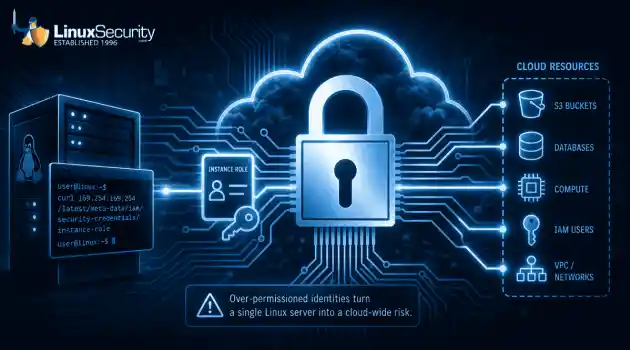
 identity management security tactics
 For years, we secured our Linux infrastructure by building walls: VPCs, security groups, and hardened SSH configurations. We treated the cloud like a virtual data center, assuming that if we kept the "bad guys" out of the network, our workloads were safe. . That model is no longer sufficient. Today, one of the most common paths from an initial compromise to a major cloud breach is the identity assigned to your Linux workload. When an attacker gains code execution on a Linux instance—through a...
 Jul 17, 2026
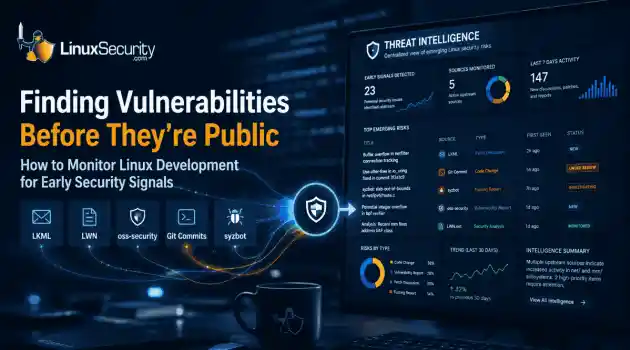 security practices patch management
 Most of us don't hear about a kernel vulnerability until a CVE lands in our inbox or the vulnerability scanner starts complaining. By then, the patch isn't new anymore. Kernel developers may have been passing it around for review, arguing over the implementation, or revising it for days before anyone outside that community noticed it. None of those discussions are secret. They're sitting in mailing list archives, Git commits, and patch reviews where they've been the whole time. The strange...
Jul 14, 2026
 Linux security cyber attacks
 Every Linux server in your fleet produces thousands of events every minute. From journald logs and auditd records to kernel-level eBPF hooks, your systems are constantly talking. Most of that noise is just the mundane churn of system services, CI/CD runners, or routine administrative automation. But among that noise, an attacker might be establishing a foothold, moving laterally, or setting up persistence. The challenge for any security team is: how do you separate the routine from the...
Jul 13, 2026
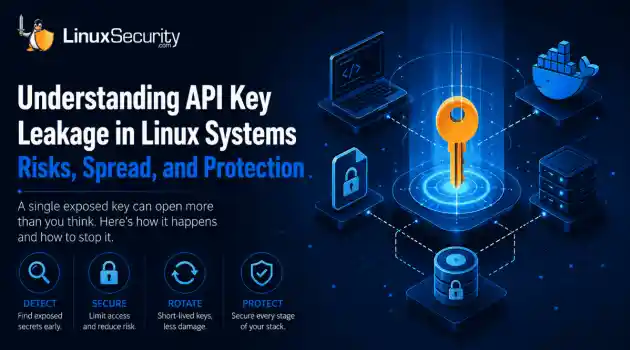 open-source infrastructure risk
 Security scanners flag exposed API keys in public repositories every day. The initial response is usually predictable: delete the commit, revoke the credential, and move on. That’s a mistake. . In a real Linux environment, an API key never stays in one place. By the time it hits a public repo, it’s already everywhere. It’s in the CI/CD pipeline. It’s in your container registry. It’s in the build logs. It’s in the backups. Git makes this worse because the history never dies. Deleting a file in...
Jul 11, 2026
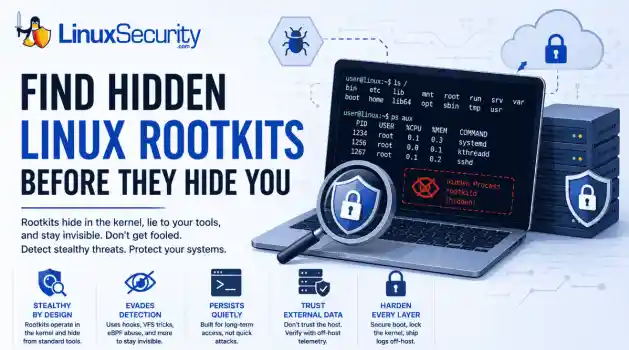 open-source rootkit
 Most of us think of Linux rootkits as ancient history—the stuff of 90s hacking forums and clunky malware that would crash your system if you looked at it the wrong way. But if you think they’ve gone away, you’re mistaken. They’ve just gotten smarter. . Modern attackers aren't using the noisy tools of the past. Today’s threats are surgical. Many of today’s most advanced Linux rootkits operate at the kernel level or abuse legitimate system features to blend in with normal traffic. They’re...
Jul 09, 2026
 Refine features
X Clear Filters
Get the latest News and Insights
Get the latest Linux and open source security news straight to your inbox.
Community Poll
Should Linux servers automatically install security updates?
Loading...
Explore Latest Linux Security features
We found -3 articles for you...
102
 security riskssecurity auditsvulnerability detection
Examining Open-Source AI Risks: Mitigation Strategies for Security Admins
Taking advantage of open-source AI's benefits while mitigating potential associated risks is an ongoing struggle and balancing act for security admins. While leaders such as Hugging Face CEO Clem Delangue highlight open-source AI's ethical transparency and sustainability , other experts, including Geoffrey Hinton , caution against its misuse by bad actors. Real-world vulnerabilities, including malicious packages in PyPI and npm repositories, highlight the necessity for robust security measures as open-source AI development continues to advance. . In this article, I'll examine the inherent risks of open-source AI, offering Linux and open-source security administrators actionable strategies to safeguard their systems. From thorough vetting processes for open-source libraries to regular audits identifying vulnerabilities, we'll explore comprehensive mitigation techniques to ensure your AI implementations remain safe and trustworthy. Let's begin by discussing the pros and cons of open-source AI. The Promise and Perils of Open Source AI Open-source AI holds significant promise due to its transparency and collaborative innovation, according to Clem Delangue, CEO of Hugging Face. Rahul Roy-Chowdhury of Grammarly praises Open Source for helping ensure ethical transparency while being a more sustainable long-term strategy. According to him, its transparency compels developers to prioritize responsible decision-making over performance. Similarly, Rahul Roy-Chowdhury commends open source for bringing light into a sometimes dark world of AI development while assuring safety and trustworthiness. An esteemed AI pioneer, Geoffrey Hinton, has expressed grave reservations about open-sourcing AI models. Hinton worries that bad actors could use open-source models for malicious purposes like creating bioweapons. Indeed, recent hacking cases on repositories like PyPI and npm demonstrate the dangers posed by open-source vulnerabilities being exploited maliciously. Security Threats in Open-SourceRepositories Open-source repositories such as PyPI and npm introduce an unprecedented security risk when used extensively for AI development. While they provide developers with invaluable code libraries, their openness makes them prime targets for attackers looking to introduce malicious packages, which may spread quickly, potentially causing widespread damage before being identified and removed by admins. These malicious packages, often appearing to be legitimate ones, are designed to carry out harmful activities, such as installing backdoors or exfiltrating sensitive information from systems globally. With millions of downloads daily, malicious PyPI and npm packages could cause irreparable harm and compromise system security. Mitigation Strategies for Developers & Security Administrators Given the inherent vulnerabilities associated with open-source AI implementations, security admins must employ robust strategies to minimize risks. Below are key approaches we recommend security administrators take when protecting open-source AI implementations. Thorough Vetting Processes for Libraries Implementing a rigorous vetting process for open-source libraries is key in mitigating risks. Before adding any library to their project, security admins should conduct thorough investigations of its source, maintainers, and community reputation. Opting for verified packages is typically safer, and cross-referencing libraries against multiple sources and tools with health metrics for packages assist in making more informed decisions. Developers should adhere to best practices when choosing libraries for their projects, such as using reliable sources. Examining dependency trees regularly to understand which packages are being called into projects can help detect any vulnerabilities associated with these dependencies, helping protect against potential security threats. Regular Security Audits Security audits are essential to maintaining the integrity of AI systems. Auditing involves reviewing andassessing systems systematically to detect vulnerabilities. Security admins should conduct regular codebase audits when new libraries are added to a codebase. This helps detect any unauthorized changes or malicious code if present. Collaborating with independent security firms to conduct comprehensive assessments provides a more objective review of your system's security posture and may bring fresh perspectives, potentially uncovering previously overlooked vulnerabilities. Monitoring codebase changes with periodic comprehensive security reviews helps keep systems robust against emerging risks. Use Tools to Detect Vulnerabilities Given the increasing sophistication of attacks, manual checks alone cannot keep up. Security admins should leverage advanced tools to detect vulnerabilities in open-source software, such as static and dynamic analysis tools that scan large amounts of code efficiently for security flaws that might otherwise go overlooked during regular review processes. Tools like OpenSCAP can help evaluate compliance with security policies and identify any misconfigurations, providing real-time feedback about the security status of codebases and enabling timely interventions if needed. Furthermore, tools like Dependabot and Snyk that specifically monitor dependencies for vulnerabilities can also be invaluable in maintaining a secure environment. Education and Training It is essential to equip development and security teams with the knowledge and skills to use open-source AI safely. Regular training sessions on secure coding practices , threat detection, and response will equip these teams to identify and mitigate risks effectively. Staying abreast of the latest AI security developments and creating an organizational culture of security awareness can significantly strengthen your overall security posture. Balance Innovation with Security The debate surrounding open-source AI is far from over. According to Mark Zuckerberg , open-sourcing AI models can democratize accessto their benefits while opening them up to greater public scrutiny and improvement. Unfortunately, however, this democratization exposes AI innovations to misuse by bad actors. Finding a balance between innovation requirements and stringent security measures remains a complex challenge for security administrators. Navigating this difficulty requires an approach that embraces the collaborative nature of Open Source while protecting against its risks. Admins and developers can ensure safe and sustainable AI development projects by employing comprehensive vetting processes, regular security audits, advanced vulnerability detection tools, and creating an atmosphere of security awareness among Linux and open-source security admins. Our Final Thoughts on Secure AI Development Practices Open-source AI offers both remarkable opportunities and distinct risks. As security admins, we are responsible for protecting AI projects against potential threats while simultaneously encouraging innovation. Gaining an in-depth knowledge of these risks, employing comprehensive mitigation strategies, and practicing continuous vigilance will play a pivotal role in maintaining open-source AI safely as its development continues to evolve. . Explore the risks of open-source AI and essential strategies for security admins to safeguard their systems effectively.. taking, advantage, open-source, ai', benefits, while, mitigating, potential, associated, risks. . Brittany Day
 Feb 18, 2025
•
Feb 18, 2025
•
102
 security assessmentvulnerability scannerNessus
Nessus Installation and Configuration Guide for Linux Users
Nessus is a vulnerability scanner which performs scanning a target network to seek for vulnerabilities in the network, such as, software bugs, backdoors, and etc. The program is developed by Renaud Deraison. . Introduction In this article, we will describe the basics of installing and using Nessus. Nessus operates as a client and server system. The server can run on the Unix operating system platform, including Linux and Open BSD, whereas the client can run on various operating systems, e.g., Windows. In this article, we will show the installation and usage for both the client and server on Linux. Nessus installation Download the Nessus source distribution from web site https://www.tenable.com/ under the topic Download and follow the instructions below. There are three ways for installation. Select either way and follow. Install Nessus via Internet using the program Lynx. (Lynx is a web browser program which can be downloaded from Use the following command to install: #lynx -source | sh Install Nessus using the script called nessus-installer.sh which is located under the directory nessus-installer/. Use the following command: #sh nessus-installer.sh Download the compilation software package consisting of: nessus-libraries-x.x.tar.gz libnasl-x.x.tar.gz nessus-core.x.x.tar.gz nessus-plugins.x.x.tar.gz (x represents the version of the software at the time.) Untar and unzip all the files above using the command. #tar xvfz nessus-libraries-x.x.tar.gz #tar xvfz libnasl-x.x.tar.gz #tar xvfz nessus-core.x.x.tar.gz #tar xvfz nessus-plugins.x.x.tar.gz Compile each file starting from nessus-libraries as follows: #cd nessus-libraries #./configure #make #make install (For the last command, make install, you must be root to do so.) Compile libnasl: #cd libnasl #./configure #make #make install (For the last command, make install, you must be root to do so.) Compile nessus-core: #cdnessus-core #./configure #make #make install (For the last command, make install, you must be root to do so.) Compile nessus-plugins: #cd nessus-plugins #./configure #make #make install After all compilation has been done, there are two important files created, i.e., nessusd which is Nessus' server and nessus which is its client. In case of using Linux, add path /usr/local/lib to the file /etc/ld.so.conf to incorporate Nessus' library (as compiled above) so that Nessus when started will be able to find its library. Use the following command to update the new path. #echo "/usr/local/lib" > > /etc/ld.so.conf #ldconfig Nessus usage To use Nessus, there are two things one has to do. The first is to create a new user account, together with specifying his/her access privilege. The second is configuring Nessus' client. 1. New user account creation and access privilege Use the script nessus-adduser located in /usr/local/sbin to generate a new account for a user. The user will login to use Nessus via this account. Fig. 1. New user account creation. In Figure 1, specify a new user name, in which case joey is the user name as shown in Figure 2. Fig. 2. Selecting the method to keep a password. In Figure 2, select the method to keep the password (joey's password) on the server. Select plaintext if the password is to be kept as it is. Select cipher if the password is to be kept encrypted. Let us call account joey 'login-name' in Nessus and call account root on Linux 'user-name'. This is just to make calling the two names different. Fig. 3. Connection privilege. In Figure 3, the system administrator can assign a privilege to allow which part of network joey can connect or can login to. For example, the administrator can assign only the IP address which is joey's machine or a subnet like 192.168.1.0/24. In the figure, the default value is anywhere which means joey can connect from anywhere. Fig. 4 Specifyingone-time password. Figure 4 shows assigning the password for account joey. This password is requested by the server but is asked only once. That is, the first time joey logins to use Nessus and the next time onwards the server will no longer ask for this password. Therefore, this is the reason why we call this password one-time password. In logging in to use Nessus, it is necessary to supply a passphrase which is another, not the one-time password. After the passphrase supplied, if this is the first time login, Nessus will ask the user to provide his/her one-time password. If not, Nessus will just let the user pass as long as the passphrase is correct. Fig. 5. Network scan privilege allowed to joey. Figure 5 is specifying the network scan privilege allowed to joey. That is, which part of network can joey scan? For example, we may allow joey to scan only an IP address or a subnet. When done, press Ctrl-D to finish the process. If the privilege is not specified, joey is then allowed to scan everywhere in the network. See more details about the privilege specification in the manual pages nessus-adduser. Fig. 6. Confirmation for data item correctness. In Figure 6, Nessus will ask for confirmation for correctness of all the data items given above. Fig. 7. Add-user process completed. If y (yes), the new user joey is added to the system and the screen will show 'user-added' message which means the process has been completed as shown in Figure 7. nessusd has the configuration file /usr/local/etc/nessusd.conf for the system administrator to fine-tune the server via this file. We can use the command nessusd –s in Figure 8 to show up all configuration values on screen. Fig. 8. Configuration values for server nessusd. After checking all the values already, we are now ready to start nessusd. To do so, we must login on Linux as root. The command to start the server is shown in Figure 9. Fig. 9. Starting server nessusd To check ifthe server is running, use the command like in Figure 10. Fig.10. Checking the opearation of nessusd server. 2. Nessus client configuration The client program client nessus is located in /usr/local/bin/nessus. Use the follwing command to start the client. Fig.11. Starting the client program nessus. The symbol & in the figure is starting the program in background mode. Note that the user who starts the client program uses 'user-name' snort on Linux. Fig. 12. Specifying a passphrase. In Figure 12, when a user starts the nessus client program the first time, Nessus creates a private key for the user according to 'user-name' on Linux, snort in this case. That is, one 'user-name' on Linux matches one unique private key, which is one-to-one relationship. Having created the private key already, Nessus will ask the user to enter a passphrase for the key just created. The user must keep it secret. The second line in the figure is confirmation for the passphrase. Fig. 13. Nessus login window. This is the login window. Before logging in to use Nessus with an account (joey in the figure), the user needs to supply the IP address where nessusd is running, nessusd's port, and encryption method used in communicating between a client and the server. In the figure, nessusd server is running at address 192.168.176.210 at port 1241 (which is Nessus' default port) and twofish/ripemd160:3 as the encryption method. Note that 'login-name' in Nessus is Fig 13 is joey whereas 'user-name' on Linux is snort. If this is the first time joey logs in to use Nessus, the server will ask joey to supply his/her one-time password (as given in Figure 4). With the correct password, the server will bind 'login-name' joey with the private key of 'user-name' snort on Linux. This means 'login-name' joey won't be able to login to use Nessus under other 'user-name's, except 'user-name' snort. For subsequent logins of joey (not the first time login) to use Nessus, the server will askfor his/her passphrase (for the private key) only but will no longer ask for his/her one-time password. However, one 'user-name' on Linux can have many 'login-name's in Nessus, e.g., apart from joey for 'user-name' snort, there can be other 'login-name's for snort whose network scan privileges can be different. Fig. 14. One-time password window. In Figure 14, after entering joey as 'login-name', the server will ask joey for his/her one-time password (which was selected at the time 'login-name' joey was created by nessus-adduser). Fig. 15. Plugin selection window. After login, Nessus will start at the plugin selection window. The user can select the plugins that s/he wants by enabling or disabling the little squares on the right hand side. The lower window shows various choices of a plugin that the user can enable or disable. In the figure, the user is on the FTP plugin where s/he can further select various FTP vulnerabilities to scan for. Fig. 16. Further details for the vulnerability: Anonymous FTP Enabled. In Figure 15, when the user clicks on the vulnerability Anonymous FTP Enabled in the lower window, the system shows additional details for this vulnerability, which describes that if the organisation doesn't need to share information with others, then turn off the anonymous FTP. Fig. 17. Plugin preference window. In this window, the user can configure additional options for the plugins selected. For example, in pinging machines in a network, the user can ping using the TCP or ICMP protocol. Fig. 18. Scan options window. In this window, the user can specify the scan details, e.g., ports to scan (in the figure from port 1-15,000), the number of simultaneous scans (8 scans in the figure), the location for CGI scripts. Typically port scanning in Nessus is done through another program called nmap. Fig. 19. Target selection window. In this window, the user can select a target machine or a subnet to scan forvulnerabilities. In the figure a subnet 192.168.176.0/24 is to be scanned. Use a comma ',' to separate between targets to scan. The user can also check if a machine with DNS can be zone-transferred by selecting a button 'Perform a DNS zone transfer'. (For security reasons, zone information is allowed to transfer only by the machine with access privilege.) Fig. 20. User window. The user can change his/her passphrase to get in Nessus or even remove the private key and also specify additional network scan privileges using the Add-rule button. Fig. 21. Credits window. This window shows all the Nessus developers, the current version, and its web site to find more information about Nessus. Fig. 22.1. Simultaneous scan status. Fig. 22.2. A single-machine scan status. After checking all the windows' setting, the user can now start scanning the target network as specified in the target selection window by clicking the button 'Start the scan' at the bottom of the window. Figure 22.1 shows the status of scanning a subnet whereas Figure 22.2 shows scanning a single machine. At any time, the user can stop scanning an individual machine if desired by clicking 'Stop' to the right hand side or even stop all the scans completely by clicking 'Stop the whole test'. Fig. 23. The scan result on machine 192.168.176.130. This figure shows the result of scanning the machine 192.168.176.130. The left window shows security alerts about the vulnerabilities found. For the right window, when clicking on each little circle, the user will get more details about the vulnerability. Fig. 24. Security risk piechart. Figure 24 displays the result of scanning the machine 192.168.176.130 on Web. After scanning a machine, Nessus produces a file index.html which can be displayed on Web, just like the one for the machine 192.168.176.130. The piechart shows in percent the four categories of security risks, Low, Medium, High, and Serious. This showsthe level of security problems found in the network which potentially leads to seeking ways to cure these problems. Plugins Plugins are the heart of Nessus because they contain a set of scripts to check vulnerabilities in a network, e.g., backdoors, DoS, wide-open ports, etc. These scripts are written in the language called NASL (Nessus Attack Scripting Language) and can be found in /usr/local/lib/nessus/plugin. The user can also develop their own scripts by studying this language from Documentation | Tenable™ . Furthermore, more new scripts to test our network can be found in /plugins . Discover the steps to set up and utilize OpenVAS, an advanced application for network analysis and risk assessment.. Nessus Installation, Network Audit Tool, Security Scanning, Nessus Setup. . Brittany Day
Jun 07, 2002
•


Get the latest News and Insights
Get the latest Linux and open source security news straight to your inbox.
Community Poll
Should Linux servers automatically install security updates?
Search Topics
Powered By

Linux Security - Your source for Top Linux News, Advisories, HOWTOs and Feature Releases
QUICK LINKS
subscribe to newsletters!
Like staying secure? So do we.
Sign up for updates, tips, and alerts!