Overly broad permissions can turn one compromised account into a much larger security problem. Learn how to reduce unnecessary access, review privileges, and apply least privilege across modern Linux systems. Review Linux Privileges×


Stay Ahead With Linux Security HOWTOs
How to Harden My Filesystem system hardening open source security
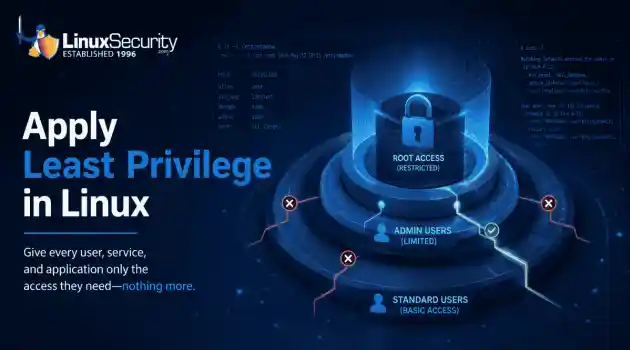
system hardening open source security We all spend a lot of time defending our systems from external threats, but the amount of damage an attacker can cause often depends on what happens after they get in. A single compromised account doesn't always lead to a major incident. The real danger begins when that account has far more access than it actually needs. That's exactly what the principle of least privilege is designed to prevent. By limiting users, services, and applications to only the permissions required for their jobs, you...
 Jul 20, 2026

How to Learn Tips and Tricksthreat detection system monitoring
threat detection system monitoring For small security and IT teams, the "enterprise" dream of a fully automated SIEM often feels like a distant luxury. It’s a vision built on massive budgets and dedicated engineering teams—things that, frankly, most of us don't have. But here is the reality: you don’t need a six-figure platform to maintain a secure environment. . Linux systems are, by design, incredibly verbose. Every time a user authenticates, a process executes, or a configuration file changes, your system creates a record of...
Jul 17, 2026
How to Learn Tips and Tricksnetwork security centralized logging
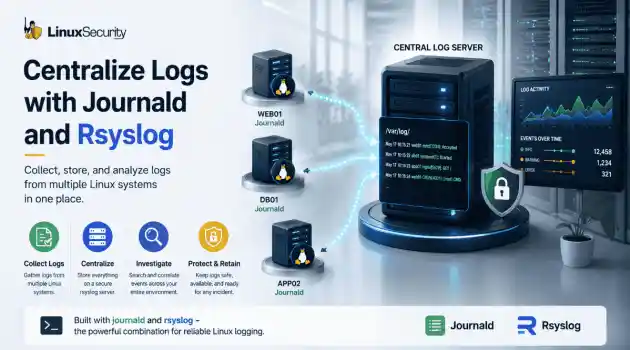
network security centralized logging Linux systems generate a steady stream of authentication, service, kernel, and application logs. On most systems, those logs never leave the machine that created them. If you're responsible for ten or twenty servers, that means checking each one separately. If one disappears before you can investigate it, its logs may disappear with it. Centralized logging solves that by sending log messages to another server as they're created. Instead of searching every machine, you have one place to review...
Jul 15, 2026
How to Secure My Networksecurity advisory audit
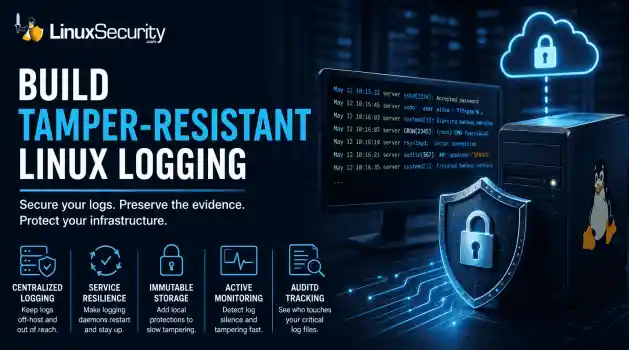
security advisory audit When you’re digging through an incident, your logs are the only thing you can actually trust. The problem is, attackers know that too. If someone gets root on your server, their first move is almost always to delete the evidence and cover their tracks. . If you aren't actively protecting your logs, you're basically flying blind the second a breach happens. It’s a miserable feeling to realize you have no idea what an attacker did because they wiped the logs before you even got there. In this...
Jul 11, 2026
How to Harden My Filesystemlog analysis security incident
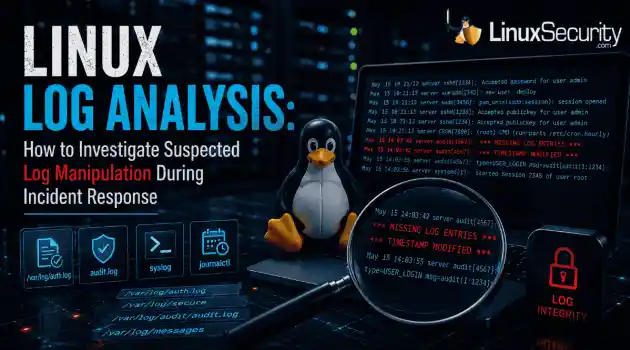
log analysis security incident When an attacker breaks into a Linux system, their work is rarely done. Usually, the real work starts after the initial exploit: hiding their tracks. If you’re a Linux admin or security analyst, there is nothing worse than logging in, running a few commands, and realizing the logs aren't telling the whole story. When logs are missing or look "off," your primary source of truth is compromised. This guide covers how to handle that situation. We’ll walk through the workflow you need to determine...
Jul 10, 2026
 Refine HOWTOs
X Clear Filters
Get the latest News and Insights
Get the latest Linux and open source security news straight to your inbox.
Community Poll
Should Linux servers automatically install security updates?
Loading...
Explore Latest Linux Security HOWTOs
We found 16 articles for you...
167
 access controlLinux administrationauthentication
How to Harden SSH on Linux After Disabling Password Authentication
Most SSH hardening advice ends at the same recommendation: Disable password authentication and use SSH keys. . That's good advice. It removes entire classes of attacks, including password spraying, credential stuffing, and brute-force attempts against exposed servers. The problem is what happens next. Many administrators treat SSH keys as the finish line when they are really the beginning of the hardening process. Attackers rarely care whether they obtained access with a password or a private key. They care about getting a foothold. Once they're in, the questions become the same. Can they move laterally? Can they escalate privileges? Can they maintain access? Can they avoid detection? SSH keys solve authentication. They do not solve access control, session management, key sprawl, forgotten accounts, excessive privileges, or weak monitoring. Those are the areas that tend to create problems in production environments. This guide focuses on the controls that matter after password authentication has already been disabled. Disable Direct Root SSH Access Internet-facing SSH services receive constant login attempts against the root account. Attackers already know the username. They only need to find a valid authentication path. Direct root access also removes accountability. If five administrators connect as root, the logs show root. Investigating changes becomes harder because individual actions are no longer tied to individual identities. Check the current configuration: sshd -T | grep permitrootlogin Recommended configuration: PermitRootLogin no Apply the change: sudo systemctl reload sshd Administrators should authenticate using named accounts and elevate privileges through sudo when required. Before disabling root login, verify that at least one administrative account has working sudo access and that console access is available if recovery becomes necessary. A bad sudo configuration has locked out more than a few administrators over the years. Restrict Which Accounts Can Connect Most Linux systems accumulate accounts over time. Migration accounts. Service accounts. Former contractors. Temporary support accounts. Test users who survived long after the project ended. Every account capable of SSH authentication increases exposure. An attacker only needs one overlooked account to establish a foothold Start by identifying which users actually require shell access. For small environments: AllowUsers adminuser backupadmin For larger environments: AllowGroups ssh-admins Verify the active configuration: sshd -T | grep allow Group-based controls are usually easier to maintain because access decisions happen through centralized identity management rather than edits on individual servers. The goal is simple. Most accounts should never receive an SSH prompt. Restrict Where SSH Connections Can Originate Valid credentials from the wrong network should still raise concerns. Many organizations expose SSH directly to the internet because key-based authentication feels sufficient. In practice, reducing exposure often provides more value than adding another authentication mechanism. A compromised key cannot be used against a service that is unreachable. Common approaches include: VPN-only administration Bastion hosts Firewall allowlists Dedicated management networks Example firewall restriction: sudo firewall-cmd \ --permanent \ --add-rich-rule='rule family="ipv4" source address="10.10.10.0/24" service name="ssh" accept' Verify access before removing existing rules. Restricting source networks introduces operational complexity. Administrators working remotely, emergency maintenance windows, and third-party support arrangements all need consideration before implementation. Reduce Authentication Abuse Most attacks against SSH begin before authentication succeeds. Attackers probe exposed services constantly, testing usernames, attempting authentication, and establishing largenumbers of concurrent connections. Several OpenSSH settings help reduce this activity. Review current values: sshd -T | egrep 'maxauthtries|logingracetime|maxstartups' Recommended starting point: MaxAuthTries 3 LoginGraceTime 30 MaxStartups 10:30:60 Reload SSH: sudo systemctl reload sshd These controls will not stop a determined attacker. They reduce opportunities and force attackers to work harder while generating more visible activity in logs. Disable Features You Don't Use Many SSH deployments leave optional functionality enabled simply because it was never reviewed. That creates an unnecessary attack surface. Agent Forwarding Agent forwarding allows authentication requests to pass through intermediate systems. Administrators often use it when connecting through bastion hosts. The risk appears when an intermediary host becomes compromised. An attacker may be able to use the forwarded agent during an active session to authenticate against additional systems. Check the current setting: sshd -T | grep allowagentforwarding Disable if not required: AllowAgentForwarding no Port Forwarding Port forwarding is one of SSH's most useful features. It's also one of the easiest ways to bypass network segmentation. An attacker with legitimate SSH access may create tunnels into systems that were never intended to be reachable from their current location. Disable when unnecessary: AllowTcpForwarding no Review existing workflows before making the change. Database administration tools, internal dashboards, and maintenance procedures often depend on SSH tunnels. X11 Forwarding Most servers no longer require graphical applications. Yet many environments continue running with X11 forwarding enabled. Check: sshd -T | grep x11forwarding Disable if unused: X11Forwarding no If nobody can explain why the feature is enabled, that is usually your answer. Kill Idle Administrative Sessions Abandoned SSH sessionscreate unnecessary risk. An unlocked terminal left connected to a production server may be all an attacker needs after compromising a workstation. Shared administration systems and jump hosts make the problem worse. Review current settings: sshd -T | egrep 'clientalive' Recommended starting point: ClientAliveInterval 300 ClientAliveCountMax 2 This configuration disconnects inactive sessions after roughly ten minutes. Choose values that fit operational requirements. Security teams tend to prefer shorter timeouts. Administrators performing long-running maintenance often prefer longer ones. Add Multi-Factor Authentication SSH keys prove possession of a private key. They do not prove that the person holding that key should still have access. If a workstation is compromised or a private key is stolen, authentication may still succeed. OpenSSH supports multi-factor authentication through PAM integrations and hardware-backed authentication methods. Example configuration: AuthenticationMethods publickey,keyboard-interactive Verify carefully before deployment. Misconfigured MFA can create widespread access failures during maintenance windows. Test with non-production systems first. Monitor SSH as an Administrative Control SSH logs often receive attention only after an incident. That is too late. Administrative access should generate the same level of visibility as privileged activity inside cloud platforms, identity providers, and critical applications. Watch for: Repeated authentication failures New source IP addresses Logins outside normal maintenance windows Unexpected root escalation New SSH keys added to privileged accounts SSH tunnel creation on sensitive systems Examples: journalctl -u sshd grep "Accepted" /var/log/secure grep "Failed" /var/log/auth.log Authentication success should not automatically equal trust. A valid administrator account can still be abused. Final SSH Hardening Checklist Highimpact, low effort: Disable password authentication Disable direct root login Restrict administrative accounts Patch OpenSSH regularly Remove unused SSH keys Restrict source networks where possible Medium effort: MFA for administrative access Disable unnecessary forwarding features Session timeout controls Centralized logging SSH activity alerting Advanced deployments: Bastion hosts SSH certificates Hardware-backed authentication Session recording Centralized access approval workflows Zero Trust access controls Conclusion Password authentication is usually the first SSH control that organizations remove. It should not be the last control they implement Strong SSH security comes from reducing exposure, restricting access, limiting privilege, controlling sessions, and maintaining visibility after authentication succeeds. The goal is not simply to prevent password attacks. The goal is to reduce opportunities for attackers before, during, and after they obtain a foothold. . That's good advice. It removes entire classes of attacks, including password spraying, credential st. hardening, advice, recommendation, disable, password, authentication. . MaK Ulac
 Jun 05, 2026
•
Jun 05, 2026
• How to Secure My Network
167
 security advisoryremote accessauthentication
How to Detect Unauthorized SSH Keys on Linux Systems
Most of the time, nobody notices. SSH authentication succeeds, no alerts are generated, and the connection looks exactly the way it did the day the key was installed. That's part of the problem. . When security teams investigate unauthorized access on Linux systems, they often focus on passwords, exposed services, or vulnerable software. Trusted access receives less attention. Yet a single forgotten or unauthorized SSH key can provide the same access as a legitimate user while attracting very little scrutiny. This guide explains how to identify unauthorized SSH keys, investigate suspicious SSH activity, and determine whether the trust you've granted over time still belongs there. Why Unauthorized SSH Keys Are So Dangerous SSH keys bypass many controls that organizations traditionally depend on. A password-based attack often generates warning signs. Failed authentication attempts appear in logs. Lockout thresholds trigger. Users report suspicious activity. Security tools generate alerts. A valid SSH key behaves differently. When an attacker possesses a legitimate private key, the authentication process may look completely normal. The SSH daemon sees a trusted credential. The login succeeds. No password failures occur. No brute-force signatures appear. Nothing obviously breaks. That makes SSH keys attractive for persistence. An attacker who gains administrative access frequently adds a new public key to an existing account. Sometimes they create a new account. Sometimes they target the root directly. Other times, they hide inside a service account that rarely receives attention because administrators assume it belongs to an application. The objective is simple: maintain access after the original vulnerability gets patched. Keys also support lateral movement. Once attackers compromise one Linux host, they often search for private keys stored in home directories, automation scripts, CI/CD systems, backup repositories, or deployment servers. A single exposed private key can unlockmultiple systems. Suddenly, one foothold becomes several. The dangerous part is that none of this necessarily looks suspicious. The attacker is using a trusted authentication method exactly as it was designed to work. Where SSH Key Abuse Usually Starts Unauthorized SSH key usage rarely begins with SSH itself. The problem usually starts somewhere else in the attack chain: Developer Workstations: A compromised laptop may contain private keys used for production access. Public Repositories: Developers occasionally commit private keys, configuration files, backup archives, or deployment scripts. Automated scanning tools continuously search for exposed secrets. Service Accounts: Many organizations grant broad permissions to automation accounts because restricting access requires additional engineering work. Those accounts often hold keys that provide access across multiple environments. Vendor Access: A contractor receives temporary access to support a project. The project ends. Nobody removes the key. Months later, the account still works. Manually Added Keys: An administrator troubleshooting an outage might temporarily add a key for convenience and forget about it afterward. Step 1: Inventory Authorized SSH Keys Across Linux Systems The first step is understanding what trusted access currently exists. Many organizations cannot answer a simple question: Which SSH keys are authorized across the environment right now? Start by identifying every authorized_keys file . Most administrators immediately think about user accounts, but SSH keys appear in many places: Root accounts Service accounts Application users Automation accounts Dormant accounts Document the username, home directory, public key fingerprint, source system, key owner, business purpose, and date added, if available. This process can be tedious, but detection depends on knowing what normal looks like. If a SOC analyst discovers a public key during an investigation, the first question should be: Who owns this key? Too often, the answer is unknown. That uncertainty creates management blindness. Step 2: Compare Keys Against Known Owners Once an inventory exists, every key should be mapped to a specific owner and business purpose. A key without an owner should immediately attract attention. The same applies to keys associated with former employees, retired systems, completed projects, old vendors, or abandoned automation. Duplicate usage is another warning sign. If the same public key appears across unrelated accounts or systems, investigate why. Shared keys often emerge from convenience-based administration practices. One administrator creates a key pair and distributes it widely because it simplifies management. Convenient. Also dangerous. Compromise that one key and the attacker inherits every trust relationship attached to it. Step 3: Monitor Changes to authorized_keys Periodic audits help, but they are not enough. An attacker does not need to wait for the next quarterly review. They only need a few seconds to add a new key. Focus on locations such as: ~/.ssh/authorized_keys /root/.ssh/authorized_keys Service account SSH directories and configuration files File integrity monitoring can detect additions, removals, and modifications. Linux audit rules can also record changes and identify which process or user performed the action. Monitoring creates a timeline. A timeline reveals who changed what and when. That evidence becomes extremely valuable during incident response. Step 4: Review SSH Authentication Logs Linux authentication logs provide insight into how SSH keys are used after they are installed. Common locations include /var/log/auth.log, /var/log/secure, or journalctl. Review successful public-key authentication events rather than focusing only on failures. Several patterns warrant investigation: Logins originating from unfamiliar IP addresses. Authentication events occurring outside normal maintenance windows. Service accounts thatsuddenly begin interactive logins. Administrator accounts that have remained dormant for months and then become active again. One successful login might be legitimate. Twenty successful logins across ten servers from a previously unseen source network tell a different story. Step 5: Correlate Key Usage With User Behavior A valid key can still be used in an invalid way. Security teams should correlate SSH activity with information about users, devices, networks, and expected administrative behavior. Questions worth asking include: Did the login originate from an approved source IP? Does the user normally access systems from this network? Does the login align with the user's role and approved change tickets? Unauthorized SSH key usage often appears as a context mismatch rather than an authentication failure. The login works exactly as expected. Everything around it does not. Step 6: Look for Persistence Patterns Persistence leaves clues. Not always immediately, but attackers tend to follow recognizable patterns. Watch for a new SSH key appearing shortly after suspicious activity. High-privilege targets deserve special attention. Keys added to root accounts, infrastructure management accounts, or systems with broad sudo privileges carry elevated risk. Watch for the same key appearing across multiple hosts, as an attacker may distribute a trusted key widely. If a login is immediately followed by privilege escalation, file staging, or outbound network connections, you aren't looking at an admin—you’re looking at an adversary. Step 7: Close Audit Gaps Many SSH-related incidents are enabled by process failures rather than technical failures. Organizations often lack a centralized inventory of SSH keys. Alerting is frequently absent. A new key can be added to a production server without generating any notification. Vendor access deserves particular attention. External access is often granted quickly, but removal tends to happen much more slowly. What Security TeamsShould Alert On Security monitoring should generate alerts for: New keys added to privileged accounts Public-key logins from previously unseen source IPs Dormant users authenticating through SSH The same key appearing across unrelated accounts SSH activity outside approved maintenance windows Modifications to the SSH configuration that weaken access controls How to Respond When Abuse Is Suspected The first instinct is often to remove the key immediately. Be careful. Preserve authentication logs, shell history, audit records, and system artifacts before making changes whenever possible. Understanding how the key arrived on the system is just as important as removing it. Identify affected accounts first. Then determine which systems trust the key. Disable or remove suspicious keys only once evidence collection is complete. Rotate exposed keys. Check cron jobs, startup scripts, and scheduled tasks. Look for lateral movement because attackers rarely stop at one host when additional access is available. Prevention: Make SSH Key Trust Verifiable The strongest defense is reducing uncertainty. Every SSH key should have a documented owner, a defined purpose, and a known lifecycle. Centralized inventories help maintain that visibility. Regular reviews help remove stale access. Continuous monitoring helps identify suspicious changes before attackers can establish long-term persistence. Separate human access from service access. Treat SSH keys as privileged credentials, because that is exactly what they are. SSH keys are trusted access mechanisms, but trust alone is not a security control. Once a key is added, many organizations assume the problem is solved. Attackers benefit from that assumption. Unauthorized SSH key usage rarely resembles a brute-force attack. It rarely generates obvious authentication failures. It often looks like a successful login from a credential the system already trusts. That is why detection depends on visibility rather than simple access controls.The key that causes a future incident is often not the newest key in the environment. It is the one nobody remembered to question. Related Reading SSH Key Sprawl on Linux: Unmanaged Access Threats and Cleanup Guide Enhance Linux Server Security Through Effective SSH Best Practices Understanding Linux Persistence Mechanisms and Detection Tools . When security teams investigate unauthorized access on Linux systems, they often focus on passwords,. nobody, notices, authentication, succeeds, alerts, generated. . Dave Wreski
Jun 03, 2026
•
How to Secure My Network

162
 authenticationubuntupassword management
Change Your Password on Ubuntu Linux: Easy Terminal Steps
Looking to change your old password on Ubuntu? It's easy to do so through the terminal. Let's examine how this can be done in a straightforward tutorial. . Ubuntu Linux isn't the most popular desktop operating system, but there are many valid reasons why a large crowd of people prefers it over macOS or Windows. It's free and open source and offers plenty of distributions with different features and interfaces. However, there's a learning curve when switching over from a Mac or Windows PC. Even trivial things, such as changing your password, can get complicated. But don't worry, it's much easier than it sounds! Like most things on Linux, you can use a few quick terminal commands to get the job done. You can even use it to recover your forgotten password, even if you can't log into the OS. Let's look at how you can change your old password on Ubuntu via the terminal. Check out the article linked below for a step-by-step tutorial! . Discover the steps to swiftly modify your password on Ubuntu using terminal commands in this informative article.. Password Management, Ubuntu Terminal, Change Password, User Authentication. . Brittany Day
Dec 03, 2023
•
How to Strengthen My Privacy
163
mysqlauthenticationdatabase securityStep-By-Step Guide to Change MySQL or MariaDB Root Password in Linux
MySQL and MariaDB are popular relational database management systems used for storing and managing data. The root user in MySQL and MariaDB has extensive privileges and control over the databases, making it a prime target for potential security breaches. It is crucial to change the root password regularly to enhance the security of your system. In this article, we will explore the step-by-step process of changing the root password of MySQL or MariaDB in Linux. . Changing the root password of MySQL or MariaDB in Linux is a fairly straightforward process. First, you need to log in to the machine as the root user. Once logged in, you can use the mysqladmin program to change the root password by running the command “mysqladmin -u root password ‘new_password'”. After entering the command, the root password of MySQL or MariaDB will be changed to the new_password you provided. You can also use the command line program mysql to change the root password by running the command “SET PASSWORD FOR ‘root’@’localhost’ = PASSWORD(‘new_password’);”. Once the command is executed, the root password will be changed to the new_password you provided. It is important to remember to use a strong password for your root user to ensure the security of your database. Changing the root password at regular intervals is essential for maintaining the security of your MySQL or MariaDB server. The root user has complete access and control over all databases and tables within the system. By changing the root password periodically, you can prevent unauthorized access to your data and protect against potential server breaches. . Enhancing the safety of MySQL and MariaDB involves updating the root password, which is crucial. Follow this tutorial for steps applicable to Linux.. MySQL Password Change,MariaDB Authentication,Database Root Access. . Brittany Day
Sep 08, 2023
•
How to Secure My Webserver
166
 remote accesskey managementauthentication
Mastering SSH Key Pairs for Secure Remote Logins with ssh-keygen
Learn how to use ssh-keygen to create new key pairs, copy host keys, use a single login key pair for multiple hosts, retrieve key fingerprints and more in this tutorial. . Logging into remote systems with SSH implementations is secure by default -- but those connections are secured only in that they use the TLS protocol to encrypt network protocol exchanges. SSH can be made even more secure by using it to authenticate communicating hosts through the exchange of public keys -- keys that are created using the ssh-keygen command. This tutorial shows how to use the ssh-keygen command to create a new public key and how to use that key to do the following: upload the public key to a remote server to enable automated and authenticated logins; use the same public key on multiple remote servers; and use multiple public keys for different functions on the same server. . Boost the safety of SSH by mastering the creation, handling, and application of key pairs for secure remote access.. SSH Key Generation, Key Management, Secure Remote Access, Public Key Authentication, SSH Security. . Brittany Day
Jun 24, 2022
•
How to Learn Tips and Tricks
162
 authenticationdata encryptionsecurity measure
How to Generate Secure Pre-Shared Keys in Linux for Data Encryption
Want to ensure your Linux PSKs are secure? Learn how to create a strong pre-shared key in Linux in this tutorial. . During data encryption, a PSK key is required for authentication purposes. It is an effective security protocol as someone who doesn't know about the key won't be able to decrypt the data. Therefore, choosing a strong PSK key is important if you are serious about protecting your data from intruders. But why are PSK keys important and how you can generate strong and random PSK keys automatically in Linux? . Discover the methods for creating robust and unpredictable pre-shared keys in Linux to improve your data encryption and security measures.. Strong PSK Key, Key Generation Techniques, Linux Data Protection. . Brittany Day
Apr 27, 2021
•
How to Strengthen My Privacy
162
 kdesecurity featureauthentication
Enable Fingerprint Login In Ubuntu And Other Distros Easily
GNOME and KDE now support fingerprint login through system settings. Learn how to add this convenient feature to your Linux desktop. . Many high-end laptops come with fingerprint readers these days. Windows and macOS have been supporting fingerprint login for some time. In desktop Linux, the support for fingerprint login was more of geeky tweaks but GNOME and KDE have started supporting it through system settings. This means that on newer Linux distribution versions, you can easily use fingerprint reading. I am going to enable fingerprint login in Ubuntu here but you may use the steps on other distributions running GNOME 3.38. . Effortlessly integrate biometric authentication on Ubuntu with GNOME or KDE. Discover methods to bolster the security of your Linux workstation.. Fingerprint Login, Authentication Methods, Linux Desktops, GNOME KDE Support. . Brittany Day
Feb 11, 2021
•
How to Strengthen My Privacy
166
 openldapauthenticationubuntu
Install OpenLDAP Server on Ubuntu 16.04/18.04 and CentOS 7
Learn how to install and configure OpenLDAP server for centralized authentication in Ubuntu 16.04/18.04 and CentOS 7 in this helpful tutorial. . Lightweight Directory Access Protocol (LDAP in short) is an industry standard, lightweight, widely used set of protocols for accessing directory services. A directory service is a shared information infrastructure for accessing, managing, organizing, and updating everyday items and network resources, such as users, groups, devices, emails addresses, telephone numbers, volumes and many other objects. The LDAP information model is based on entries. An entry in a LDAP directory represents a single unit or information and is uniquely identified by what is called a Distinguished Name (DN). Each of the entry’s attributes has a type and one or more values. . Discover the steps to effectively set up and manage OpenLDAP for centralized user authentication on both Ubuntu and CentOS systems.. OpenLDAP Installation, Centralized Authentication Guide, Ubuntu LDAP Setup, CentOS LDAP Configuration. . Brittany Day
Jun 16, 2020
•
How to Learn Tips and Tricks

Get the latest News and Insights
Get the latest Linux and open source security news straight to your inbox.
Community Poll
Should Linux servers automatically install security updates?
Search Topics
Powered By

Linux Security - Your source for Top Linux News, Advisories, HOWTOs and Feature Releases
QUICK LINKS
subscribe to newsletters!
Like staying secure? So do we.
Sign up for updates, tips, and alerts!