Explore top 10 tips to secure your open-source projects now. Read More
×


Stay Ahead With Linux Security Features
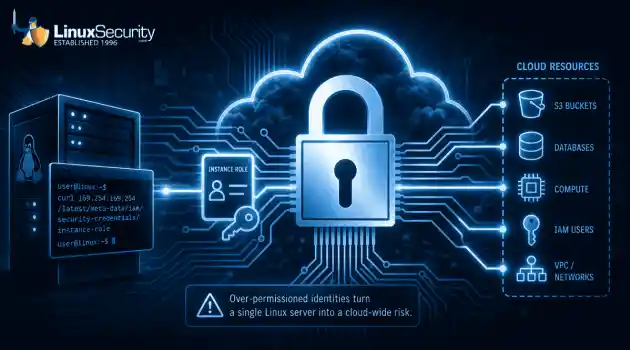
 identity management security tactics
 For years, we secured our Linux infrastructure by building walls: VPCs, security groups, and hardened SSH configurations. We treated the cloud like a virtual data center, assuming that if we kept the "bad guys" out of the network, our workloads were safe. . That model is no longer sufficient. Today, one of the most common paths from an initial compromise to a major cloud breach is the identity assigned to your Linux workload. When an attacker gains code execution on a Linux instance—through a...
 Jul 17, 2026
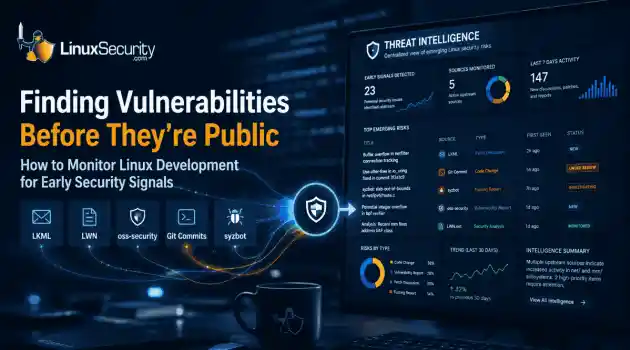 security practices patch management
 Most of us don't hear about a kernel vulnerability until a CVE lands in our inbox or the vulnerability scanner starts complaining. By then, the patch isn't new anymore. Kernel developers may have been passing it around for review, arguing over the implementation, or revising it for days before anyone outside that community noticed it. None of those discussions are secret. They're sitting in mailing list archives, Git commits, and patch reviews where they've been the whole time. The strange...
Jul 14, 2026
 Linux security cyber attacks
 Every Linux server in your fleet produces thousands of events every minute. From journald logs and auditd records to kernel-level eBPF hooks, your systems are constantly talking. Most of that noise is just the mundane churn of system services, CI/CD runners, or routine administrative automation. But among that noise, an attacker might be establishing a foothold, moving laterally, or setting up persistence. The challenge for any security team is: how do you separate the routine from the...
Jul 13, 2026
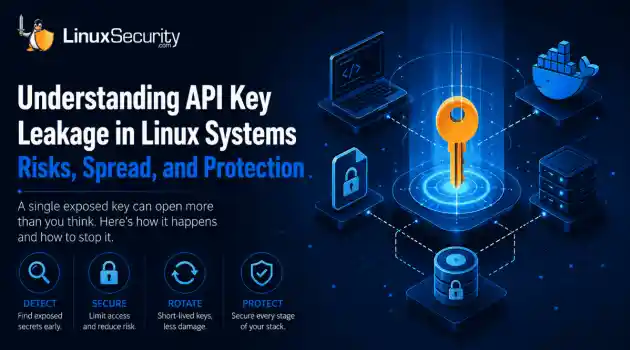 open-source infrastructure risk
 Security scanners flag exposed API keys in public repositories every day. The initial response is usually predictable: delete the commit, revoke the credential, and move on. That’s a mistake. . In a real Linux environment, an API key never stays in one place. By the time it hits a public repo, it’s already everywhere. It’s in the CI/CD pipeline. It’s in your container registry. It’s in the build logs. It’s in the backups. Git makes this worse because the history never dies. Deleting a file in...
Jul 11, 2026
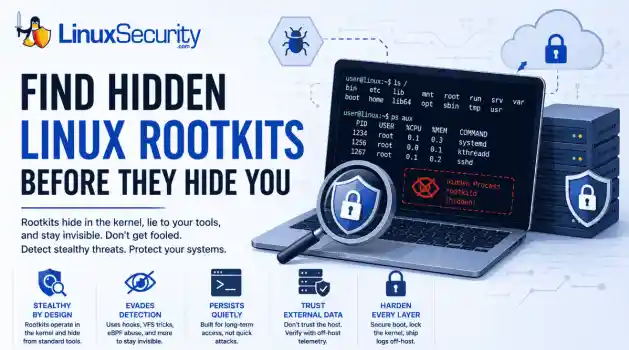 open-source rootkit
 Most of us think of Linux rootkits as ancient history—the stuff of 90s hacking forums and clunky malware that would crash your system if you looked at it the wrong way. But if you think they’ve gone away, you’re mistaken. They’ve just gotten smarter. . Modern attackers aren't using the noisy tools of the past. Today’s threats are surgical. Many of today’s most advanced Linux rootkits operate at the kernel level or abuse legitimate system features to blend in with normal traffic. They’re...
Jul 09, 2026
 Refine features
X Clear Filters
Get the latest News and Insights
Get the latest Linux and open source security news straight to your inbox.
Community Poll
Is continuous patching actually viable?
Loading...
Explore Latest Linux Security features
We found 0 articles for you...
102
 risk managementLinux securityransomware
Linux Ransomware Attack Breakdown: Strategies for Protection
Ransomware has been making life miserable for IT folks for years now, and you’ve probably heard plenty about how it hits Windows systems . But Linux? Yeah, that’s not off-limits anymore. In fact, attackers are seeing Linux as an appealing target—servers running critical enterprise networks, government systems, and big databases that power everything from websites to operations. Anything important enough to cause chaos if it’s compromised, especially where someone’s willing to shell out money to get it back, gets a big bullseye on it. Sure, the majority of ransomware still goes after Windows machines, but if you’re thinking, “Linux is safe because fewer people target it,” that’s a gamble you don’t want to take these days. The methods attackers use are evolving, and even though Linux ransomware is still less common, the attacks themselves are clever, nasty, and diverse. . What’s scary here isn’t just the damage these attacks cause—encrypted files, downtime, reputation hits, and recovery costs—it’s how they sneak their way onto Linux systems in the first place. They exploit vulnerable setups, outdated software, misconfigurations, and anything careless or overlooked. The attack process itself is almost methodical, like breaking into a house and systematically going through every room. But knowing how these attacks work—and, more importantly, how to stop them—can make a big difference. Let’s break down what’s happening in these Linux-targeted ransomware attacks step by step so you have a clearer picture of the threat. Plus, we’ll talk about how to lock things down and avoid being the next “news headline.” Anatomy of a Linux Ransomware Attack Linux ransomware has become known for the sophistication and diversity of its tactics, methods, and techniques to compromise systems and generate profits for its operators. Ransomware attacks targeting Linux systems are generally carried out in a series of clearly defined steps, beginning with exploiting one or multipleunpatched vulnerabilities and ending with a payday for the attackers. Let’s take a closer look at the anatomy of a Linux ransomware attack, broken down step-by-step, to help you better understand this growing threat to your systems and your data. Step 1: Infection Unlike Windows ransomware variants, which spread via email or mall advertising, Linux ransomware infection relies on vulnerability exploitation. Linux ransomware exploits either unpatched system vulnerabilities or flaws in a service, such as a web server or email server, to obtain access to a target system and compromise files. For instance, the infamous Lilocked ransomware exploits out-of-date versions of the Exim message transfer agent to gain a foothold in a target environment. Rex, another dangerous strain of Linux ransomware, uses vulnerability scanners specific to Drupal, WordPress, Magento, Kerner, Airos, Exagrid, and Jetspeed to detect SQL injection vulnerabilities that can be exploited to gain admin credentials. Once in the target environment, the ransomware operator “phones home” to download a hidden executable by connecting to a predefined list of IP addresses that host the command-and-control (C2) server. At this point, the attacker typically copies the malicious executable to a local directory, such as the Temp folder, and then terminates and removes the script. The malicious payload is now executed in the target environment. Linux ransomware strains often possess privilege escalation capabilities, such as those seen in the notorious Lucifer and NotPetya variants. These advanced features enable ransomware operators to access parts of a system that would be inaccessible without privileged access. While Linux ransomware typically only affects those using the web server that is compromised, privilege escalation can magnify both the scope of an attack and its overall impact. Step 2: Staging This step can be seen as the “housekeeping” portion of a Linux ransomware attack. The ransomware sets itself up for smoothoperation by attending to various items, including moving itself to a new folder and establishing persistence in the target environment, giving it capabilities such as the ability to run at boot, to run when in recovery mode, and to disable recovery mode altogether. At this stage of the attack, the ransomware communicates with the C2 server to negotiate its public key, which the operator generates and places in the ransomware to encrypt the randomly generated symmetric key. Step 3: Scanning Now that ransomware has established persistence and set itself up for success. It is prepared to encrypt target files. The ransomware scans compromised systems for a predefined list of file extensions and cloud file storage repositories of interest, mapping the locations of these files and repositories. Step 4: Encryption The encryption phase of an attack is when the real damage is done. Up until this point, nothing potentially irreversible has happened - the malware has simply set itself up and surveyed the target environment. Now, the ransomware creates an encrypted version of the target files using a random symmetric key. It generates and encrypts the symmetric key with its public key. It then deletes the original version of the files it has encrypted. For every location where files have been encrypted, copies of auto-generated ransom notes are created in multiple formats. Step 5: Extortion Once the encryption process is complete, a ransom note providing explicit payment instructions is displayed as the victim's desktop wallpaper. At this point, the ransomware terminates and deletes itself, as its mission in the target environment is complete. Meanwhile, ransomware operators wait for ransom to be paid in untraceable Bitcoin to a wallet they own. The victim must decide if he or she is willing to pay the ransom in exchange for the decryption of locked files or accept the fact that the files encrypted in the attack are permanently inaccessible. It is often helpful to enlist a ransomware recovery firmat this point, as they can offer advice and, in some cases, locate a decryption key that can be used to recover locked files. Final Thoughts & Best Practices for Protecting Against Linux Ransomware Let’s be real—Linux ransomware might not dominate headlines the way Windows ransomware does, but it’s a growing problem, and ignoring it is a mistake. The good news is that you’re already a step ahead by understanding how these attacks work and what they typically target. But here’s the thing: a lot of these compromises boil down to unpatched systems or sloppy administration. It’s not flashy, but staying on top of patches , cleaning up permissions, and verifying your configurations regularly can go a long way. Don’t assume your server’s safe just because it’s running Linux—that mindset’s outdated. Even small gaps, like a forgotten web server vulnerability or a missed security audit, create an opening for ransomware. And trust me, when ransomware hits, it’s not just a technical headache—it’s scrambling to fix broken systems while everyone else is demanding answers. So, what can you do today? Start with backups —seriously, I’ve seen too many people regret half-baked backup strategies when things go south. Make backups solid, spread them across different media, and test them once in a while. Then, tighten up access controls . If users don’t need access, they shouldn’t have it. IDS and IPS tools might sound like overkill for some setups, but they can be game-changers in spotting weird traffic early. And don’t forget regular audits—it’s boring, I know, but they can unearth issues before attackers do. This isn’t about chasing perfection; it’s about minimizing risk and staying prepared. Linux is resilient, sure, but ransomware doesn’t care about all that—it cares about the cracks. So, close them up! . Ransomware targets Linux systems, causing costly damage. Learn strategies to protect against these attacks effectively.. ransomware, making, miserable, folks,years, you’ve, probably, heard. . Brittany Day
 Jun 05, 2025
•
Jun 05, 2025
•
102
 data protectionfile encryptiondisk encryption
Best File & Disk Encryption Tools For Securing Your Data
As we rapidly transition to an increasingly digital society, data protection is a greater concern than ever before. Encryption is one of the most effective and widely used methods of securing sensitive information from unauthorized parties. In this article, we'll introduce you to some Linux file and disk encryption tools we love to help you safeguard critical data and protect your privacy online. . Linux File Encryption: A Foundation of Modern Data Security Attackers are becoming increasingly creative in the methods they are employing to gain access to sensitive information that can be monetized for personal gain. While almost 85% of malware attacks target Windows systems and Linux offers inherent security advantages over Windows or MacOS due to its transparent open-source code, strict user privelege model and architectural diversity, Linux is becoming an increasingly popular attack target due to its growing popularity and the high-value devices it powers worldwide. Linux Is Becoming an Increasingly Popular Attack Target While almost 85% of malware attacks target Windows systems, Linux is becoming an increasingly popular attack target due to its growing popularity and the high-value devices it powers worldwide. Now more than ever, Linux users should opt to add a layer of privacy in the form of file and disk encryption. Encryting files and folders ensures that data is unreadable and unusable - even in the event that your computer gets hacked. Luckily, there a number of great tools avialable to Linux users that make the process fast, easy and highly secure. Our Favorite File & Disk Encryption Software for Linux WinMagic SecureDoc for Linux SecureDoc for Linux is a Linux endpoint security solution that provides enterprise-class full drive encryption for Linux endpoints by separating encryption into two components - encryption and key management. The defense-in-depth solution works seamlessly with Linux native encryption, building on the capabilities available in Linux (such asdm-crypt) to provide an overarching layer of manageability, visibility, and automation that scales at an enterprise level and facilitates compliance. SecureDoc for Linux supports a Zero Trust strategy, tackling the challenges associated with implementing Zero Trust recommendations by allowing initial live conversion of disk permitting admins and users to log in and work on the machine while encryption occurs. SecureDoc also reduces IT management costs by enabling a pre-boot network-based authentication as an additional security measure to ensure data on drives is never left unprotected during boot-up. In addition, SecureDoc provides damage control for lost or stolen devices by removing keys to ensure data cannot be accessed even with the right credentials. Some of the core features of SecureDoc for Linux include: Live disk conversion allows admins and users to log in and work on the machine while encryption occurs. Removes the need to clear the disk and reinstall the operating system before commencing encryption Encryption statuses are monitored and available centrally in a single pane of glass admin portal. SecureDoc enables pre-boot network-based authentication as an additional security measure to ensure data on drives is never left unprotected during boot-up. Supports Smart Card based MFA at pre-boot (e.g., PIV cards) SD Linux makes it easy for AD and Azure AD users to log into encrypted devices. Login to encrypted devices without having to be pre-provisioned for access on the device. SecureDoc Enterprise Server provides a simple central management for all OS endpoints, including Linux, Windows, and Mac. CryFS CryFS is a free and open-source cloud-based tool that lets you encrypt your files and store them anywhere. Setting it up is a breeze and it is compatible with popular cloud services like Dropbox, iCloud, OneDrive, among many others. CryFS works in the background - so you won’t notice it when accessing your files. This tool doesn’t just encrypt your files- it alsoencrypts your file sizes, metadata, and directory structure. The base directory contains a configuration file with the information CryFS requires to decrypt it. This configuration file is encrypted twice: once with aes-256-gcm and once with your chosen password. This same password will also be used for integrity checks. Cryptmount Cryptmount is a user-friendly open-source disk encryption tool that lets beginners encrypt a specific filesystem without requiring superuser privileges. It uses the dev mapper mechanism, which offers several advantages such as improved functionality in the kernel, transparent support for filesystems stored on either raw disk partitions or loopback files, separate encryption of filesystem access keys which allows access passwords to be changed without re-encrypting the entire filesystem, as well as the ability to store multiple encrypted filesystems within a single disk partition using a designated subset of blocks for each. Cryptmount not only allows users to protect important filesystems, but also makes it possible to swap system space. Multiple encrypted filesystems can be “mounted”, or made active, or “unmounted”, or deactivated, depending on the users’ immediate needs. This is particularly useful when working in an encrypted environment, but not wanting to mess around with your system’s inbuilt partitions. You can learn how to install and configure Cryptmount on your Linux system in this Tecmint tutorial . Cryptsetup Cryptsetup is an open-source utility made to easily allow users to set up disk encryption basedon the DMCrypt kernel module. This module includes plain dm-crypt volumes, LUKS volumes, loop-AES, TrueCrypt (including VeraCrypt extension), and BitLocker formats. It uses the standard LUKS (Linux Unified Key Setup) design to protect against low entropy attacks and provide multiple keys support and effective passphrase revocation. The use of LUKS also allows compatibility among distributions as well as multiple password security. LUKSstores all necessary setup information in the partition header, allowing users to easily transport or migrate data. Dm-crypt Dm-crypt, which operates under the GNU General Public License (GPL) , is great for encrypting entire disks of information, including removable media such as USB sticks, internal OS partitions and individual files. Some Linux distributions even allow Dm-crypt to encrypt and secure root system files. Because Dm-crypt only deals with transparent encryption of block devices, it is much more flexible than other encryption tools. One particularly great feature of the dm-crypt system is that it doesn’t have to work directly with a disk driver. Instead, it can save all data to a single file as opposed to using LUKS and a whole disk partition. Thus, you can have dm-crypt create a single file within which you could create an entire filesystem. Then you can mount that single file as a separate drive, and then access it from any piece of software - just like you would any other drive. eCryptfs eCryptfs is a free, open-source, cryptographic filesystem for Linux. You can think of it as “GnuPG (introduced below) as a filesystem”. The filesystem stores cryptographic metadata in each file’s header, which allows for the copying of encrypted files between hosts. These encrypted files can then be decrypted with the corresponding key in the Linux kernel keyring. This tool has been part of the Linux kernel since version 2.6.19 and is used in Google Chrome, as the basis for Ubuntu's Encrypted Home Directory and in several network-attached storage (NAS) devices. GnuPG GnuPG (aka GPG or Gnu Privacy Guard) is a free and open-source implementation of the OpenPGP standard as defined by RFC4880 (also known as PGP). It was engineered to replace Symantec’s PGP cryptographic software suite. This tool supports several types of encryption algorithms including public-key cryptography (RSA EIGamal, DSA), symmetrical key algorithms (Blowfish, AES, IDEA, etc), cryptographic hashfunctions (RIPEMD, SHA) and compression (ZIP, ZLIB, BZIP2). GnuPG also lets you encrypt and decrypt files from the command line and comes with a collection of frontend applications and libraries. Additionally, it features a versatile key management system along with access modules for a wide range of public key directories. Gostcrypt Gostcrypt , a fork of the now discontinued Truecrypt project, is a free and open-source cryptographic tool for Linux, Windows and MacOS. It currently uses the GOST 28147-89 algorithm, but is planning to move to GOST Grasshopper since the release of version 1.3.1. The Grasshopper algorithm aims to supersede the current GOST 28147-89 algorithm (64-bit block and 256-bit key, Feistel structure). Unlike the GOST 28147-89 algorithm, GOST Grasshopper belongs to the SPN (Substitution Permutation Network) family. This features 128-bit blocks (plaintext, ciphertext) and a 256-bit master key from which 10 128-bit subkeys can be derived. TOMB TOMB is a free and open-source encryption and backup tool for GNU/Linux systems. It’s written in easy-to-review code, linking commonly-shared components, and is popular among Linux user-developers for this reason. TOMB is touted as one of the best file encryption software options available for Linux today. It creates encrypted storage folders that can be opened and closed with their respective key files (which are also password-protected). A “tomb” is a locked and safely-transportable folder hidden in a filesystem. These tombs can be separated, for instance, your tomb file can be kept on your hard disk and the key files in a USB stick. Unfortunately, Tomb does not have a graphical user interface (GUI), and relies on Command Line input in order to function. Protect Your Data Today Data privacy has always been a pressing concern, but never been more critical than in today’s work-from-home environment. While Linux systems enjoy built-in security and privacy due to the system’s open-source nature, architecturaldiversity and strict user privilege model, this doesn’t mean that your files are safe in the event that your system gets hacked. If you want to keep your private files private, try out one of the eight excellent file and disk encryption tools for Linux covered in this article. Edited by Brittany Day, LinuxSecurity.com Content Editor and Guardian Digital, Inc. Director of Communications. . Linux File Encryption: A Foundation of Modern Data Security Attackers are becoming increasingly crea. rapidly, transition, increasingly, digital, society, protection, greater, concern. . Brittany Day
May 26, 2022
•
102
 data protectiondata encryptionfile encryption
Mastering Data Encryption: Essential Techniques for Linux Users
Data encryption has never been more important. New data protection and privacy regulations, such as GDPR, mean that companies storing unencrypted customer information are vulnerable to paying heavy fines. The public is now more aware of the importance of encryption, with massive data breaches impacting companies like Facebook receiving major media coverage. . With these issues in mind, it’s only natural that many of us want to start encrypting our sensitive data – both at work and at home. But how exactly should you go about it? This blog aims to answer that question by showing Linux users how to install and set up encryption on their systems. How to Protect Your Hard Drive from Physical Threats The good news for Linux users is that most popular Linux distributions offer an option to activate encryption during setup. The encryption built into these Linux distros is called partition encryption, and below we’ll take a closer look at some benefits of this type of encryption. Partition encryption, along with disk encryption, is one of two major types of data encryption. The main difference between the two is: Disk encryption protects the entire drive. Partition encryption targets a section of a physical drive which has been defined as a separate partition. If a single partition occupies an entire hard drive, then partition encryption is equal to disk encryption. Yet a hard drive might also have multiple partitions – where partition encryption can naturally encrypt the whole hard drive. The added sophistication of partition encryption makes it the safer and more secure way to protect data on your PC. One reason for this is that less of your data is exposed when the system is running. Another factor is that partition encryption offers more rigorous security, with each partition capable of having its own unique encryption keys and passwords. How to Enable Partition Encryption Now that you know a bit more about partition encryption, let’s go into more detail on how to setit up on your computer. Below we have provided step-by-step instructions on how to enable partition encryption on two of the most popular Linux distributions: Fedora and Ubuntu. Fedora 32 Step 1: At the ‘Installation Destination’ step of the setup Wizard, select the drive where you want to install Fedora. Check the ‘Encrypt my data’ box in the lower left corner. Step 2: Set a strong encryption password. Step 3: Wait for installation to complete. You’ll need to enter the password you’ve chosen every time you start up your computer. Ubuntu 20 Step 1: At the ‘Installation type’ step of the setup Wizard, make sure ‘Erase disk and install Ubuntu’ is selected, then click on ‘Advanced features...’. Step 2: Select ‘Use LVM with the new Ubuntu installation’ in the pop-up dialog. Check the ‘Encrypt the new Ubuntu installation for security’ box. Click ‘OK’. Step 3: You’ll see that ‘LVM and encryption selected’ has now appeared next to ‘Advanced features…’. Click ‘Install Now’ to proceed. Step 4: Set a strong encryption password. Enter your password (‘security key’ in Ubuntu) twice and proceed with installation. Step 5: Wait for installation to complete. You’ll need to enter the password you’ve chosen every time you start up your computer. Good Start, but Not Enough for Complete Endpoint Data Protection If you want to protect your sensitive information in the event that your computer is lost or stolen, then partition encryption (free with most Linux distributions) is a great solution. However, partition encryption is unable to keep data safe when your computer is turned on and active, when data is stored in the cloud, or when data is being sent to others. Linux users who are concerned about this may want to look into securing their data with file encryption or container encryption in addition to partition encryption. Stay Secure by Encrypting Your Files To protect data on your activecomputer, it’s necessary for sensitive files and folders to be encrypted with an added layer. You can keep your data safe by using either file encryption or container encryption. By choosing file encryption, you are turning single files into locked, encrypted versions of themselves. Access is then granted after entering the correct password for each individual file. On the other hand, container encryption involves creating a secure virtual drive that is capable of storing many encrypted files at once. When it comes to security and efficiency, container encryption is the superior choice. Using container encryption means you don’t need to keep track of many different passwords in something like a ‘password book’ - which can present a security risk. Instead, you just need to remember one password to access each container. How to Create an Encrypted Container to Secure Files To benefit from this added layer of protection, take a look at the step-by-step instructions below on how to get started with container encryption. We have used BestCrypt Container Encryption as an example. Step 1: Create an Encrypted Container To get started, download BestCrypt Container Encryption. The software is also available for a free trial . Open ‘Applications’, select ‘All’, and launch BestCrypt Container Encryption. Click ‘Create new container’ in the window you just opened. Create a container by choosing a password, then click ‘Create’. Customize the name, size, and container description (optional). Step 2: Create and Copy Files to the Container Once the container is created, the virtual folder will open automatically. Place files in the container by dragging and dropping them into the folder. You can also create encrypted files within the container in the same way you would create them normally. Step 3: Work with Your Secure Files You’ll see your encrypted containers as files with the JBC extension. You can workwith your encrypted files when the container is mounted (open). To access the container, you’ll need to enter the password you created previously. Eject (close) the container as soon as you are done working with your files. This step is essential to ensure the protection of your sensitive data. Copy, move, upload, and backup encrypted containers to the cloud just like you would with any other file. Safely send your containers over the Internet and open them on any Linux, Mac, Windows, or Android device. Congratulations! You have now set up a robust encryption solution on your Linux system. However, it’s worth keeping in mind that using encryption on its own still leaves the possibility that your sensitive data could be recovered by a third party. You can make sure this doesn’t happen by erasing traces of information that are left behind after you copy files to an encrypted container. Happy encrypting! About the Author Michael Waksman has been serving as CEO of Jetico since 2011, more than doubling the size of the company during his tenure. He brings over 15 years of communications, technology and leadership experience. At Jetico, Waksman has led the creation of the corporate identity, raising global brand awareness, building a more commercially-driven team and initiating enterprise customer relations. Jetico has maintained a wide user base throughout the U.S. Defense community, in the compliance market and for personal privacy. Waksman is vice-chairman of the Cyber Group for the Association of Finnish Defense and Aerospace Industries. Recognized as a security and privacy advocate, he is a frequent speaker at international events, occasionally on behalf of the Finnish cyber security industry. In 2012, Waksman was honored with The Security Network's Chairman's Award for fostering collaboration between the United States and Finland. As a native New Yorker he has been living in southern Finland for over 10 years. . Master the art of reliably securing your data on Linuxplatforms to adhere to privacy regulations and protect confidential information.. Data Encryption, Partition Security, Linux Encryption Guide, Protect Sensitive Data. . Brittany Day
Mar 28, 2022
•
102
 security toolscryptographyfile encryption
Best Tools for Securing Files and Disks on Linux Operating Systems
Most of us are familiar with Microsoft Windows or macOS - these OSes dominate the personal computing space. But the OS that is taking over the world isn’t owned by Microsoft, Apple, or any tech company for that matter. . In fact, the most popular OS in the world today isn’t owned by anyone. It’s the completely open-source Linux operating system. While Linux-based systems are generally considered to be more resistant to cyberattacks and cybercrime , they are not completely invulnerable to a determined intruder. Encryption is one of the most effective and widely used methods of securing senstive information from unauthorized parties. This article will introduce five of our favorite file and disk encryption tools to keep your important enterprise information safe from prying cybercriminals. Why Is Linux A Great OS for the Enterprise? What makes Linux such an appealing OS for enterprise purposes is its open-source nature. Unlike proprietary software such as Microsoft’s server solutions which have high licensing fees, Linux is freely available to anyone. More importantly, Linux’s core components can be easily edited, swapped out, or totally replaced by a user with the appropriate skills. This makes Linux amazingly customizable and adaptable to different businesses' needs and requirements. The benefits of employing a Linux-based distribution include: Free Open-source Widespread and accessible availability of support resources Cloud computing & storage standard Easy scalability A high degree of reliability Supports multitasking and cooperative work Not hardware intensive Highly secure Linux & Cybersecurity Many IT and cybersecurity experts consider Linux to be the safest, most secure operating system available to the world today. Because Linux is open-source, anyone can review it and ensure that there are no bugs or exploitable backdoors built into the OS. The same cannot be said of proprietary operating systems such as Microsoft’s Windowsor Apple’s macOS platforms. While both Microsoft and Apple may have a large team of well-resourced, professional developers working on security issues, no team of coders can compare to the sheer number of Linux user-developers around the world. Linux-based systems also benefit from a more secure user privileges hierarchy that discourages social engineering attacks, such as malicious email attachments. Its incredible distribution diversity also makes Linux a relatively unattractive target for cyber thieves in comparison to proprietary OSes. Linux comes in various forms and packages from Ubuntu to Debian to Gentoo just to name a few. Because Linux comes in so many different flavors and segmented audiences, it is much more difficult for a cybercriminal to develop a single, effective virus or piece of malware that can affect many users. Proprietary competitors, on the other hand, come in just one or two flavors. Windows, for example, is a prime example of this “monoculture effect”. It is much more profitable, and therefore attractive, for hackers or criminal organizations to develop an attack against Windows, which has a comparably much, much larger user base running identical OSes. Top 5 Linux File & Disk Encryption Tools 7-Zip 7-Zip offers strong command line encryption on Linux. Many people are familiar with 7-Zip as an archiving and zipping utility. However, for Linux user-developers, 7-Zip also offers a suite of robust encryption tools intended to keep your data safe and secure. Find out more about how to encrypt files and data with 7-Zip on your Linux distribution . Tomb Tomb is an excellent, easy-to-use, and minimalist command line encryption tool popular among Linux user-developers. Like Linux itself, Tomb is also totally free and open-source. One of the primary features of Tomb is its ability to generate encrypted storage vaults to be opened and closed using a password chosen by the user. These so-called “tombs” are like a locked folder that can be safelytransported and hidden in a filesystem away from malicious users. Unfortunately, Tomb does not have a graphical user interface (GUI) and relies on command line input in order to function. Learn more about Tomb file encryption on Linux . Cryptmount Cryptmount allows users to not only protect important file systems information but also swap system space. Multiple encrypted file systems can be “mounted”, or made active, or “unmounted”, or deactivated, depending on the users’ immediate needs. This is particularly useful when you want to work in an encrypted environment without having to mess around with your system’s inbuilt partitions. Like the other disk encryption tools above, Cryptmount relies on passphrases to maintain operational security. A strong passphrase will go a long way towards rebuffing cyberattacks and hacking attempts. Learn more about how to protect filesystems with Cryptmount . Gnu Privacy Guard (GnuPG or GPG) GnuPG , also known as GPG, is a unique hybrid encryption tool that not only employs conventional symmetric-key cryptography but also uses public-key cryptography. This two-prong approach to encryption helps speed up the encryption process without compromising OS security. GnuPG is popular among journalists who use the tool to encrypt important documents and protect the identities of their sources. GnuPG operates under the GNU General Public License (GPL) . Download GnuPG - the GNU Privacy Guard - to encrypt and sign your data. Dm-crypt Dm-crypt is great for encrypting entire disks of information, including removable media such as USB sticks, internal OS partitions, as well as individual files. In fact, some Linux distributions even allow Dm-crypt to encrypt and secure root system files. Because Dm-crypt only deals with transparent encryption of block devices, it is much more flexible than other encryption tools. Dm-crypt operates under the GNU General Public License (GPL) . Learn more about how to encrypt a Linux file system with Dm-crypt. The Bottom Line While Linux users enjoy built-in security and privacy as a result of the OS’s open-source nature, architectural diversity and strict user privilege model, this doesn’t mean that your files are safe in the event that your Linux system gets hacked! If you want to keep your sensitive data private, try out one of the awesome file and disk encryption tools for Linux covered in this article and let us know what you think on Twitter . About the Author Stephen Wright Stephen Wright is the founder and CEO of Wright Business Technologies . He is responsible for the overall success of the company, clients, employees, and vendor partners who support the business. Stephen graduated from Texas Tech University with a degree in business management and established Wright Business Technologies in 1992. He later earned his MBA, also from Texas Tech University. . Secure your Linux data with top encryption tools like LUKS, GnuPG, and VeraCrypt, enhancing protection against unauthorized access and data breaches. Linux Encryption Tools, Disk Security Solutions, Open Source Encryption, File Protection Software. . Brittany Day
Sep 04, 2021
•
102
 security practiceskey managementdata privacy
Best Encryption Techniques to Boost Data Privacy on Linux Systems
In our increasingly digital society, protecting the privacy of sensitive data and our behavior online is a universal concern. Many users switch to Linux for its superior privacy features and the excellent selection of privacy-focused distros that it offers. . Regardless of the OS you are using, encryption is a critical element of digital privacy. In this article, we explore the best and most reliable methods of file encryption on Linux. Our experts have firsthand experience using these programs and understand the technology behind them, equipping us with the knowledge to help you securely encrypt files on your Linux system and avoid common pitfalls associated with Linux file encryption. What Is Encryption? Encryption is the process of encoding data in such a way that only authorized parties will be able to read it. Encrypted data can only be decoded by a decryption key. Public-key cryptography, which uses pairs of public keys that may be known by others and private keys that may never be known by anyone except for the owner, is the basis for all encryption today. This system enables anybody to encrypt a message using the intended receiver's public key. The encrypted message can then only be decrypted with the receiver's private key. Public key algorithms underpin numerous modern Internet standards and protocols including TLS , S/MIME , PGP and GPG . Proper Encryption & Decryption Key Management & Storage As you can now see, proper, secure encryption and decryption key management and storage is critical in ensuring that encrypted files remain secure and accessible to authorized parties, while remaining inaccessible to unauthorized parties. If an encryption key is lost or stolen, data that has been encrypted with this key can never be recovered- and could potentially end up in the hands of cyber thieves. Thus, encryption keys should always be backed up and stored offline in a secure location, such as in a USB key kept in your safety deposit box. Our Top Linux File Encryption Methods Thereare numerous excellent methods and programs that can be used to encrypt files on Linux, so selecting the best one for your specific needs may seem a bit overwhelming. To help you make an informed decision, we’ll introduce you to some of our favorites. Archive Manager A general Archive Manager is preinstalled in all Linux systems, and is the most basic way to encrypt files o n Linux. Encrypting files using the the Archive Manager is quite simple: Right-click on the file you want to encrypt and then click on “Compress”. Select the.zip extension and then click on “Create”. Open the zip file you’ve created and click on the hamburger icon at the top right of the file. Select the password option from the drop-down menu and set up your password. Click on “Save”. Your files are now encrypted with a password. GnuPG GnuPG (aka GPG or Gnu Privacy Guard), which is pre-installed in most distros, allows users to encrypt files and sign them using the Command Line. This unique hybrid encryption tool employs a two-prong approach to encryption to help speed up the encryption process without compromising security. This involves using both conventional symmetric-key cryptography, as well as public-key cryptography. GnuPG comes with a collection of frontend applications and libraries, and features a versatile key management system along with access modules for a wide range of public key directories. You can download GnuPG index . Source: Ubuntu Pit You can learn how to encrypt and decrypt files with GnuPG on Linux in this. Nautilus Nautilus is a great alternative for users who are more comfortable using a GUI than the Command Line. The software, which encrypts files with either a passphrase or a key, can be used for the encryption and decryption of data, and also functions as a file manager. To install Nautilus on your Debian system, run the following command: $ sudo apt-get install seahorse-nautilus -y Once installed, restart Nautilus with the following command: $ nautilus -q To encrypt files using Nautilus: Go to the folder where the file that you want to encrypt resides. Right-click on the file and then click on “Encrypt”. Now you have two options: Either select a paraphrase that will prompt you to enter a password to encrypt your file or choose a key that you have already created beforehand to encrypt your file. To decrypt a file: Right-click on the encrypted file and then click on “Open With Decrypt File”. Enter your passphrase. TOMB Tomb is a simple, user-friendly Command Line encryption tool popular among Linux user-developers. A defining feature of Tomb is its ability to generate password-protected encrypted storage vaults referred to as “tombs”. These tombs can be safely transported and hidden in a filesystem, and can be separated for additional security. For instance, your tomb file can be kept on your hard disk and the key files in a USB stick. Unfortunately, Tomb does not have a graphical user interface (GUI) and relies on Command Line input in order to function. You can install Tomb from the project’s Github page . Learn how to create tombs and how to hide a tomb key in an image in this Tecmint tutorial . CryFS CryFS is an excellent cloud-based tool that lets you encrypt your files and store them anywhere. It is compatible with popular cloud services like Dropbox, iCloud and OneDrive, among many others. CryFS works in the background, so you won’t notice it when accessing your files. The tool goes way beyond just encrypting your files- it also encrypts your file sizes, metadata and directory structure. The base directory contains a configuration file that is encrypted twice - once with aes-256-gcm and once with a password that you choose. This password is also used to conduct integrity checks. You can download the latest version of CryFS, CryFS 0.10.2, CryFS Downloads . Learn how to use CryFS in this tutorial . 7-zip 7-zip offers strong, straightforward Command Line encryptionusing 256-AES encryption, along with a very high compression ratio. The official name of 7-zip for Linux is p7zip. The "p" here is short for POSIX (an open standard designed to make applications compatible across different platforms), to indicate that p7zip is a POSIX compliant implementation of 7-zip. 7-zip is also a powerful file manager. You can download the latest version of 7-zip, 7-zip 21.01 alpha, 7-zip downloads. Learn how to encrypt files on Linux using 7-zip in this TechRepublic tutorial . Tails OS Tails is a specialized secure Linux distro created for a privacy-oriented user experience. The OS is referred to as the ‘ amnesic incognito live system ’, as it can only be accessed through an external USB drive on a amnesic host computer, meaning that it will have nothing but the new default form on every single usage. All Tails connections run through the Tor network - concealing users’ location and other private information. Tails features a selection of built-in state-of-the-art cryptography and security measures including: Encryption and signing of emails by default using OpenPGP whenever you use the email client, text editor, or the file browser Instant messages are protected with robust encryption using Off-The-Record messaging (OTR) Files are securely deleted (with no option of recovery) using Nautilus Wipe You can download Tails OS on your Linux system Tails OS Downloads . Learn more about Tails OS and why it is among our favorite secure Linux distros in this LinuxSecurity feature article . Conclusion With cyberattacks and privacy issues becoming an increasingly serious and prevalent threat, users must secure data using strong encryption. Luckily, Linux offers a selection of highly secure and reliable file encryption methods, many of which you are now familiar with. Are you using any of the methods introduced in this article, or other Linux file encryption methods we didn’t explore? Let’s discuss! Connect with us on social media: Twitter | Facebook . Regardless of the OS you are using, encryption is a critical element of digital privacy. In this art. increasingly, digital, society, protecting, privacy, sensitive, behavior, onlin. . Brittany Day
Mar 28, 2021
•

Get the latest News and Insights
Get the latest Linux and open source security news straight to your inbox.
Community Poll
Is continuous patching actually viable?
Search Topics
Powered By

Linux Security - Your source for Top Linux News, Advisories, HOWTOs and Feature Releases
QUICK LINKS
subscribe to newsletters!
Like staying secure? So do we.
Sign up for updates, tips, and alerts!